Adding and inviting employees
Adding an employee creates their record, gives them the Employee role, allocates leave, picks an onboarding checklist and, if you leave the box ticked, emails an invitation. The invitation is a magic link that lets the person set their own password and sign in. You can resend it at any time until it is accepted.
Who can do this: HR Managers and Admins with `employees.create` plus `employees.invite.any` or `employees.invite.assigned_companies` for the chosen company. Admin can target any company; HR Managers only companies in their HR scope.
Where to find it
People → Employees → Add employee in the admin view. URL path: `/employees`, then the Add employee dialog. Invitations are also sent from the employee record under Profile.
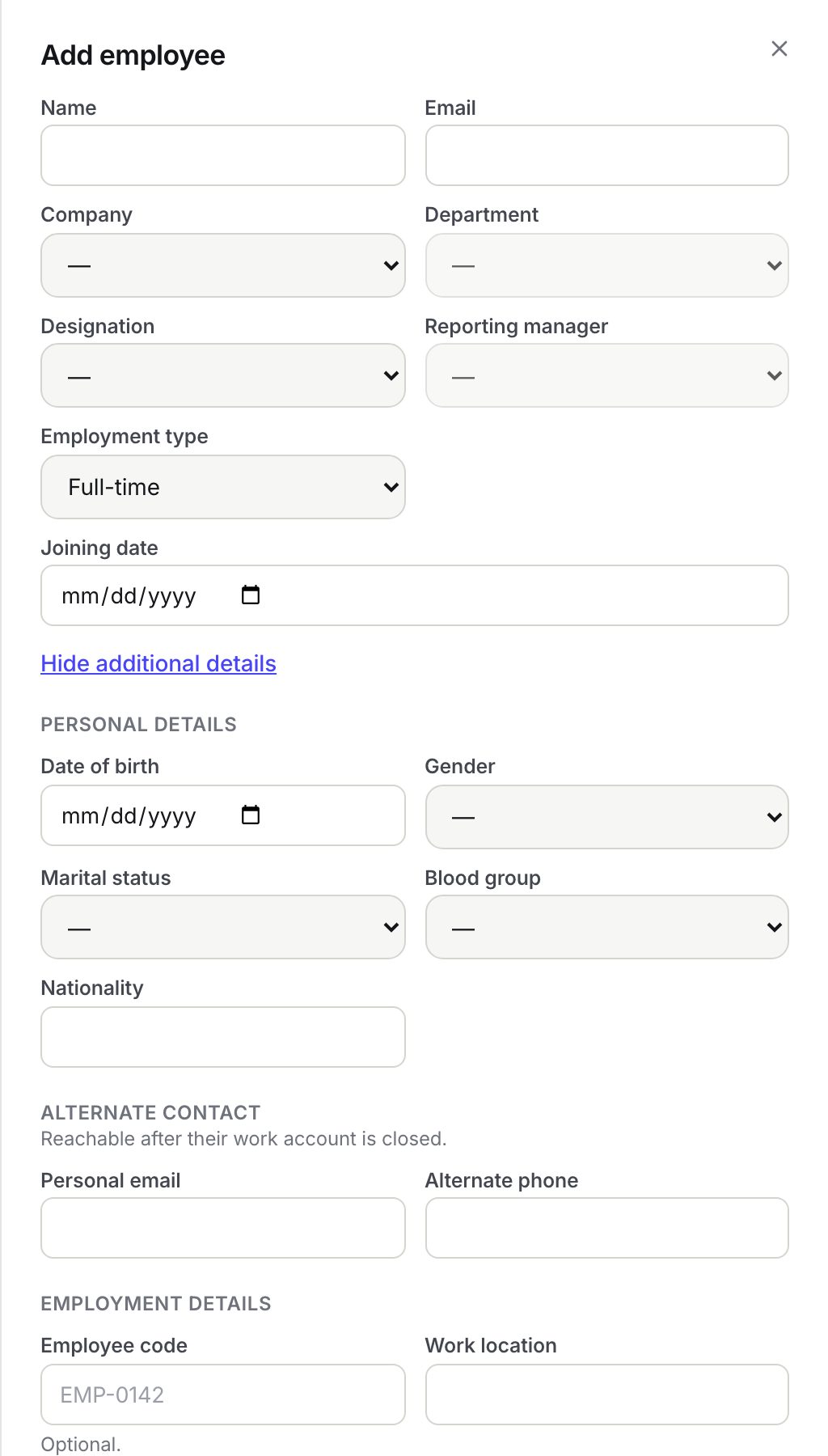
Adding an employee
- Click Add employee.
- Fill in the core fields:
- Name (required, up to 255 characters).
- Email (required, must be unique within your organisation). This becomes their login.
- Company (required). Once chosen, a note shows the employee code that will be assigned automatically, for example EMP-0049, when auto-numbering is on for that company.
- Department: only departments of the chosen company are offered.
- Designation: shared across companies.
- Reporting manager: people in the chosen company first, then everyone else under Other companies. It is marked with an asterisk and required when the company has Reporting manager is mandatory switched on.
- Employment type: Full-time, Part-time, Contractor or Intern. This also decides which onboarding template is picked.
- Joining date: optional; it dates the "Joined" timeline event and anchors probation and confirmation dates.
- Click Add additional details to open the optional sections. All of these can be filled later from the record:
- Personal details: Date of birth (must be before today), Gender, Marital status, Blood group, Nationality (max 60).
- Alternate contact: Personal email, Alternate phone (max 32).
- Employment details: Employee code (max 40, unique in the organisation; leave blank to auto-assign), Work location (max 120), Probation ends and Confirmed on (both must be on or after the joining date).
- Statutory: PF opted in and ESI applicable, each Not set, Yes or No. Payroll reads these; Not set is different from No. ZekoHR does not compute PF or ESI amounts automatically, these flags only tell payroll which manual components apply.
- Leave Send invitation email immediately ticked to invite straight away, or untick it to invite later.
- Click Create employee.
Sending or resending an invitation
- From the list: click Invite (never invited) or Resend (already sent) on the row.
- From the record: open Profile and click Send invitation or Resend invitation.
Each send issues a fresh link and cancels any earlier unused one. The link expires after 7 days. When the person opens it they land on Accept invitation, choose a password of at least 8 characters (entered twice) and are signed in.
Invitation statuses
| Status | Meaning | What happens next |
|---|---|---|
| Not invited yet | Record exists, no email sent | Click Invite |
| Invite sent | Email sent, link unused | Wait, or Resend if it expired |
| Invite opened | Link opened but no password set | Resend if they lost the page |
| Invite accepted | Password set, person can sign in | Invite button disappears |
What happens next
- The person gets the Employee role. Give other roles afterwards, see Changing an employee's role.
- An onboarding template is picked automatically by company and employment type, falling back to the default template, and copied onto the person as a checklist. The invitation email mentions how many checklist items are waiting. With no matching template nothing is assigned and HR can assign one later.
- Leave balances are allocated for every active leave type they are eligible for, provided the company has a leave year config.
- An employee.created audit entry and a "Joined" timeline event are written.
- If the invitation email cannot be sent, the record is still created; resend later.
Rules and limits
- Email and employee code must be unique inside the organisation; the code is skipped when already taken by anyone, including contractors.
- Companies with Reporting manager is mandatory refuse a hire without a manager, and the manager can later be changed but not removed.
- The seat limit on your plan is enforced on creation with a validation error. Admins check Settings → Billing.
- The invitation email is security critical: it is sent regardless of the person's notification preferences, using the auth.invitation email template.
Troubleshooting
"The email has already been taken." Someone in your organisation already has that address, possibly an offboarded record. Search with the Offboarded status filter.
The invitation link says it is invalid or expired. It is older than 7 days or a newer one was sent. Click Resend and ask them to use the latest email.
Resend failed with an email error. The mail provider is unavailable. Nothing changed; retry later and check Administration → Settings → Email log.
No onboarding checklist was created. No template matched. Assign one from the record's Onboarding tab or create a default template.