Approving expenses
Expense Approvals lists submitted expense claims whose current approval step is yours to action. A claim may pass through several steps that HR configured by amount, category or department; you only see it while it waits on you. You can approve, reject with a reason, or send it back to the employee for changes, singly or in bulk.
Who can do this: Managers with `expenses.approve.direct_reports`; `expenses.approve.own_company` or `.assigned_companies` holders for role-based steps in their company; `expenses.approve.any` (HR Manager, Admin) on anything. Overriding a hard policy block needs `expenses.approve.any` or `roles.manage`.
Where to find it
Expenses → Expense Approvals, with a pending-count badge. URL: `/expense-approvals`.
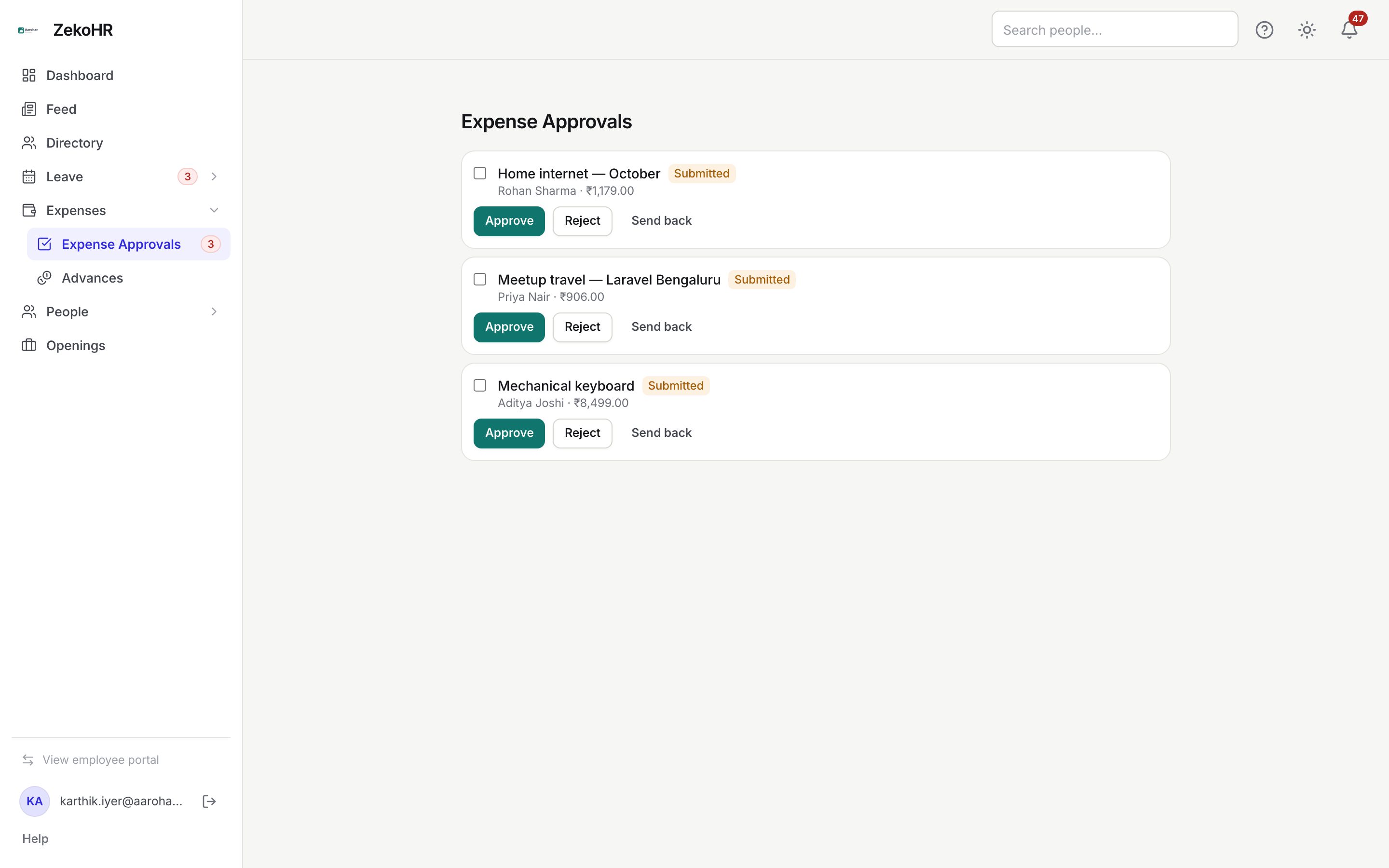
Deciding a single claim
- Each card shows the claim title (or its type), a Submitted badge, the employee's name and the total in the claim currency. Click the title to open the full claim with its line items, receipts, policy flags and Approval chain.
- Approve records your step. If more steps remain, the claim moves to the next approver; otherwise it becomes approved.
- Reject asks "Reason for rejection:" (required, up to 2000 characters). The claim is rejected and remaining steps are skipped.
- Send back asks "What needs changing?" (required, up to 2000). The claim returns to draft, the chain is discarded, and the employee edits and resubmits, which builds a fresh chain.
Approving several at once
- Tick the checkbox on each card. A bar appears reading "N selected".
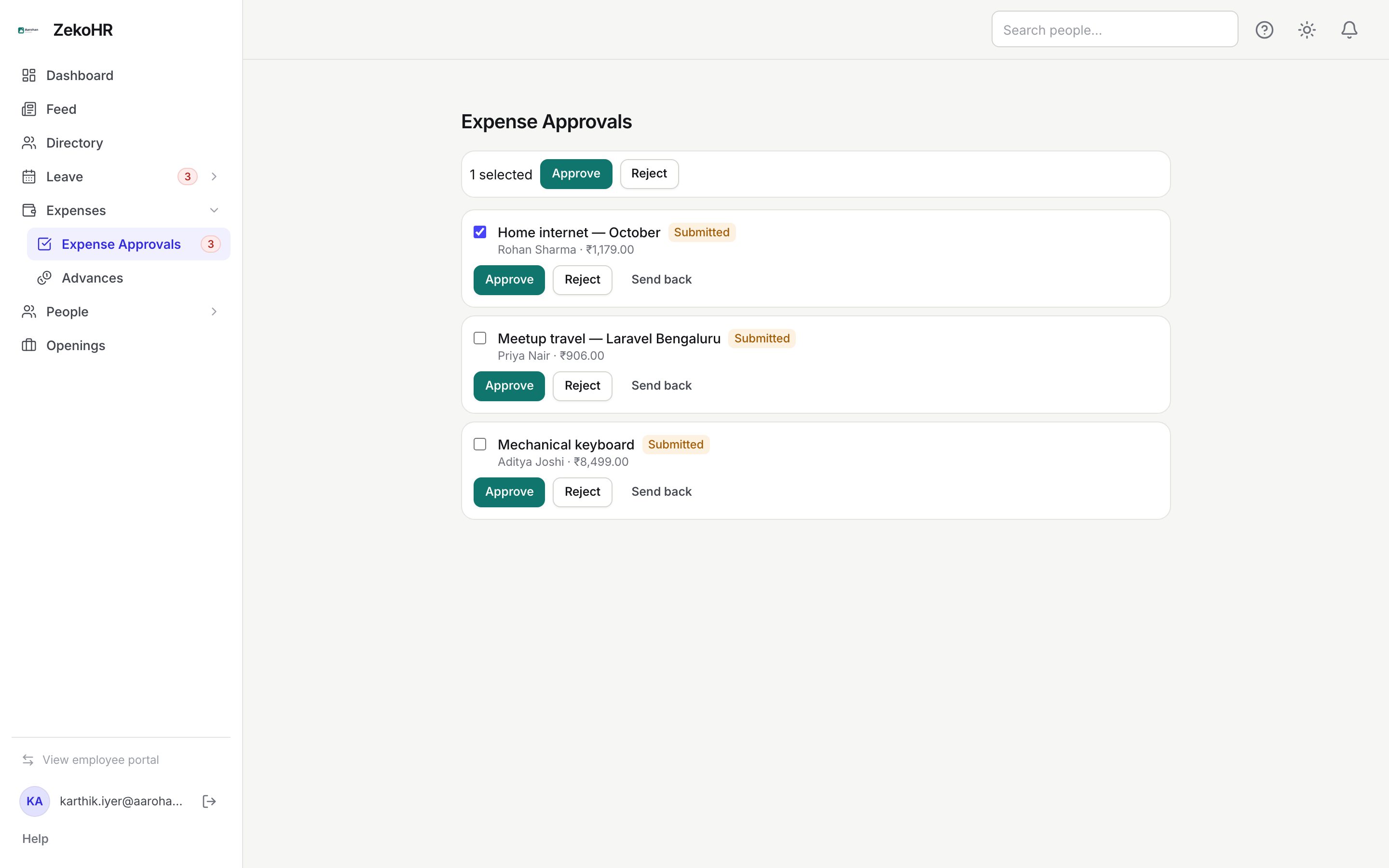
- Click Approve to approve all, or Reject to reject all with one reason.
- Each claim is processed independently. Claims you cannot action, or that need a policy override, are left in the queue without a message; decide those one at a time.
Policy overrides
Line items can carry policy flags. A hard-block flag (over the category limit, missing receipt on a strict category) stops Approve with "This claim exceeds policy limits. Enter a reason to override and approve:". HR Managers and Admins enter a reason and the approval proceeds with the override recorded; others see "Only HR/Admin can override policy violations." and should reject or send back.
Statuses
| Status | Meaning | What happens next |
|---|---|---|
| Submitted | Waiting on the current step. | Appears in that approver's queue. |
| Approved | All steps done, or HR override. | Any linked cash advance is offset; Accounts reimburse. |
| Rejected | Declined with a reason. | Employee may create a new claim. |
| Draft (after send back) | Returned for edits. | Employee resubmits. |
| Withdrawn | Employee withdrew while submitted. | Nothing further. |
What happens next
- Approvers of the next step get an "expense submitted" notification; the employee gets approved, rejected or sent-back notifications with your comment.
- Every step and decision is recorded on the claim's Approval chain and in the audit log.
- A fully approved claim is reconciled against any approved cash advance, then goes to the reimbursement register.
Rules and limits
- Your queue holds claims where you are the named approver of the active step, or where the step names a role you hold in the claim's company (only if you also have `expenses.approve.own_company` or `.assigned_companies`).
- A step with an amount threshold above the claim total is skipped automatically; a reporting-manager step for an employee with no manager is dropped. A claim with no actionable step is auto-approved on submit.
- Rejecting or sending back is only possible while the claim is submitted.
- Reimbursement itself is done by Accounts or HR, not from this page.
- This module must be enabled on your plan; Admins can check Settings → Billing.
Troubleshooting
A claim I expected is not in my queue. The active step may name another approver or role, or the rule matched a different chain. Open the claim from the employee's record to see the Approval chain.
Approve did nothing. A policy block needs an override; check for the prompt, or reject and ask for a receipt.
Some claims stayed in the queue after a bulk approve. They were decided elsewhere, need a policy override, or are not yours to action. Open each one and decide it singly.
I sent a claim back and now cannot find it. It is back in the employee's drafts; it returns when they resubmit.