Two-factor authentication
Two-factor authentication (2FA) adds a second step to sign-in so a stolen password alone is not enough. ZekoHR supports a 6-digit code from an authenticator app or one emailed to your work address. Ten single-use recovery codes cover you if you lose the phone or the inbox.
Who can do this: Everyone can enrol, switch method and turn 2FA off for their own account; no permission key is involved and security is never gated by plan. The Organisation policy card needs `settings.manage` (Admins); `settings.view` (HR Managers) can read the policy.
Where to find it
Settings → Security (`/settings/security`); for Admins, Administration → Settings → Security.
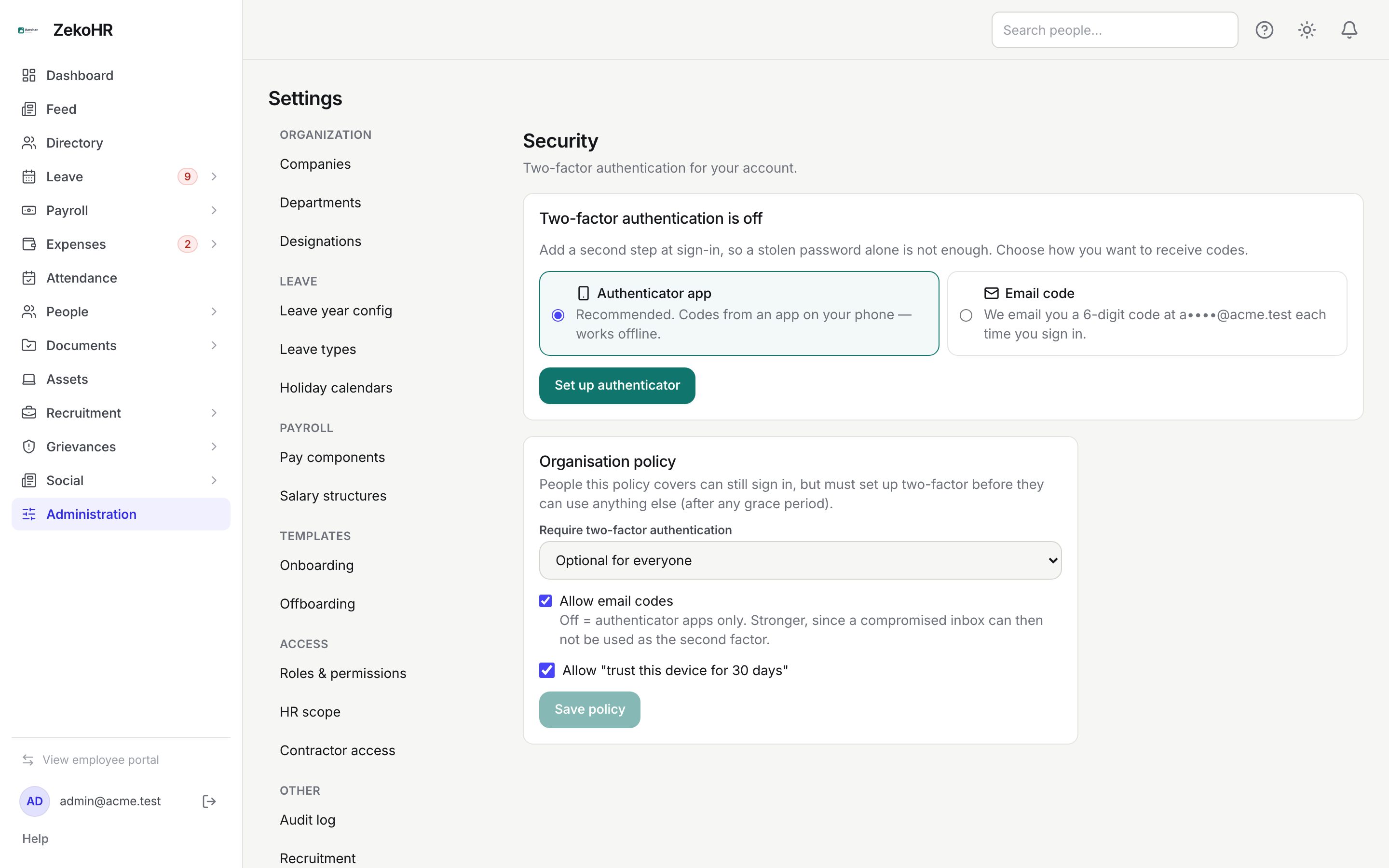
Setting up an authenticator app
- Under Two-factor authentication is off, keep Authenticator app selected and press Set up authenticator.
- Scan with your authenticator app shows a QR code. If you cannot scan, open Can't scan it? Enter the key instead and copy the Setup key or Setup link.
- Type the app's code under Enter the 6-digit code the app shows and press Turn on two-factor. Nothing is enforced until this code is accepted.
- Save your recovery codes appears once. Press Copy or Download (`recovery-codes.txt`), store them safely, then press I've saved them.
Setting up email codes
- Select Email code and press Email me a code. The card shows the masked address; the code expires in 10 minutes.
- Enter it under Enter the 6-digit code from the email and press Turn on two-factor. Resend code unlocks after 60 seconds and replaces the previous code. Save the recovery codes as above.
If Email code is missing, your organisation has turned off Allow email codes.
Signing in with 2FA on
After your password the Two-factor authentication or Check your email step appears. Type the code; six digits submit automatically. Use a recovery code switches the field, and Trust this device for 30 days appears when the organisation allows it. Five wrong codes lock the step for a few minutes; an app challenge lasts 5 minutes, an email challenge 10.
Managing an active set-up
The Two-factor authentication is on card shows your method, recovery codes left (red at two or fewer) and trusted devices.
| Button | What it does | What it asks for |
|---|---|---|
| Switch method | App to email or back. Trusted devices are forgotten. | Your password, then the new method's code. |
| New recovery codes | Ten fresh codes; the old set stops working. | Your password. |
| Forget them | Revokes every trusted device. | Nothing. |
| Turn off… | Disables 2FA. | Your password and a current code or an unspent recovery code. Email users can press Email me a code. |
Organisation policy (Admins)
| Setting | Options | Effect |
|---|---|---|
| Require two-factor authentication | Optional for everyone, Required for admins & HR, Required for everyone | Admins & HR means the Admin and HR Manager roles. |
| Grace period for people not yet set up | None (require it at next sign-in), 3, 7, 14 or 30 days | From when the policy was switched on, or the join date if later. |
| Allow email codes | On or off | Off means authenticator apps only; email users are told to switch. |
| Allow "trust this device for 30 days" | On or off | Off hides the checkbox and ignores existing trusted devices. |
Press Save policy. The change is written to the audit log.
What happens next
Turning 2FA on or off sends an email and an in-app notification that cannot be switched off. All of these and policy changes are audited.
Rules and limits
- Once 2FA is on, a correct password never issues a session by itself; only a valid code or a trusted device does.
- Recovery codes are shown once and stored hashed.
- Someone the policy covers who has not enrolled can still sign in, but every page refuses until they confirm a code on the Security page. During a grace period a softer banner shows the deadline.
- Admin impersonation and support sessions are never fenced, so nobody can enrol a factor on someone else's account.
- Emailed codes: 10 minute expiry, 5 attempts per code, 60 second resend cooldown, at most 10 sends per hour.
Troubleshooting
The app's code is always rejected. Check the phone's clock is set automatically; codes depend on accurate time.
I changed phones, or have no phone and no recovery codes. Sign in with a recovery code and Switch method. Without a recovery code, contact your Admin.
Turn off is refused. The policy covers you. Use Switch method instead.