Audit log
The Audit log records every write across ZekoHR: who did it, when, from where, and the before and after values. It is the answer to "who changed this employee's salary", "who approved that leave" and "who gave HR the right to export data". Role edits, HR scope changes, branding, security policy, payroll runs, approvals and admin overrides all land here.
Who can do this: Reading needs `audit.view`; the Export control also needs `audit.export`. Both are in the Admin and HR Manager bundles by default. This module must be enabled on your plan; Admins can check Settings → Billing.
Where to find it
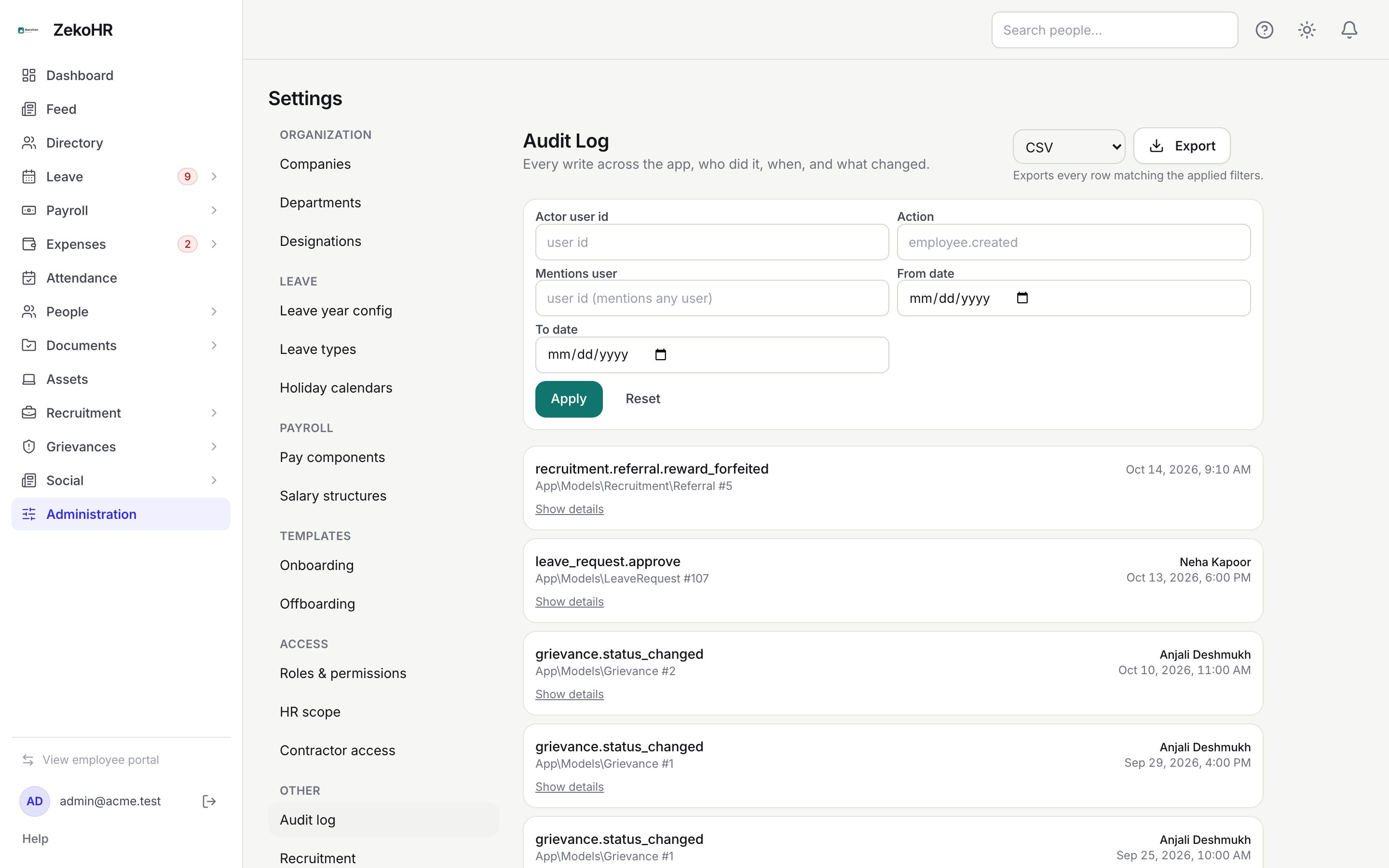
Administration → Settings → Other → Audit log, URL `/settings/audit-log`.
Filtering
The filter form has five fields; fill any combination and click Apply. Reset clears them and reloads the newest entries.
| Field | What it matches |
|---|---|
| Actor user id | The numeric id of the person who performed the action (shown on their profile URL) |
| Action | The exact action name, for example `employee.created` or `leave_request.approve` |
| Mentions user | A numeric user id; returns every entry that touched that person, whichever table was written |
| From date | Entries at or after the start of that day |
| To date | Entries up to the end of that day |

Results show 50 at a time, newest first; Load more appends the next 50. When nothing matches you see "No audit rows match the current filters."
Reading an entry
Each card shows the action name, the record type and id (for example a leave request numbered 107), the actor's name and the timestamp. Show details expands a JSON block with three parts:
- `before`: the values as they were
- `after`: the values after the change
- `context`: extra facts recorded with the action, such as the reason, the override flag or the export filters
Entries with no actor name were made by the system (automatic daily processes). Entries made while an Admin was impersonating someone also record the impersonator, and entries made by ZekoHR staff record the platform actor.
Exporting
- Choose CSV or Excel (.xlsx) in the drop-down next to Export at the top right.
- Click Export. The download uses the filters currently applied (not an unsaved draft of the form), as the hint "Exports every row matching the applied filters." says.
The file is named `audit-log-YYYYMMDD-HHMMSS` and contains these columns: id, timestamp (UTC), timestamp (IST), actor type, actor name, actor email, performed by, action, entity type, entity id, company id, company name, IP address, user agent, a one-line summary, and the before, after and context JSON. CSV streams with no row cap. Excel is capped at 100,000 newest rows; if your filter matched more, a notice says "The Excel file holds the newest 100000 rows only. Use CSV for the full set." and the workbook's first line says so too.
What happens next
An export is itself audited as `audit.exported`, with the format, the filters, the row count and whether it was truncated. The export never contains its own row because the set is pinned at the moment the request arrives.
Rules and limits
- The log is read-only; nothing here can be edited or deleted.
- Retention follows your plan's audit retention limit (months). Rows older than the window are invisible to both the list and the export. Starter plans keep less history than Pro; see Plans and trial.
- Entries are scoped to your organisation. Company id and name are recorded where the action was company-specific.
- Export is throttled to six requests per minute.
- The Mentions user filter searches reference records, so a person who appears only inside a JSON blob without a recorded reference will not match; use Action and dates instead.
- Timestamps in the UI follow your browser; the export gives both UTC and IST.
Troubleshooting
The Export button is missing. Your role can read the log but not export it. Ask an Admin to add export to your role under Roles & permissions.
I cannot find a change I know happened last year. It is past your plan's retention window. Upgrading restores visibility of older rows that are still stored.
The page is not in Settings at all. The audit log module is not on your plan.
Excel export says truncated. Switch the format to CSV, or narrow the date range.