Document categories and reminders
Document categories are the folders employees upload into. Each category has one setting that matters for HR workload: whether uploads into it must be verified. This article covers that switch, the default categories every organization starts with, and the automated reminders that run against requests and expiry dates.
Who can do this: Admins with documents_center.manage.any and HR Managers with documents_center.manage.assigned_companies. Categories are organization-wide, so either flavour can toggle verification for every company.
Where to find it
Documents → Documents, then the Settings tab (`/documents?tab=settings`).
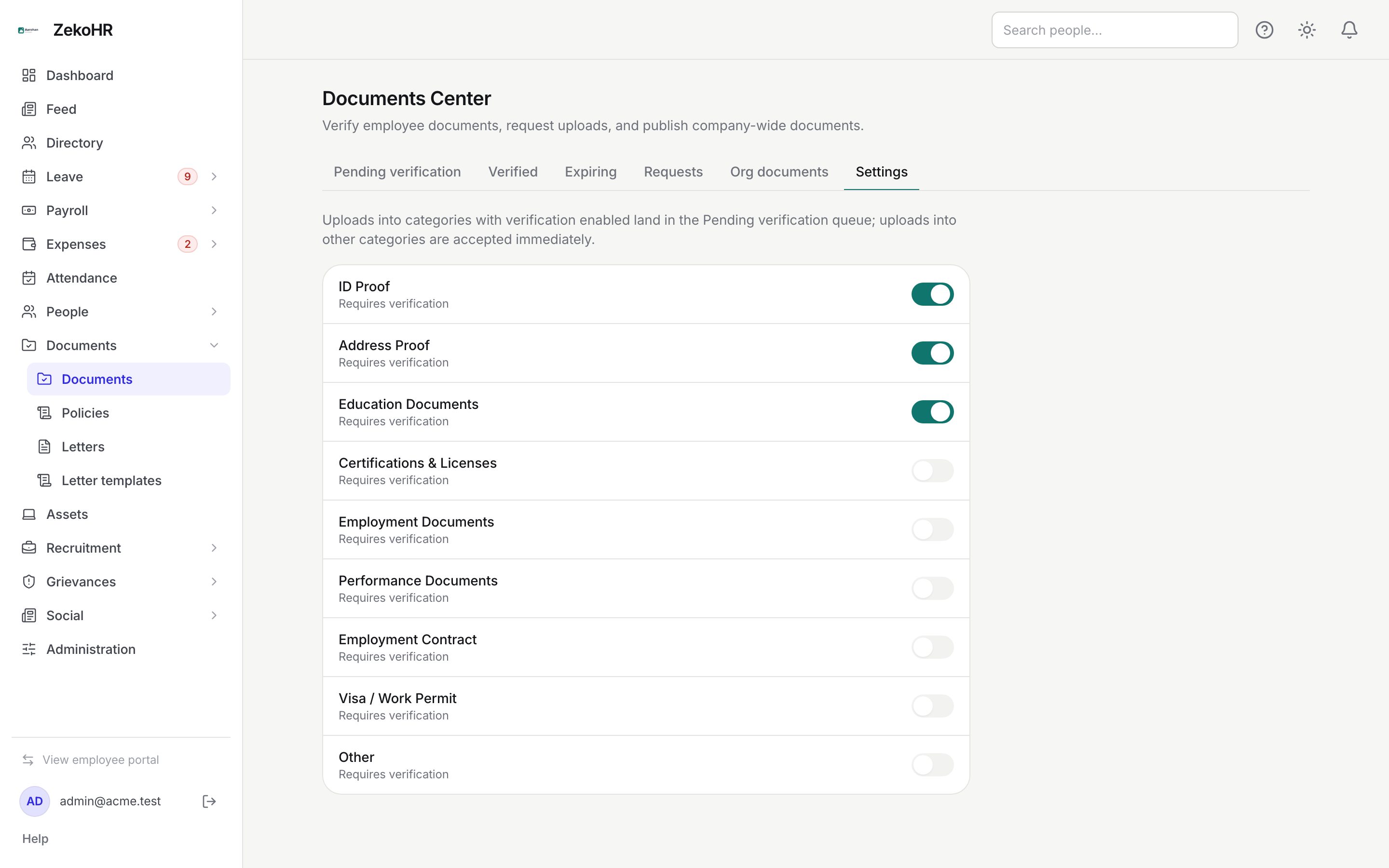
Turning verification on or off
- Find the category in the list. Categories are shown in their sort order; inactive categories are hidden.
- Click the switch next to Requires verification. The change saves immediately.
- From now on, uploads into that category enter Pending verification. Uploads into categories with the switch off are accepted immediately and never appear in the queue.
The explainer at the top states the rule: uploads into categories with verification enabled land in the Pending verification queue; uploads into other categories are accepted immediately.
Default categories
Every organization starts with the same category set when it is created. The defaults below are set once; a verification switch you change afterwards is never reset.
| Category | Slug | Verification by default |
|---|---|---|
| ID Proof | id-proof | On |
| Address Proof | address-proof | On |
| Education Documents | education | On |
| Certifications & Licenses | certifications | Off |
| Employment Documents | employment | Off |
| Performance Documents | performance | Off |
| Employment Contract | contract | Off |
| Visa / Work Permit | visa | Off |
| Other | other | Off |
Identity, address and education documents therefore go through verification unless you switch it off. The category set is fixed; the Settings tab lets you change the verification switch on each one, and Other is the catch-all for documents that fit nowhere else.
Daily reminders
A scheduled process runs once a day at 02:30 server time. It makes three sweeps, and each message is sent once, so a repeated run never duplicates a reminder.
| Sweep | Trigger | Recipient | Template |
|---|---|---|---|
| Request due soon | Pending request whose due date is exactly 3 days away | The employee | document.request_reminder (status "due in 3 days") |
| Request overdue | Pending request whose due date has passed and no overdue reminder sent yet | The employee | document.request_reminder (status "overdue") |
| Document expiring | Current document whose expiry date is exactly 30 or exactly 7 days away | The employee, plus one digest per organization to every user holding a Documents Center permission | document.expiring_soon |
Each request remembers when its due-soon and overdue reminders were sent, so each fires once. The expiry sweep matches exact days, so a daily run hits each threshold once; a document that gets its expiry date set when it is already inside 7 days gets no reminder.
What happens next
- Toggling verification writes a document_category.updated audit entry with the old and new value.
- Changing the switch does not re-classify existing uploads. Documents already accepted stay accepted; documents already pending stay pending.
- Reminder emails use the templates under Settings → Email templates and link to the employee's documents page. In-app notifications are created at the same time.
- The expiry digest to HR states how many documents reached a threshold that day and links to the Documents Center, where the Expiring tab lists them.
Rules and limits
- Verification is per category, not per company or per employee.
- Only the current version of a document is considered for expiry reminders; superseded versions are ignored.
- A request without a due date never produces reminders, and a document without an expiry date never produces expiry warnings.
- Expiry reminders go to the owner even if the document is rejected or still pending verification.
- HR users receive the digest only if they are active and hold a Documents Center permission; the digest is not narrowed by HR scope.
- The Documents module must be enabled on your plan; Admins can check Settings → Billing.
Troubleshooting
The switch is greyed out while I click it. It is saving. If it stays dim, reload; a failed save returns the previous state.
A document uploaded yesterday did not go into the queue even though verification is on now. The switch applies to uploads made after it was turned on. Ask the employee to re-upload, which creates a new version that enters the queue.
Employees get expiry reminders but HR does not. The digest goes only to users with a Documents Center permission. Check Settings → Roles & permissions.
I set an expiry date that is 10 days away and expect a reminder. Only the 30-day and 7-day marks trigger a message; the 7-day reminder will arrive in three days.
I need a new category. The nine categories above are the full set. Ask employees to upload into Other and use the Label field to name the document, or request it with a note under Requests.