Pre-joining
Pre-joining starts automatically when an offer is marked accepted. The candidate gets the organisation's checklist (PAN, Aadhaar, photo, address proof, certificates, relieving letter, payslips, joining forms and so on), HR records what arrives and verifies it, tracks background verification, and finally marks the person joined, which creates the employee record and copies the documents across.
Who can do this: HR with `recruitment.manage.any` or `recruitment.manage.assigned_companies` for the job's company. The hiring manager can view the Pre-joining tab on the application but not change it. Hiring as a Contractor additionally needs `contractors.manage` and the Contractors module.
Where to find it
Recruitment → Pre-joining, at `/recruitment/prejoining`. Each record is `/recruitment/prejoining/{id}`, and the same panel appears on the application's Pre-joining tab.
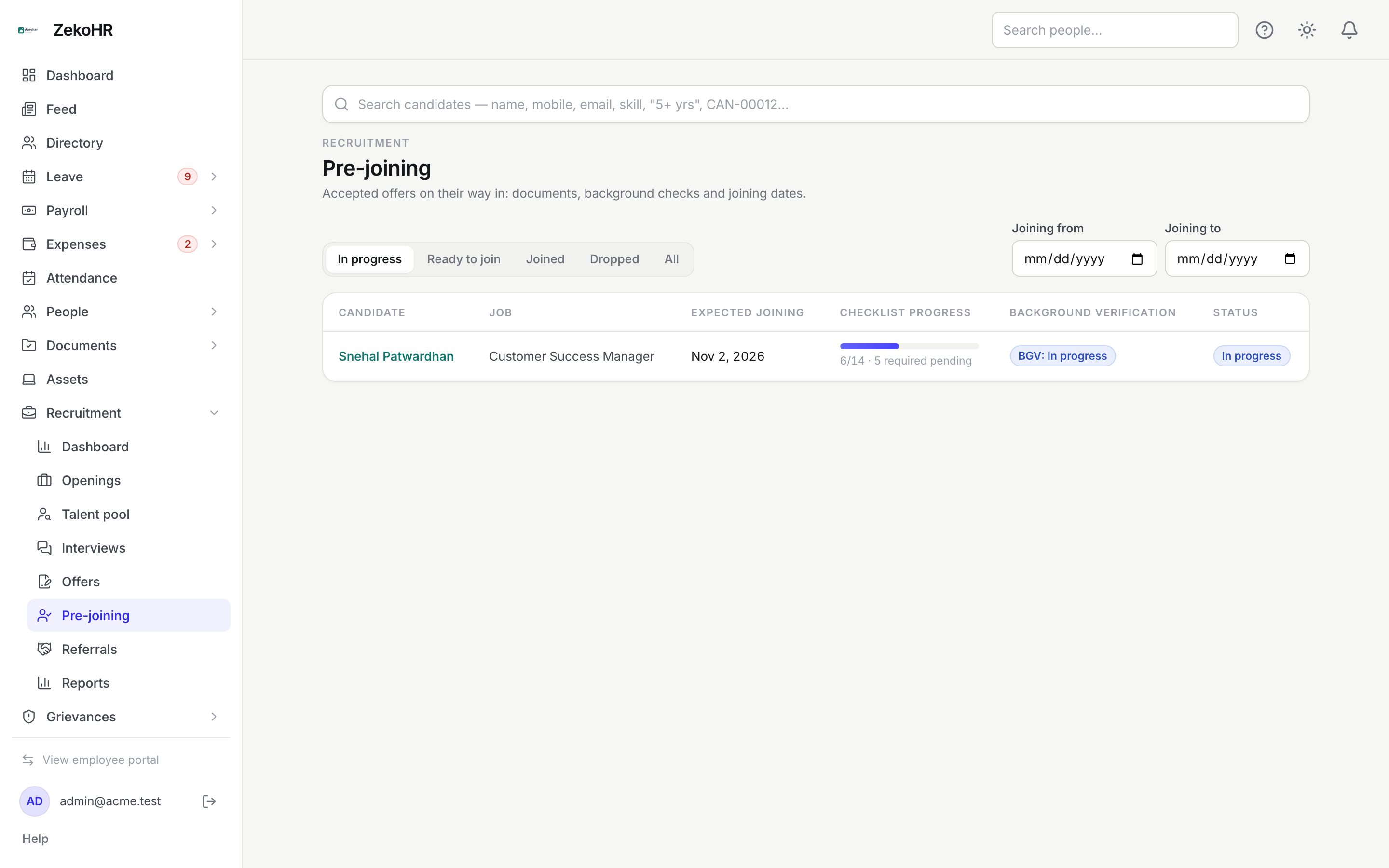
The tracker
Switch between In progress (default), Ready to join, Joined, Dropped and All, and narrow with Joining from / Joining to. Rows sort by expected joining date.
| Column | Meaning |
|---|---|
| Candidate | Opens the record. |
| Job | The opening. |
| Expected joining | From the offer; editable on the record. |
| Checklist progress | Done items out of total, plus how many required items are still pending. |
| Background verification | Not started, In progress, Clear or Discrepancy. |
| Status | In progress, Ready to join, Joined or Dropped. |
Working the checklist
- Open the record. The header shows the status, BGV badge and pending-required count; below it Expected joining, Background verification, BGV vendor and Notes save as you change them.
- Items are grouped by category: Identity, Education, Previous employment, Background verification, Joining forms, Other. Each shows a Required marker and who verified it.
- Set each item's status: Pending, Submitted, Verified, Rejected, Waived or Not applicable. Add Remarks and Attach files (PDF, images, Word, 10 MB each). Uploading a file marks the item Submitted.
- Add checklist item adds an ad-hoc item with Item, Category and Required before joining.
- Remind: documents sends the documents-reminder email listing pending items; Remind: joining sends the joining reminder.
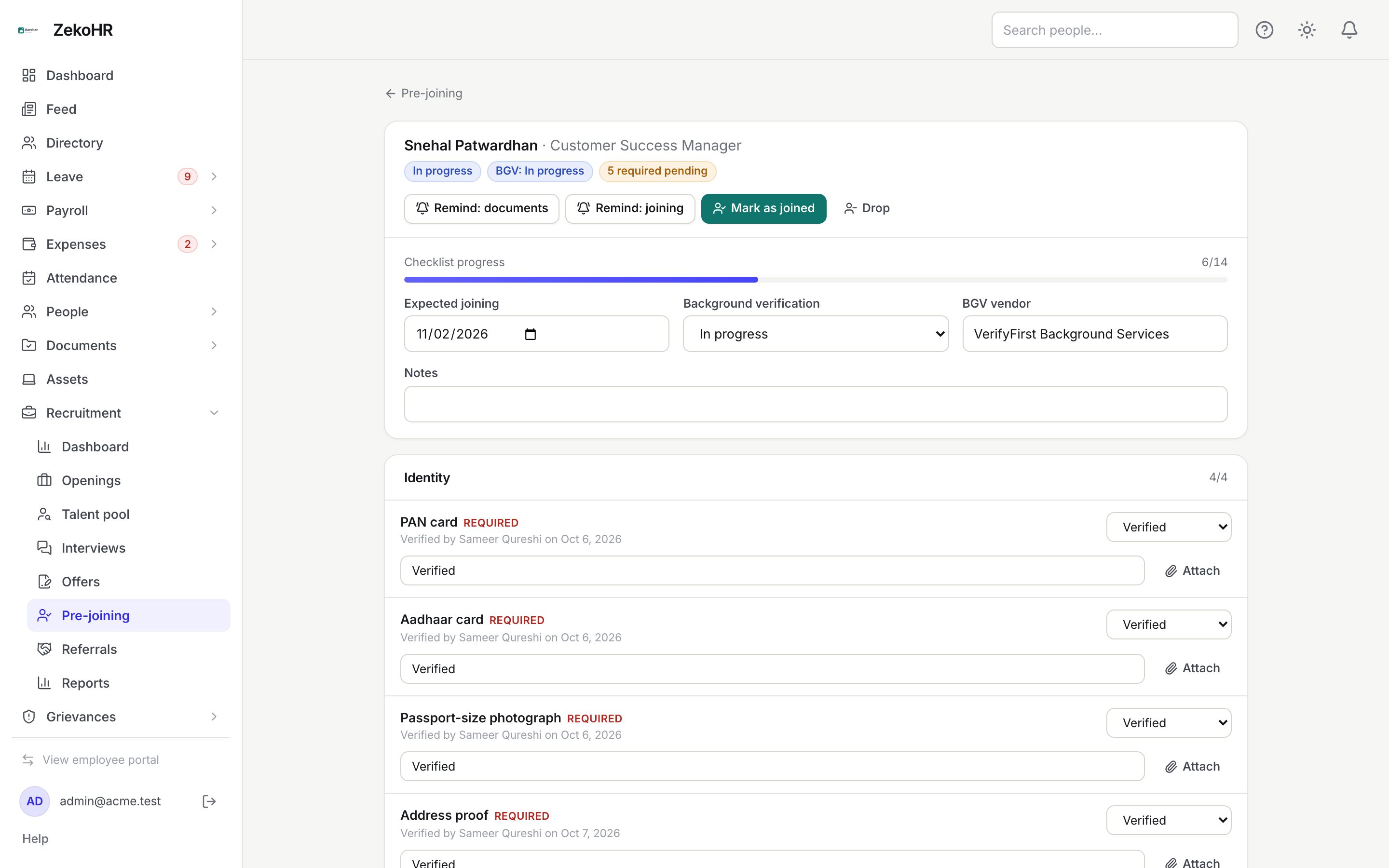
The record turns Ready to join the moment every required item is Verified, Waived or Not applicable, and back to In progress if one is reopened.
Marking as joined
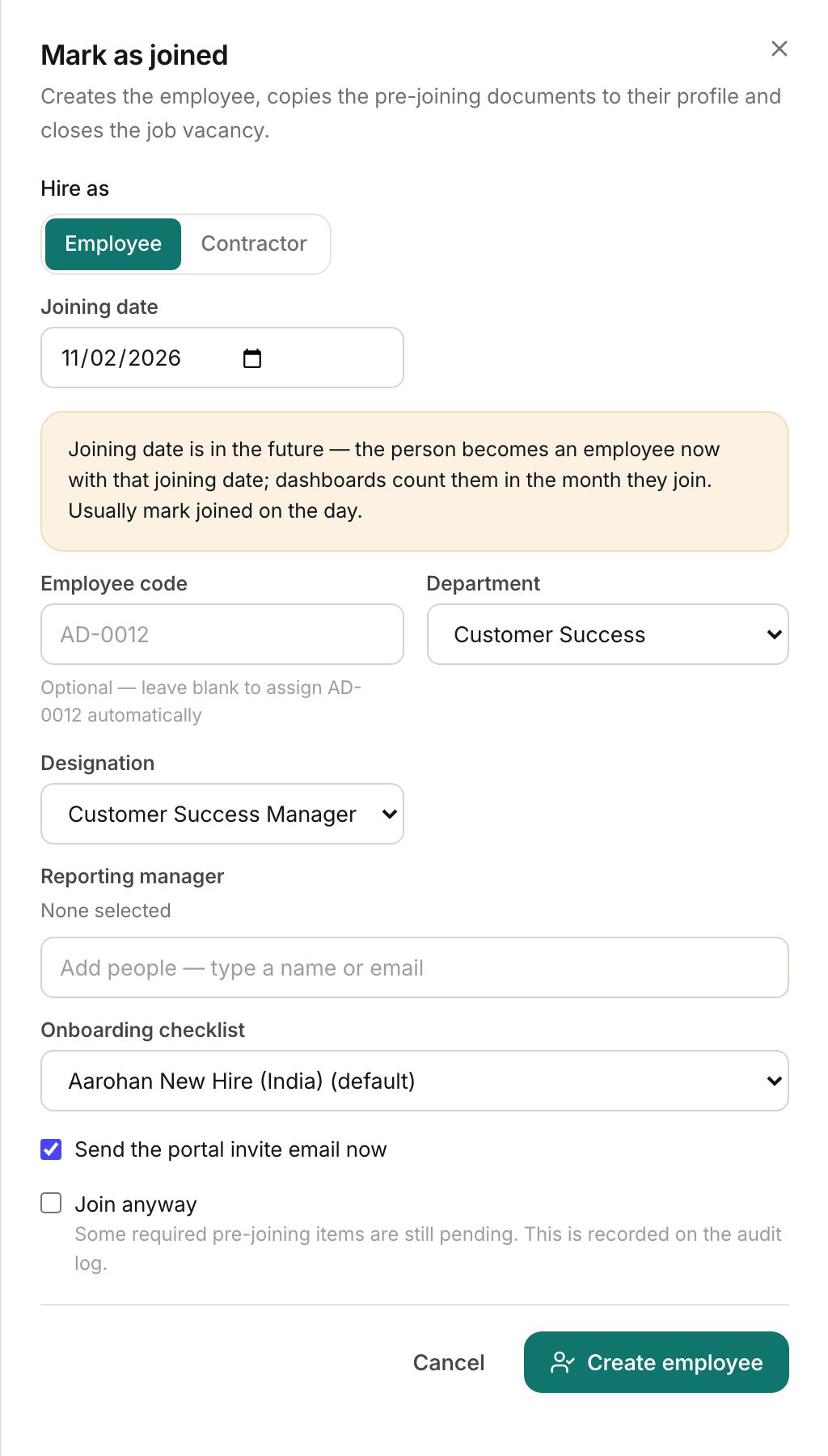
- Click Mark as joined.
- If the Contractors module is on and your role manages Contractors, choose Hire as: Employee or Contractor.
- For an employee: Joining date (defaults to the expected date; a future date shows a warning), Employee code (blank uses the company's automatic numbering), Department, Designation, Reporting manager, Onboarding checklist (the company default is preselected) and Send the portal invite email now.
- For a Contractor: Legal name, PAN, GSTIN and the engagement fields (company fixed from the offer, title, dates, rate, leave mode and TDS defaults). See Engagements.
- If required items are still pending, tick Join anyway; this is recorded in the audit log.
- Click Create employee or Create Contractor.
Drop asks for a reason and moves the application to Dropped, for candidates who back out or never turn up.
Statuses
| Status | Meaning | What happens next |
|---|---|---|
| In progress | Required items outstanding. | Verify or waive them. |
| Ready to join | All required items done; recruiter is told. | Mark as joined. |
| Joined | Employee or Contractor created. | Record is locked; link to the employee profile. |
| Dropped | Candidate backed out, with a reason. | Record is locked. |
What happens next
Joining creates the person through the same path as People → Add employee: the seat limit applies, the onboarding checklist is assigned, leave is allocated, and the invitation goes out after the record is saved. Every pre-joining file is copied to the employee's documents (marked verified where the item was verified). The application moves to Joined, the job's filled count rises, and the referral reward clock starts if the candidate was referred. The recruiter and hiring manager get `candidate_joined`; the referrer gets a referral update.
Rules and limits
- Only a Ready or In progress (with Join anyway) record can be joined, and the application must still be in Offer accepted.
- The candidate needs an email address; an existing employee with the same email blocks joining, as does a duplicate employee code.
- Some companies require a reporting manager for every employee; the dialog reports this if you leave it blank.
- Automatic joining reminders go out two days before the expected date only when Send joining reminders automatically is on in settings; the buttons work regardless.
- The default checklist is set in Settings → Recruitment → Pre-joining and copied at acceptance; later template changes do not alter existing records.
Troubleshooting
Mark as joined refuses with "Required pre-joining items are still pending". Verify or waive them, or tick Join anyway.
"An employee with this email already exists". The person is already in People; link or update that record instead of joining again.
The Hire as switch is missing. The Contractors module is off, or your role does not manage Contractors.
The record is read-only. It is Joined or Dropped, or you do not manage this company.