Multi-currency and GST on expense lines
Every expense line can be entered in a foreign currency and converted to INR at a rate you supply, and can carry the tax amount, tax rate and the vendor's GSTIN from the invoice. The INR value drives approvals, limits and reimbursement; the GST fields feed the company's GST input-credit register.
Who can do this: Every employee with `expenses.create.self`. The GST register is read by HR Managers, Admins and Accounts with `expense_reports.view.assigned_companies` or `expense_reports.view.any`.
Where to find it
Expenses → My Expenses → New Expense (`/my-expenses/new`). The fields sit inside each line item block under Line items. On the claim detail page (`/my-expenses/{id}`) the line's grey summary shows the foreign amount, rate, tax and GSTIN you entered.
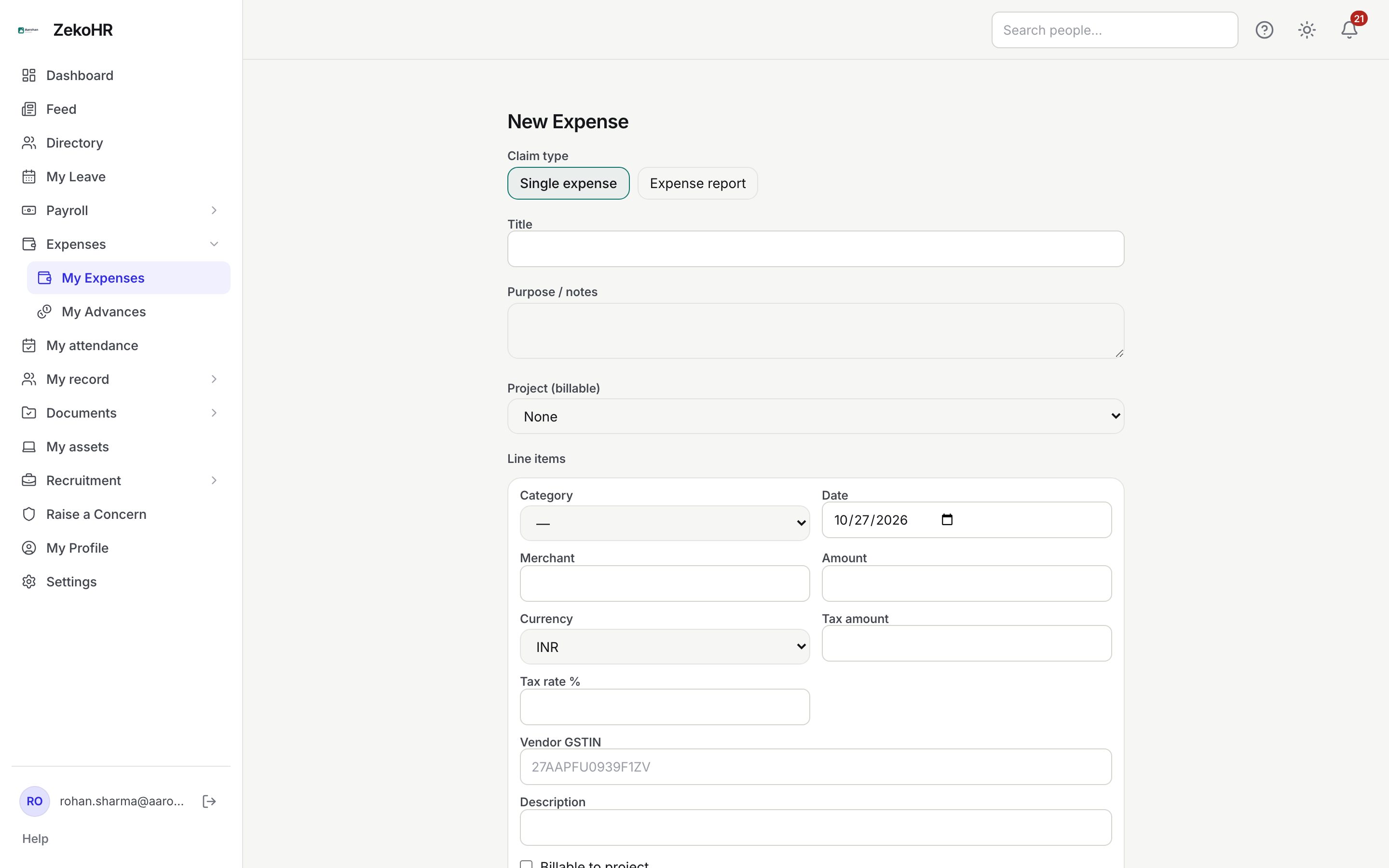
Entering a foreign currency expense
- On the line, set Currency. The choices are INR, USD, EUR, GBP, AED and SGD.
- When the currency is not INR, an Exchange rate to INR field appears, prefilled with 1. Enter the rate from your card statement or bank, up to four decimal places. The rate must be greater than zero.
- Below the rate ZekoHR shows the converted value, for example "≈ ₹8,350.00". That INR figure is what the approver sees as the line amount and what gets reimbursed.
- Enter Amount in the foreign currency, not in INR.
The claim itself is always in INR. The line stores the original amount, the currency, the rate and the INR value, so the detail page shows "USD 100 @ 83.5" next to the INR total. There is no automatic rate lookup; you supply the rate. Mileage and per diem lines are always INR.
Capturing tax and GSTIN
- Tax amount: the GST (or other tax) shown on the invoice, in the line's currency. Optional, zero or more.
- Tax rate %: between 0 and 100. Optional.
- Vendor GSTIN: the supplier's 15-character GSTIN. The field converts what you type to upper case and shows an example, 27AAPFU0939F1ZV. The format is checked on save: two digits for the state, five letters, four digits, one letter, one letter or digit, the letter Z, then one letter or digit. An invalid GSTIN returns a validation error and the draft is not saved.
The tax amount is informational on the claim; it is not added to or subtracted from the line amount. Enter Amount as the full invoice value including tax.
What the approver and Accounts see
| Field | Where it shows |
|---|---|
| Foreign amount and rate | Line summary on the detail page, as `USD 100 @ 83.5` |
| INR value | Line amount on the right, the claim total, the approvals queue and the reimbursement register |
| Tax amount | Line summary as `Tax amount 180` |
| Vendor GSTIN | Line summary, and as a row in Expense Reports → GST register once the claim is approved |
| Billable to project | Line summary, and the billable split in Expense Reports → Spend summary |
What happens next
Nothing changes in the approval flow. Once the claim is approved, lines that carry a GSTIN are grouped by GSTIN in the GST register with their tax total and INR base total, so Accounts can claim input credit. Lines without a GSTIN never appear in that register.
Rules and limits
- The per-item limit and the duplicate check compare the INR value, not the foreign amount.
- Reimbursement is paid in INR for the converted value. If the rate you entered differs from what your bank charged, the difference is not reconciled automatically; raise a second claim or ask Accounts.
- The currency list is fixed in the app; a currency outside the six cannot be chosen.
- A GSTIN is validated only for format, not against the GST portal.
- ZekoHR does not compute GST, TDS or any statutory amount automatically; what you type is what is stored.
Troubleshooting
Exchange rate to INR is not visible. The line's currency is INR. Change Currency first.
The converted value shows ₹0.00. Either Amount or Exchange rate to INR is empty or zero.
Save fails with a GSTIN error. Check the 15-character format. The thirteenth position must be a Z. Leave the field blank if you do not have the vendor's GSTIN.
My line was approved but is missing from the GST register. The register only lists approved claims with a GSTIN on the line, and the register's date filter uses the expense date.