Tax declarations for HR
Tax declarations is the verification queue for the investment declarations employees submit for the financial year. You check each claimed deduction against its proof, accept or reject it, then verify or send back the whole declaration. The verified total and the chosen regime are what you use when you set the TDS deduction on payslips; ZekoHR records the declaration but does not compute tax.
Who can do this: viewing needs `tax_declarations.view.any` (Admin) or `tax_declarations.view.assigned_companies` (HR Manager); deciding needs the matching `tax_declarations.verify.*`. Setting the declaration window needs `tax_declarations.windows.manage`, which only Admin has by default.
Where to find it
Sidebar Payroll → Tax declarations, URL path `/tax-declarations`. A single employee's declaration is also on People → Employees → open a person → Tax tab, with the same Verify and Send back actions. This module must be enabled on your plan; Admins can check Settings → Billing.
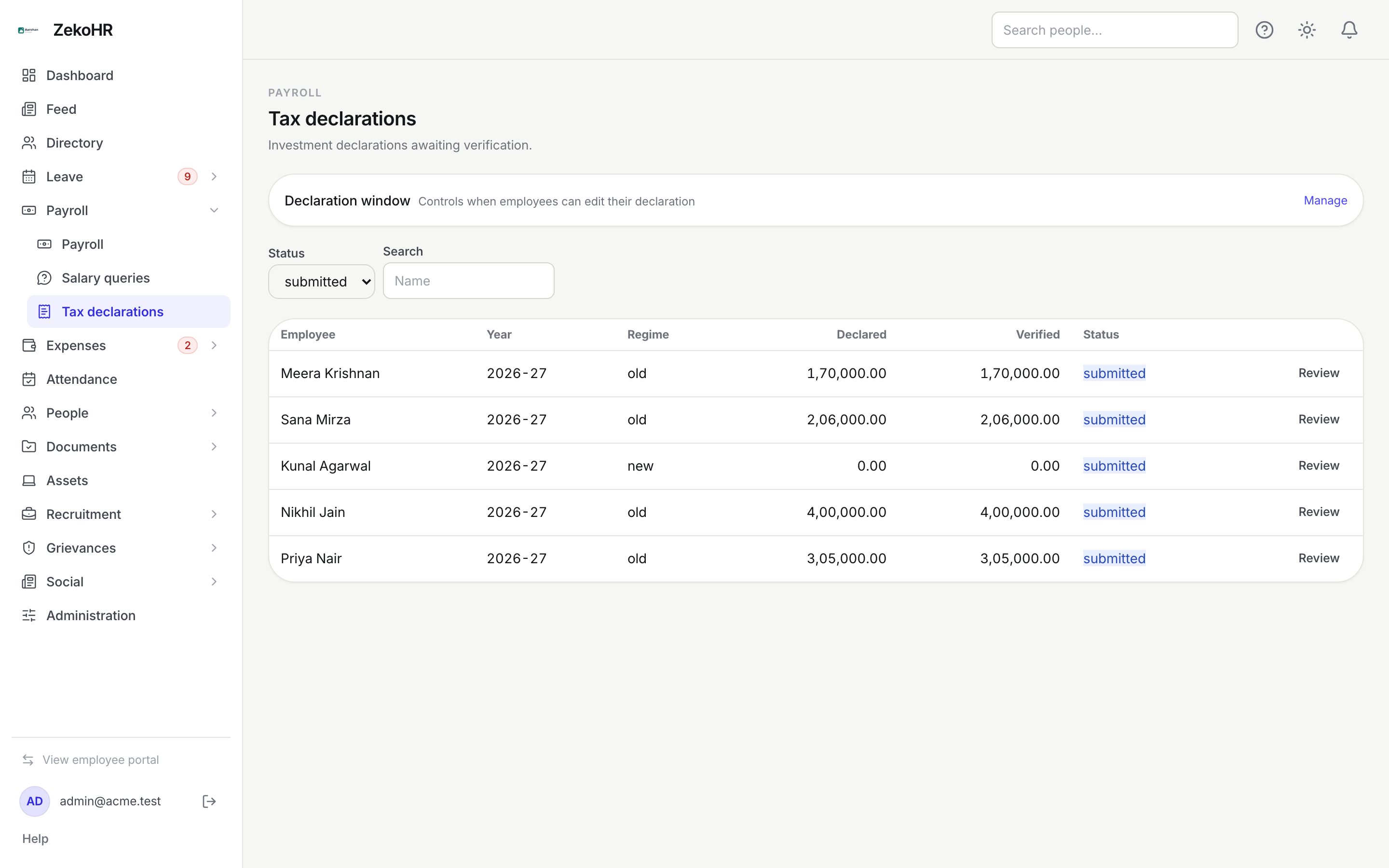
The queue
- Status defaults to submitted (the ones waiting on you). Choose All, draft, verified or rejected to see the rest. The list always shows the current financial year.
- Search matches on employee name.
- Columns: Employee, Year, Regime (old, new, or a dash if not chosen), Declared (sum of declared amounts), Verified (sum of what payroll should act on: declared amounts for accepted and pending rows, zero for rejected rows) and Status.
- Submitted rows come first, then rejected, draft and verified.
Reviewing a declaration
- Click Review on a row. The dialog is headed with the employee's name and year and shows the chosen regime.
- For each row (section, particulars, declared amount), click the download icon under Proof to fetch the file, or see none if nothing was uploaded.
- Click the tick to Accept a row or the cross to Reject it. Accepting takes the declared figure; a rejected row counts as zero. Rows you do not touch stay pending.
- To approve the declaration, click Verify. Every pending row becomes accepted at its declared amount, the status becomes verified and the employee can no longer edit it.
- To hand it back, type a Note to the employee (required, up to 500 characters) and click Send back. The status becomes rejected, the employee sees your note under HR note and can edit and resubmit.
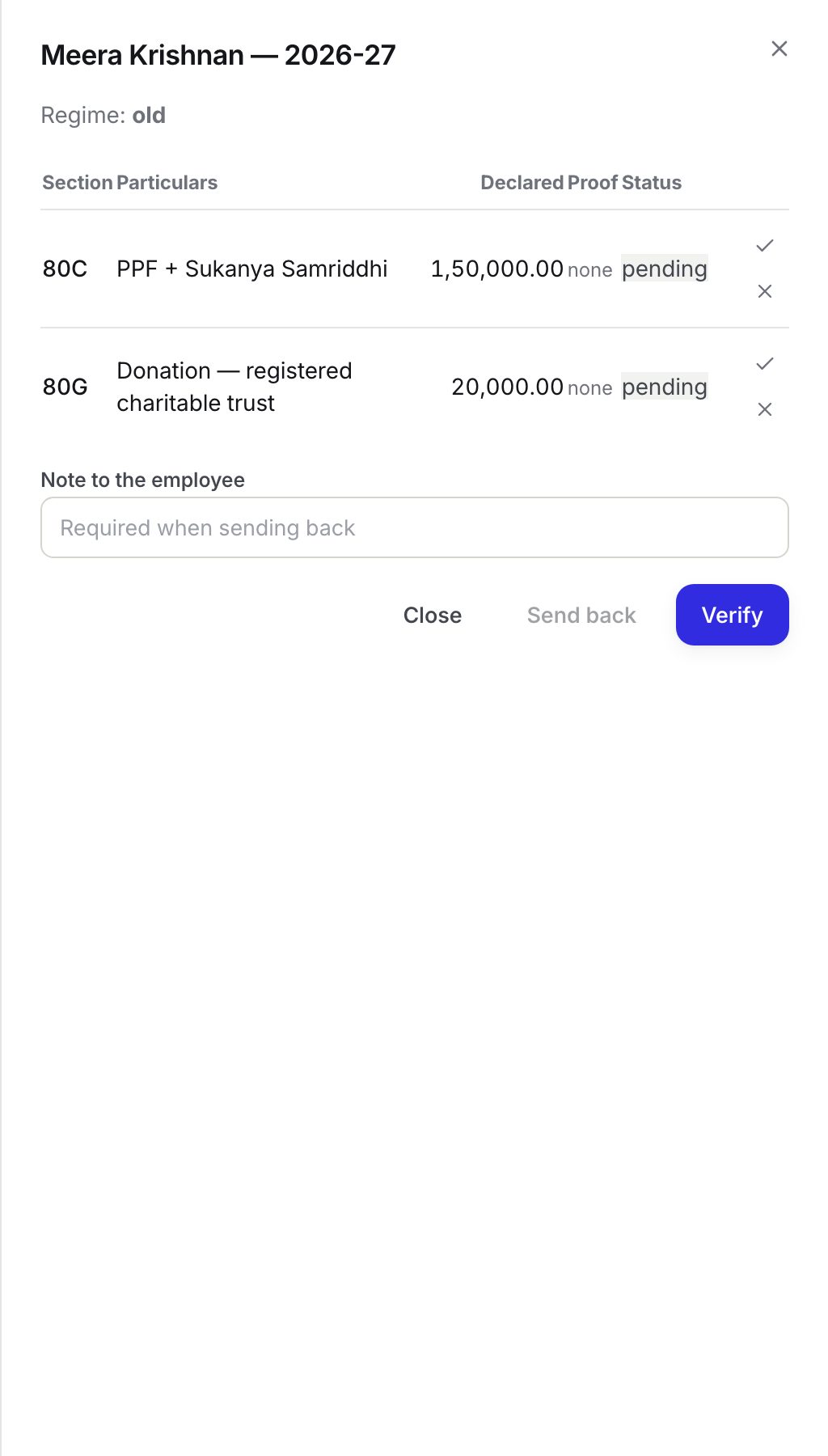
A row is either accepted at its declared amount or rejected; there is no way to accept a lower figure. If a proof supports only part of the amount, send the declaration back with a note asking the employee to correct the figure and resubmit.
Statuses
| Declaration | Meaning | Row statuses |
|---|---|---|
| draft | Employee still editing | pending |
| submitted | Waiting for HR | pending, or already accepted/rejected by you |
| verified | Final for the employee | pending rows auto-accepted |
| rejected | Sent back with a note | kept as decided; editing a row resets it to pending |
The declaration window
Click Manage on the Declaration window panel (Admins only). With no window configured, employees can edit their declarations at any time; the panel says so explicitly. To close editing after a cutoff:
- Financial year in the form 2026-27.
- Applies to: All companies, or one company. A company-specific window overrides the organisation-wide one.
- Opens and Closes dates; closes cannot be before opens.
- Click Set window. Setting the same company and year again replaces the existing window.
Remove a window with the bin icon to reopen editing. Windows never restrict HR; you can verify and send back after the close date.
What happens next
- Verify, send back and window changes are each written to the audit log.
- No email or in-app notification is sent to the employee for any tax action. Tell them through a salary query or outside the system if the send-back is urgent.
- The payroll pre-flight warns about employees with no declaration or no regime, and about declarations awaiting verification, once at least one declaration exists for the year.
Rules and limits
- Declarations outside your HR scope are not found rather than forbidden.
- Proofs can be downloaded only by authorised HR from the review dialog; there are no shareable links.
- A resubmission after send-back clears the previous verification stamp and starts a fresh review.
- Sections offered to employees are fixed: 80C, 80CCD(1B), 80D, 80E, 80G, 80TTA, HRA, 24(b) and Other.
- TDS itself remains a manual deduction component on the salary structure or payslip.
Troubleshooting
Send back is disabled. The note is empty; a reason is required.
The Declaration window panel is missing. Only users with `tax_declarations.windows.manage` see it.
An employee says they cannot edit. Either the declaration is submitted or verified (send it back), or the window has closed (extend or remove it).
Declared and Verified differ before I did anything. Rejected rows count zero in Verified, and previously accepted rows keep their accepted amount.