Tracking a report by its code
Every grievance report, named, anonymous or filed through the public link, is issued a tracking code when it is submitted. The Track your report page turns that code into the current status and, once closed, the handler's resolution note. It works without a login, so people who reported through the public link, former employees and anonymous reporters can all use it.
Who can do this: Anyone who holds a tracking code. No account or permission is needed. Logged-in employees reach the same page from My Reports.
Where to find it
- Direct URL: `/report-status` on your organisation's ZekoHR address (for example `https://yourorg.zekohr.com/report-status`).
- From Raise a Concern → My Reports, the link Check a report by tracking code.
- From the Report received screen, the Check status button.
- From the public reporting page, the Check a report by tracking code link under the form.
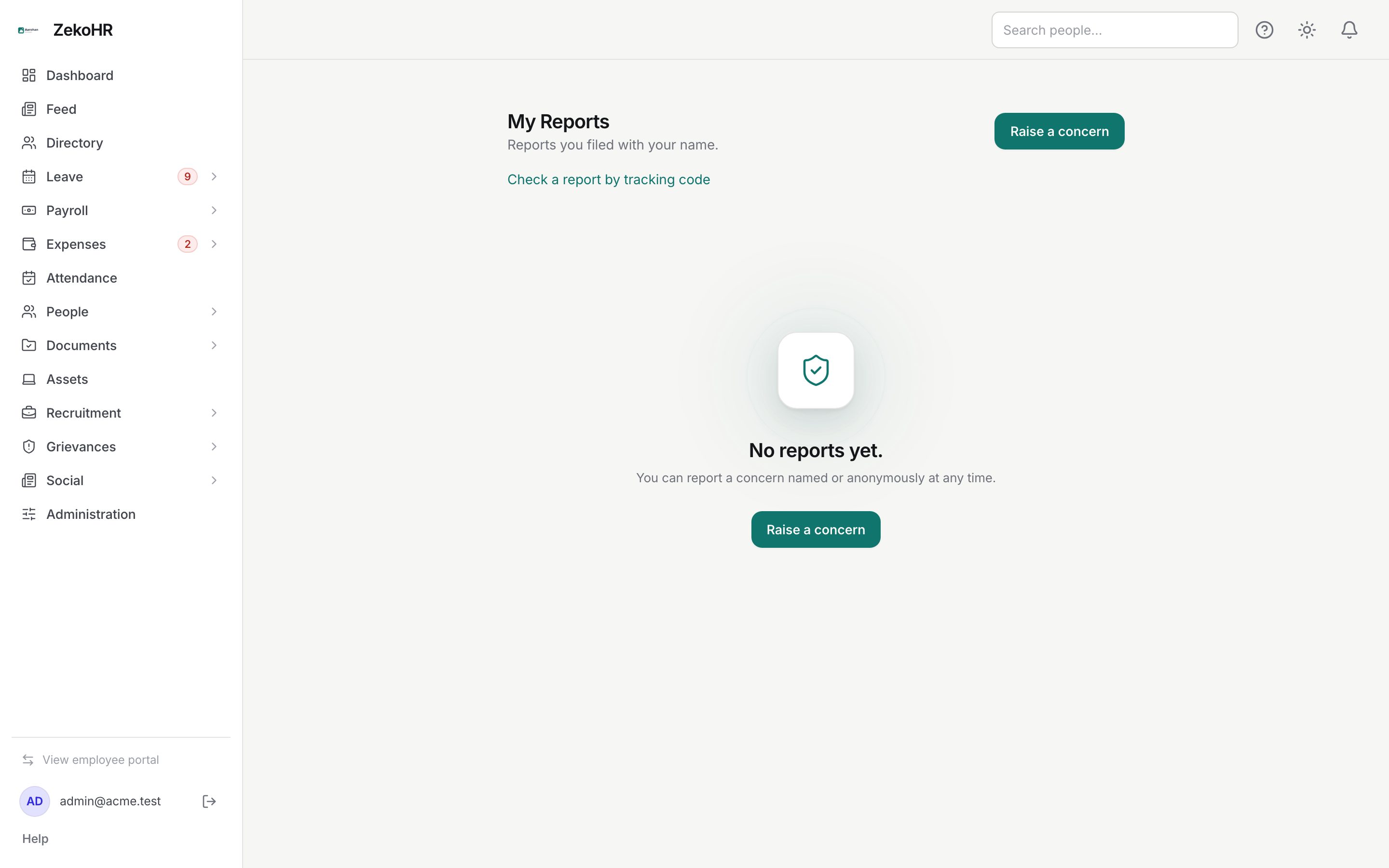
Checking a report
- Open the page. It is a single card titled Track your report with the hint Enter the tracking code you received when you filed.
- Type the code in Tracking code. It is ten characters, letters and digits; the box converts what you type to upper case, so case does not matter.
- Click Check.
- If the code matches, a panel shows the report's subject, its status, the date it was submitted and, when the case is closed, the handler's resolution note.
- If nothing matches you see No report found for that code.
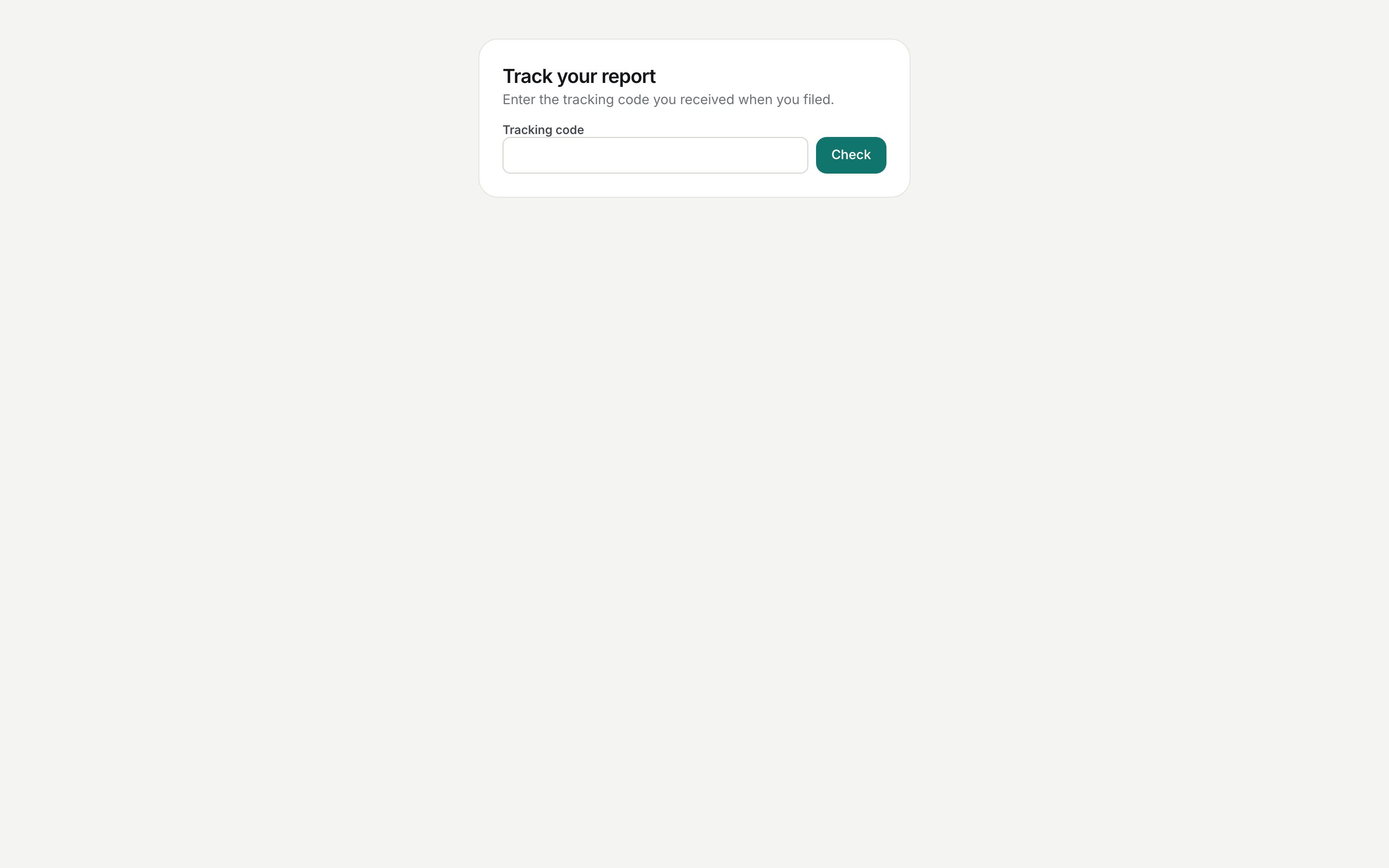
What the result shows
| Field | Shown | Not shown |
|---|---|---|
| Subject | Yes | |
| Status | Open, In review, Resolved or Dismissed | |
| Submitted date | Yes | |
| Resolution note | Yes, once resolved or dismissed | |
| Category | Not shown on this page | |
| Description, people involved, evidence, handler names, history | Never shown on this page |
The resolution note is the text the handler typed when closing the case; the prompt tells them it will be shared with the reporter, so expect a plain-language outcome rather than internal detail.
Statuses
| Status | Meaning |
|---|---|
| Open | Received, awaiting a handler |
| In review | A handler has started working on it |
| Resolved | Closed with an outcome; read the note |
| Dismissed | Closed without further action; the note explains why |
What happens next
Nothing happens as a result of checking. Lookups are not logged against the report and the handler is not told you looked. If you filed with your name while logged in you also get an email and in-app notification whenever the status changes, so you rarely need this page; it exists chiefly for anonymous and public reports.
Rules and limits
- Codes are globally unique across every organisation on ZekoHR, so the page needs no organisation selected; it simply matches the code.
- Anyone with the code can see the status, which is why the code must be kept private. There is no password on top of it.
- A lost code for an anonymous or public report cannot be recovered by HR, because the record holds nothing that ties it to you.
- The page does not allow you to add information or reply. File a new report and quote the original code in the description if you need to add something.
- The page loads even when you are signed out or your session has expired.
Troubleshooting
No report found for that code. Check for mistyped characters (zero versus the letter O, one versus I). The code is exactly ten characters with no dashes or spaces.
The status has not changed for a long time. Handlers are not required to act within a deadline. A named reporter can ask HR directly; an anonymous reporter has no channel other than filing a follow-up.
The resolution note is blank although the status is Resolved. The handler must enter a note to resolve or dismiss, so a blank note should not occur. If it does, report it to your Admin.
I filed with my name. Why use this page? You do not need to; My Reports shows the same information with notifications on top.