Pipeline stages
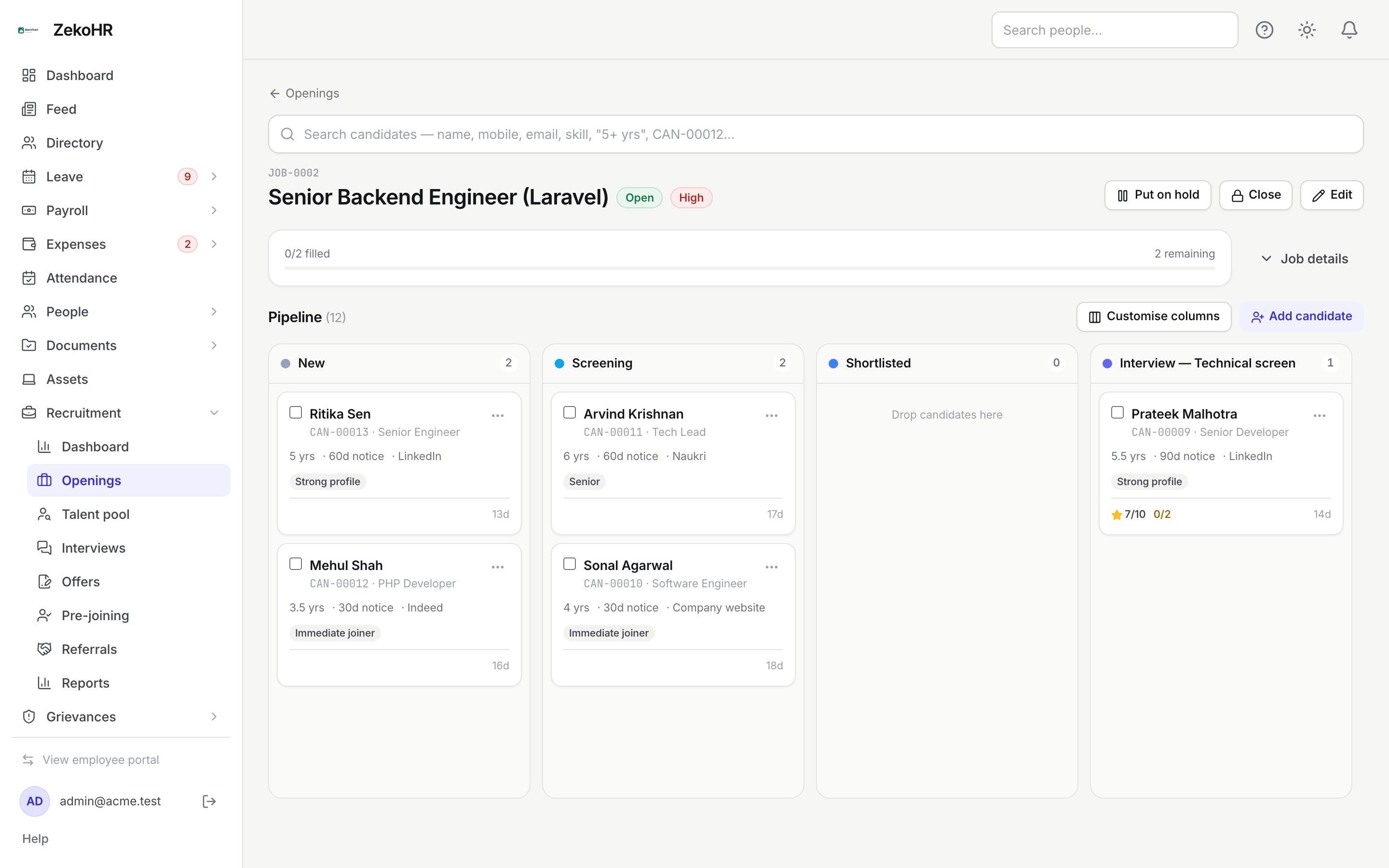
Every approved job has its own Kanban board. The columns are the job's pipeline stages, copied from the organisation template at approval and then editable per job. Each stage has a category (New, Screening, Shortlisted, Interview, Selected, On hold, Offer, Offer accepted, Joined, Rejected, Withdrawn, Offer declined, Dropped) that reports and automation rely on; the name and colour are yours.
Who can do this: HR with `recruitment.manage.any` or `recruitment.manage.assigned_companies`, and the job's hiring manager or recruiter, move cards and add notes. Only HR and the job's recruiter may Customise columns. The organisation template lives in Settings and needs `recruitment_settings.manage`.
Where to find it
Recruitment → Openings, open a job (`/recruitment/jobs/{id}`). The board sits under the fill progress. On a phone the board collapses to a Stage selector and a list of that stage's cards.
Reading a card
Each card shows the candidate's name (links to the application), code and current designation, experience, notice period and source, up to three tags, the next scheduled interview, the screening score out of 10, feedback received as submitted / expected with the average rating, a Referral badge, and the days spent in the current column.
Moving a candidate
- Drag the card to another column, or open the card's ⋯ menu and pick Move to…. On the application page use the Move to… selector and Move.
- Columns you cannot drop on are greyed out: locked columns, and moves the category rules do not allow.
- If the target has Needs reason on (Rejected and Withdrawn by default), a dialog asks for a reason, which is kept on the candidate's history.
- If the target stage has an email template set to Ask to email, the compose dialog opens prefilled; Send email or Skip. Email automatically sends without asking; No email sends nothing.
To move several at once, tick the checkboxes on the cards and click Move {n} selected. The bulk dialog takes To stage, a Reason when needed and, for HR, Email every candidate using the stage's template.
Locked columns
Offer, Offer accepted, Joined, Offer declined and Dropped carry a lock icon. Nobody can drag a card into them. Candidates reach them only through the offer and pre-joining flows: releasing an offer moves the application to Offer, accepting it to Offer accepted, joining to Joined, declining or expiring to Offer declined, and dropping to Dropped. Withdrawing a sent offer returns the card to Selected.
Customising a job's columns
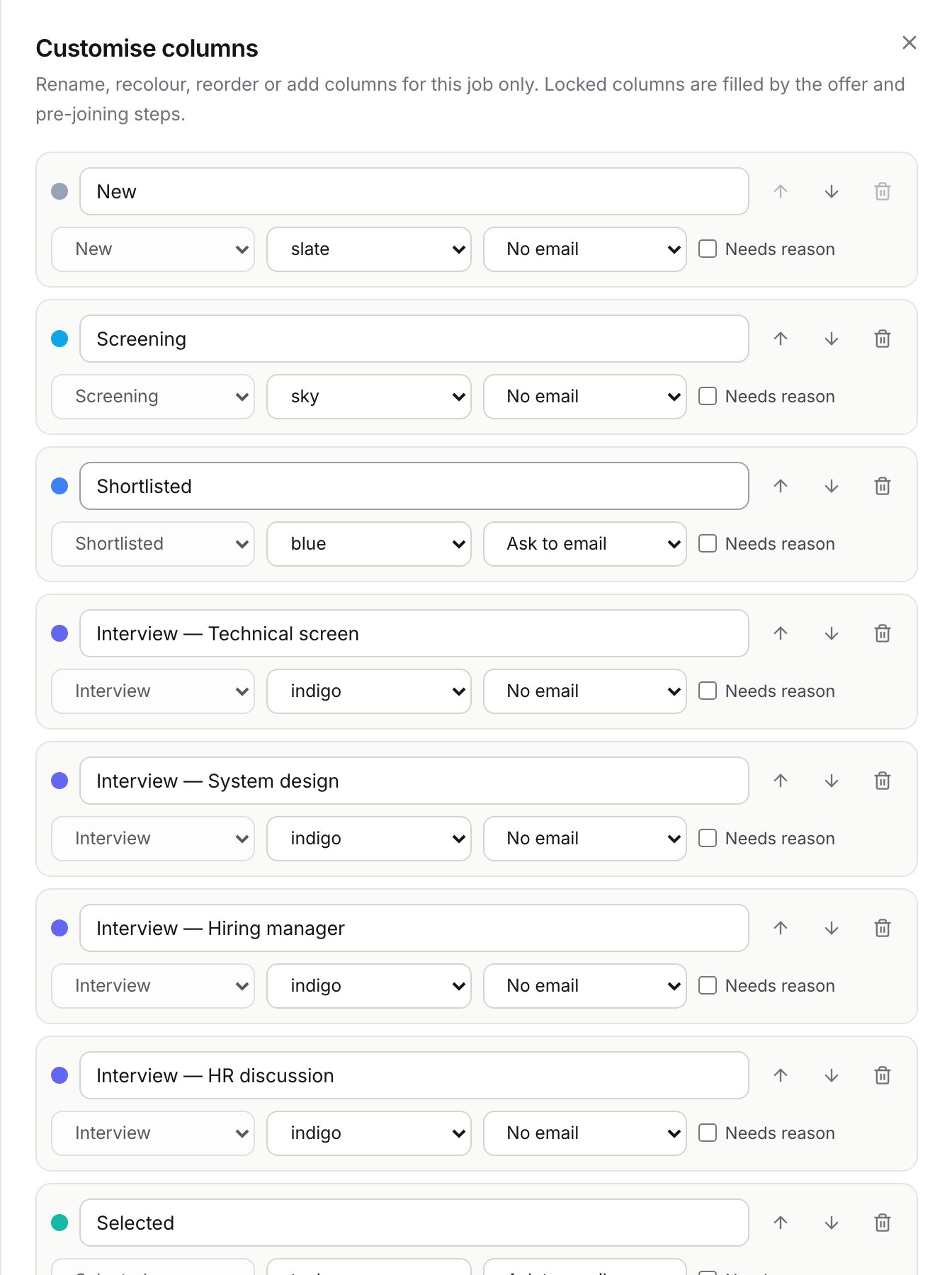
- Click Customise columns on the board.
- For each row set the Column name, Meaning (the category, fixed once a column exists), Colour, Email on move (No email, Ask to email, Email automatically) and Needs reason. Reorder with the arrows; delete with the bin.
- Add column adds a new column (category Interview by default; locked categories cannot be chosen for new columns).
- If a deleted column still holds candidates, choose where they go in the amber box.
- Save. Reset to template replaces the job's columns with the organisation template after a confirmation.
The organisation default is edited under Administration → Settings → Recruitment → Pipeline; see Recruitment settings. Changing the template affects new jobs only.
Statuses
| Category | Meaning | What happens next |
|---|---|---|
| New | Just added. | Screen, shortlist or reject. |
| Screening | Being assessed by HR. | Shortlist, hold or reject. |
| Shortlisted | Worth interviewing. | Schedule an interview. |
| Interview | One column per round. | Scheduling an interview moves the card to the round's column. |
| Selected | Interviews cleared. | Draft an offer. |
| On hold | Parked. | Moving out returns it to the previous stage. |
| Offer, Offer accepted, Joined | Driven by the offer and pre-joining flows. | Locked. |
| Rejected, Withdrawn | Closed with a reason. | Can be reopened into a pre-offer stage. |
| Offer declined, Dropped | Candidate declined, let the offer expire, or backed out before joining. | Locked. |
What happens next
Every move writes an application event (from, to, reason, who) and an audit entry. Moving into Joined recomputes the job's filled count. Rejected picks the "rejected after screening" or "rejected after interview" template depending on whether the application has had an interview.
Rules and limits
- Every job keeps at least one column in each of New, Rejected, Offer, Offer accepted, Joined, Offer declined and Dropped; the dialog refuses to save otherwise.
- Locked columns can be renamed and recoloured but never deleted.
- A stage from another job, the same stage, or a category move the rules forbid is refused with an error message.
- Hiring managers cannot send candidate emails, so their moves never email even on Ask to email stages; bulk moves by HR respect the stage's setting.
- Up to 40 stages per list.
Troubleshooting
The card snaps back after I drop it. The target was locked or not allowed from the current category, or the server refused the move. The toast explains which.
Customise columns is missing. Only HR and the job's recruiter may edit a job's columns, and never on a closed job.
I cannot delete a column. It is locked, or it is the last column in a required category.