Security settings
The Security page has two halves. The top half is personal: your own two-factor authentication (2FA), which every user manages for themselves and which is covered in Two-factor authentication. The lower half, Organisation policy, is where an Admin decides who in the organisation must use 2FA and how.
Who can do this: Everyone can open the page. The Organisation policy card is shown only to people with `settings.manage` (Admin by default) or super admins; HR Managers with `settings.view` do not see the card.
Where to find it
Administration → Settings → Other → Security, URL `/settings/security`.
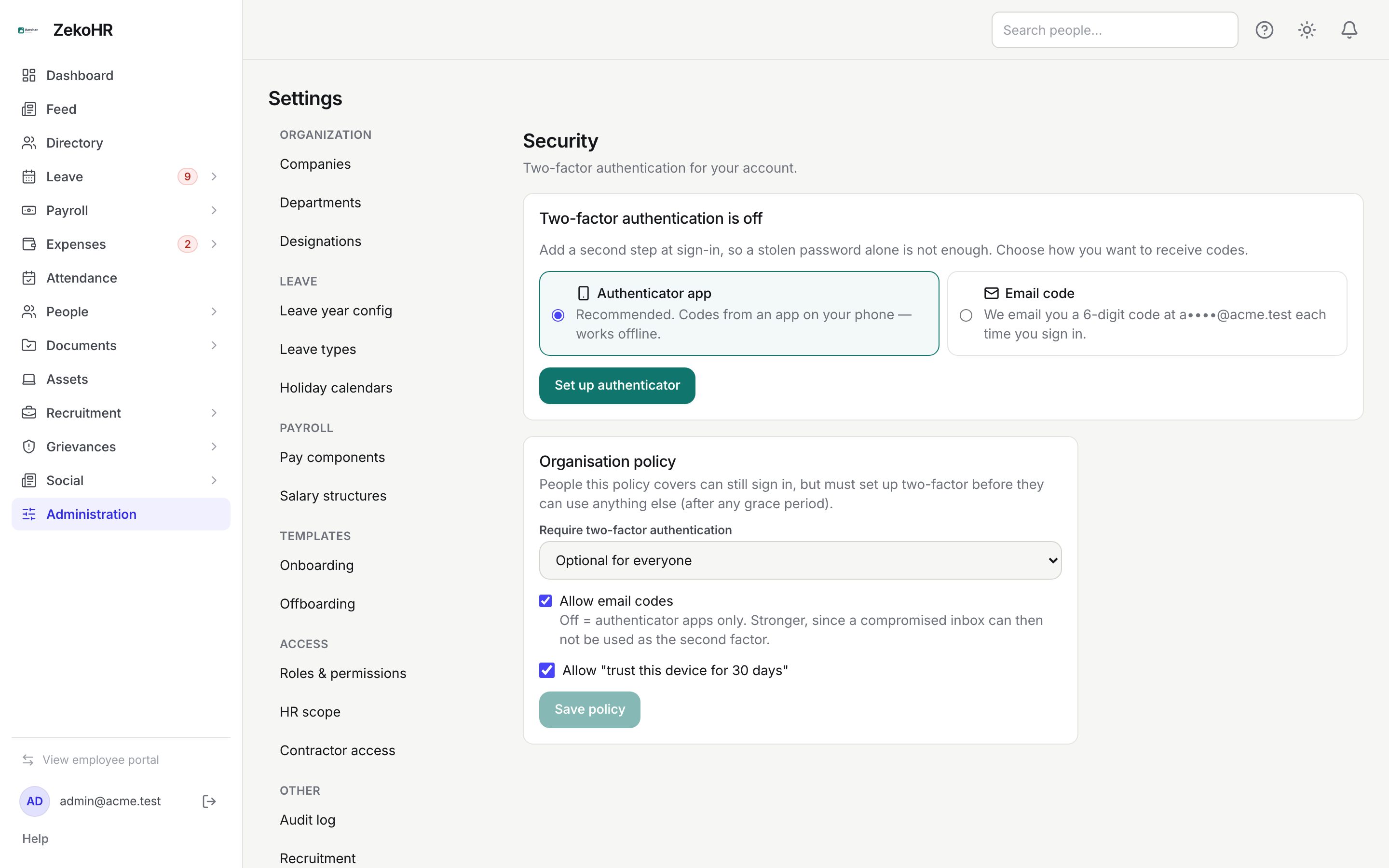
Setting the organisation policy
- Under Organisation policy, choose a value for Require two-factor authentication:
| Option | Who is covered |
|---|---|
| Optional for everyone | Nobody is forced; anyone may still enable 2FA for themselves |
| Required for admins & HR | People holding the Admin or HR Manager role, and legacy super admins |
| Required for everyone | Every user in the organisation, contractors included |
- When the requirement is not Optional, a second field appears: Grace period for people not yet set up. Choose None (require it at next sign-in), 3 days, 7 days, 14 days or 30 days. The server caps the value at 30 days.
- Allow email codes: ticked by default. Untick to allow authenticator apps only; the hint explains that a compromised inbox can then not be used as the second factor.
- Allow "trust this device for 30 days": ticked by default. Untick to make every sign-in ask for a code.
- Click Save policy. The button stays disabled until something has changed.
What happens next
- A covered person who has not set up 2FA can still sign in, but every other screen is fenced until they enrol. They land on Security with a banner: "Your organisation requires two-factor authentication. Set it up below to continue using the portal".
- With a grace period, they see "Set it up by {date} to keep access" instead and can keep working until that date. The clock starts when the requirement is switched on; a person who joins later gets the same number of days from their join date.
- If you turn off email codes, a person who currently uses email 2FA sees "Your organisation no longer allows email codes. Switch to an authenticator app below" and is fenced until they switch.
- A covered person who tries Turn off… on their own 2FA may be refused; the page warns them that switching methods is the alternative.
- The save writes an audit row `two_factor.policy_updated` with the old and new policy.
Rules and limits
- Account security is never plan-gated: these settings work on every plan and during a payment grace period.
- Grace is anchored to whichever is later, the moment the policy was switched on or the person's join date. Switching the policy off and on again restarts the clock.
- Email codes expire after 10 minutes and resends are rate-limited; the sign-in challenge is throttled to 10 attempts a minute.
- Recovery codes are shown once; each works once. Regenerating them invalidates the old set.
- Trusted devices are forgotten whenever a person switches method or disables 2FA.
Troubleshooting
I do not see the Organisation policy card. By default only Admins see it.
A new hire says they are locked out immediately. The policy has no grace period, or their role is covered and grace has already elapsed. Raise the grace period, or help them enrol.
Someone has lost their phone and their recovery codes. Ask the ZekoHR team at [email protected] from an Admin account; after a reset the person receives the Two factor reset email and, if the policy covers them, must enrol again at their next sign-in.
An HR Manager cannot turn 2FA off. The policy is set to Required for admins & HR. That is by design; they can switch methods instead.
Someone cannot receive email codes. Check Settings → Email log for the `auth.two-factor-code` message and its status. See Email log.