Onboarding templates
Templates are the reusable checklists that become a person's onboarding or offboarding. Each template targets a company and employment type, or acts as the organisation default, and holds ordered items. Onboarding items are grouped into named steps that a new hire works through in order. When a template is assigned, its items are copied onto the person, so later edits to the template never change a live checklist.
Who can do this: HR Managers and Admins with `onboarding_templates.manage` and `offboarding_templates.manage`. Viewing needs the matching `.view` permission.
Where to find it
Administration → Settings → Templates → Onboarding and Templates → Offboarding. URL paths: `/settings/templates/onboarding` and `/settings/templates/offboarding`.
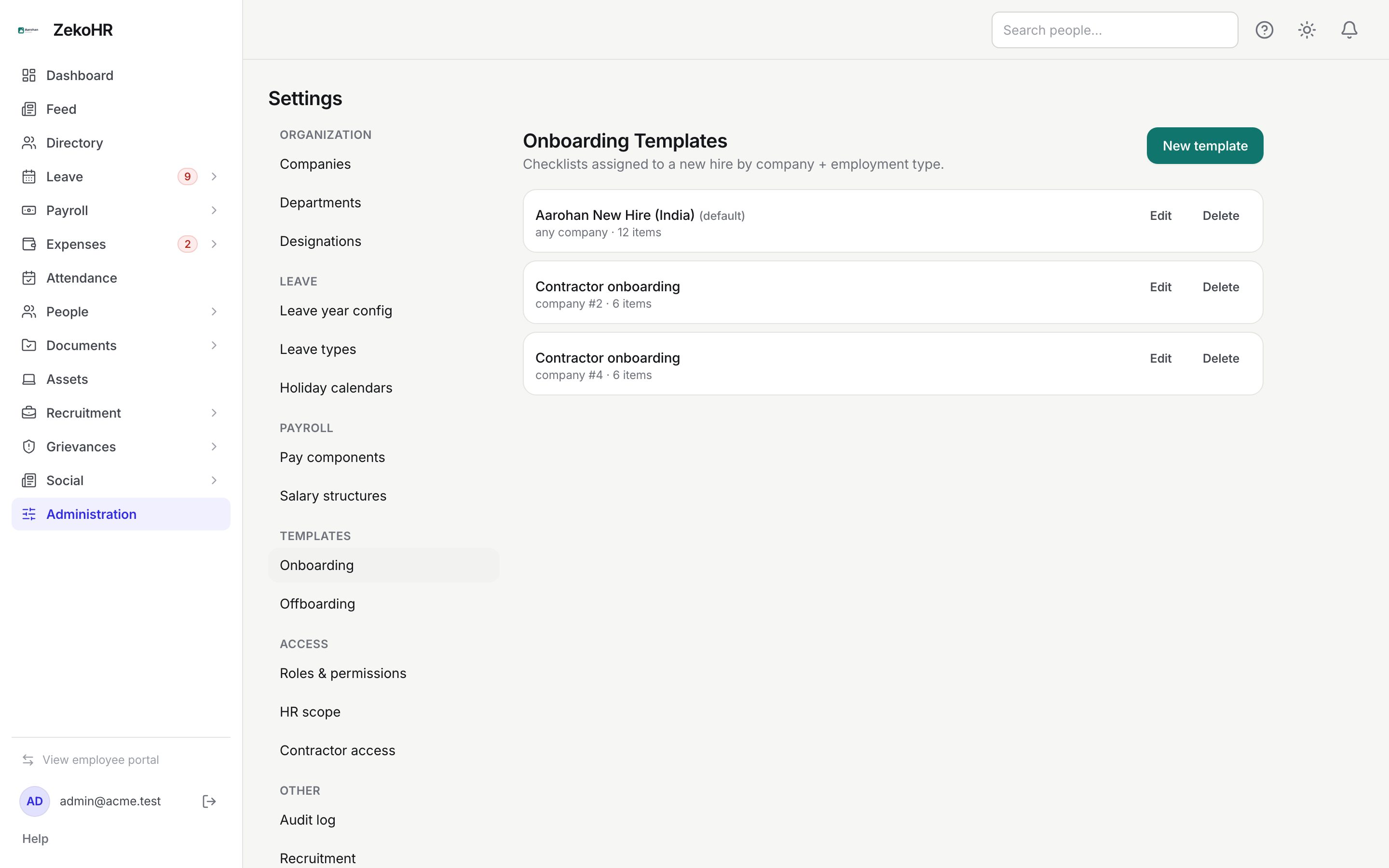
Creating a template
- Click New template.
- Name (required, max 255) and Description (max 2000).
- Company: a specific company or Any company.
- Employment type: Full-time, Part-time, Contractor, Intern or Any employment type.
- Default template (auto-assigned on hire when no specific match): tick on one template per kind to act as the fallback.
- Under Checklist items, click Add item for each task:
- Item label (required, max 255).
- Onboarding only: Step (number from 1, max 50) and Step name (required, max 255, for example "Document Upload"). A new item inherits the previous item's step so you only type the name once per step.
- Mandatory (ticked by default). Optional items never block the next step.
- Evidence required: the person must upload a file before ticking.
- HR verification required: the item counts as done only after HR signs it off.
- Use the up and down arrows to reorder and the cross to remove.
- Click Save.
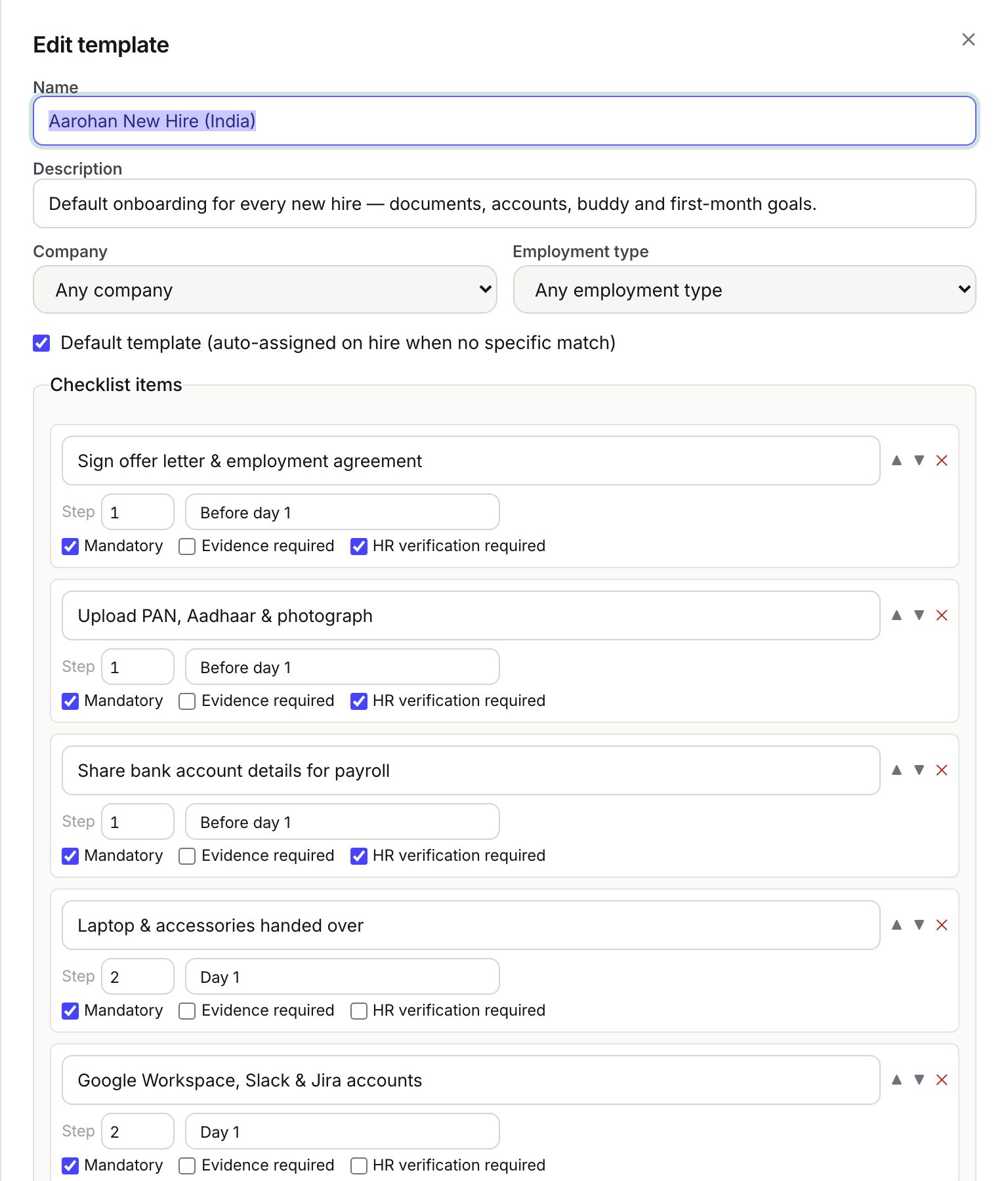
Editing reopens the same dialog; saving replaces the item list wholesale. Delete asks for confirmation and removes the template; existing employee checklists keep their copied items.
How a template is chosen
| Order | Match |
|---|---|
| 1 | Same company and same employment type |
| 2 | Same company, any employment type |
| 3 | Any company, same employment type |
| 4 | The template marked Default |
If nothing matches, no checklist is assigned and HR can pick one manually on the record. Contractors are matched against contractor templates first (the seeded "Contractor onboarding" and "Contractor offboarding") and never receive an employee template. The same order applies to offboarding, where the HR user can also override the pick when initiating.
What the list shows
Each row shows the name, (default) when applicable, any company or company #N, the employment type and the item count. Rows are sorted by name.
What happens next
- A saved onboarding template is offered in the Onboarding tab's Assign template dropdown and used automatically by Add employee and recruitment joins.
- A saved offboarding template appears in the Offboarding template dropdown when initiating an exit.
- Items copied to a person carry step order, step name, mandatory flag, evidence and verification settings as they were at assignment.
Rules and limits
- Every onboarding item must have a step name; templates saved before this rule render unnamed steps as "Step N" until edited.
- Offboarding templates have no steps; their items form a single flat list, and every item is treated as mandatory.
- Only one template should be marked default per kind; the picker takes the first it finds.
- There is no limit on item count, but step numbers are capped at 50.
- New companies get seeded contractor templates only; create your employee templates yourself or mark one as default for the organisation.
- This module must be enabled on your plan; Admins can check Settings → Billing.
Troubleshooting
Save fails on an onboarding template. An item has an empty label or step name. Every item needs both.
New hires get no checklist. No template matches and none is marked Default. Tick the default box on your general template.
I edited the template but an employee's checklist did not change. Expected: checklists are copies. Assign the new template to the person from their record if needed.
Initiate offboarding fails with "No offboarding template configured". Create at least one offboarding template, or mark one as default.
Items appear in the wrong order. Order follows the list in the editor, grouped by step number. Reorder with the arrows and save.