Roles and permissions
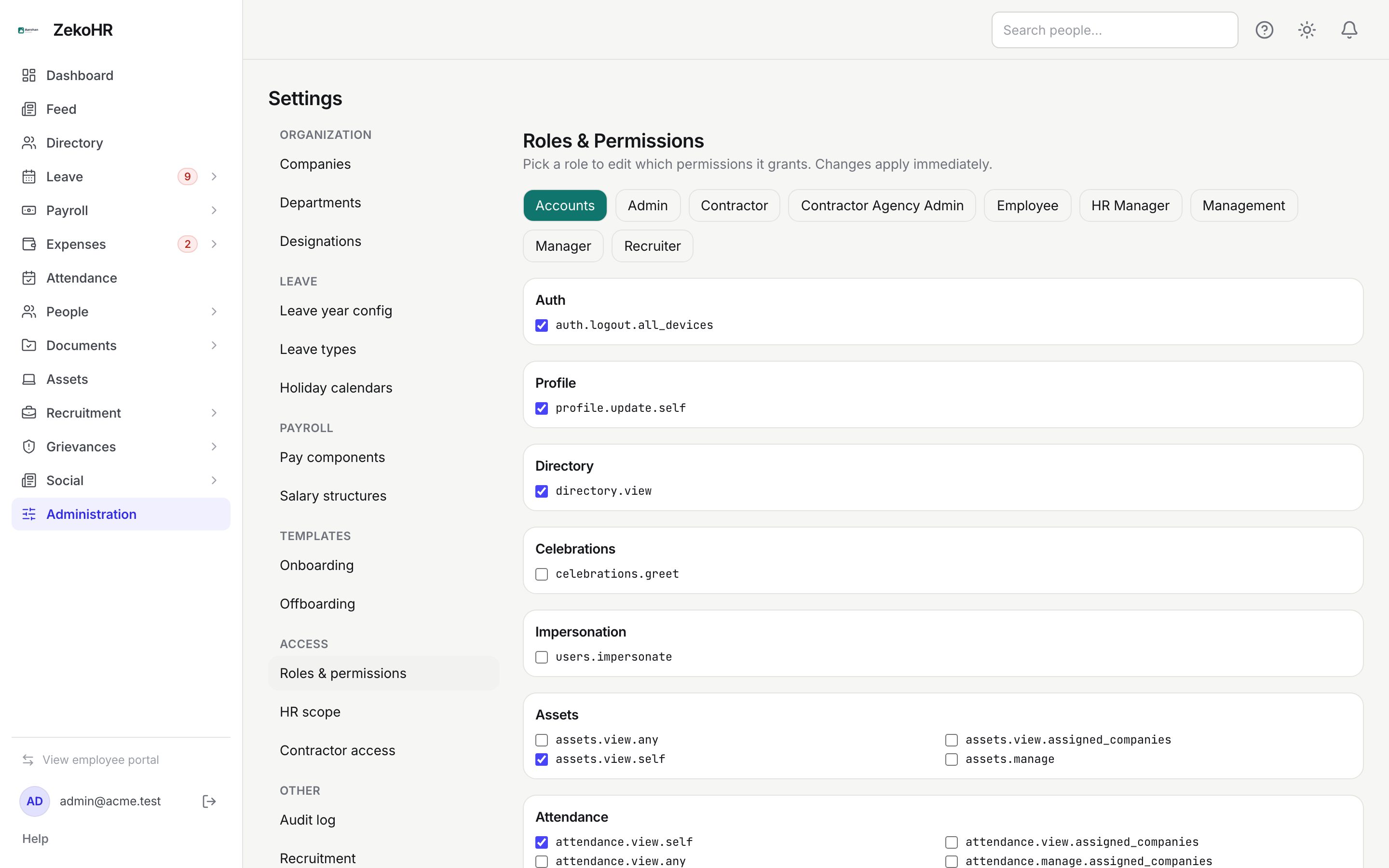
Every person in ZekoHR holds one role, and a role is a bundle of permissions. The bundle decides which sidebar entries exist, which buttons appear and which actions succeed. ZekoHR ships nine roles per organisation with sensible defaults; this page lets you tune what each one grants.
Who can do this: Admins edit bundles with `roles.manage`. HR Managers can open the page read-only with `roles.view`. Assigning a role to a person is a separate action on the employee profile (`roles.assign`); see Changing an employee's role.
Where to find it
Administration → Settings → Access → Roles & permissions, URL `/settings/roles`.
How permission keys are named
Every key follows `resource.verb.scope`, for example `leave_requests.approve.direct_reports`. The scope part is what limits the reach:
| Scope | Reach |
|---|---|
| `any` | The whole organisation, every company |
| `assigned_companies` (or `assigned`) | Only the companies in the person's HR scope |
| `own_company` | The person's own company |
| `direct_reports` | People who report to this person |
| `self` | The person's own record only |
Keys with no scope (`roles.manage`, `designations.manage`, `audit.export`) apply organisation-wide. A few are deliberately kept apart from their neighbours so granting them is an explicit act: `users.impersonate` (sign in as someone), `payroll.rollback` (reopen a published payroll run), `audit.export` (download the whole log), `account.export` (export the entire organisation's data) and `email_logs.view` (bodies can contain sign-in links).
The built-in roles
| Role | Intended for | What the default bundle grants |
|---|---|---|
| Admin | Organisation owners | Every permission in the catalog, including `settings.manage`, `roles.manage`, `users.impersonate` and `account.export` |
| HR Manager | HR staff | Full employee, onboarding, leave, payroll, expenses, documents, recruitment, contractor and grievance management, but scoped to assigned companies; HR override rights (`leave_requests.approve.any`, `expenses.approve.any`); `roles.view`, `roles.assign`, `audit.view`, `audit.export`, `email_templates.manage`, `knowledge.manage`, `settings.view`. No `settings.manage`, no email log, no impersonation |
| Manager | People managers | Employee self-service plus view and approve leave, expenses and advances for direct reports; team calendar; raise recruitment requisitions; refer candidates. Cannot handle grievances |
| Employee | Everyone else | Self-service only: own profile, leave, attendance, payslips, documents, expenses, advances, tax declaration, change requests, social feed, referrals, raising a concern |
| Accounts | Finance | Employee basics plus approve, reimburse and report on expenses and advances in assigned companies, and read payroll for assigned companies. No people or leave powers |
| Recruiter | Hiring staff | Employee basics plus run recruitment in assigned companies (`recruitment.manage.assigned_companies`), dashboard and report export. No recruitment settings |
| Management | Leadership | Employee basics plus the read-only recruitment dashboard and reports across all companies |
| Contractor | Individual and agency contractors | The employee basics minus tax declarations, salary queries, referrals and expenses; further trimmed by Settings → Contractor access |
| Contractor Agency Admin | An agency's own admin | Contractor bundle plus reading their own agency (`contractors.view.own_party`) and proposing workers (`contractor_workers.request.own_party`) |
Roles are fixed; there is no screen to create a custom role, and your edits to the default bundles are kept.
Editing a role
- Click the role's tab (for example HR Manager). The sections below show every permission in the catalog grouped by feature; ticked boxes are granted.
- Tick or untick permissions. The page keeps a draft until you save, and a Reset button appears to discard it.
- Click Save changes. The whole set is sent at once, so what you see ticked is exactly what the role will hold.
Changes apply on the server immediately, but each person's permission list loads at sign-in, so people already signed in see the change next time they sign in.
What happens next
Each save writes an audit row `role.permissions_updated` with the full before and after lists, so you can later answer "who gave HR Manager the right to export the audit log". Nothing is emailed.
Rules and limits
- Only keys in the catalog are accepted; an unknown key is rejected with "Unknown permission(s)".
- Scopes are not enforced by a separate layer. A permission ending in `assigned_companies` only narrows to the companies set under HR scope; granting it to someone with no scope assigned gives them nothing beyond `self`.
- Granting a module's permissions does not switch the module on. The feature must also be on your plan; Admins can check Settings → Billing.
- Giving a role `roles.manage` makes it able to edit every role, including Admin. Keep it to Admins.
Troubleshooting
I ticked a permission and the person still cannot see the page. They need to sign out and back in. If the page is a module page, check the module is on your plan.
HR Manager has `employees.view.assigned_companies` but sees no employees. Their HR scope is empty. Set it under Settings → HR scope; see HR scope.
I want a role that does not exist, such as Payroll Clerk. Custom roles are not supported. Use the closest built-in role (often Accounts or HR Manager) and narrow its bundle, bearing in mind the change applies to everyone with that role.
Save returns an error naming a permission. Reload the page; the catalog may have changed since you opened it.