Your tax declaration
My tax declaration is where you tell HR how your income tax should be worked out for the financial year (April to March, labelled for example 2026-27): which regime you choose and which deductions you intend to claim, with proof documents. HR verifies it and uses the result when they set the TDS deduction on your payslips. ZekoHR does not compute TDS itself; the declaration informs the manual TDS component HR maintains.
Who can do this: employees with `tax_declarations.submit.self` (in every default role). HR reviews with `tax_declarations.verify.any` or `tax_declarations.verify.assigned_companies`.
Where to find it
Sidebar Payroll → My tax declaration, URL path `/my-tax-declaration`. This module must be enabled on your plan; Admins can check Settings → Billing.
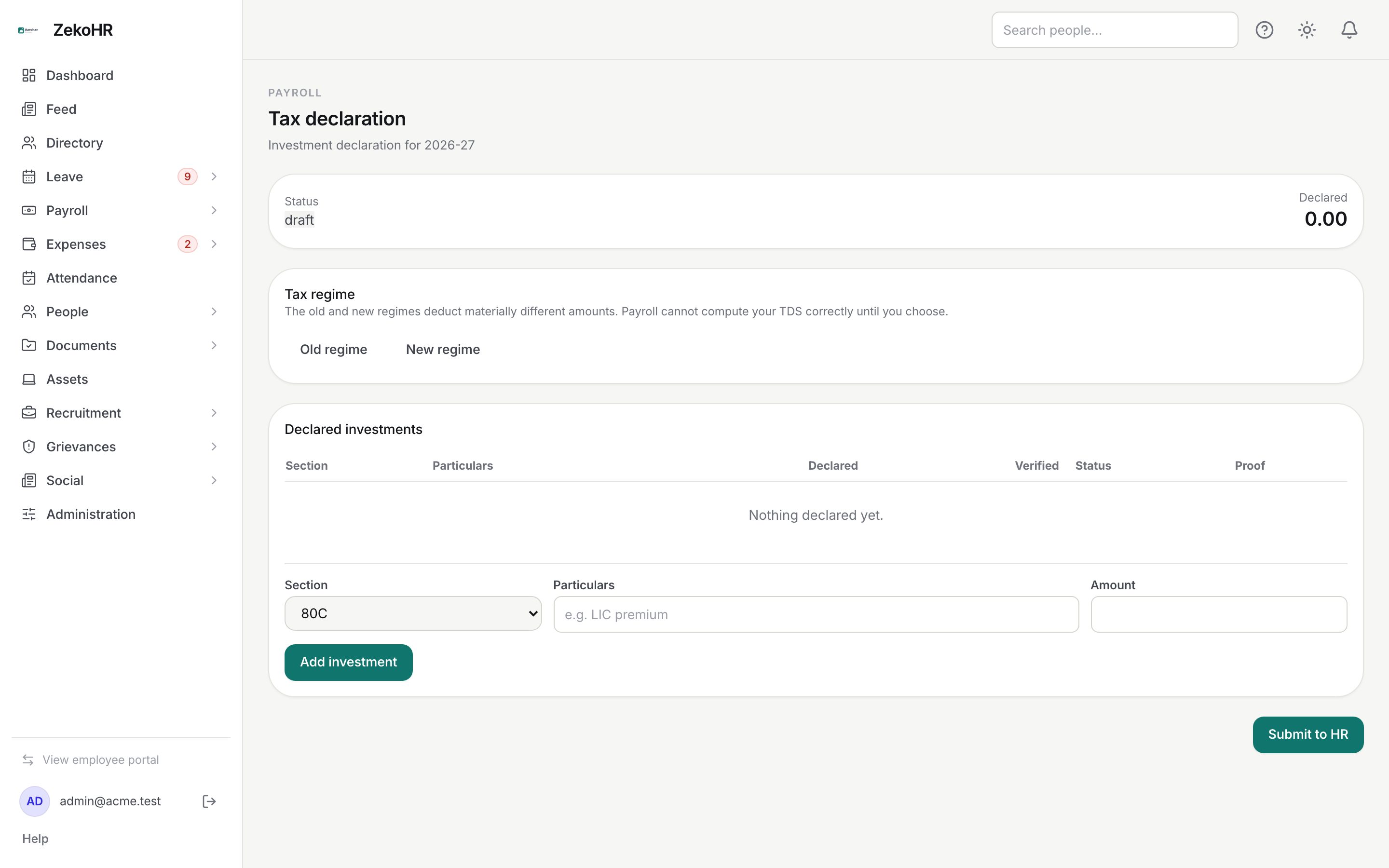
A declaration for the current financial year is created as an empty draft the first time you open the page, so there is nothing to "start".
Choosing a regime
Under Tax regime, click Old regime or New regime. The chosen button is highlighted. You can switch while the declaration is editable. The new regime offers few deductions, so most people on it submit with no investment lines; the old regime is where the sections below matter.
Declaring investments
- In the form under Declared investments, pick a Section: 80C (PF, ELSS, LIC, tuition fees, home loan principal), 80CCD_1B (NPS), 80D (health insurance), 80E (education loan interest), 80G (donations), 80TTA (savings interest), HRA (house rent paid), 24B (home loan interest) or OTHER.
- Particulars: a short description, required, up to 200 characters, for example "LIC premium".
- Amount: the annual figure in rupees, 0 to 99,999,999.99.
- Click Add investment. The row appears with status pending and the Declared total at the top updates.
- To attach evidence, click Attach in the Proof column and choose a PDF, JPG, JPEG or PNG up to 10 MB. One proof per row; uploading again replaces it.
- The bin icon removes a row. There is no in-place edit; remove and re-add if a figure changes.
Submitting
Click Submit to HR once your regime and rows are complete. You must have chosen a regime or added at least one row. After submitting, the status becomes submitted and the page is read-only for you.
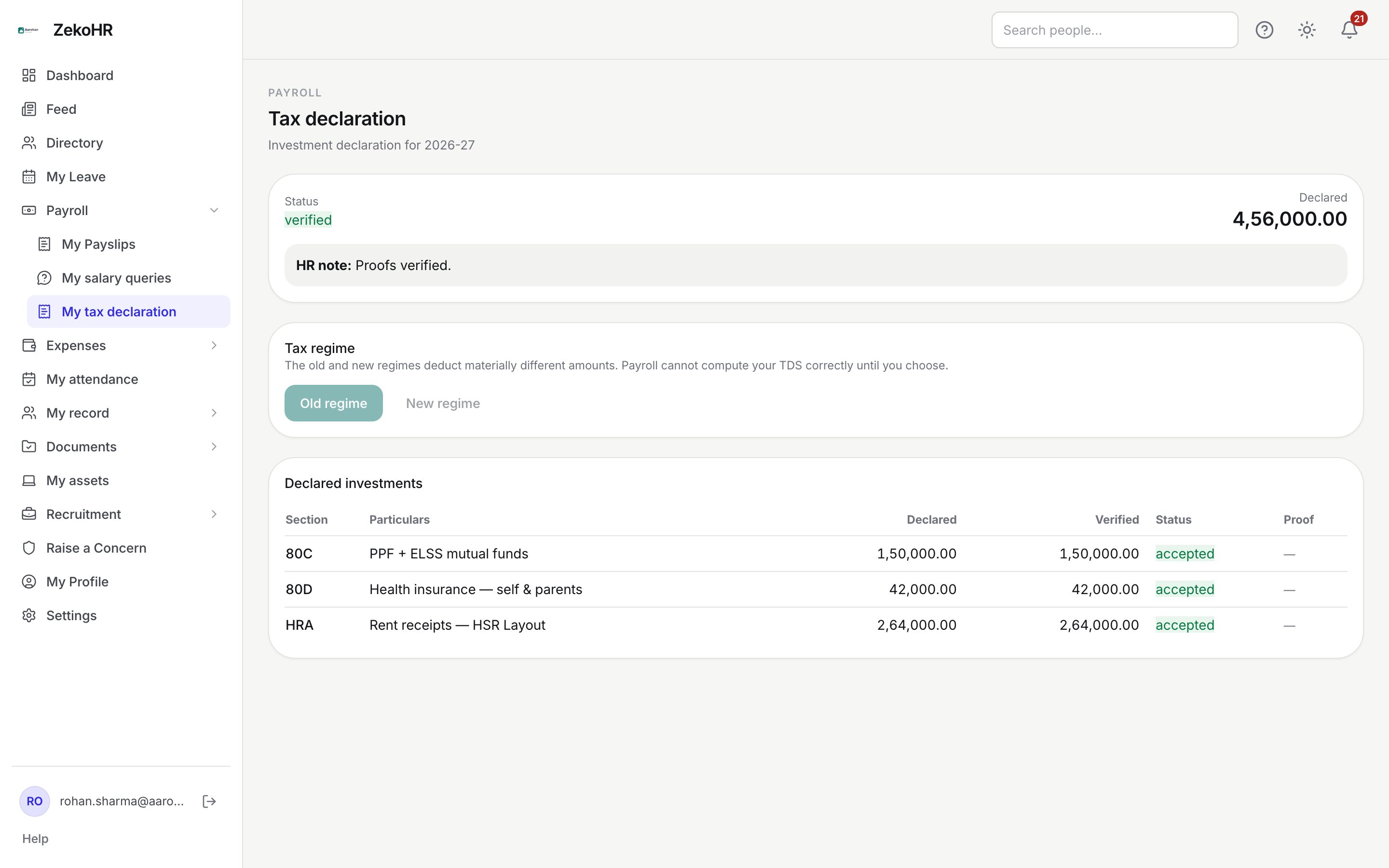
Statuses
| Status | Meaning | What happens next |
|---|---|---|
| draft | Yours to edit | Submit when ready |
| submitted | With HR for verification | Wait; you cannot edit |
| rejected | HR sent it back with a note | Fix what the HR note says and submit again |
| verified | Accepted; final for you | Only HR can reopen it by sending it back |
Each row also has a status: pending (not looked at so far), accepted (at the amount you declared) or rejected (counts as zero).
What happens next
- Submitting is recorded in the audit log. No email or in-app notification is sent to you or to HR at any stage; check the page for the result.
- HR reviews proofs, may accept or reject individual rows, then verifies the whole declaration or sends it back with a note. Verifying marks every still-pending row as accepted at the declared amount.
- Resubmitting after a send-back starts a fresh review.
- The payroll pre-flight warns HR if you have no declaration, no regime, or an unverified declaration, so an incomplete declaration is likely to prompt a reminder from HR.
Rules and limits
- You can edit only while the status is draft or rejected.
- Your organisation may set a declaration window. Once it closes you cannot edit even a draft; the page shows "The declaration window closed on <date>. Contact HR if you need to change anything." No window means editing is always open.
- Changing anything about a row after HR accepted it (by removing and re-adding) resets it to pending.
- Rows belong to one financial year; the page shows the current year only.
- Proofs are private to you and HR; there is no public link.
Troubleshooting
The regime buttons and Add investment are greyed out. The declaration is submitted or verified, or the window has closed. The status card tells you which.
Submit says choose a regime or add an investment. A completely empty declaration cannot be submitted.
My upload was refused. Only PDF, JPG, JPEG and PNG up to 10 MB are accepted per proof.
HR rejected one of my rows. A rejected row counts as zero and the HR note says why. Fix the proof or the figure and resubmit, or ask HR through a salary query of type Tax / TDS question if you disagree.