Attendance, loss of pay and payroll
Attendance and payroll are linked in one direction only: payroll reads the monthly attendance totals to warn you, and you decide the loss-of-pay (LOP) days that actually reduce pay. This article explains what is automatic, what is manual, and how a LOP day changes a payslip.
Who can do this: HR Managers and Admins with `payroll.manage.any` or `payroll.manage.assigned_companies` for the payslip side, plus `attendance.view.any` or `attendance.view.assigned_companies` to read the grid. The pre-flight report needs the payroll manage permission.
Where to find it
- Attendance totals: sidebar Attendance (`/attendance`), LOP column at the right of the grid.
- LOP on a payslip: Payroll → Payroll (`/payroll`), open a draft run, click an employee row to open the payslip editor.
- The pre-flight report sits above the review grid on the run page while the run is draft or finalized.
What is automatic
- Monthly totals. The grid sums day records: absent counts 1 LOP day, half day 0.5, everything else 0. A corrected day changes the total instantly.
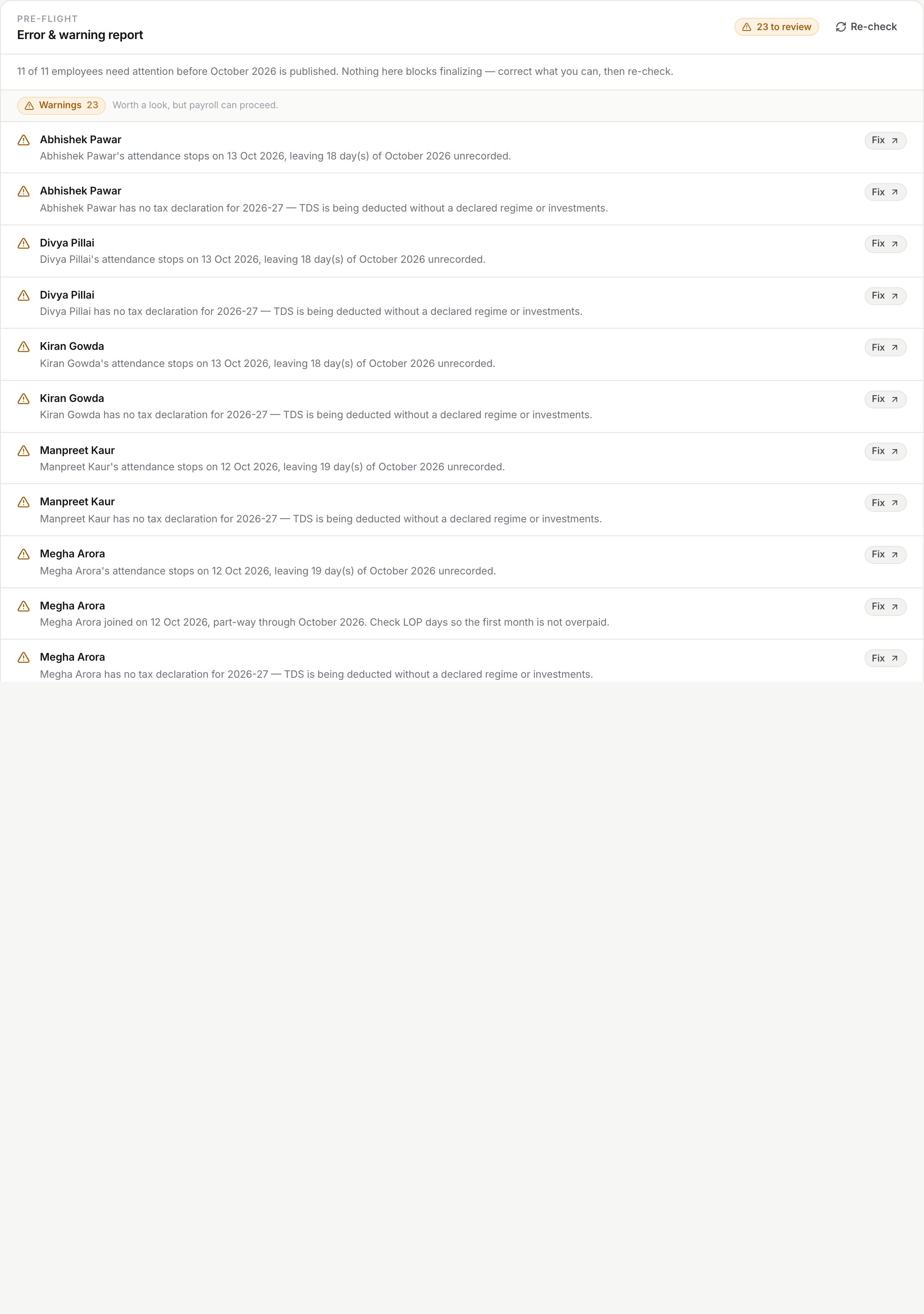
- Pre-flight attendance checks. On a draft or finalized run, the report warns when an employee's attendance for the month is missing or stops early.
- Proration. Once LOP days are on a payslip, every component flagged Prorated by paid days is scaled by paid days divided by calendar days.
What is manual
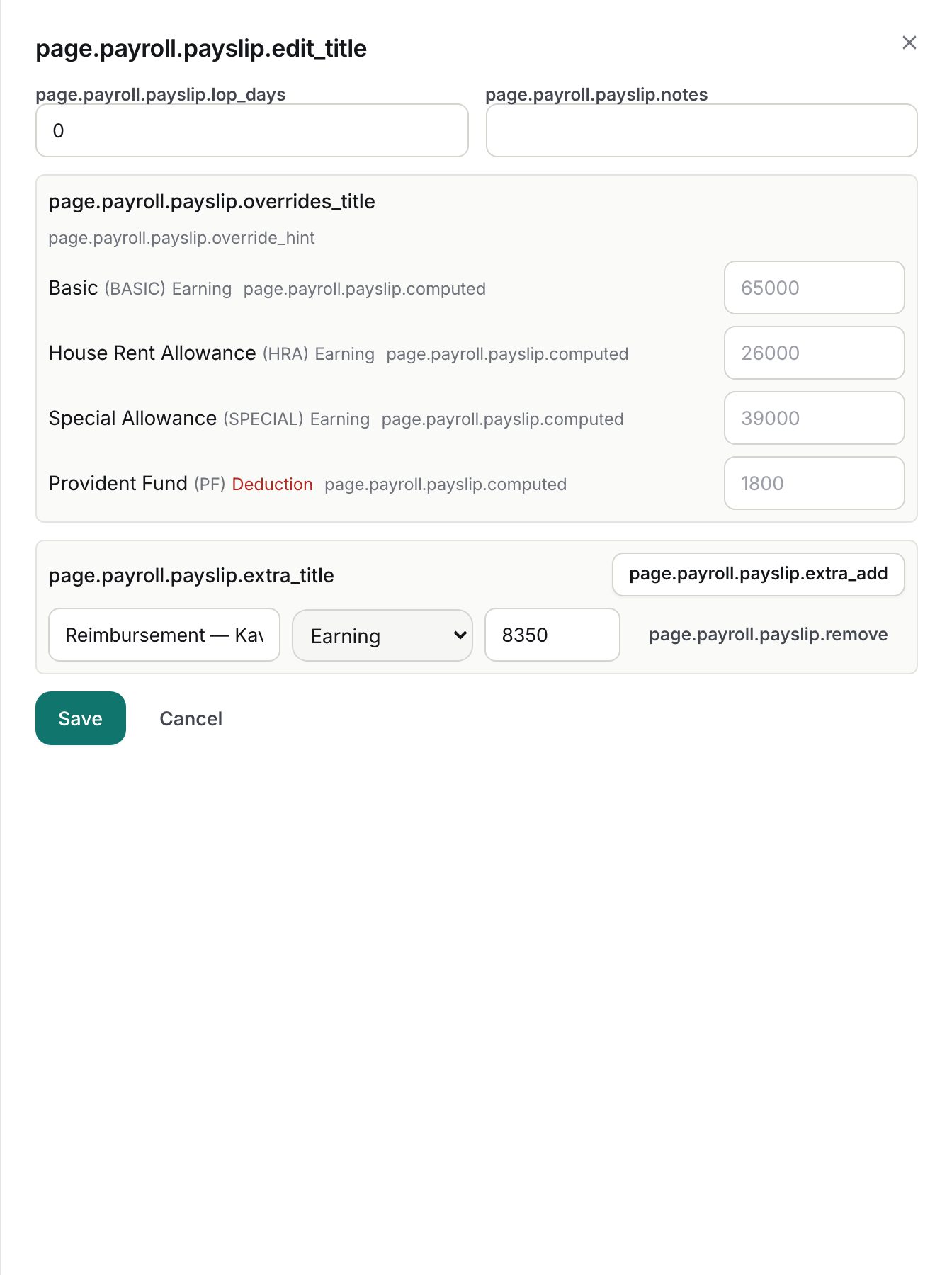
LOP days are not copied from attendance to the payslip. A new run creates every payslip with 0 LOP days. You read the LOP figure from the attendance grid (or from the pre-flight warning) and type it into the payslip editor:
- Open the draft run and click the employee's row.
- In LOP days, enter a number from 0 to the days in the month, in steps of 0.5.
- Optionally add Notes (up to 500 characters) saying where the figure came from.
- Click Save. The payslip is recomputed and the row shows an edited badge.
Recalculate keeps the LOP days you typed; it only recomputes amounts from the salary structure. Finalizing locks them.
How a LOP day changes pay
| Step | Calculation |
|---|---|
| Paid days | Calendar days in the month minus LOP days, never below 0 |
| Factor | Paid days divided by calendar days (a 31-day month with 1 LOP day gives 30/31) |
| Prorated lines | Full-month amount multiplied by the factor, rounded to two decimals |
| Non-prorated lines | Unchanged (deductions default to non-prorated) |
| Balance line | Computed on the full-month gross first, then prorated if its component is prorated |
Calendar days are used, not working days. Statutory deductions such as PF, ESI, PT and TDS are plain manual components; ZekoHR does not recompute them when LOP changes, so adjust them with a line override if your policy requires it.
Pre-flight findings about attendance
| Finding | Severity | Meaning |
|---|---|---|
| Missing attendance | Warning | No day recorded for this person in the month; pay is being calculated with no record of worked days |
| Incomplete attendance | Warning | Days exist but stop before the end of the period, leaving a stated number of days unrecorded |
| Joined during period | Warning | Joining date falls in the month; check LOP so the first month is not overpaid |
| Exited during period | Warning or Error | Last working day falls in the month; warning if a payslip exists, error if not |
The attendance checks switch on only once at least one attendance day exists for anyone in that company and month. An organisation that does not use attendance sees no attendance warnings at all. The expected range respects joining and last working dates, so a mid-month joiner is not flagged for days before they started. Each finding has a Fix link to the attendance grid for that month.
What happens next
- Typing LOP days writes an audit log entry with the LOP and net pay before and after.
- LOP and paid days print on the payslip PDF and in the employee's breakdown, so they can compare them with My attendance. The register CSV carries a `lop_days` column.
Rules and limits
- Attendance warnings never block Finalize; the only hard block is negative net pay.
- Attendance edited after a run is finalized does not change the locked payslip. Roll the run back if the figure was wrong.
- Approved leave is marked On leave and costs 0 LOP; do not double-count it as absent.
- HR Managers see attendance and payroll only for assigned companies.
Troubleshooting
The pre-flight says attendance stops on the 20th. Mark the remaining days (present, weekly off or holiday as appropriate) in the grid, then click Re-check on the run page.
I corrected attendance but the payslip still shows the old LOP. The payslip holds its own LOP field. Open the payslip, change LOP days and save; saving recomputes that payslip.
Half-day LOP is refused. LOP days accept multiples of 0.5 only, up to the number of days in the month.
An employee on approved leave shows LOP on the payslip. Someone typed LOP days for leave that is already paid. Set LOP days back to the grid figure, where approved leave counts 0.