Expense settings
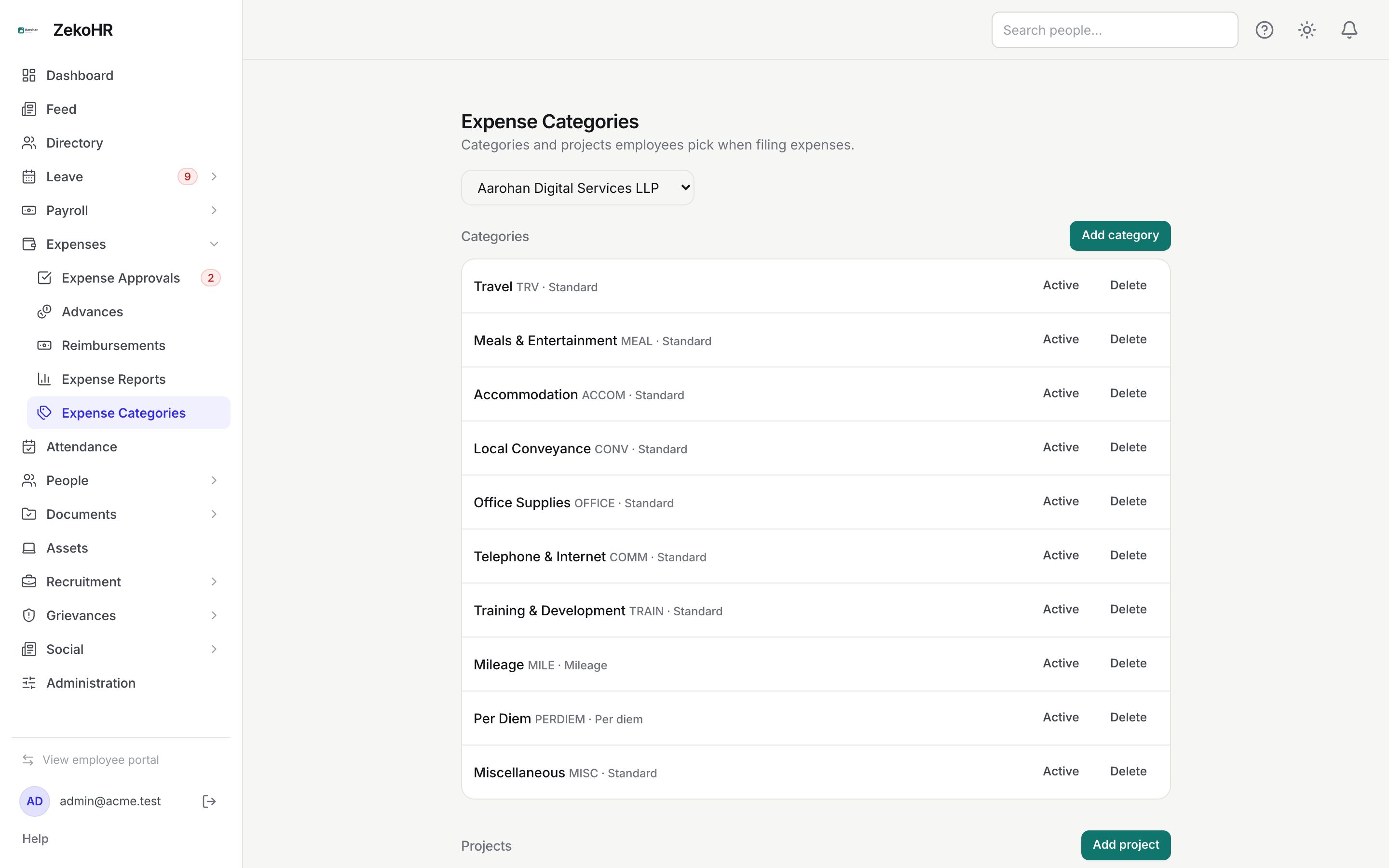
Expense Categories is the configuration page for the expenses module. Per company it holds the categories employees pick on a claim, with their policy rules and rates, the projects for billable tagging, and the approval rules. New companies are seeded with a standard set so claims can be filed from day one.
Who can do this: HR Managers and Admins with `expense_config.manage`. Accounts can read the page with `expense_config.view`. Force-deleting an in-use category or project additionally needs `roles.manage` (Admin).
This module must be enabled on your plan; Admins can check Settings → Billing.
Where to find it
Expenses → Expense Categories in the admin view, at `/expense-settings`. When your organisation has more than one company, a dropdown at the top selects which company you are editing; categories and rules belong to that company.
Default categories
New companies get, in order: Travel (TRV), Meals & Entertainment (MEAL), Accommodation (ACCOM), Local Conveyance (CONV), Office Supplies (OFFICE), Telephone & Internet (COMM), Training & Development (TRAIN), Mileage (MILE, INR 12 per km), Per Diem (PERDIEM, INR 1,500 per day) and Miscellaneous (MISC). Receipt required is on for all standard ones except Local Conveyance and Telephone & Internet.
Adding a category
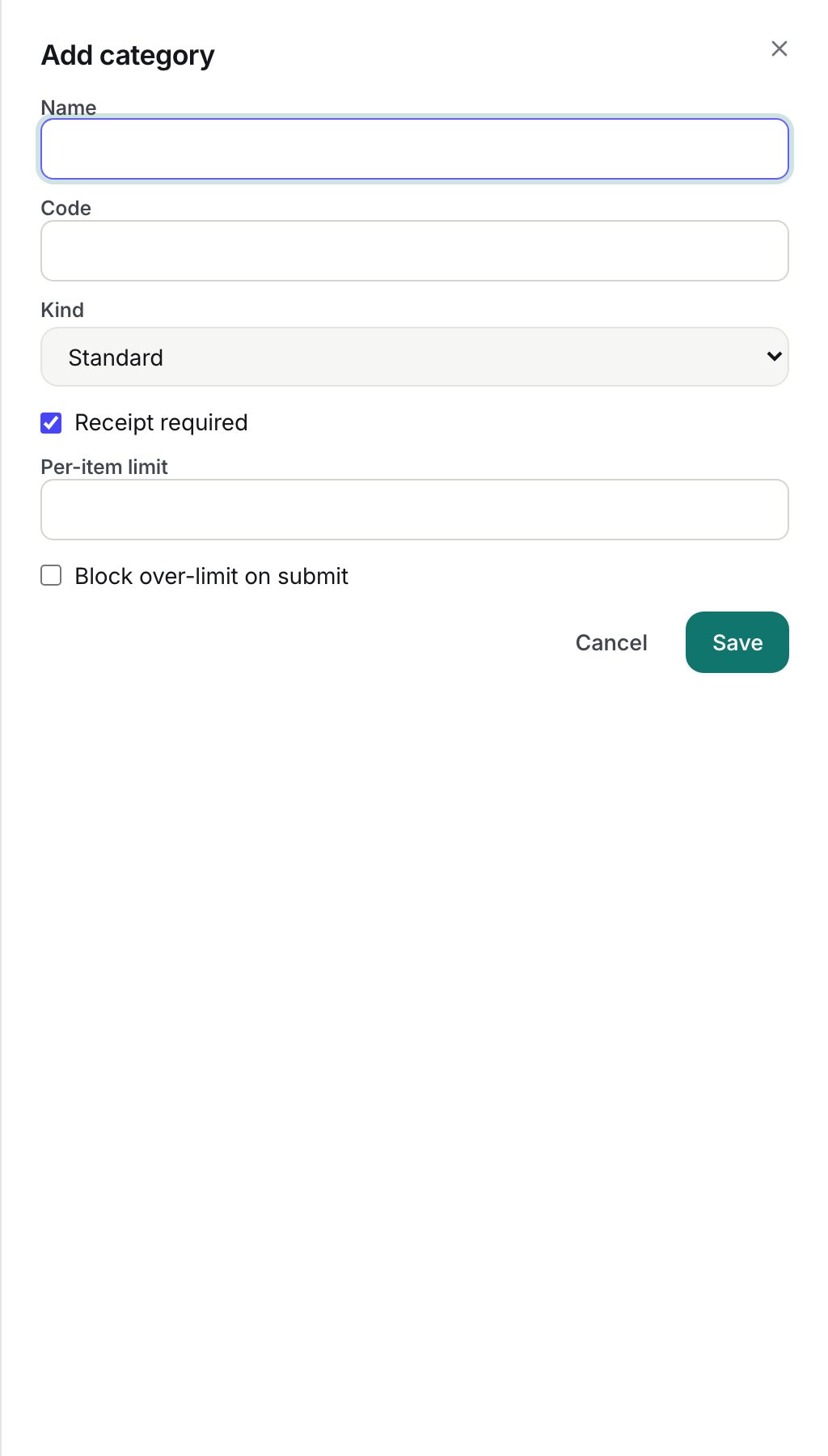
- Click Add category.
- Name (required, up to 255 characters). The URL-safe slug is generated from it.
- Code (required, up to 16 characters), shown next to the name everywhere, for example TRV.
- Kind: Standard, Mileage or Per diem.
- For Mileage enter Rate / km; for Per diem enter Rate / day. The rate is required for that kind. The rate is multiplied by the distance or days the employee enters and snapshotted on each line.
- For Standard only:
- Receipt required (on by default). A line without a receipt gets a policy flag.
- Per-item limit: optional INR cap; a line above it gets a flag.
- Block over-limit on submit: when on, the category's flags are hard blocks (red) that only an HR Manager or Admin can override at approval with an audited reason. When off they are warnings.
- Click Save. The dialog cannot edit an existing category; only the Active toggle and Delete are available on the list.
Activating, deactivating and deleting
- The Active button toggles the category. Inactive categories show a dash instead, disappear from the employee's list, and keep their history on old lines.
- Delete removes a category no line has used. If lines reference it, the app says it is in use; an Admin can confirm the override, which deactivates it instead and writes `expense_category.deactivated_via_force_delete` to the audit log.
Projects
Projects populate the Project (billable) dropdown on a claim; the Billable to project tick on each line drives the split in the spend summary report.
- Click Add project.
- Name (required, up to 255), Code (required, up to 32) and Client (optional, up to 255).
- Click Save. The project belongs to the company selected at the top and is listed for its employees.
Delete follows the same in-use rule as categories.
Approval rules
The Approval rules section lists each rule with its step count and amount band, with Add rule and Delete. When no rule exists, the section says that claims go to the reporting manager by default. See Approval rules and delegation.
What the settings control
| Setting | Effect on employees | Effect on approvers |
|---|---|---|
| Kind and rate | Chooses Distance (km) or Days input and computes the amount | Amount is fixed by the rate, not editable |
| Receipt required | Receipt-missing flag on lines without a file | Warning, or block if hard block is on |
| Per-item limit | Over-limit flag above the INR cap | Warning or block |
| Block over-limit on submit | Flags turn red | Approval needs an HR/Admin override with reason |
| Active | Only active categories can be picked | Old lines keep the snapshotted name and category code |
| Project | Appears in the claim's project dropdown | Billable split in reports |
Rules and limits
- Categories, rules and the selected company are tied together; a category cannot be moved between companies after creation, and an employee's claim can only use categories of their own company.
- Changing a mileage or per diem rate affects new lines only; the in-use check counts lines on claims of any status.
- The Accounts role sees this page read-only; granting it the expense configuration permission under Administration → Roles lets it edit.
Troubleshooting
Employees cannot see a category I added. It was added under a different company, or it is inactive.
The Mileage category computes zero. No Rate / km was saved. Deactivate it and add a new mileage category with a rate, since the dialog cannot edit an existing one.