Your payroll profile and bank details
Your payroll profile is the set of identifiers payroll needs to pay you and report tax: bank account, IFSC, bank name, PAN, UAN and ESIC number. HR maintains it on your employee record. You cannot edit it directly, but you can see the current values and ask HR to change them through a change request, which keeps a reviewed trail of who changed what.
Who can do this: employees with `payroll.view.self` can see their own profile (bank account masked) and anyone with `change_requests.submit.self` can request a correction. HR edits it with `payroll.manage.any` or `payroll.manage.assigned_companies`.
Where to find it
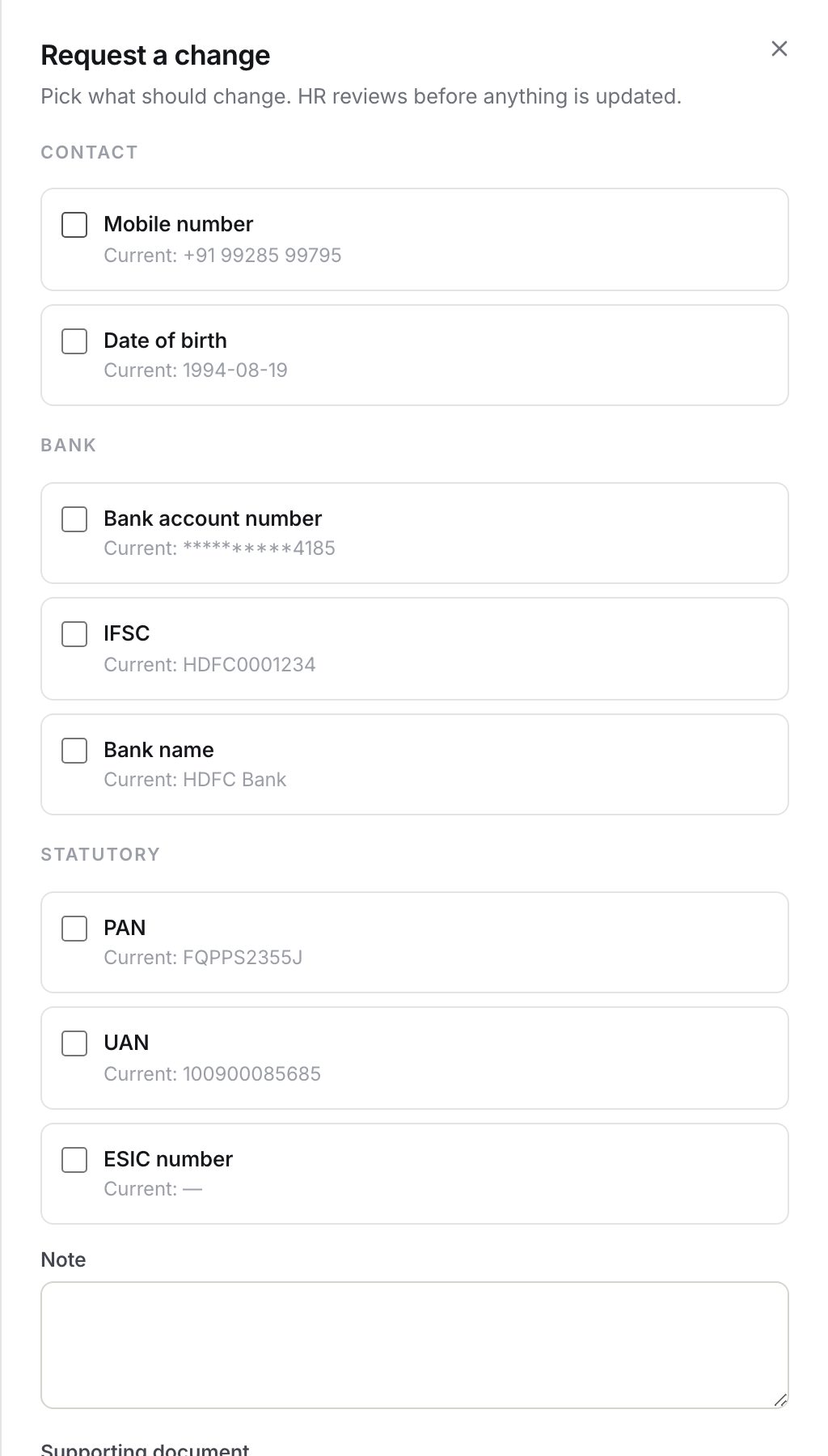
- Current values: sidebar My record → My change requests (`/my-change-requests`), click Request a change; the dialog shows the current value beside each field.
- On your payslip PDF: Payroll → My Payslips, Download PDF.
Your payroll details have no page of their own; the change-request dialog is where you see them.
What is stored
| Field | Limit | Used for |
|---|---|---|
| Bank account number | up to 34 characters | Salary transfer; printed masked on the payslip |
| IFSC | up to 11 characters | Salary transfer |
| Bank name | up to 120 characters | Printed on the payslip |
| PAN | up to 10 characters | Tax reporting; printed in full on the payslip |
| UAN | up to 12 characters | PF; printed in full on the payslip |
| ESIC number | up to 17 characters | ESI |
| PF opted in, ESI applicable | yes/no flags | Shown to HR on your profile; informational |
When HR changes bank account, PAN, UAN or ESIC, the audit log keeps only the last four characters of each.
Requesting a correction
- Open My record → My change requests and click Request a change.
- Tick the fields you need changed. They are grouped as Contact details (mobile number, date of birth), Bank account (account number, IFSC, bank name) and Statutory identifiers (PAN, UAN, ESIC).
- Enter the correct value next to each ticked field. The current value is shown for comparison; the account number appears as asterisks plus its last four characters.
- Add a note and, if useful, an attachment such as a cancelled cheque or PAN card scan.
- Submit. HR reviews the request; once approved the record is updated and the next payroll run uses the new values. See Your record and change requests for the full flow.
Where it shows up
- Payslip PDF: PAN, UAN, masked bank account and bank name are printed in the header block. The in-app breakdown does not show them.
- Payroll pre-flight: before each run HR is warned if your bank account or IFSC is missing (error), or if PAN or UAN is missing (warning), with a link to your profile. Filling these in before payday avoids a delayed transfer.
- Salary queries: if a payment did not arrive, raise a query of type Bank account or payment not received.
What happens next
- Submitting a change request notifies HR; approving or rejecting it notifies you. Nothing changes on your record until HR approves.
- HR's edit is written to the audit log with masked before and after values.
- The payslip PDF is generated when a run is finalized, so a change made after finalization shows on the next month's slip unless HR rolls the run back.
Rules and limits
- Values are stored exactly as typed; ZekoHR does not validate PAN or IFSC formats beyond length.
- The masked account number cannot be revealed in self-service; ask HR if you need to confirm the full number.
- ZekoHR does not compute PF, ESI, PT or TDS. PAN, UAN and ESIC are reference identifiers for the manual statutory components HR adds to your salary structure.
Troubleshooting
The current value for my bank fields is blank in the dialog. HR has not filled in your payroll profile yet, or your role lacks `payroll.view.self`. Request the values anyway; HR will add them.
My salary went to an old account. The change was approved after the run was finalized. Raise a salary query so HR can check the payout, and confirm the new values are now on your record.
The PDF shows a different PAN. Request a correction with your PAN card attached. HR will verify and update it.