Manager dashboard and pending actions
The dashboard is the same page for everyone, but for managers, HR and Admins it grows a NEEDS YOUR ATTENTION feed listing every queue waiting on you, most urgent first. It is built from the same rules as each queue's own page, so a count here is exactly what you will find when you click through.
Who can do this: every employee sees the dashboard. Approval rows appear for holders of `leave_requests.approve.*`, `expenses.approve.*` and `expense_advances.approve.*`; HR-only rows need the matching HR permissions. The sidebar badges on Leave and Expenses use the same counts.
Where to find it
Dashboard, the first sidebar item. URL: `/`.
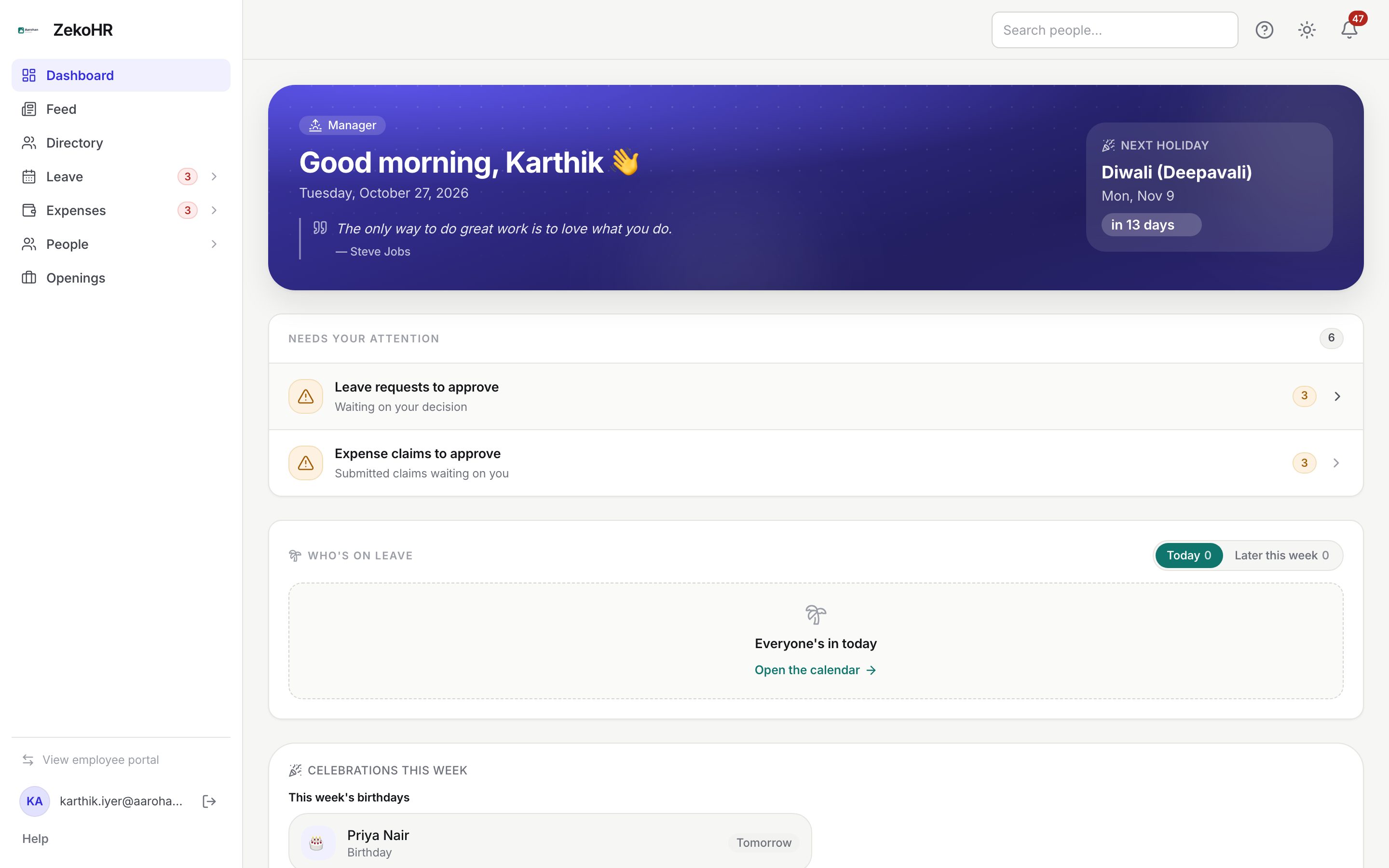
Reading the page
- The hero shows your first role as a badge (for example Manager), a greeting, today's date, a quote of the day and a NEXT HOLIDAY card with its countdown.
- NEEDS YOUR ATTENTION lists rows with an icon tinted by urgency, a title and subtitle, a count badge and an arrow. Click a row to open the queue. The badge in the heading is the total across rows. When nothing is pending the card is not shown at all.
- WHO'S ON LEAVE shows absences for Today or Later this week; colleagues' leave types are hidden, your reports' are shown.
- CELEBRATIONS THIS WEEK lists birthdays in the next seven days, work anniversaries up to a month out and new joiners in your company.
- My leave balance shows your own tiles with Full breakdown →, and Quick actions offers shortcuts such as apply for leave.
On a phone the same sections stack in one column.
Rows you may see
| Row | Who sees it | Opens |
|---|---|---|
| Leave requests to approve, "Waiting on your decision" | Anyone who can approve leave | Leave → Approvals |
| Expense claims to approve, "Submitted claims waiting on you" | Anyone who can approve expenses | Expenses → Expense Approvals |
| Cash advance requests to approve | Advance approvers | Expenses → Advances |
| Documents were rejected, "Re-upload so HR can verify them" | You, about your own documents | Documents |
| Documents requested by HR | You | Documents |
| Documents to acknowledge | You | Documents |
| Onboarding steps to complete | New joiners | My onboarding (`/onboarding`) |
| Exit checklist steps to complete | Leavers | Your offboarding checklist (`/my-offboarding`, reached from this row) |
| Complete your profile, "N% complete" | You | My Profile |
HR Managers and Admins also get rows for grievance cases and document verifications. Rows are sorted by urgency (rejected documents first), then by count, then in the order above.
What the counts mean
- The leave count is the number of pending requests you could act on: requests assigned to you as reporting manager, plus for HR every pending request in scope including unassigned ones. Your own requests are excluded.
- The expense count is submitted claims whose active step names you, or names a role you hold in the claim's company.
- Counts refresh when you return to the dashboard and after you act in a queue; the sidebar badges refresh with them.
What happens next
- Clicking a row changes nothing by itself; decisions are made on the queue page.
- Nothing on the dashboard sends notifications. A daily email digest of your pending actions can arrive separately when the pending_actions.reminder event is ticked under Settings → Notifications.
Rules and limits
- A row is skipped silently when you lack its permission, so one missing permission never breaks the dashboard.
- The feed shows counts only; it never lists the individual requests.
- Who's on leave respects each employee's leave visibility, but a reporting manager always sees their direct reports.
- Celebrations are limited to your company and need birth dates and joining dates on profiles.
- The role badge shows your first assigned role; a user with several roles still sees every row they qualify for.
- Modules not enabled on your plan produce no rows; Admins can check Settings → Billing.
Troubleshooting
The attention feed is missing. Nothing is pending for you, or the feed failed to load; it hides itself rather than show an error. Refresh.
The count says 3 but Approvals shows 2. Someone decided one in between. Both read the same definition; reload the queue.
Who's on leave says everyone is in, but my report is off. Their leave starts later than today's view; switch to Later this week, or the leave is still pending.
No birthdays appear. Dates of birth are not filled in on profiles for your company.