Email templates
Every email ZekoHR sends on your behalf, from password resets to payslip notices, is rendered from a template. Email templates lets you rewrite the subject and body of each one for your organisation while the platform keeps supplying the data through `{{ … }}` tokens. Your logo, colour and product name are applied automatically.
Who can do this: Viewing needs `email_templates.view`; saving, resetting and sending tests need `email_templates.manage`. Both are in the Admin and HR Manager bundles by default.
Where to find it
Administration → Settings → Other → Email templates, URL `/settings/email-templates`.
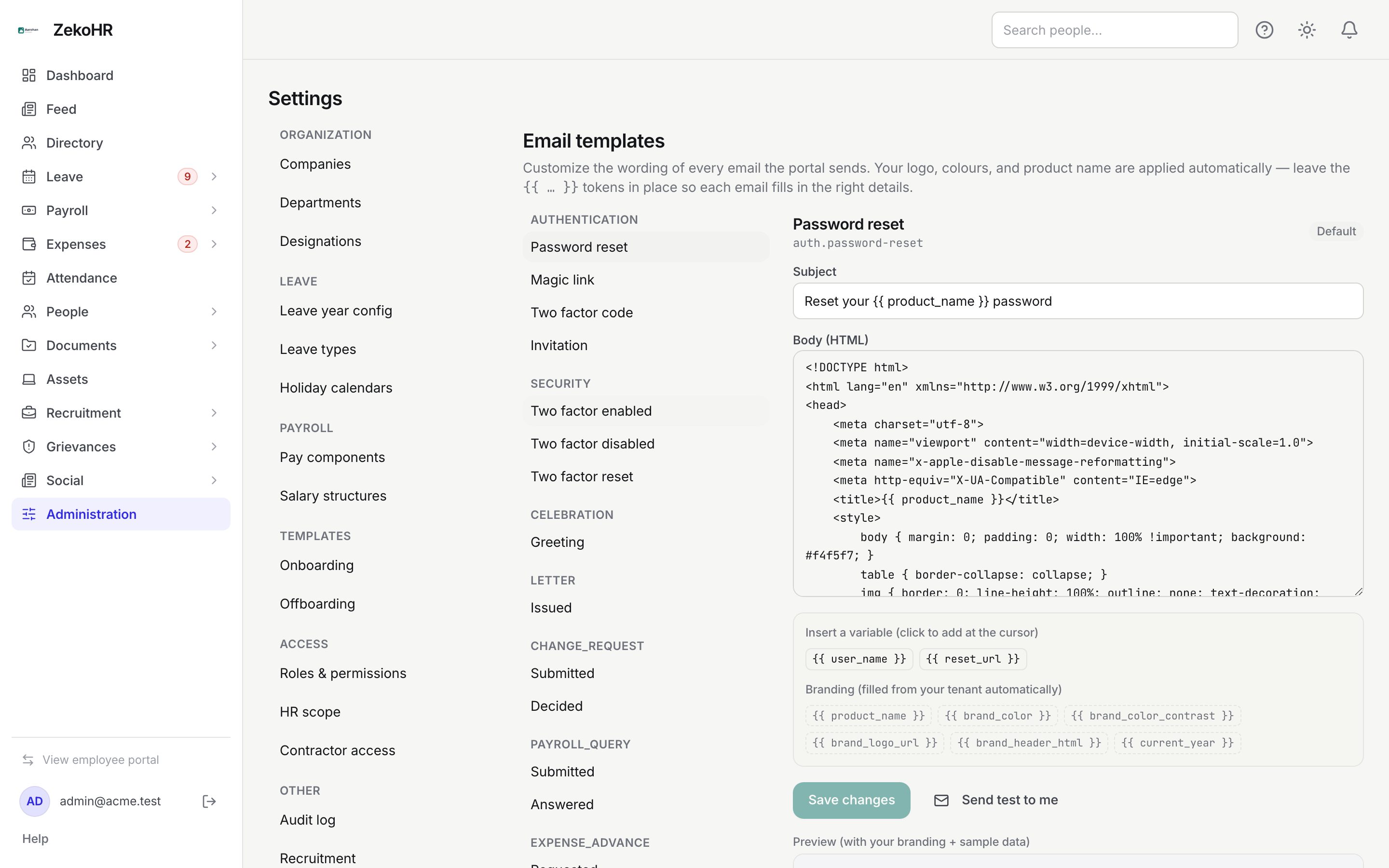
The template list
The left column groups templates by module: Authentication, Security, Celebration, Letter, Change_request, Payroll_query, Expense_advance, Leave, Onboarding, Offboarding, Documents, Org documents, Payroll, Expenses, Grievances, Contractor and the pending-actions digest. A template you have changed carries a Custom badge. On a phone the list becomes a drop-down with "• Customized" after edited names.
Editing a template
- Click a template. The editor shows its title, the slug (for example `auth.invitation`) and a Default or Customized badge.
- Edit Subject (up to 255 characters). Tokens work here too, for example "Reset your {{ product_name }} password".
- Edit Body (HTML). It is the complete HTML document, including the branded header and footer, so you can change anything, but keep the tokens you need.
- Use Insert a variable (click to add at the cursor): the chips under it are the template's own variables (`{{ user_name }}`, `{{ reset_url }}` and so on). The dashed chips under Branding (filled from your tenant automatically) are available everywhere: `{{ product_name }}`, `{{ brand_color }}`, `{{ brand_color_contrast }}`, `{{ brand_logo_url }}`, `{{ brand_header_html }}`, `{{ current_year }}`.
- Watch Preview (with your branding + sample data) at the bottom. It re-renders about half a second after you stop typing, using sample values, inside a sandboxed frame.
- Click Save changes. The badge switches to Customized.

Other buttons:
- Reset to default (only on a customised template) deletes your override and restores the platform wording. There is no undo.
- Send test to me renders the saved template with sample data and emails it to your own address with "[TEST]" in front of the subject. The test is written to the email log like any other message.
Which variables exist
Each template has its own list; the chips are authoritative. A few to know: `auth.invitation` has `invitation_url` and `onboarding_note`; `leave.applied` has `employee_name`, `leave_type`, `start_date`, `end_date`, `day_equivalent` and `request_url`; `payroll.payslip_published` has `company_name`, `period_label`, `net_pay` and `payslip_url`; `grievance.submitted` has `category`, `tracking_code` and `request_url`. Tokens that a template does not list render empty.
What happens next
- A saved override applies to every email of that slug sent after the save, for your organisation only; other organisations are unaffected.
- The change itself is not audited, so note what you changed. Sent messages are permanently recorded in Settings → Email log, which is how you confirm the wording went out.
- Personal notification preferences still decide whether a given person receives the email at all.
Rules and limits
- Only the English locale is editable; the editor always works on `en`.
- Subject is required and limited to 255 characters; body is required.
- Deleting a token such as `{{ reset_url }}` produces an email with no link. The preview will show the gap; check it before saving.
- Scripts in the body never run in the preview, and most mail clients strip them; do not rely on them.
- Templates for modules not on your plan are still listed and editable; they simply never send.
- The from-name and from-address are set by the platform (white-label organisations get their product name as the from-name) and cannot be changed here.
Troubleshooting
The preview is blank. The body is invalid HTML or the preview request failed. Fix the markup or reload the page.
Send test to me did nothing. Check Settings → Email log for a row with the slug and your address; its status shows whether the mailer accepted it.
I want the old text back. Click Reset to default on that template.
A variable renders empty in real emails. It is not in that template's list. Use only the chips offered for that template.