Managing the knowledge base
The Knowledge base is the set of help articles your people read under Help in the sidebar and in the contextual help panel. ZekoHR seeds a full set covering every screen; you can edit those, add your own (policies, office rules, "who to ask"), and decide which roles see each article.
Who can do this: Authoring needs `knowledge.manage`, held by Admin and HR Manager by default. Reading needs no permission: every signed-in user sees the published articles targeted at their role. This module must be enabled on your plan; Admins can check Settings → Billing.
Where to find it
Administration → Settings → Other → Knowledge base, URL `/settings/knowledge-base`. Readers find the same articles at Help (`/help`).
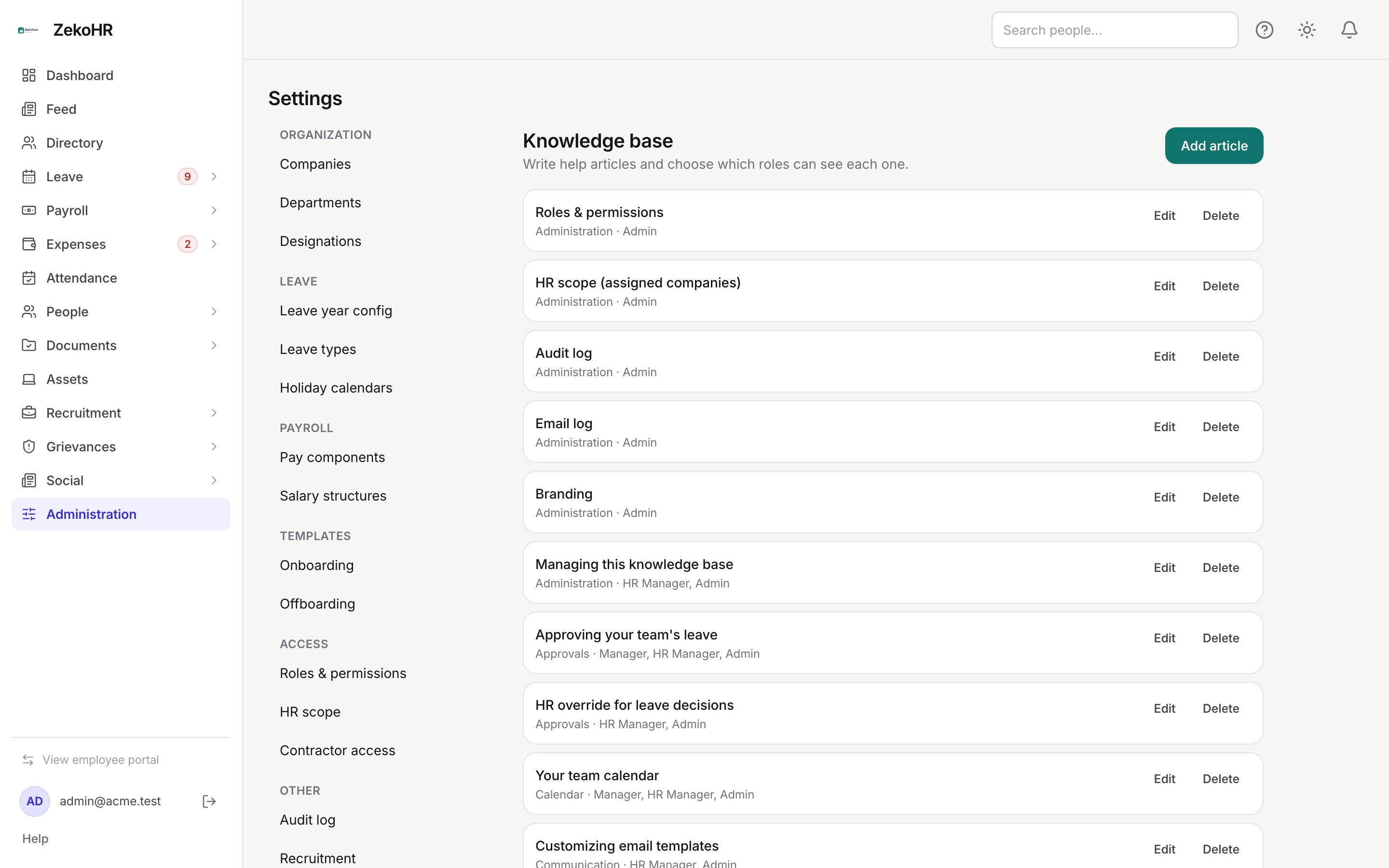
The list
Articles are ordered by category, then Sort order, then title. Each row shows the title, a Draft badge when unpublished, the category and the audience: Everyone or the comma-separated roles it targets. Edit opens the article; Delete asks "Delete "{title}"? This cannot be undone."
Adding or editing an article
Click Add article (or Edit on a row). The dialog has these fields:
| Field | Rules |
|---|---|
| Title | Required, up to 255 characters. The URL slug is generated from the title on creation and made unique (a duplicate becomes `title-2`) |
| Category | Free text up to 128 characters; defaults to General. It becomes the section heading under Help, so reuse existing names exactly |
| Sort order | Whole number 0 to 100000; lower comes first inside its category |
| Excerpt | Optional one-line summary, up to 512 characters, shown under the title in lists |
| Content (Markdown) | The body. Headings, lists, links and bold are supported; write in Markdown, not HTML |
| Visible to roles | One checkbox per role in your organisation. Leave all unticked to show the article to everyone |
| Published | Ticked by default. Untick to keep a draft that only this page shows |
Click Save; Cancel discards. Saving an article you were editing keeps its slug, so existing links to it keep working.

How visibility works
A reader sees an article when it is published and either targets no roles or targets at least one role the reader holds. Targeting is not granting: ticking Manager on an article does not give anyone Manager rights, it only hides the article from people without that role. An article targeted at Admin alone is a private admin note.
Readers can only reach an article by slug if they are allowed to see it; the link otherwise returns not found, so you can safely link articles to each other with `/help?article=<slug>`.
Seeded articles and white-label
ZekoHR seeds its own articles into every organisation and refreshes them on each platform release, matched by slug. Your edits to a seeded article are therefore overwritten at the next refresh; if you need a permanent variation, create a new article under a different title and unpublish the seeded one instead. Articles you create with your own slugs are never touched.
For white-label organisations the product name you set under Branding replaces "ZekoHR" in seeded titles, excerpts and bodies when they are read. Saving a seeded article from the editor stores the rebranded text.
What happens next
- Published articles are visible under Help immediately; readers do not need to sign in again.
- The contextual help panel (the question-mark icon in the top bar) opens the article mapped to the current screen when one exists, otherwise the index.
- Deleting an article removes it for everyone at once. There is no audit row and no recycle bin.
Rules and limits
- Articles belong to your organisation; other organisations never see them.
- There is no image upload; link to images hosted elsewhere, or to documents under Organization documents.
- There is no versioning. Keep a copy of long bodies elsewhere before heavy edits.
- A category with no published, visible articles does not appear under Help.
- Roles that no longer exist stay ticked on an article that targeted them, so an old target does not silently widen the audience.
Troubleshooting
An employee cannot see an article I published. Check Visible to roles; if any role is ticked, the reader must hold one of them. Also confirm Published is ticked.
My edit to a seeded article vanished. A platform refresh restored the seeded text. Create your own article instead.
Two articles have the same title. Allowed; the slugs differ (`-2`). Rename one to avoid confusing readers.
The Help entry is missing from the sidebar. The knowledge base module is not on your plan.