Onboarding tasks
When you join, HR assigns you an onboarding checklist. It is a sequence of steps, each holding items to tick off: documents to upload, forms to confirm, setup tasks to complete. Later steps unlock only once the mandatory items in earlier steps are done, and some items count as done only after HR verifies them.
Who can do this: Every employee with `onboarding.view.self` and `onboarding.complete.self` (all default roles). HR verifies items from your employee record.
Where to find it
My record → My onboarding in the employee portal. URL path: `/onboarding`. The invitation or "onboarding assigned" email links here too.
Completing your checklist
- Open My onboarding. The header shows Step X of Y, the overall progress (for example 4/12 (33%)) and a stepper across the top. The current step is expanded; finished steps collapse behind a tick; later steps show a lock.
- Read each item. Badges tell you what it needs: Mandatory or Optional, Evidence required and Awaiting HR verification or HR-verified.
- For an item with Evidence required, drop or pick a file under Upload. Any file type is accepted, up to 50 MB. Uploading again replaces the previous file. The file name then appears on the badge.
- Tick the checkbox to mark the item complete. Untick it to undo; this also clears any HR verification on it.
- When every mandatory item in a step is done (and verified where required), the step shows Completed and the next one unlocks.
- When the last step completes, a banner says Your onboarding is complete. Welcome aboard.
Optional items never hold a step back, but you can still complete them later.
Item and step states
| Badge | Meaning | What happens next |
|---|---|---|
| Pending | Not done | Complete it, or upload evidence first |
| Completed | Done, and verified if verification was required | Nothing more |
| Mandatory | Must be done before the next step unlocks | Prioritise it |
| Optional | Can be skipped | Complete when convenient |
| Evidence required | A file must be uploaded before you can tick it | Use Upload |
| Awaiting HR verification | You ticked it; HR has not signed off yet | Wait; the step stays pending until HR verifies |
| HR-verified | HR has signed off | Counts as done |
| Locked (step) | An earlier step still has mandatory items outstanding | Finish the step named in the message |
What happens next
- Your new checklist is announced in the invitation email, or by a separate in-app and email notification when it is assigned later.
- HR sees your progress on your employee record and verifies items there.
- Completion writes an "Onboarding completed" event on your timeline and sends you an in-app notification.
Rules and limits
- Sequencing is enforced when you tick, not just greyed out. Ticking an item in a later step returns "Finish Step 1: Documents before starting Step 2: Setup. 2 mandatory items are still outstanding in Step 1: Documents".
- Ticking an item with Evidence required and no file returns "Evidence file is required before marking this item complete".
- Unticking is always allowed, so a mistake can be corrected.
- Items and steps are a copy taken when HR assigned the template; later edits to the template do not change your checklist.
- A checklist completes when every step has all mandatory items done; HR-verification items count only once verified.
- Contractors get a contractor-specific checklist with the same behaviour.
Troubleshooting
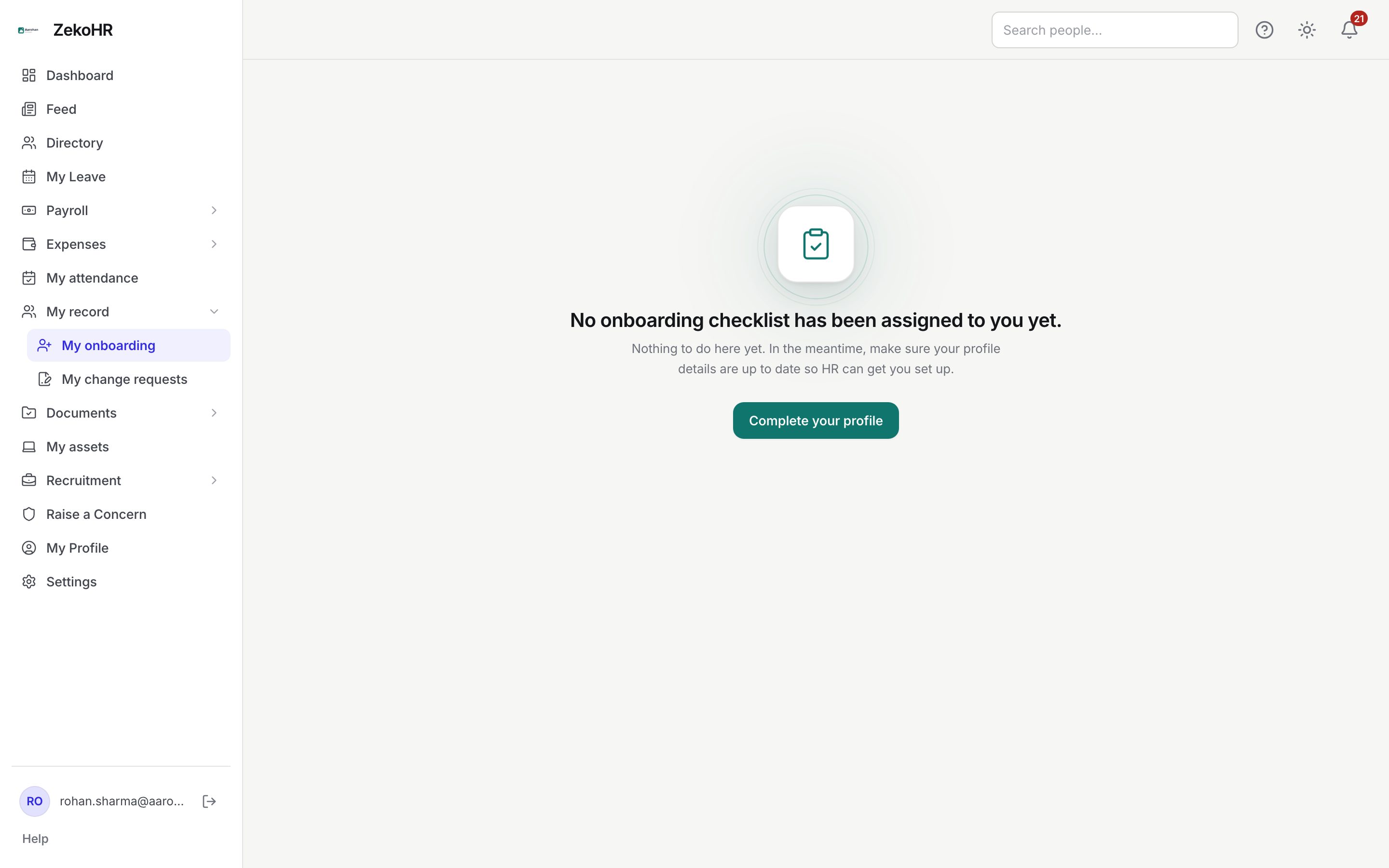
No onboarding checklist has been assigned to you yet. HR has not assigned one, or no template matched your company and employment type. Use Complete your profile in the meantime and ask HR.
I cannot tick an item in the next step. Scroll up: an earlier step has a mandatory item outstanding or waiting on HR verification.
Could not upload that file. The file is over 50 MB, or the item is locked. Reduce the file or finish earlier steps.
A step shows every box ticked but is still Pending. One of its items needs HR verification. The badge says Awaiting HR verification; HR will sign it off.
My onboarding is missing from the sidebar. This module must be enabled on your plan; Admins can check Settings → Billing.