Offboarding
Offboarding schedules an employee's exit. Initiating it sets their status to Terminating, stamps the last working day, copies an offboarding template onto them as an exit checklist, and sends them a security-critical notification. On the night after the last working day a scheduled process revokes their sessions and sets the status to Offboarded.
Who can do this: HR Managers and Admins with `offboarding.initiate.any` or `offboarding.initiate.assigned_companies` for the person's company. Viewing exit checklists needs `offboarding.view.any` or `offboarding.view.own_company`.
Where to find it
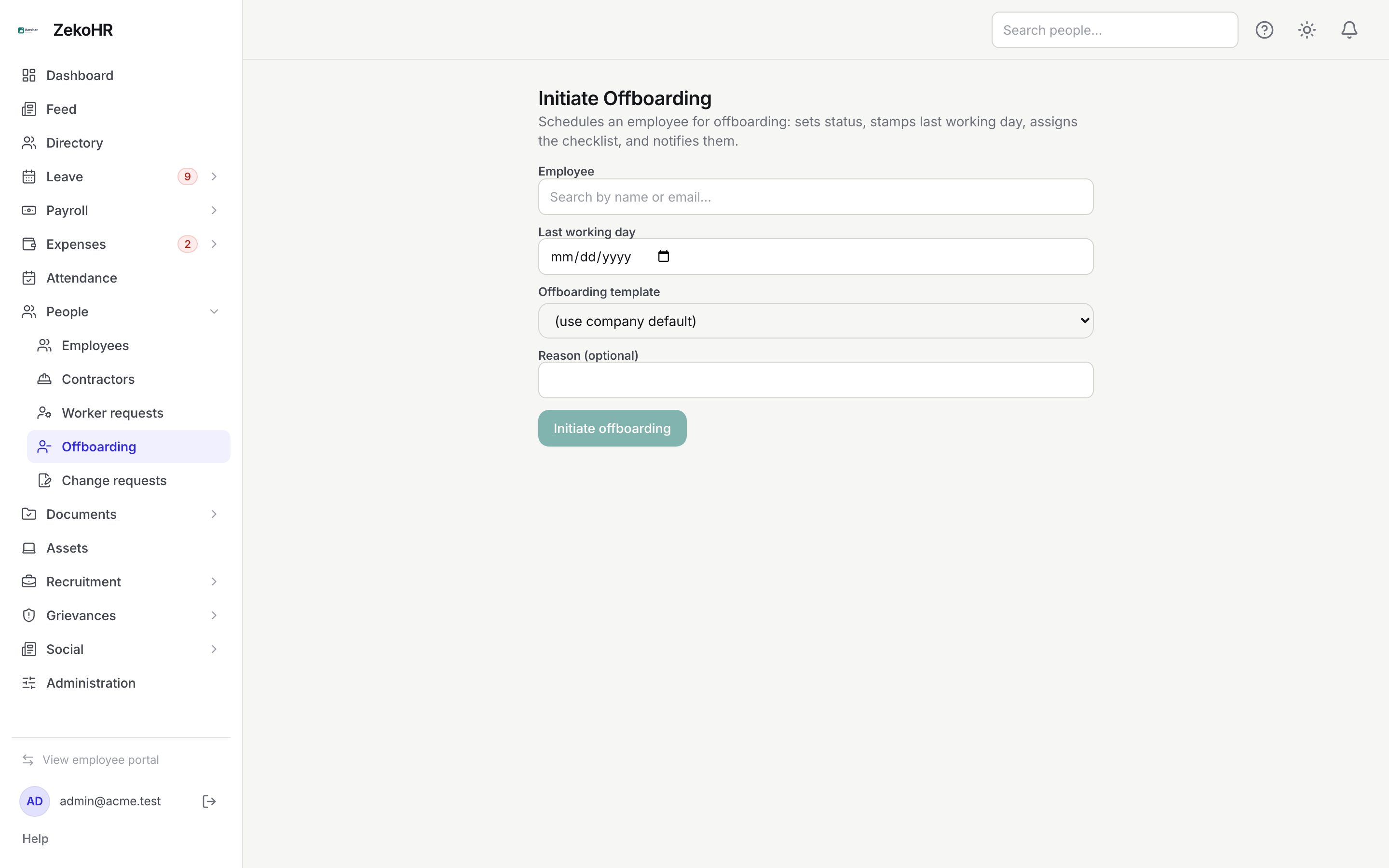
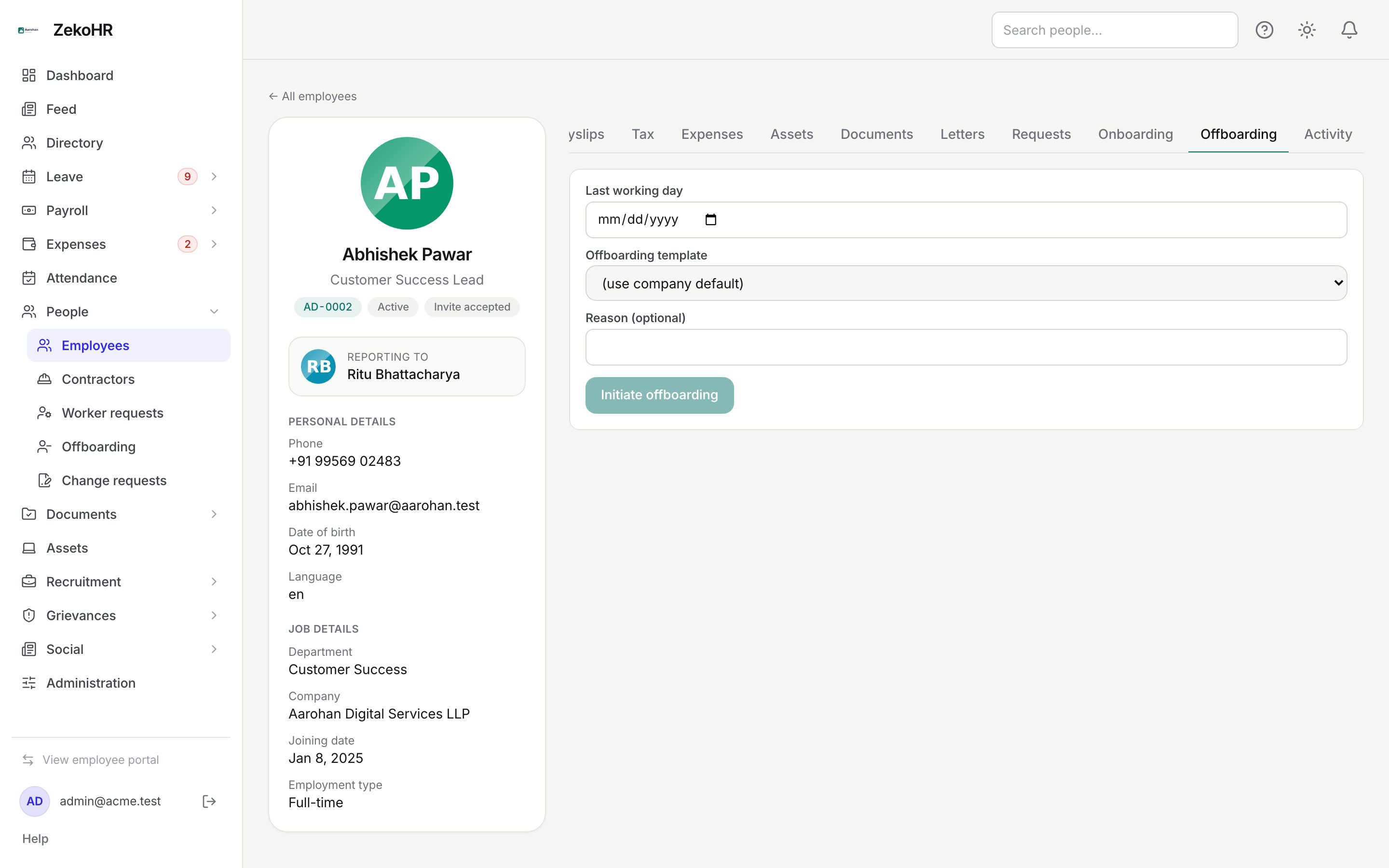
People → Offboarding in the admin view. URL path: `/offboarding`. The same form is on each employee record under the Offboarding tab (`/employees/{id}?tab=offboarding`).
Initiating an exit
- In Employee, type at least two characters of the name or email and pick the person from the results. On the record's tab this step is skipped.
- Set Last working day (required, any date). It is their final day with access; the lock-out runs after it.
- Choose an Offboarding template, or leave (use company default) to let the system pick by company and employment type, falling back to the default template.
- Optionally add a Reason (max 500 characters). It is stored with the request and not shown to the employee.
- Click Initiate offboarding. The success line reads "Offboarding scheduled for user #ID; last working day YYYY-MM-DD". On the record tab the form is replaced by the status message.
Employee statuses during an exit
| Status | Meaning | What happens next |
|---|---|---|
| Active | Normal | Initiate offboarding when they resign |
| Terminating | Exit scheduled, still has access, exit checklist live | They work through My offboarding until the last working day |
| Offboarded | Lock-out done: sessions revoked, cannot sign in | Hidden from the Employees list unless you filter Offboarded |
What happens next
- The employee is notified in-app and by email (offboarding.scheduled template) with the last working day and a link to My offboarding. The notification is security critical, so it is sent regardless of their preferences.
- An "Offboarding started" event with the last working day is written to their timeline.
- The exit checklist is created from the template's items (no steps; every item mandatory). The employee ticks items and uploads evidence from My offboarding.
- When every item is done, the checklist completes, writes "Offboarding completed" to the timeline and notifies the employee in-app.
- Every night at 03:00 a scheduled process finds Terminating people whose last working day is before today, signs them out of every session, sets status to Offboarded, closes any still-open checklist, writes a status change and (if it closed one) an "Offboarding completed" event, and sends a Security: sessions revoked notification.
Rules and limits
- At least one offboarding template must exist; otherwise initiation fails with a message that no offboarding template is configured. Create one, or mark one as the default, under Settings → Templates → Offboarding.
- Initiating twice with the same template returns the existing checklist rather than a second one.
- HR Managers can only initiate for companies in their HR scope.
- Access is not removed on initiation. The person keeps signing in until the nightly process runs after their last working day. To cut access immediately, use Reset password on their record, which revokes sessions, or set the date to yesterday and wait for the overnight run.
- Leave balances, final pay and asset returns are not automated here; handle them through Leave, Payroll and Assets. Put the reminders in the exit template.
- Setting Status to Offboarded through Edit skips the checklist and the notification; it stamps today as the last working day when none is set and is audited as employee.offboarded.
- This module must be enabled on your plan; Admins can check Settings → Billing.
Troubleshooting
Initiate offboarding is disabled. Pick an employee from the search results and set a last working day.
The person can still sign in after their last working day. The process runs at 03:00 server time the following night. If it is later than that and the status is still Terminating, use Reset password on their record to revoke access now, and check Settings → Audit log for the status change.
No results in the employee search. Type at least two characters; search covers name and email within your scope.
The Offboarding tab says the employee is already terminating. An exit was initiated earlier. The tab shows that status message only; the person works through the checklist on their My offboarding page, and completion appears as an "Offboarding completed" event on their Timeline tab.
I need to cancel an offboarding. There is no cancel action. Edit the record, set Status back to Active and clear the plan with the employee; the checklist remains but is harmless.