Assets admin
The asset register tracks what the company owns, who holds it and what happened to it before. Each asset has its own status; who holds it lives in an assignment history, one row per issue, closed on return and never deleted. The register enforces one rule above all: an asset has at most one holder at a time.
Who can do this: Viewing needs assets.view.any (Admin, whole organization) or assets.view.assigned_companies (HR Manager, assigned companies only). Adding, editing, issuing, returning and removing need assets.manage as well. Company-scoped HR cannot see assets that have no company.
Where to find it
Assets in the sidebar (`/assets`). An individual employee's kit is also on People → Employees, open the employee, Assets tab, which has Issue an asset and Return buttons and a Previously held history.
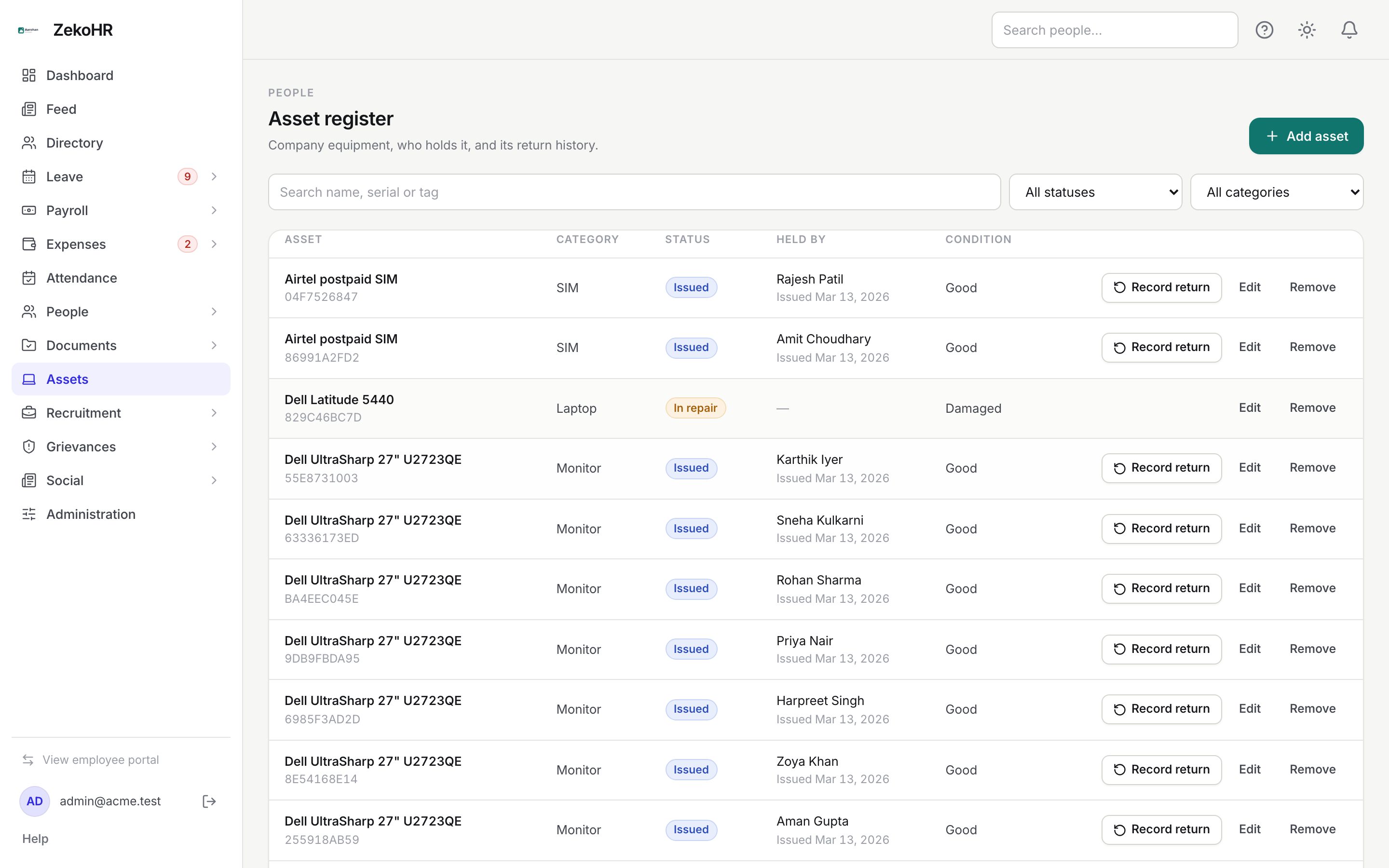
Adding an asset
- Click Add asset.
- Name (required, up to 160 characters), Category (Laptop, Desktop, Monitor, Phone, Tablet, Accessory, Furniture, Vehicle, SIM, Other).
- Serial number (up to 120 characters, unique within your organization; removed assets release theirs), Asset tag (up to 64), Purchase date.
- Condition: Not recorded, New, Good, Fair, Poor or Damaged.
- Status: Available, In repair, Retired or Lost. Issued cannot be set here; it is reached only by issuing.
- Notes (up to 5000 characters). Click Save.
The asset is attached to your own company. Edit opens the same form; while an asset is issued, the status field is locked with the note Status is managed by issuing and returning.
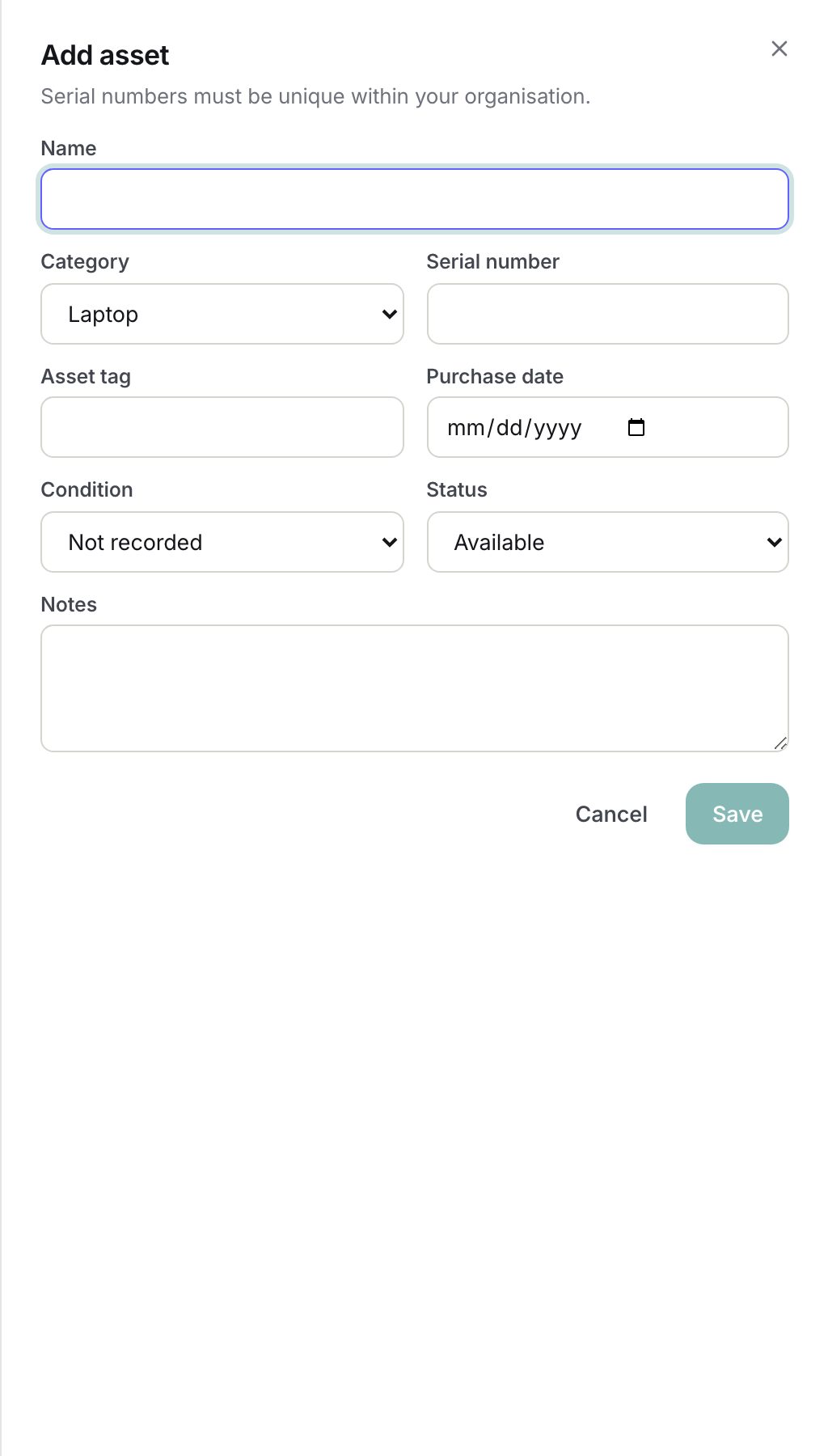
Issuing an asset
- On an Available row click Issue (or Issue an asset on the employee's Assets tab).
- Issue to: type two or more characters to search by name or email and pick the employee. Click Change to pick someone else.
- Issue date defaults to today; back-dating is allowed.
- Condition at handover; defaults to the asset's recorded condition.
- Notes such as "Charger and sleeve included". Click Issue.
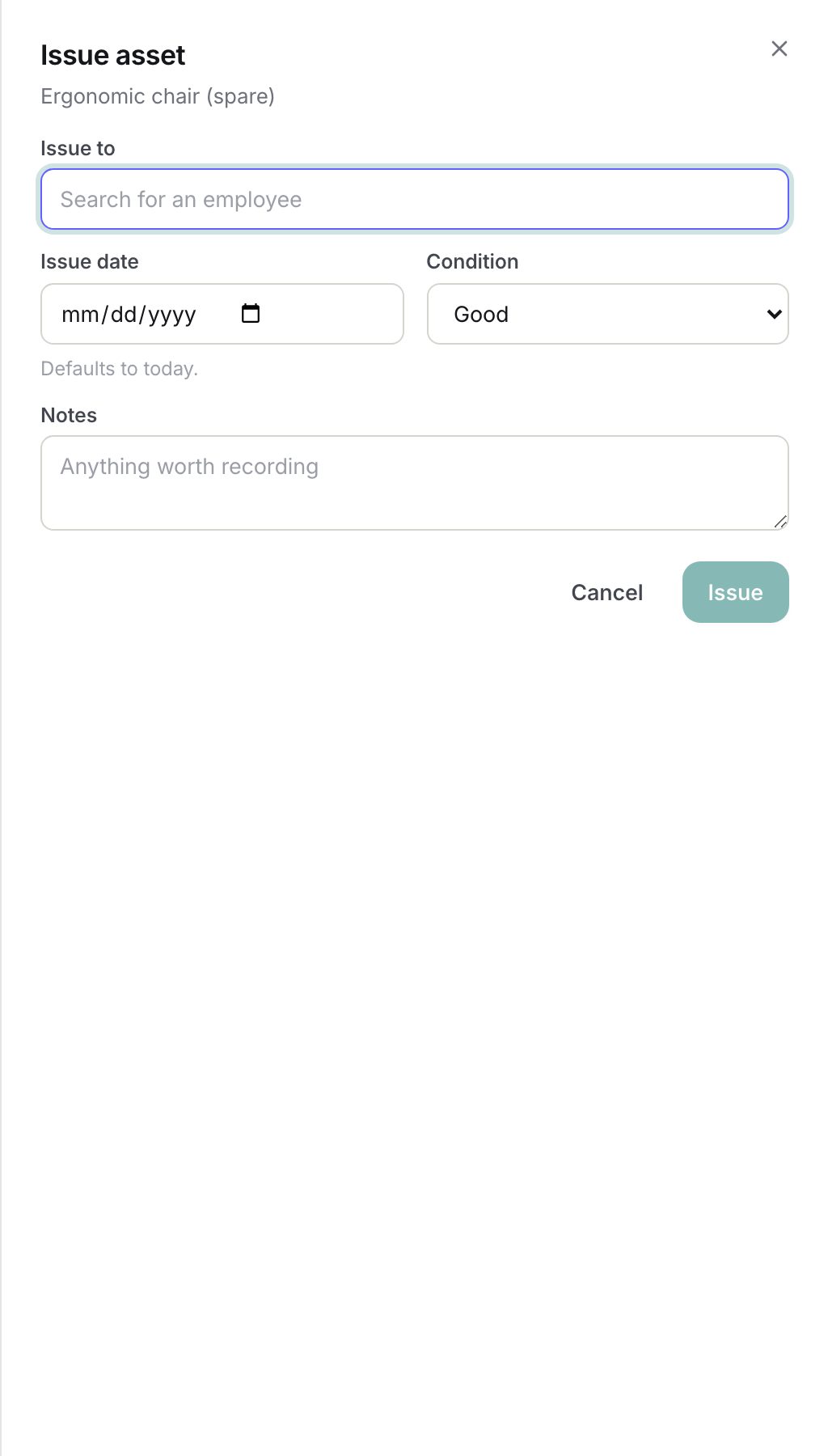
Recording a return
- On an Issued row click Record return. The dialog names the asset and holder.
- Return date (defaults to today) and Condition on return.
- Set asset status to: Available (back in stock), In repair, Retired or Lost.
- Notes describing damage or missing parts; they are appended to the issue notes prefixed with "Return:". Click Record return.
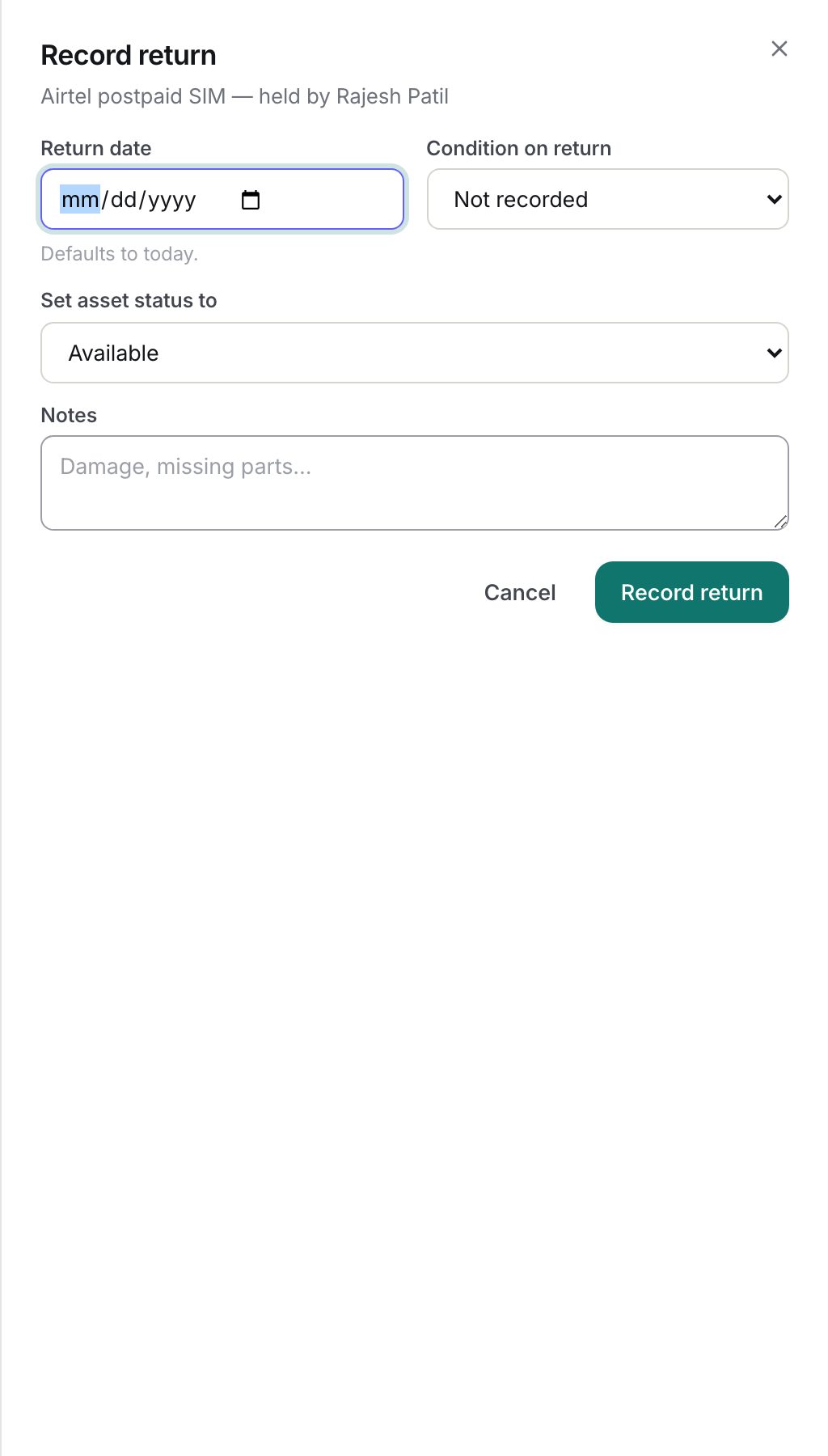
Removing an asset
Remove soft-deletes the row; it leaves the register but its allocation history is kept and the serial number becomes reusable. An asset that is currently issued cannot be removed; record the return first.
Statuses
| Status | Meaning | What happens next |
|---|---|---|
| Available | In stock, can be issued | Issue |
| Issued | Held by an employee (open assignment) | Record return; status cannot be changed while issued |
| In repair | Out of circulation for repair | Edit status back to Available when fixed |
| Retired | Written off | Keep for history or Remove |
| Lost | Recorded as lost | Keep for history or Remove |
Filter by All statuses, All categories and the Search name, serial or tag box (search also matches the holder's name). Columns: Asset (name and serial or tag), Category, Status, Held by with Issued {date}, Condition.
What happens next
- Issuing opens an assignment row with the issuer, date and condition, sets the asset to Issued and updates its condition. The employee sees the card on My assets at once; no email is sent.
- Returning closes the open assignment with the returner, date and condition, and sets the asset's status and condition as chosen.
- Audit log entries: asset.created, asset.updated, asset.deleted, asset.assigned (with employee and assignment id) and asset.returned.
- The employee's Assets tab shows Currently held and Previously held (handed back or re-issued to someone else) with the asset's status now.
Rules and limits
- One holder per asset: two HR users issuing the same item at the same moment get one assignment and one clean error, never two holders.
- Only Available assets can be issued. Issued, In repair, Retired and Lost each give a specific refusal message.
- Serial numbers are unique per organization among non-removed assets.
- Company-scoped HR can only manage assets of, and issue to employees of, their assigned companies.
- Employees see their own open assignment only; the history of earlier holders is HR-only.
- The Assets module must be enabled on your plan; Admins can check Settings → Billing.
Troubleshooting
Issue is missing on a row. Only Available rows show it. Edit the status to Available first (after a return if it is Issued).
Cannot remove: "Take this asset back from its holder". Record the return, then remove.
The employee is outside the companies you manage. You are company-scoped HR and the employee belongs to another company; an Admin must issue it.
Serial number already in use. Another live asset has it. Search the register; if the old row is a duplicate, remove it to free the serial.
Status dropdown is disabled in Edit. The asset is issued. Status moves only through Record return while someone holds it.