Marking attendance for your company
The Attendance grid is where HR records daily attendance: every employee down the side, every day of the month across, one click per cell to mark a day or a range of days. Monthly totals, including the loss-of-pay column at the right, are derived from these day records and feed the payroll pre-flight check.
Who can do this: Admins with `attendance.view.any` and `attendance.manage.any` see and mark every company. HR Managers with `attendance.view.assigned_companies` and `attendance.manage.assigned_companies` see only the companies in their HR scope. Employees and Managers hold `attendance.view.self` only.
Where to find it
Sidebar Attendance (URL path `/attendance`). The same calendar also appears on each employee's profile under People → Employees → open a person → Attendance tab, which is the quicker way when you need to correct one person. This module must be enabled on your plan; Admins can check Settings → Billing.
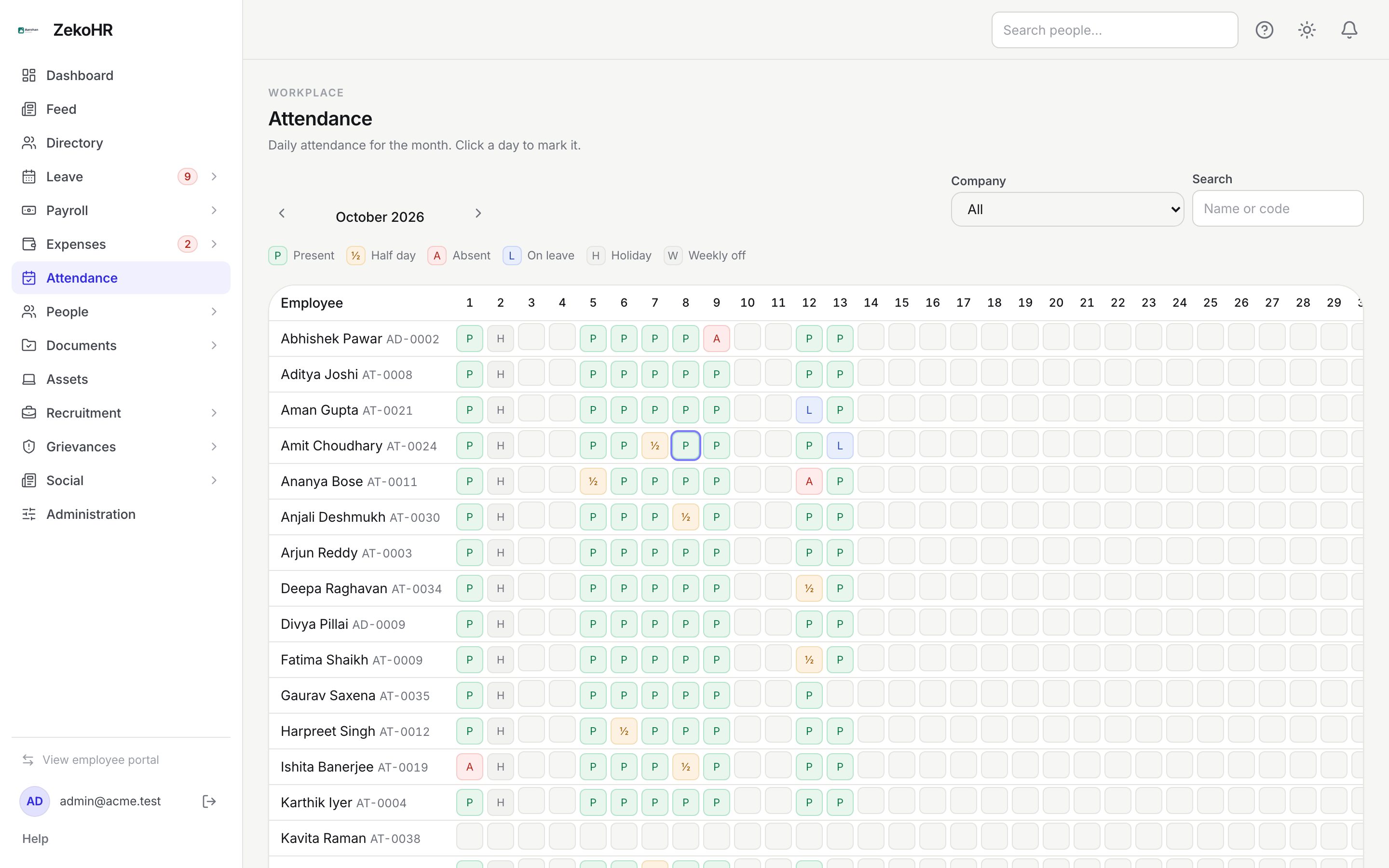
Filtering the grid
- Use ‹ and › beside the month name to change month. The page opens on the current month.
- Company defaults to All (within your scope). Pick one company to shorten the list.
- Search matches on name or employee code as you type (up to 120 characters).
- Only employees whose status is active or on leave are listed. Offboarded people drop off the grid.
The legend above the table explains the single letters used in cells: P Present, ½ Half day, A Absent, L On leave, H Holiday, W Weekly off. Hover a cell to see the employee name, date and status in full.
Marking a day or a range
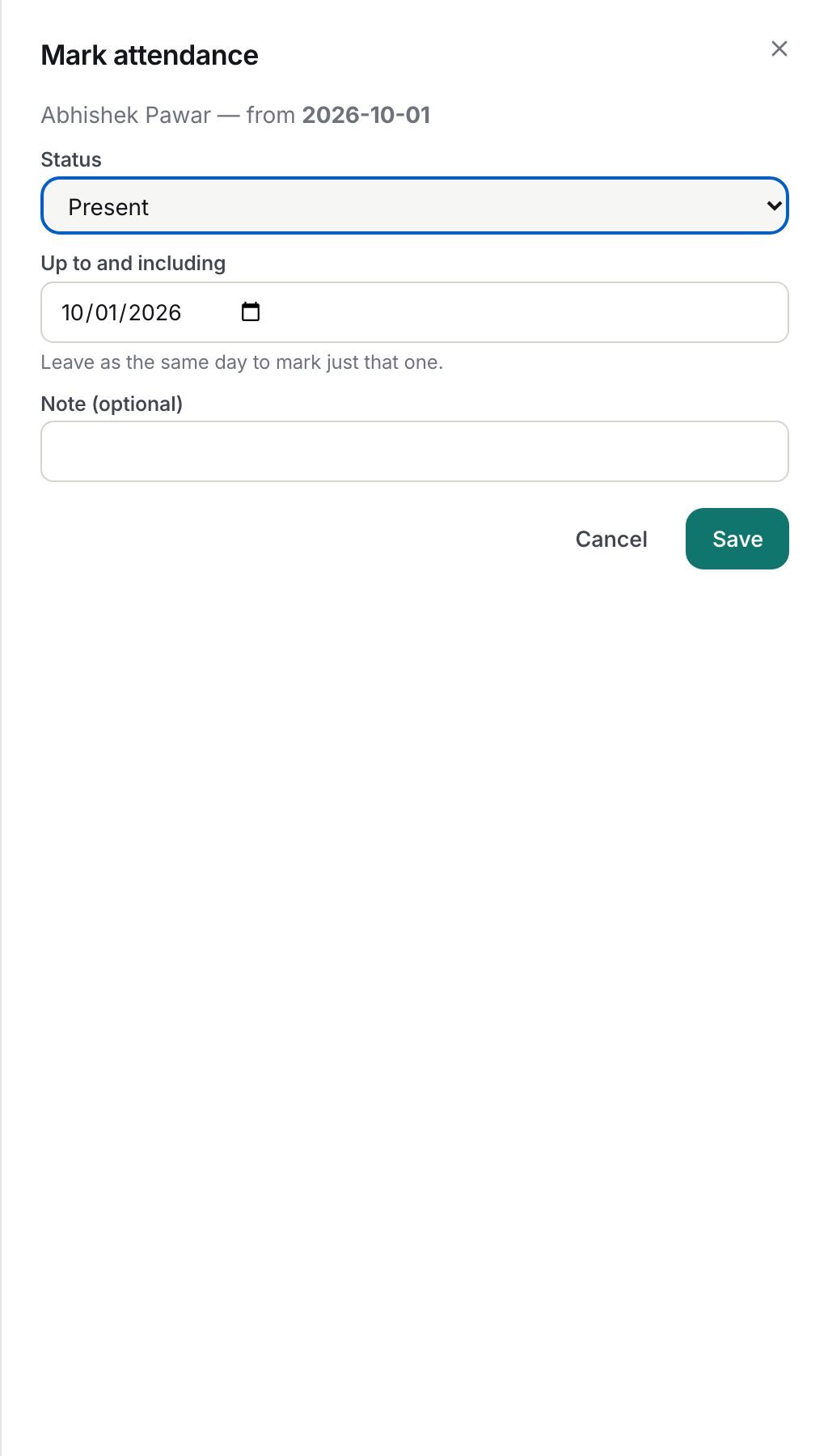
- Click the cell for the person and the first day you want to mark. The Mark attendance dialog opens, headed with the employee's name and the date you clicked.
- Status: choose one of the six statuses. Defaults to Present.
- Up to and including: a date picker pre-filled with the clicked day. Leave it as is to mark just that day, or pick a later date to mark every day from the clicked day to this one with the same status. Earlier dates are not offered.
- Note (optional): free text up to 500 characters, for example "doctor's certificate received". The note is stored on each day in the range.
- Click Save. The grid refreshes and a toast says Attendance updated.
Marking a day that already has a record replaces it. There is never more than one record per person per day, so re-marking is the normal way to correct a mistake.
What the columns mean
| Column | Meaning |
|---|---|
| Employee | Name and employee code; stays pinned while you scroll sideways |
| 1 to 28/31 | One cell per calendar day, blank until recorded |
| LOP | Loss-of-pay days for the month: 1 per absent day, 0.5 per half day; on leave, holiday and weekly off count 0 |
What happens next
- Each save writes an audit log entry: one for a single day, or one for a range with the from and to dates, status and number of days written.
- Every record stores who marked it and when.
- Totals update immediately and the employee sees the change on My attendance. No notification is sent.
- The payroll pre-flight report reads these totals. See Attendance, loss of pay and payroll.
Rules and limits
- The grid shows employees within your company scope only. An employee outside it is simply not found, never "forbidden", so scoped HR cannot discover staff of other companies.
- The company on each record is copied from the employee's own company; you cannot file a day under a different company.
- A range is written day by day, so a range that overlaps existing records corrects them.
- There is no button to un-mark a day (return it to "not recorded"); re-mark the day with the correct status instead.
- There is no biometric or CSV import and no employee clock-in. Every day is recorded from this grid or from the employee's Attendance tab.
- Marking a day as On leave does not create or approve a leave request; it only records the day. Use Leave for the request itself.
Troubleshooting
The grid is empty and says No employees match these filters. Clear the search box, set Company back to All, and check that your HR scope includes the company. Admins can review scope under Settings → HR scope.
I need to mark a whole week. Click the Monday cell, set Up to and including to the Friday, choose the status and save. All five days are written together.
I marked the wrong person. Re-mark the wrong person's day with their true status, then mark the right person. Every change is audited.
The LOP column does not match the payslip. Attendance totals are a reference. HR enters LOP days on each draft payslip by hand, so update the payslip and recalculate if attendance changed after the run was created.