Approval rules and delegation
Approval rules decide who approves an expense claim and in what order. Each rule has match conditions and an ordered list of approver steps. On submit, ZekoHR picks the best-matching active rule for the employee's company and turns its steps into a concrete chain on the claim. With no rule, every claim goes to the reporting manager.
Who can do this: HR Managers and Admins with `expense_config.manage`. Accounts can view rules with `expense_config.view` but not change them.
Where to find it
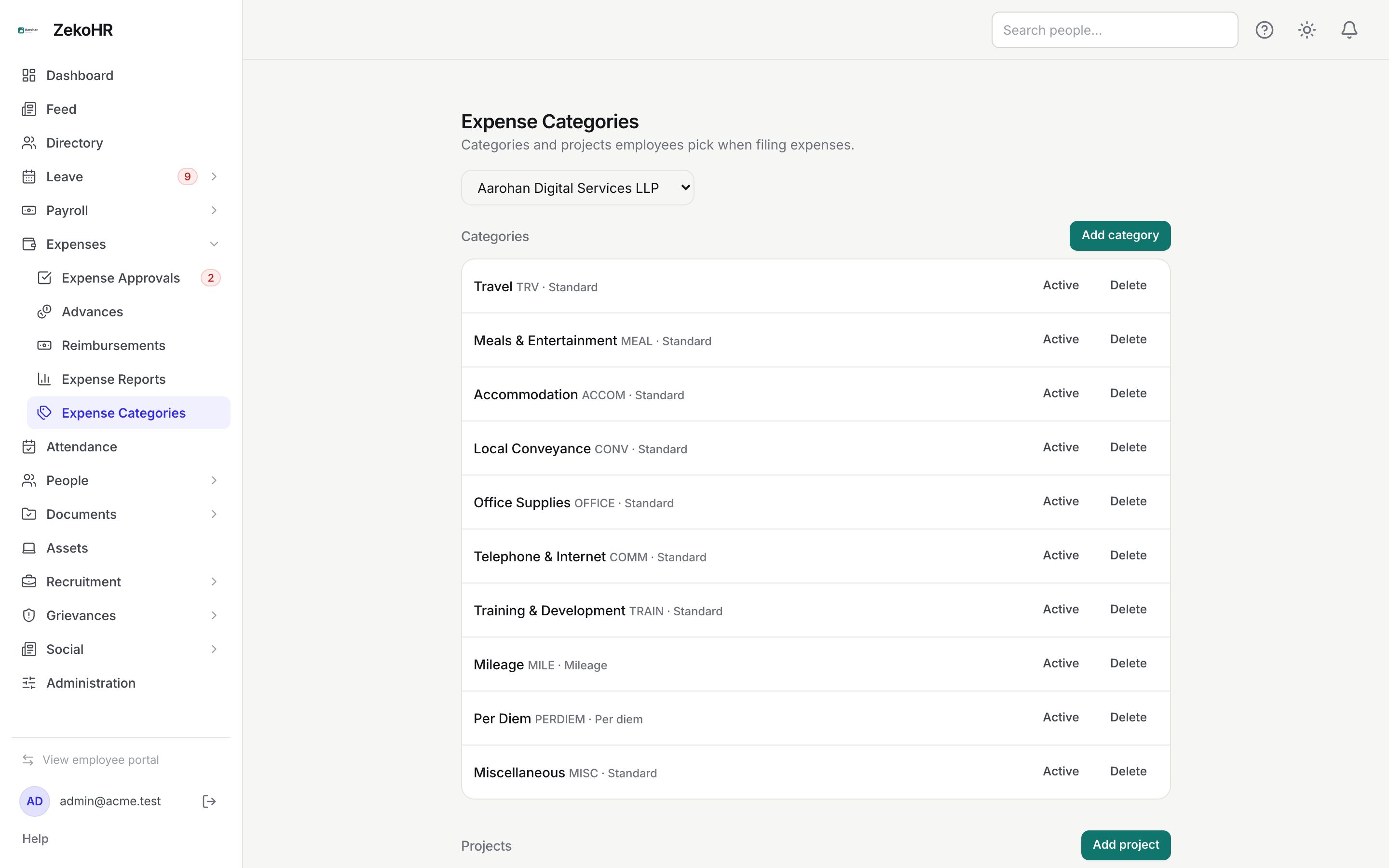
Expenses → Expense Categories in the admin view, at `/expense-settings`, under the Approval rules section. With more than one company, pick the company in the dropdown at the top first; rules are per company.
Creating a rule
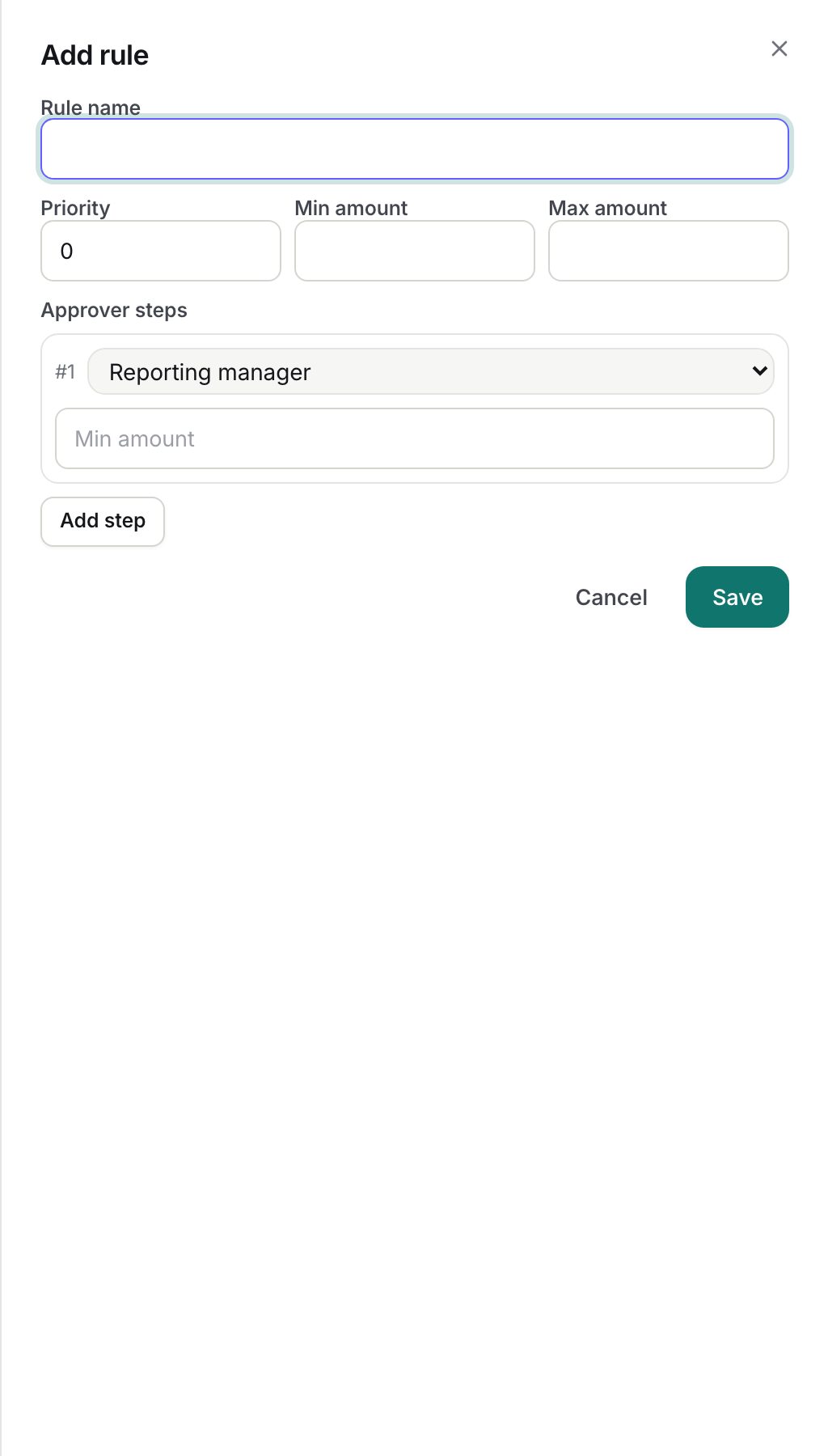
- Click Add rule.
- Rule name (required, up to 255 characters), for example "Over 10k: manager then Accounts".
- Priority: integer, default 0; the higher number wins between equally specific rules.
- Min amount and Max amount: optional INR bounds on the claim total; blank means any amount.
- Under Approver steps, define the chain in order. For each step:
- Approver type: Reporting manager (the claimant's manager at submit time), Role (any holder of that role in the claimant's company), or Specific user.
- For Role, type the exact role name, for example Accounts or HR Manager.
- For Specific user, type the user's numeric ID, visible in the address bar on their profile page.
- Min amount for the step: optional. The step engages only when the claim total reaches this value; below it the step is created as Skipped, giving an authority matrix such as "Accounts only above 25,000".
- Remove drops a step; Add step appends one. A rule needs at least one step.
- Click Save.
The list shows each rule's name, step count and amount band. Delete removes a rule immediately; submitted claims keep their chain. There is no edit dialog: to change a rule, delete it and add it again.
How a rule is chosen
- Only rules for the claimant's company whose amount band covers the claim total are candidates.
- The most specific rule wins: one condition point each for a Min amount and a Max amount, so a rule with both bounds beats a rule with one.
- Ties go to the higher Priority, then the newer rule.
- If nothing matches, the chain is a single Reporting manager step.
How steps become a chain
| Step type | Resolves to | If it cannot resolve |
|---|---|---|
| Reporting manager | The claimant's reporting manager as a named approver | Dropped from the chain (no stall) |
| Specific user | That user as a named approver | Dropped if the user does not exist |
| Role | A role step; any holder of the role in the claim's company with company-scoped approve rights can act | Nobody is notified until someone with that role exists |
If every step is dropped or skipped, the claim is auto-approved on submit with the note "Auto-approved: no approver configured."
Covering for an approver who is away
ZekoHR has no delegation setting, so a step always waits for the approver it names. If an approver is going on leave, you have three options:
- Add the stand-in as a Specific user step on the rule, so the stand-in is a regular approver for that period, then delete and re-add the rule without them when the approver returns.
- Use a Role step instead of a named person, so any holder of that role in the company can act.
- Let an HR Manager or Admin decide the claim directly from Expense Approvals, since an Admin can act on any active step.
What happens next
A saved rule applies to claims submitted afterwards; a send-back and resubmit rebuilds the chain against current rules. Approvers at each engaged step are notified by email and in-app when the step becomes active.
Rules and limits
- Rules and categories are company-scoped; the company dropdown decides which company you are editing.
- Steps run strictly in order; there is no parallel approval.
- A Role step is actionable only by a user who holds that role in the claim's company and has company-scoped approve rights. The built-in HR Manager and Accounts roles qualify; a custom role needs that permission under Administration → Roles.
- Rules match on the claim total only. There is no category or department condition on a rule.
Troubleshooting
Claims still go only to the manager after I added a rule. The rule's amount band does not cover the claim, or it was saved for a different company.
A Role step never shows up in anyone's queue. Nobody in the claim's company holds that exact role name (case-sensitive), or the role lacks company-scoped approve permission.
A step shows Skipped before anyone acted. The claim total is below that step's Min amount; the authority threshold is working as intended.