Companies, departments and designations
An organisation in ZekoHR holds one or more companies (legal entities). Each company owns its departments, its leave, holiday and payroll configuration, and its employee code series. Designations are titles shared by every company. Creating a company also seeds a ready-to-use India baseline so you can add people immediately.
Who can do this: Admins with `companies.create`, `companies.update.any` and `companies.delete`; HR Managers can view and edit assigned companies (`companies.view.assigned`, `companies.update.assigned`) and manage their departments (`departments.manage.assigned`). Designations need `designations.manage` (HR Manager and Admin).
Where to find it
Administration → Settings → Organization → Companies, Departments and Designations. URL paths: `/settings/companies`, `/settings/departments`, `/settings/designations`.
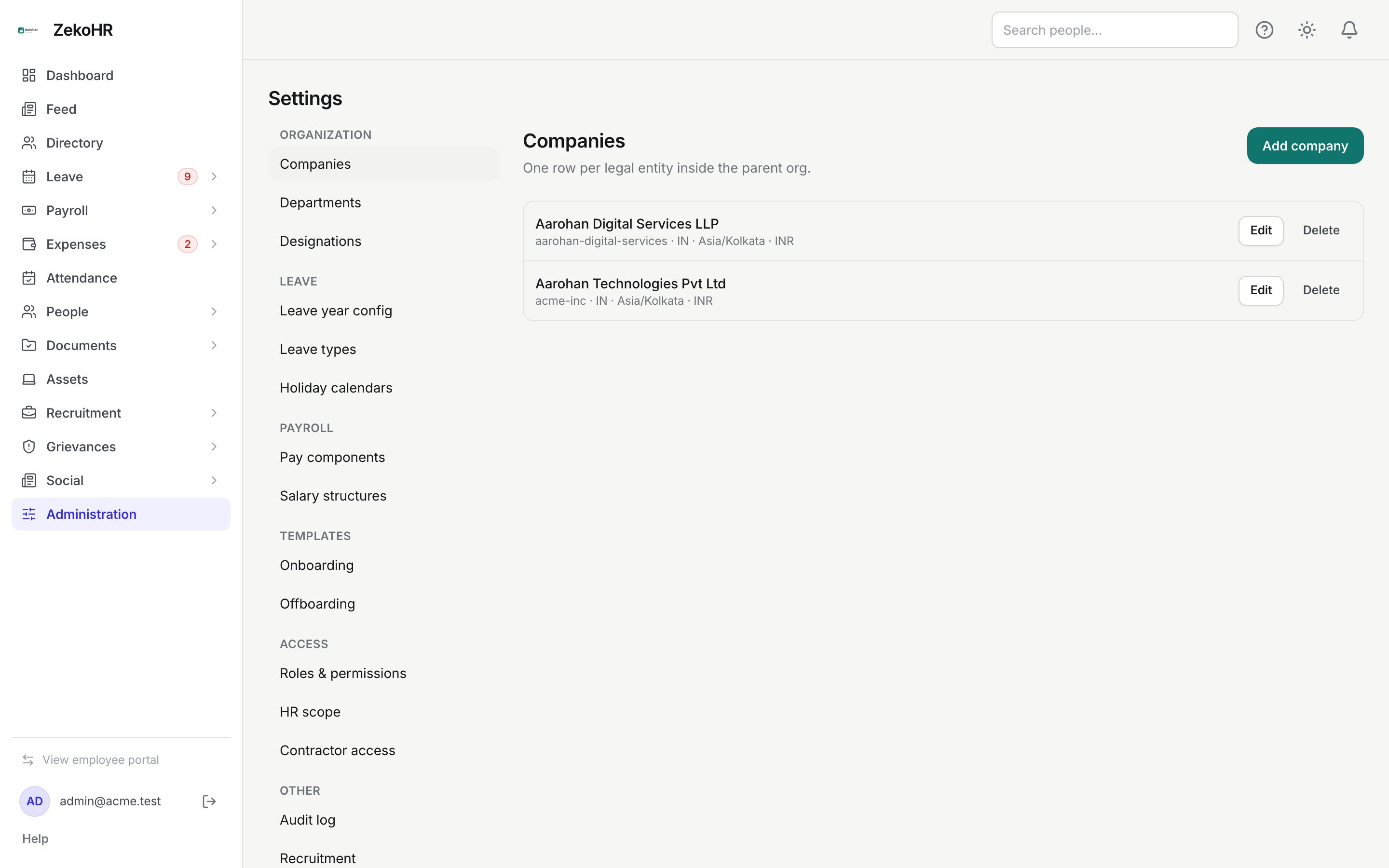
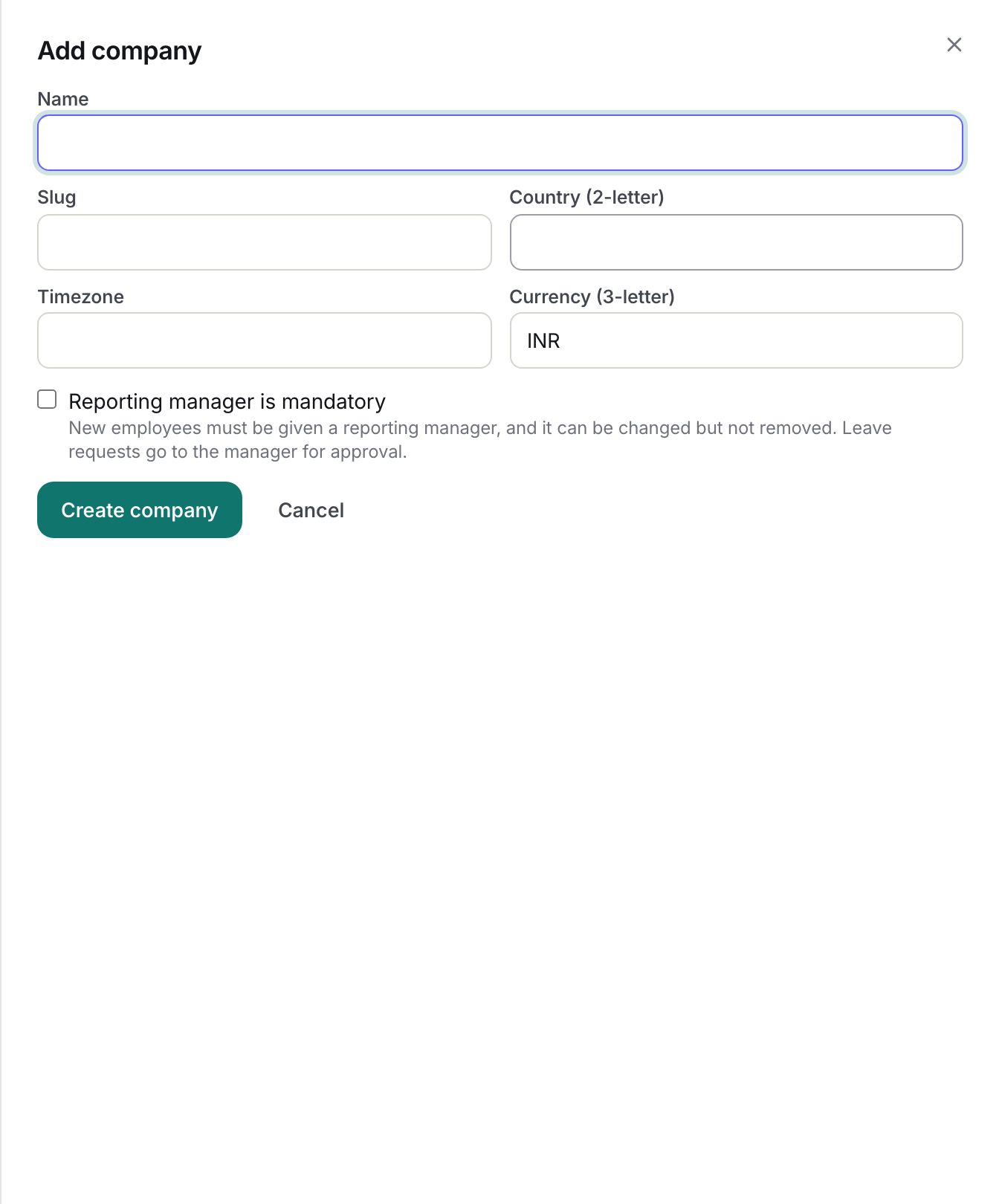
Adding or editing a company
- Click Add company (or Edit on a row).
- Name (required, max 255).
- Slug (required, lower-case letters, digits and hyphens, max 64, unique). It identifies the company in bulk import files and cannot be changed after creation.
- Country (2-letter), Timezone (max 64, for example `Asia/Kolkata`) and Currency (3-letter), default `INR`.
- Reporting manager is mandatory: when ticked, every new employee must be given a manager, and the manager can be changed but not removed. Leave requests go to the manager.
- Click Create company or Save changes.
When editing, an Employee codes section appears below the form: Assign employee codes automatically, Prefix (default `EMP-`, letters, digits and `- _ / .`, max 20), Next number and Digits (zero-padded) (1 to 10), with a live preview such as "Next employee gets EMP-0049". Contractor codes have their own series (default `CTR-`). Changing the prefix without a next number continues after the highest existing code with that prefix. Codes already in use anywhere in the organisation are skipped.
The baseline seeded for a new company
| Area | What is created |
|---|---|
| Departments | Engineering (ENG), Human Resources (HR), Sales (SALES), Marketing (MKT), Finance & Accounts (FIN), Operations (OPS), Administration (ADMIN) |
| Designations (once per organisation) | Managing Director, General Manager, Manager, Team Lead, Senior Executive, Executive, Software Engineer, Analyst, HR Manager, Accountant, Intern |
| Expense categories | Travel, Meals & Entertainment, Accommodation, Local Conveyance, Office Supplies, Telephone & Internet, Training & Development, Mileage (INR 12/km), Per Diem (INR 1500/day), Miscellaneous |
| Holiday calendar | A default India national holidays calendar with Republic Day, Labour Day, Independence Day, Gandhi Jayanti, Christmas for this year and next, 2 restricted-holiday picks. Movable festivals are left for HR to add |
| Payroll | Components Basic, HRA, Conveyance Allowance, Special Allowance, Provident Fund, Professional Tax, and a "Standard" salary structure (Basic 50% of gross, HRA 40% of basic, PF flat 1800, remainder Special Allowance). ZekoHR does not compute statutory amounts; PF and PT are manual components |
| Contractor templates | "Contractor onboarding" and "Contractor offboarding" checklists for the Contractors module |
Seeding happens once, when the company is created, and never overwrites edits you make afterwards.
Departments
Each department lives inside one company. Click Add department, choose Company, enter Name (max 255) and Code (required, upper-cased, max 32, unique within that company), then Create department. The list shows name, department code and company. Two companies can both have an "Engineering"; the directory labels them with the company.
Designations
Designations are organisation-wide. Click Add designation, enter Name and Code (upper-cased, max 32, unique in the organisation), then Create designation. The designation code is what bulk import matches on (`designation_code`).
What happens next
- Company employee-code setting changes are audited as company.employee_code_settings.updated.
- New companies appear in every company dropdown (employees, departments, templates, directory filters) immediately.
- Deleting a company removes it from every list and dropdown; its records are retained rather than erased, but there is no restore action in the app.
- Deleting a department or designation removes it; employees who had it are left with the field blank, and timeline events keep the old name.
Rules and limits
- Delete acts immediately on all three pages; there is no confirmation prompt. Check the row before clicking.
- A company slug cannot be edited after creation because imports and URLs rely on it.
- HR Managers only see companies assigned to them under Settings → HR scope, and can only manage those companies' departments.
- Seat limits on your plan count people, not companies; there is no cap on companies. This module must be enabled on your plan; Admins can check Settings → Billing.
Troubleshooting
"The slug has already been taken." Slugs are unique per organisation, including soft-deleted companies. Choose another.
Employee codes are not being assigned. Open Edit on the company and tick Assign employee codes automatically.
The new company has no leave types. Leave year config and leave types are not seeded. Set them under Settings → Leave. See Leave year config.
An HR Manager cannot see a company. Add it to their scope under Settings → HR scope.
I deleted a designation by mistake. Re-create it with the same designation code and re-assign it on affected records.