Reviewing change requests
The change requests queue lists every request employees have filed to correct their own details. Approving writes the requested values straight onto the employee record; rejecting writes nothing and sends your reason to the employee. The queue also warns you when a record moved after the request was filed, so you never approve against a value you are not looking at.
Who can do this: HR Managers and Admins with `change_requests.review`, narrowed to the companies in their HR scope (`employees.view.any` or `employees.view.assigned_companies`).
Where to find it
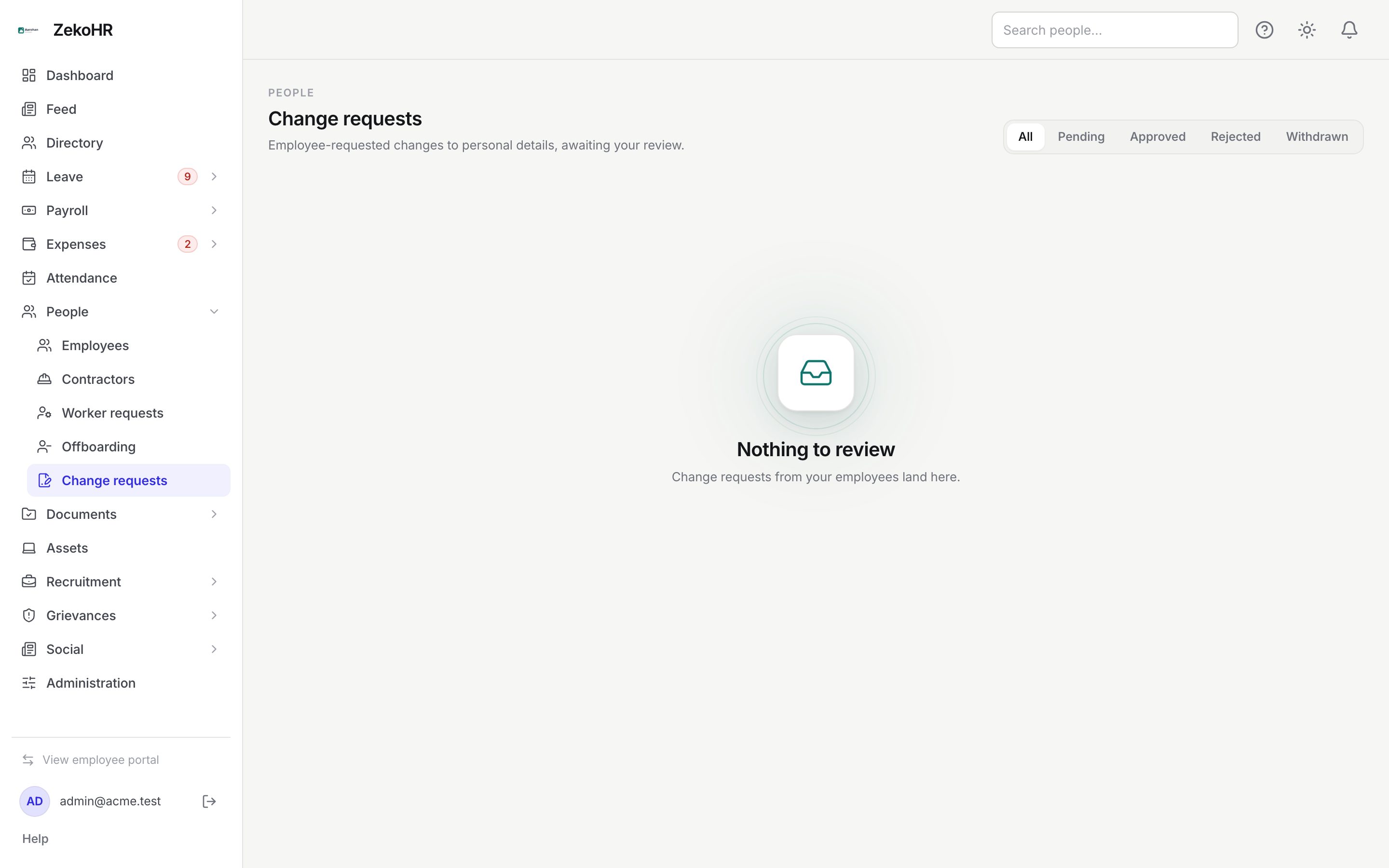
People → Change requests in the admin view. URL path: `/change-requests`. The same requests for one person appear on their record under the Requests tab.
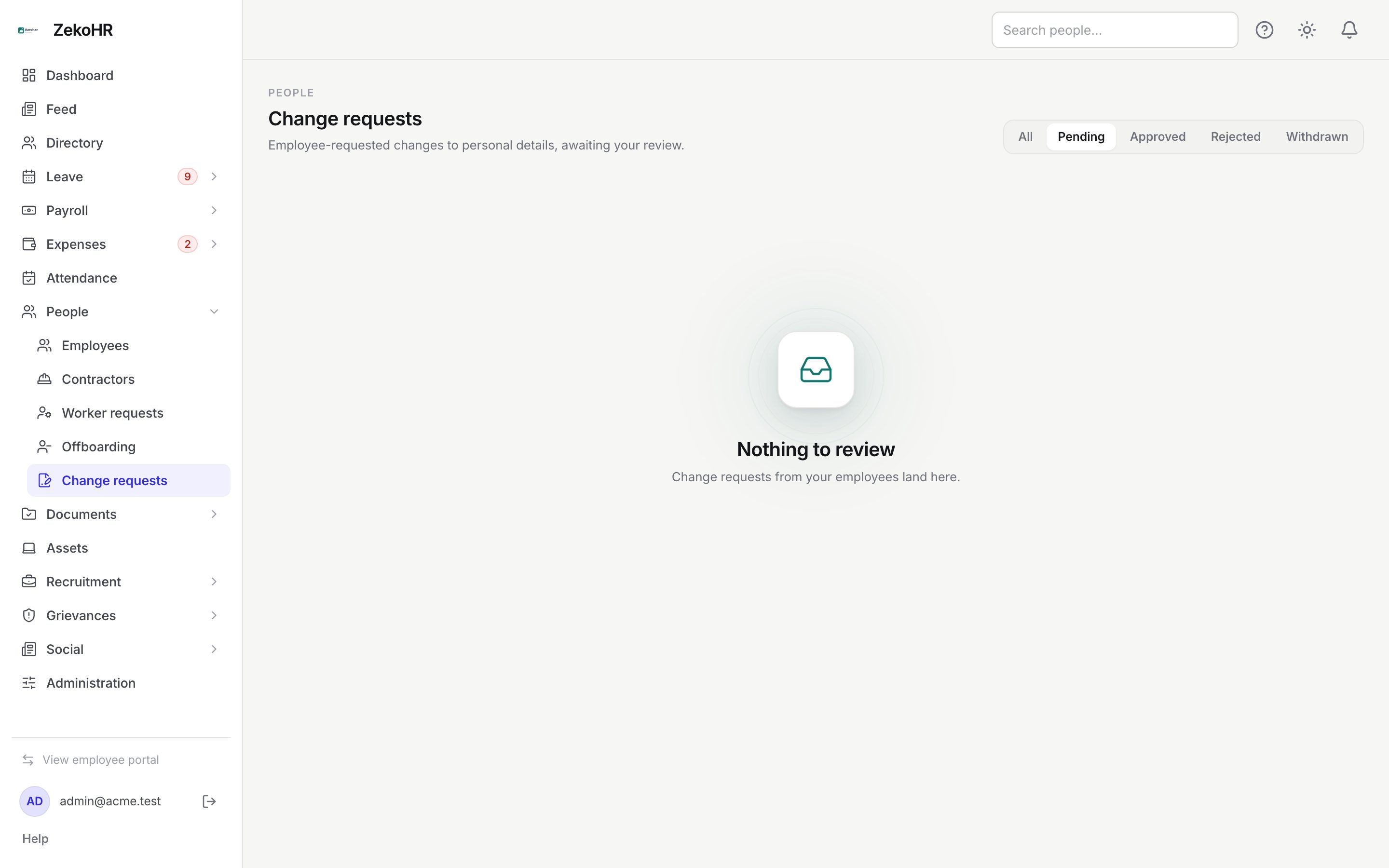
Reviewing a request
- The queue opens on Pending. Switch to All, Approved, Rejected or Withdrawn with the segmented filter. Pending rows sort first, then newest.
- Read the card: status badge, the employee's name, email and filing date, then the Field / Current (when filed) / Requested table. Below it, the Employee note and a Supporting document link if they attached proof (downloads with your session, it is not a public URL).
- Click Approve. In the dialog, add an optional Note (max 2000) and click Approve. The new values are written at once.
- Or click Reject. Reason (required), at least 3 characters, is sent verbatim to the employee. Click Reject.
From the employee record, the Requests tab offers the same Review, Approve and Reject controls inline with a single note field.
Statuses
| Status | Meaning | What happens next |
|---|---|---|
| Awaiting HR (Pending) | Waiting for a decision | Approve or reject |
| Approved | Values written to the record | Shows your decision note and time |
| Rejected | Nothing written | Employee may re-file |
| Withdrawn | Employee cancelled | No action |
The stale-value guard
A request stores the value each field held when it was filed. Before approving, the server re-reads the live record. If any field has moved, the card shows a Value moved badge and a banner such as "Mobile number: now +91 98xxx, not +91 97xxx", and approval is blocked for the whole request, not just the drifted line. The intended action is to Reject with a note asking the employee to re-file against the current value. This stops a fortnight-old request from silently reverting a correction HR made yesterday.
What happens next
- Submission notifies every active user in the organisation who can review change requests, in-app and by email, with a link to the queue.
- A decision notifies the employee in-app and by email, including your note.
- Approval writes a change_request.approved audit entry with before and after values; PAN, bank and UAN values are masked to the last four characters. Rejection writes change_request.rejected.
- Approved bank and statutory values flow into the payroll profile used by the next payroll run.
Rules and limits
- Only eight fields can arrive here: mobile number, date of birth, bank account number, IFSC, bank name, PAN, UAN and ESIC number. Anything else (personal email, address, emergency contact, department, manager) is edited by HR directly on the employee record.
- You cannot decide your own request; edit your record through People → Employees instead, which is audited separately.
- HR Managers see and decide only requests from companies in their HR scope; an out-of-scope request is simply absent.
- A request can be decided once. A second attempt returns "This request is already approved" (or rejected, cancelled).
- Dates are normalised to `YYYY-MM-DD` and blanks to "not set" before comparison, so formatting differences never count as drift.
Troubleshooting
The queue is empty but an employee says they filed a request. They belong to a company outside your HR scope, or they withdrew it. Check All.
Approve failed with "the value changed underneath this request". The record moved. Refresh, read the banner, reject with a note, and ask them to re-file.
I cannot see the attachment. It downloads with your login; pop-up blockers can stop it. Try again from the card.
Reject is disabled. The reason needs at least 3 characters.
An approved change did not reach payroll. Bank and PAN live on the payroll profile; open the record's Salary or Profile tab to confirm, then check Payroll profile and bank details.