Leave types setup
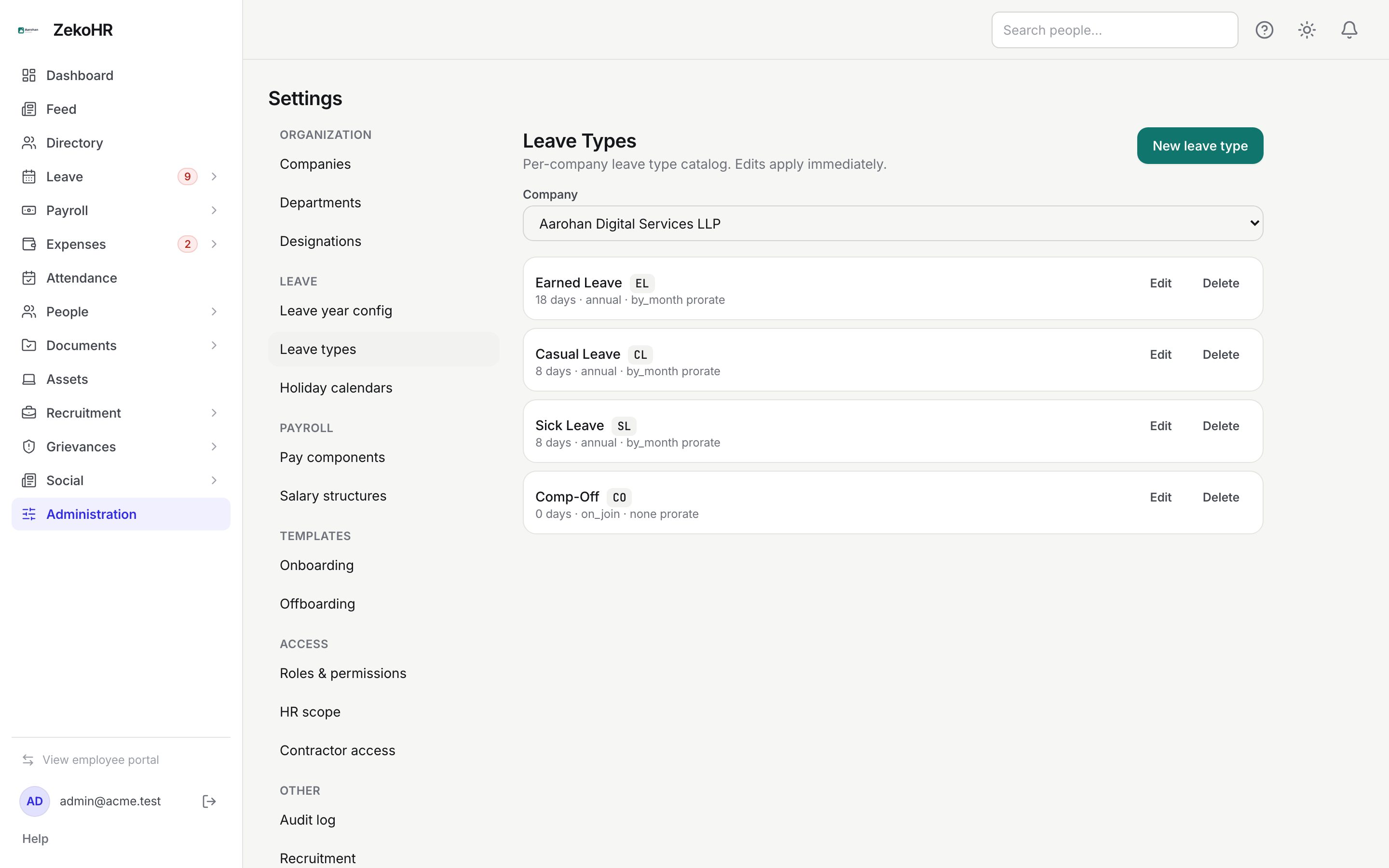
Leave types are the catalogue employees choose from: Earned Leave, Casual Leave, Sick Leave, Comp-Off and anything else your company offers. Each type carries its own allocation amount, accrual schedule, pro-rating rule, year-end policy, application windows and employment-type eligibility. Edits apply immediately to new requests; existing balances are not recalculated.
Who can do this: HR Managers and Admins with `leave_config.view` to list and `leave_config.manage` to create, edit or delete. Force-deleting a type that has allocations needs `roles.manage` or super admin.
Where to find it
Administration → Settings → Leave → Leave types. URL: `/settings/leave-types`.
Creating or editing a type
- Select the Company. Types belong to one company and cannot be moved.
- Click New leave type, or Edit on a row. The dialog is the same for both.
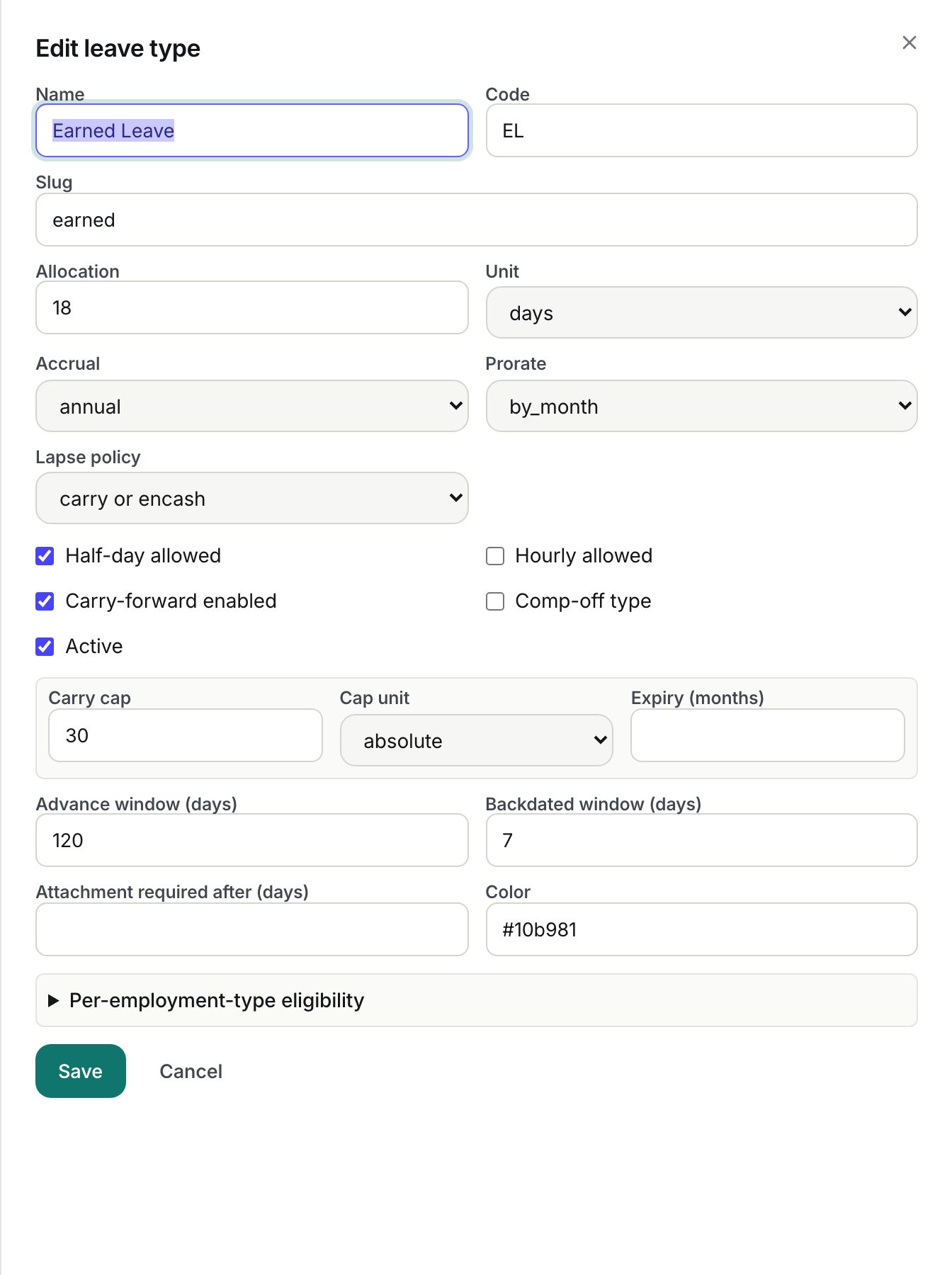
- Fill in the fields:
| Field | Meaning and validation |
|---|---|
| Name | Shown to employees. Required, up to 255 characters. |
| Code | Short tag such as EL. Required, up to 16 characters, stored upper-case. |
| Slug | URL-safe identifier, lower-case letters, digits and hyphens, up to 64. Required. |
| Allocation | Full-year amount, 0 to 9999.99 in steps of 0.5. |
| Unit | days or hours. Hour types show hrs to employees. |
| Accrual | annual (full amount at year start), quarterly (quarter on each quarter boundary), monthly (a twelfth on each month boundary), on_join (credited once when allocated). |
| Prorate | none (always the full amount), by_month (joining month counts as a full month), by_day (calendar days remaining over days in the year). |
| Lapse policy | What unused balance does at year end: expire, carry, encash, carry or encash. See HR override and year end. |
| Half-day allowed, Hourly allowed | Enable those modes on the apply form. |
| Carry-forward enabled | Reveals Carry cap, Cap unit (absolute days or percent of the allocation) and Expiry (months). Without a cap the whole balance carries. |
| Comp-off type | Marks the type as credit-based: no allocation, HR grants credits. A warning explains this; leave it off for Earned, Sick or Casual leave. |
| Active | Inactive types are hidden from employees and skipped by allocation. |
| Advance window (days) | How far ahead a request may start. Default 90. |
| Backdated window (days) | How far in the past a request may start. Default 0. |
| Attachment required after (days) | Requests of this many days or more must carry an attachment. Blank means never. |
| Color | Hex colour used for the type's swatch. |
| Per-employment-type eligibility | Expand and tick Full-time, Part-time, Contractor, Intern. Unticked types are excluded from allocation and cannot apply. |
- Click Save. Errors are listed under the form by field name.
The defaults for a new type are 21 days, annual, by_month pro-rating, expire at year end, 90-day advance window, no half-day or hourly.
Deleting a type
Click Delete and confirm. A type with live allocations is refused with "Cannot delete a leave type that has live allocations. Deactivate it instead." Admins are offered a force option that deactivates the type instead of deleting, so ledger history stays intact; this writes an audit entry.
What happens next
- New types are not allocated to existing employees automatically. Run Bulk leave allocation (or Initialize from defaults per employee); it only adds what is missing.
- Changing Allocation affects future allocations and the next annual accrual, not balances already credited. Use Edit on an employee's allocation to correct an individual.
- Changing windows, modes, attachment thresholds or eligibility takes effect on the next application.
- Per-type pro-rating uses the employee's joining date and the company leave year.
Rules and limits
- Balances cannot go negative: a request that exceeds the available balance is refused.
- Expiry (months) on carry-forward is saved but not applied at year end; carried balance stays until the following year end.
- The employee's Available figure and the balance tiles only list types with an allocation row for the current year, plus comp-off types with credits.
- Deleting a type with no allocations removes it permanently, including from the ledger lookups.
- This module must be enabled on your plan; Admins can check Settings → Billing.
Troubleshooting
Employees cannot see a new type. Allocate it: Bulk leave allocation or Initialize from defaults.
An employee was allocated 22 days but sees nothing. The type is probably ticked Comp-off type. Untick it; comp-off balances come only from credits.
Half day is greyed out for employees. Half-day allowed is off on that type.
Delete says the type has allocations. Untick Active instead, or use the force option as an Admin.