Document requests
A document request is HR asking an employee to upload something into a specific category, for example a PAN card from every new joiner or a renewed visa from one person. Requests are created in batches, show up on each employee's Documents tab as a card they can drop the file onto, and are fulfilled automatically when the upload arrives.
Who can do this: Admins with documents_center.manage.any and HR Managers with documents_center.manage.assigned_companies. Assigned-companies HR can only target employees of their assigned companies.
Where to find it
Documents → Documents, then the Requests tab (`/documents?tab=requests`).
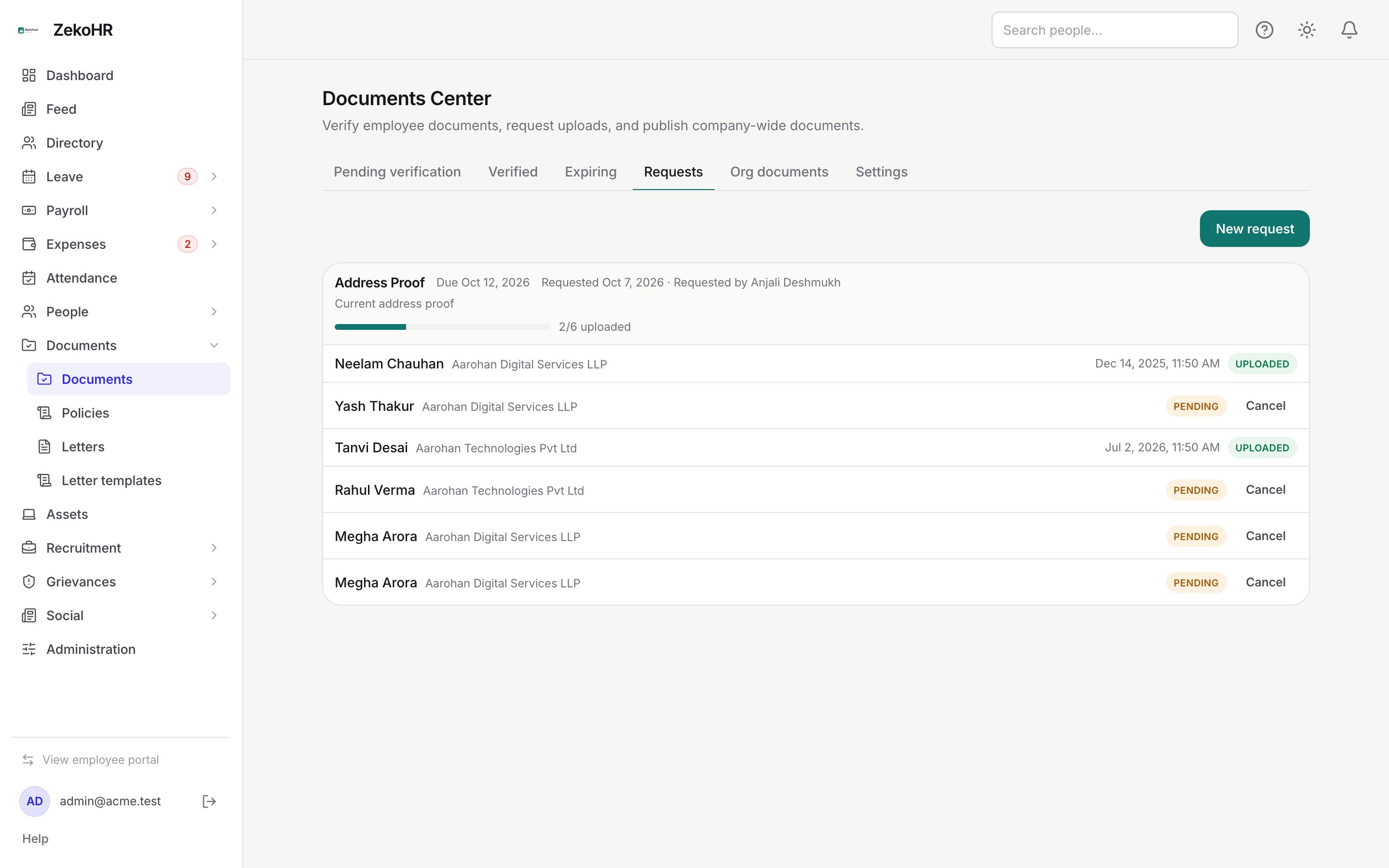
Creating a request
- Click New request. The Request a document dialog opens.
- Category (required): the document category the employee must upload into. Fulfilment is matched on this category, so pick the one you expect the file in.
- Note (optional): up to 500 characters, shown to the employee on the card and in the email.
- Due date (optional): any date. It drives the overdue pill on the employee's card and the reminder schedule.
- Send to: choose one of two targeting modes.
- Specific employees: type at least two characters in Search by name or email, click a result to add it as a chip, repeat for as many people as you need. Remove a chip with its cross.
- By filter: pick All companies or one company, All departments or one department, and Any employment type or Full-time, Part-time, Contractor or Intern. The request goes to every active employee matching every selected filter. Leaving all three at their defaults targets every active employee in your scope.
- Click Send request. A green notice reports Request sent to N employee(s).
Tracking a batch
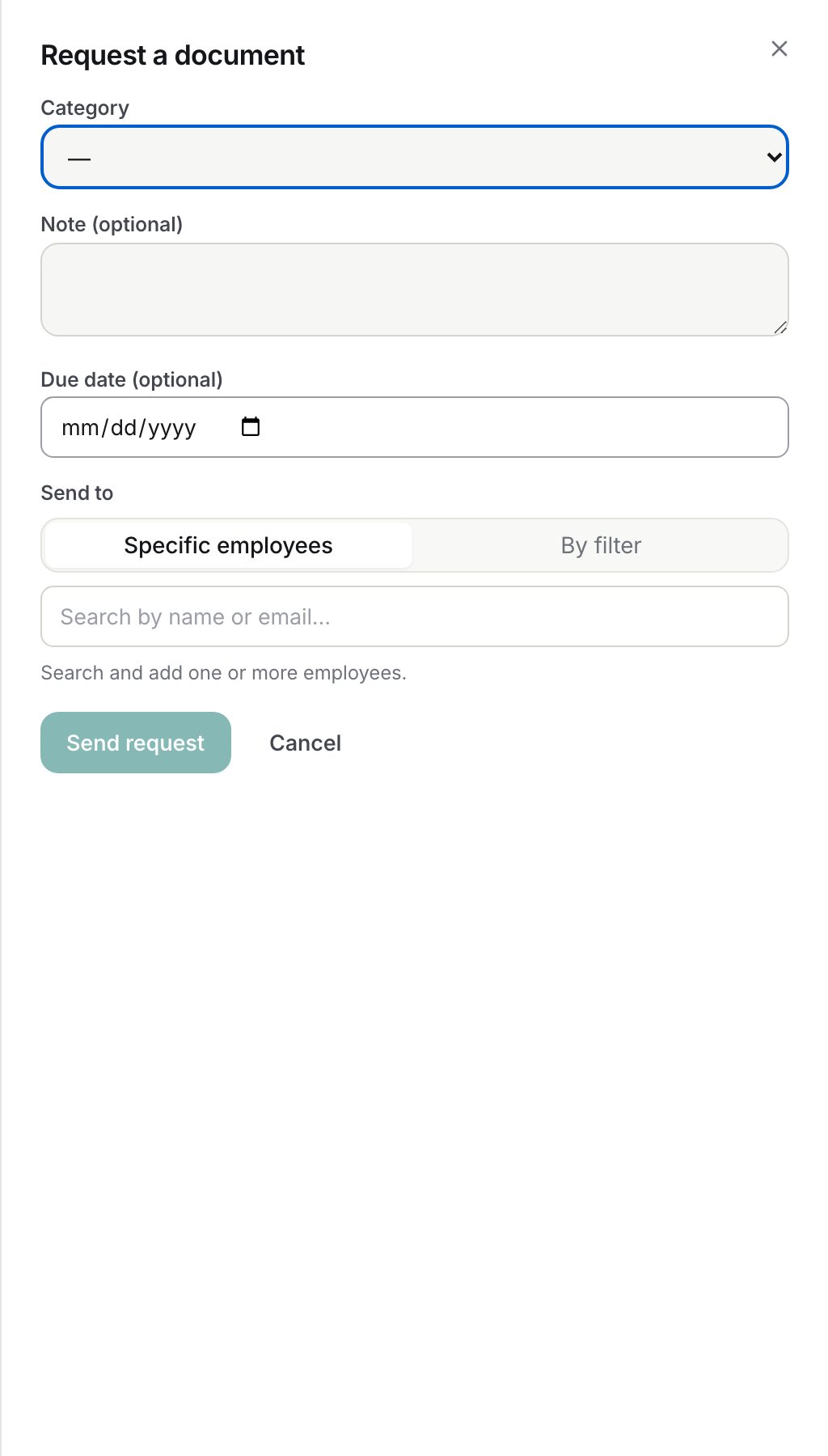
Each batch is one card headed by the category, Due {date}, Requested {date} and Requested by {name}, with the note underneath and a progress bar reading 3/10 uploaded. Rows list each employee with their company and a status pill. For a fulfilled row the upload time is shown. Click Cancel on a pending row to withdraw that one person's request.
Statuses
| Status | Meaning | What happens next |
|---|---|---|
| Pending | Nothing uploaded yet | Reminders at T-3 days and once when overdue; employee sees it under Needs your attention |
| Uploaded | The employee uploaded into the category; the fulfilling document is linked | Verify it from Pending verification if the category requires it |
| Cancelled | HR withdrew the request | Nothing; the employee's card disappears |
What happens next
- Every targeted employee receives an in-app notification and email (document.request_created template) with the category, note, due date and a link to their documents.
- An upload into the requested category fulfils the employee's oldest pending request for that category, even if they upload from the main Upload document button rather than the card.
- A daily process at 02:30 (server time) sends one reminder when a pending request is due in exactly 3 days (document.request_reminder template, with the status "due in 3 days") and one more after the due date passes ("overdue"). Each reminder is sent once per request.
- Creating a batch writes a document.request_created audit entry listing every target; cancelling writes document.request_cancelled.
- The employee's dashboard attention count includes their pending requests.
Rules and limits
- Specific employees: every selected person must be inside your HR scope; otherwise the whole request is refused with a permission error rather than partially sent.
- By filter: results are intersected with your scope and limited to active employees. Choosing a company outside your assigned set is refused.
- A request with no targets (filter matches nobody) is refused with No matching employees for this target.
- Only pending requests can be cancelled. Fulfilled rows stay as a record.
- There is no edit; cancel and create again to change the note or due date.
- Employees see pending requests plus requests fulfilled in the last 30 days; older fulfilled and cancelled rows are hidden from them.
- Requests without a due date never trigger reminders.
- The Documents Center module must be enabled on your plan; Admins can check Settings → Billing.
Troubleshooting
The employee uploaded but the row is still Pending. They uploaded into a different category. Ask them to upload again into the requested one; the request is matched strictly on category.
I cannot find an employee in the search. The search covers name and email within your scope and needs at least two characters. Inactive employees do not appear.
Send request fails with a permission error. One of the chosen employees, or the chosen company, is outside your assigned companies. Remove them or ask an Admin to send it.
Reminders did not go out. Reminders need a due date and run once a day in the early morning. A request created today with a due date three days away gets its reminder at the next run only if that run falls exactly three days before the due date; a shorter deadline gets only the overdue reminder.
Several people got the same request twice. Two batches were created. Cancel the duplicate rows individually from the newer batch.