Managing cash advances
The Advances worklist shows cash advance requests from employees in your scope and walks each one through approve, disburse and close. Managers see only requests assigned to them; HR Managers, Accounts and Admins see their company or the whole organisation and can also pay the money out.
Who can do this: Approve or reject needs `expense_advances.approve.direct_reports` (Manager, for requests naming them), `expense_advances.approve.assigned_companies` (HR Manager, Accounts, own company) or `expense_advances.approve.any` (Admin). Disburse and close need `expense_advances.disburse.assigned_companies` or `expense_advances.disburse.any`; managers do not have these. Listing needs `expense_advances.view.any`, `expense_advances.view.assigned_companies` or the manager approve permission.
Where to find it
Expenses → Advances in the admin view, at `/advances`. An employee's advances are also listed read-only under People → Employees → Expenses on their profile, with Purpose, Needed by, Requested, Outstanding and Status columns.
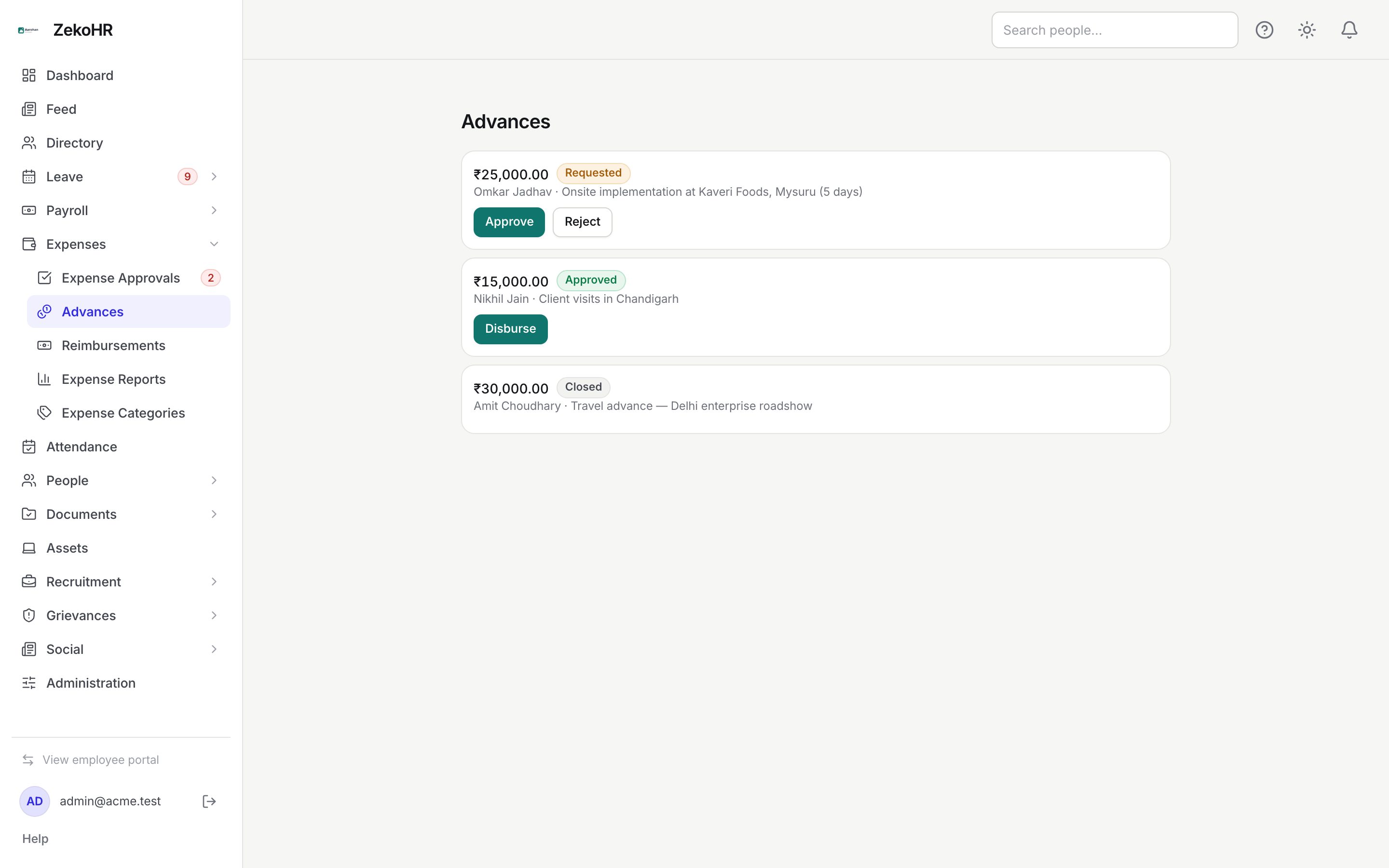
Approving or rejecting
- Read the card: amount, status, employee name and the purpose they typed. The requested date and Needed by are on the employee's own view and the profile tab.
- Click Approve to approve the full requested amount. There is no partial approval; to approve less, reject with a reason asking the employee to request the right amount.
- Or click Reject. A dialog titled "Reject · ₹amount" asks for Reason for rejection:; it is required and the confirm button stays disabled until you type something. The reason is shown to the employee.
If you are not allowed to act on that advance (for example a manager clicking on a request that names another manager), a red banner above the list shows the error instead of the button silently failing.
Disbursing
- On an Approved card click Disburse. The dialog title shows the amount to pay.
- Choose Payment mode: Bank transfer, Cash or UPI.
- Enter Payment reference (optional, up to 255 characters), such as the UTR or voucher number.
- Click Disburse. The advance becomes Disbursed with its outstanding balance set to the approved amount.

Reconciliation and closing
Employees settle an advance by choosing it under Settle against advance when creating a claim. When such a claim is approved, ZekoHR reduces the outstanding balance by the smaller of the claim total and the balance, records the settled amount on the claim, and sets the advance to Partially reconciled, or Closed when the balance hits zero. Only the unsettled remainder of the claim goes to the reimbursement register.
To close an advance manually:
- On a Disbursed or Partially reconciled card click Close.
- If money is still outstanding, a prompt asks "Reason for the remaining balance (recovered/written off):". The remaining amount is stored as the write-off amount with your reason (up to 255 characters).
- The advance becomes Closed with outstanding zero. Claims linked to it afterwards are reimbursed in full.
Statuses
| Status | Meaning | Available action |
|---|---|---|
| Requested | Waiting for a decision | Approve, Reject |
| Approved | Decided, awaiting payout | Disburse |
| Rejected | Declined with a reason | None |
| Disbursed | Paid; outstanding equals approved amount | Close |
| Partially reconciled | Some claims settled against it | Close |
| Closed | Fully settled, or closed with a recovery or write-off | None |
What happens next
- On request, the reporting manager, Admins and the company's HR Manager and Accounts users are emailed and notified in-app (never the requester themself).
- The requester is emailed and notified when the advance is approved, rejected or disbursed; the disbursement notice includes the payment mode.
- Closing sends no notification; the employee sees "Closed · date" on My Advances.
- Audit log entries: `expense_advance.approved`, `expense_advance.rejected`, `expense_advance.disbursed`, `expense_advance.closed` (with the recovered amount).
Rules and limits
- Scope: Admins list everything; HR Managers and Accounts list their own company; a manager sees only advances where they are the named approver.
- Approve rights: Admins anywhere; company-scoped approvers for advances in their own company; a manager only when the request names them.
- Disburse and close require the disburse permission for the advance's company. A manager who approved cannot disburse.
- Only Requested advances can be approved or rejected; only Approved ones disbursed; only Disbursed or Partially reconciled ones closed.
- Reconciliation happens only at claim approval. A claim approved before disbursement, or linked after closure, settles nothing.
- Advances are INR; there is no currency selector in the app.
Troubleshooting
Approve or Reject shows a red banner. You are not an allowed approver for this advance. A manager can act only on requests naming them; ask HR or an Admin.
There is no Disburse button after approval. You lack the disburse permission. Accounts, HR Manager or Admin must record the payout.
The outstanding balance did not drop after a claim was approved. The employee did not pick the advance under Settle against advance, or the advance had not been disbursed when the claim was approved.
I need to approve a smaller amount. Reject with a reason asking the employee to request the right amount, or approve and later close with a recovery note.