Leave year config
Leave year config defines, per company, when the leave year starts, which weekdays are working days, how many hours make a day, and the leave application policy (mandatory reason and notification recipients). Everything in the leave module depends on it: allocations are sliced by this year, requests count working days from this week, and hourly leave converts using these hours. Set it before allocating anything.
Who can do this: HR Managers and Admins with `leave_config.view` to read and `leave_config.manage` to save. Overriding the lock on boundary fields additionally needs `roles.manage` or super admin.
Where to find it
Administration → Settings → Leave → Leave year config. URL: `/settings/leave-year`.
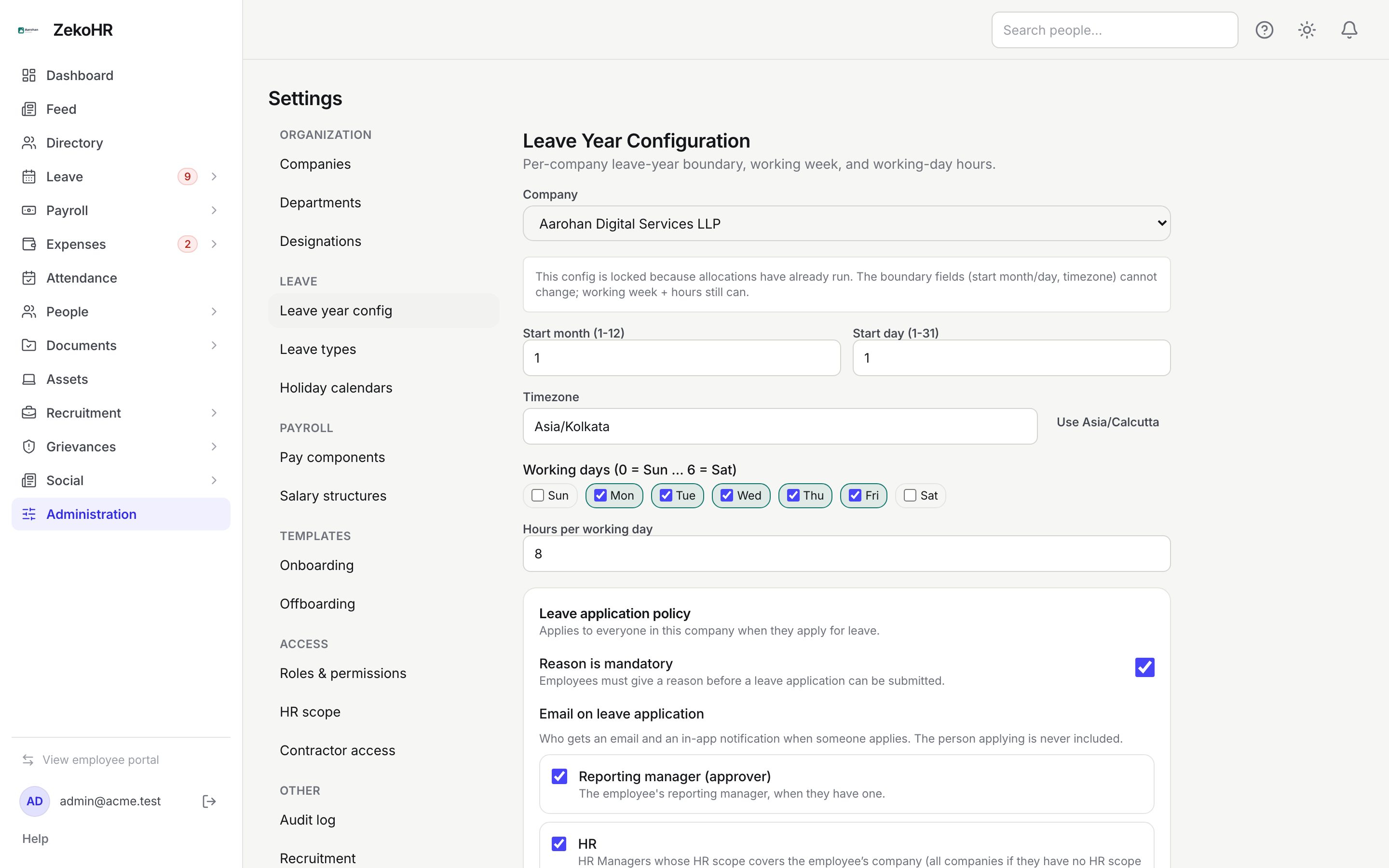
Setting up a company
- Pick the Company. Each company has its own configuration; the form loads what is saved or shows defaults (1 January, UTC, Monday to Friday, 8 hours) when nothing exists yet.
- Start month (1-12) and Start day (1-31): the first day of the leave year. For an Indian financial-year cycle use month 4, day 1 (April to March). The year that contains today is derived from these.
- Timezone: an IANA zone such as Asia/Kolkata. Start typing to search, or click Use <zone> to take your browser's zone. Maximum 64 characters.
- Working days (0 = Sun … 6 = Sat): tick the chips for the working week. Unticked days are never counted in a leave request.
- Hours per working day: 0.5 to 24 in steps of 0.5. Hourly leave is converted to days with this figure.
- Leave application policy:
- Reason is mandatory: when on, the apply form will not submit without a reason, and apply-on-behalf also requires one.
- Email on leave application: tick Reporting manager (approver), HR (HR Managers whose HR scope covers the employee's company; all companies when they have no scope set) and Admins. Tick Specific people to add named users with the people picker (up to 50). If every box is clear you see the warning "Nobody will be emailed when someone applies for leave."
- Click Save. "Saved." confirms. Validation errors appear under the form, per field.
Defaults when the policy is never touched: approver and HR on, Admins off, no specific people.
The lock on boundary fields
The first allocation or manual adjustment for the company stamps the configuration as locked and the note "This config is locked because allocations have already run…" appears. After that:
| Field | After lock |
|---|---|
| Start month, Start day, Timezone | Refused with "Leave year config is locked. Cannot change [field] after the first allocation has run." |
| Working days, Hours per working day, Reason is mandatory, notification recipients | Still editable. |
If you hold `roles.manage` (Admins do) the refusal opens a confirmation explaining that changing it after the first allocation can invalidate existing balances and audit history. Confirming saves the change and writes an audit entry listing the fields. Existing ledger rows keep their old year start dates, so only do this before real balances exist.
What happens next
- Saving takes effect immediately for new requests and allocations.
- The notification settings are read on every application: the "leave applied" email and in-app notification go to the resolved set. If the set is empty for a given request (for example HR applying with no manager), Admins receive it as a fallback so no request is silent.
- The reason rule applies to apply-on-behalf as well as to the employee form.
Rules and limits
- One configuration per company; multi-company organisations configure each one. The company selector lists all companies you can see.
- A company with no configuration cannot allocate leave (bulk allocation reports "company has no leave year configured") and its employees get "Company has no leave year config; balances are undefined." when applying.
- Named notification recipients must be active users in your organisation; they are re-validated at send time and silently dropped if deactivated.
- The applicant is never notified of their own application, even if named under Specific people.
- Working days here are the only weekly pattern; there is no per-employee shift pattern for leave counting.
- Changes are per company and not inherited across companies.
Troubleshooting
I need to move the leave year from January to April. If allocations already exist, cancel or correct them first, then use the override and re-run allocation. Otherwise simply change the start month and save.
Managers are not receiving leave emails. Check Reporting manager (approver) is ticked and that the employee has a reporting manager on their profile.
HR Managers in another company get emails for mine. Narrow their HR scope under Administration → Settings → HR scope; HR with no scope covers every company.
"Nobody will be emailed" is showing. At least one group or named person must be ticked, unless you intentionally want approvals to be found only in the Approvals queue.