Holiday calendars setup
Each company has one or more holiday calendars; the one marked Default calendar is what the leave module uses to count working days and show holidays to employees. Holidays are either mandatory (always a non-working day) or restricted (an optional holiday, listed to employees but counted as a working day when leave is calculated).
Who can do this: HR Managers and Admins with `leave_config.view` to read and `leave_config.manage` to create, edit, import or delete.
Where to find it
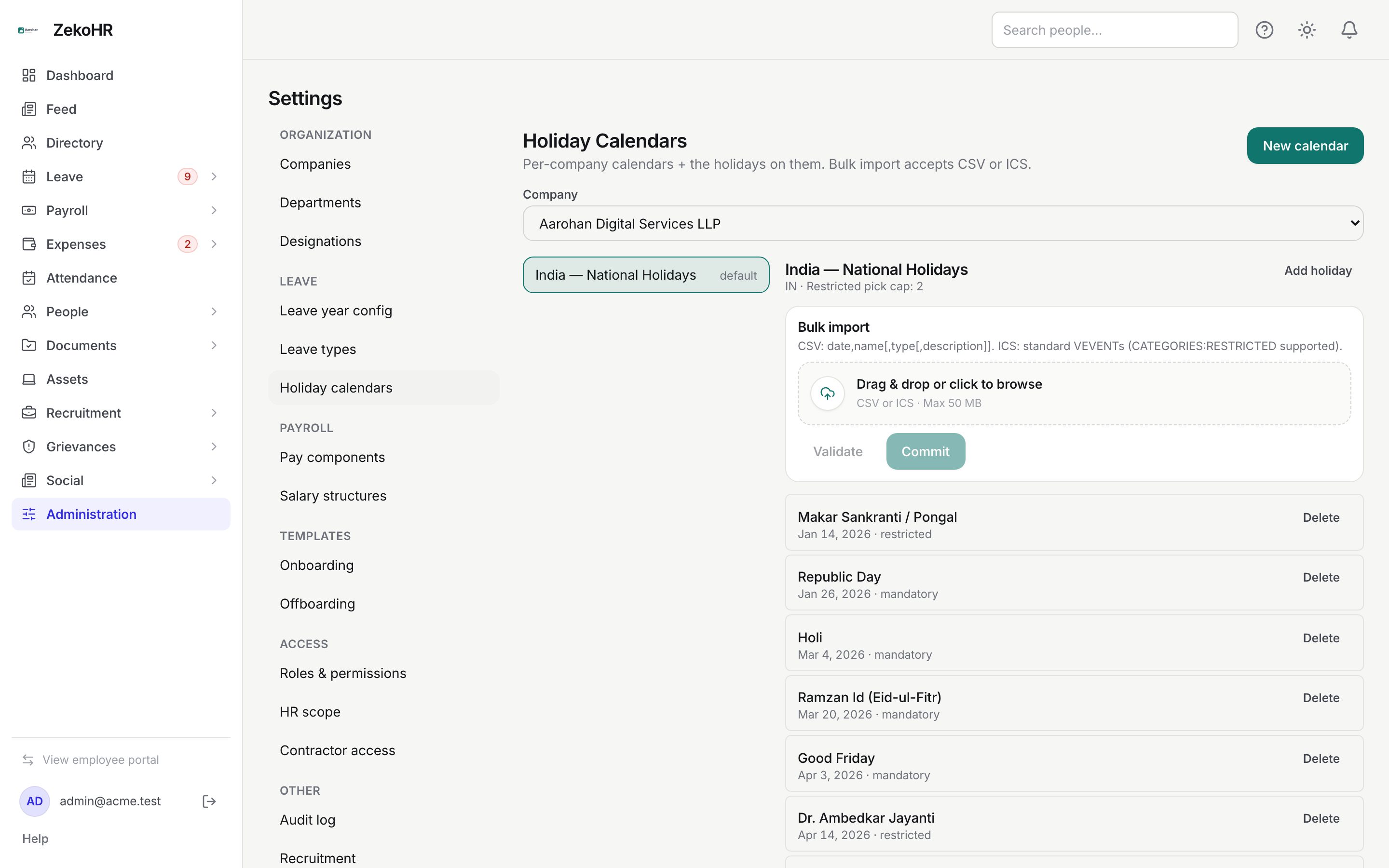
Administration → Settings → Leave → Holiday calendars. URL: `/settings/holiday-calendars`.
Creating a calendar
- Choose the Company. Calendars are per company.
- Click New calendar.
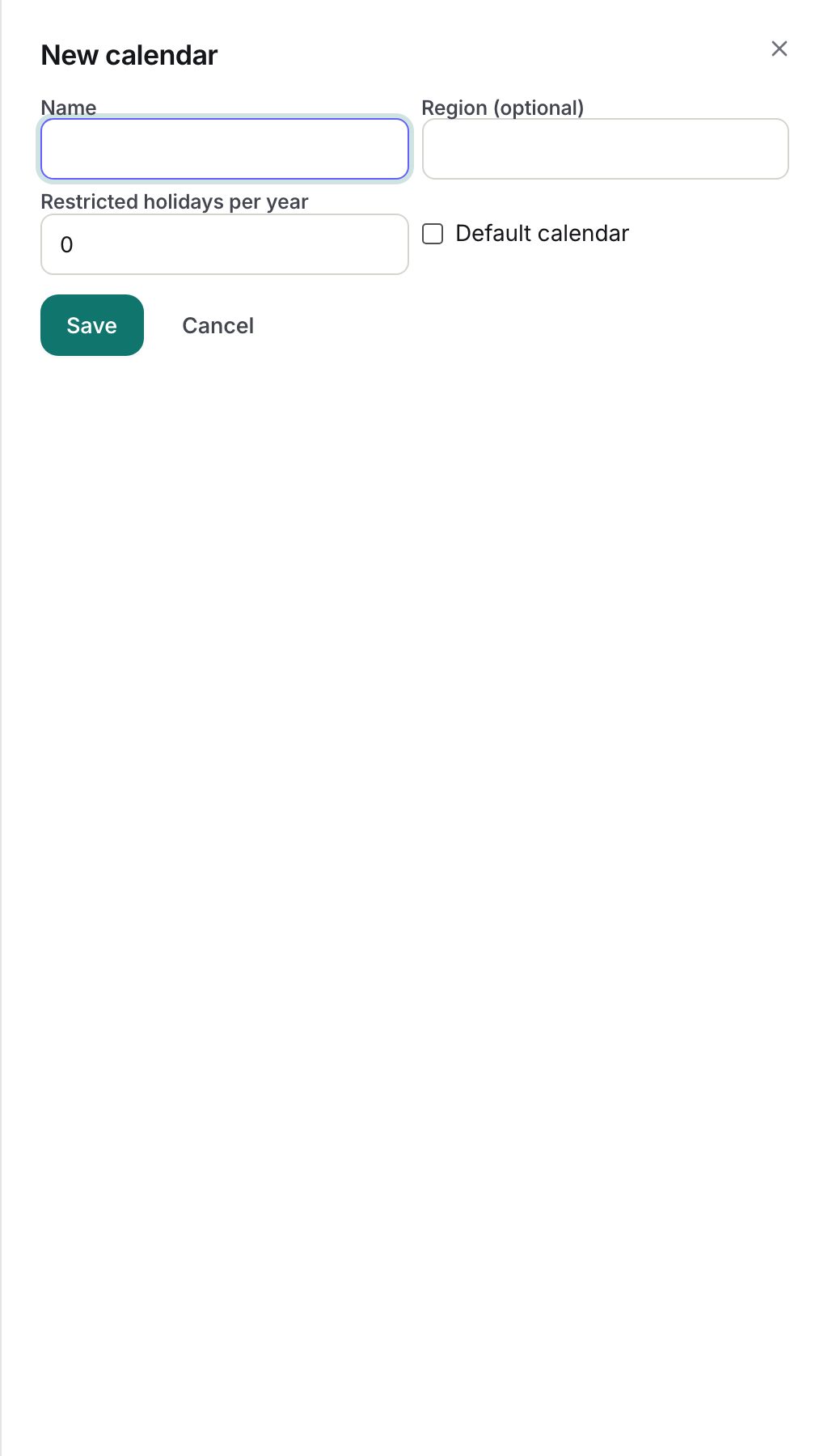
- Fill in Name (required, up to 255), Region (optional) (up to 64, for example IN or Maharashtra), Restricted holidays per year (whole number, 0 or more; recorded on the calendar but with no effect on leave counting today) and tick Default calendar if this is the one employees should follow.
- Click Save. The calendar appears in the left list; the default shows a "default" marker and the detail header reads "region · Restricted pick cap: N".
Mark exactly one calendar per company as default. If two are marked default, ZekoHR uses the first one it finds, which is unpredictable.
Adding holidays one by one
- Select the calendar on the left and click Add holiday.
- Enter Date, Name (required, up to 255) and Type (mandatory or restricted), then Save holiday.
- Rows list "Name, date · type". Delete removes a holiday; there is no inline edit, so delete and add again to correct one.
Importing a file
- Under Bulk import, drop a `.csv`, `.txt` or `.ics` file on the dropzone (up to the upload limit, 50 MB by default).
- Click Validate. The report reads "N rows · N OK · N failed" and lists up to ten failing rows with reasons such as "date is required", "date is not a valid ISO Y-m-d", "name is required" or "type must be one of: mandatory, restricted".
- Click Commit (enabled only after a validation) to insert the valid rows. Rows that already exist with the same date and name on this calendar are skipped, so re-importing is safe.
| Format | Expected content |
|---|---|
| CSV | Header row with `date,name` and optional `type,description`. Dates as YYYY-MM-DD. Type defaults to mandatory. |
| ICS | Standard VEVENT blocks. `DTSTART` gives the date, `SUMMARY` the name, `DESCRIPTION` the description. `CATEGORIES` containing RESTRICTED or MANDATORY sets the type. |
Deleting a calendar
Click Delete calendar under the detail panel and confirm "Delete this calendar and its holidays?". Avoid deleting a default calendar in use; employees lose their holiday list until another calendar is marked default.
What happens next
- Mandatory holidays on the default calendar immediately stop counting as working days in new leave requests. Already-approved requests keep their day equivalent.
- Employees see mandatory holidays in Holiday Calendar, the dashboard countdown and the team schedule; restricted ones appear in the team schedule with a restricted badge.
- No notifications are sent for calendar changes.
Rules and limits
- Only the default calendar is used anywhere outside this screen. Extra calendars are reference copies until you make one default.
- Working-day counting also needs Leave year config for the working week; holidays alone do not define it.
- There is no screen for employees or HR to pick restricted holidays, so a restricted holiday never shortens a leave request. Employees who want the day off apply for leave on that date.
- Import is limited by the extension check (`csv`, `txt`, `ics`); other extensions are refused before parsing.
- Calendars belong to a company; employees without a company see no holidays.
Troubleshooting
Employees see no holidays at all. No calendar is marked default for their company, or their profile has no company.
Import says every row failed with a date error. The CSV dates are not ISO (YYYY-MM-DD). Reformat and validate again.
Commit is disabled. Validate the file first; choosing a new file resets the step.
A holiday was added to the wrong calendar. Delete it there and add it to the right one; there is no move.