My letters
My letters lists every letter HR has generated in your name, shown exactly as it was issued, with a PDF download. Nothing here changes after issue: the text on screen is the same text in the PDF and in the email you received.
Who can do this: Every employee with letters.view.self (granted to all default roles). HR users holding letters.generate see their own letters here too.
Where to find it
Documents → My letters (`/my-letters`). The email HR sends when a letter is issued links straight to the letter, which is scrolled into view and outlined when the page opens.
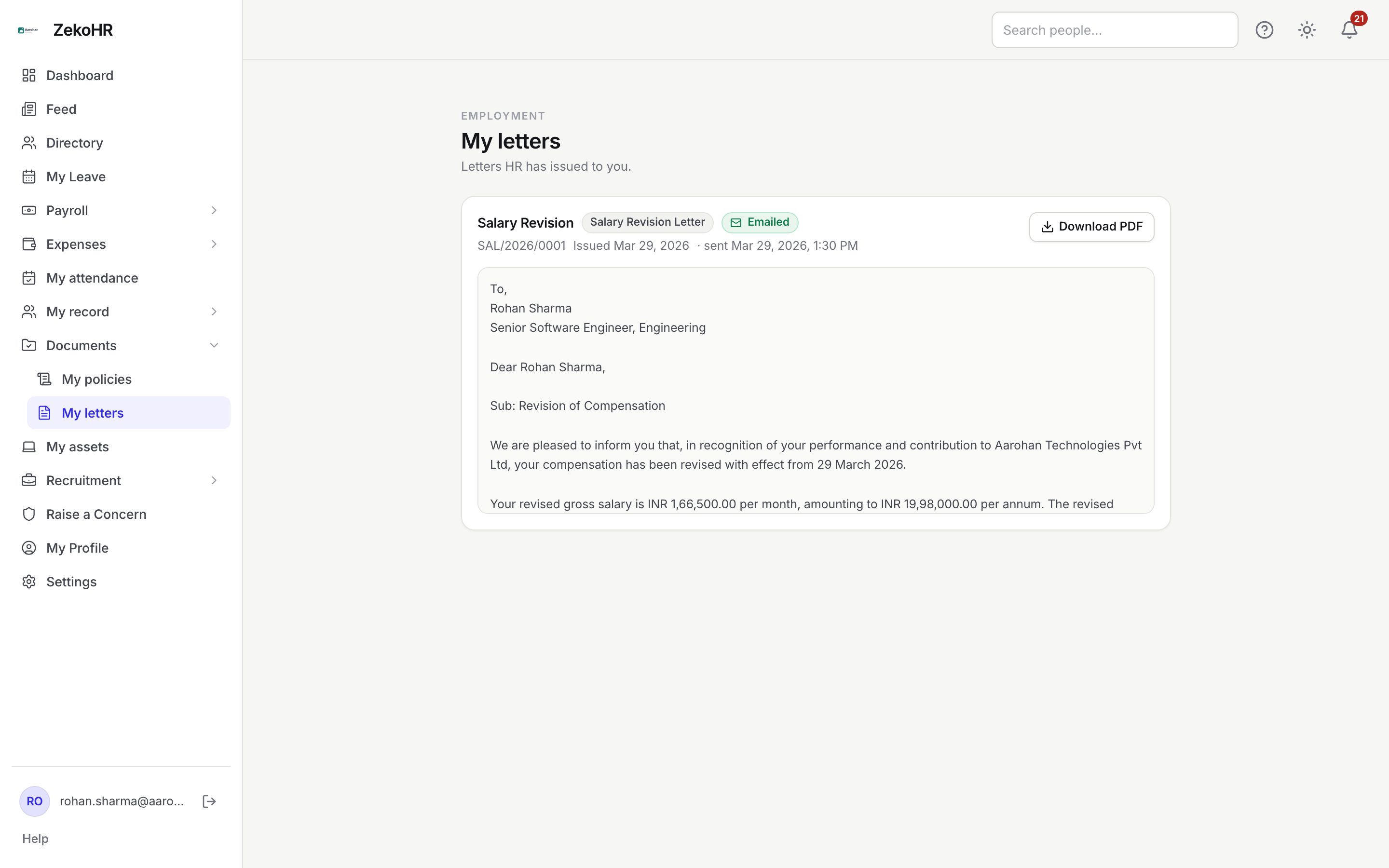
Reading a letter
- Each card is headed by the letter title (for example Salary Revision) and a badge with the type (Salary Revision Letter, Offer Letter, Experience Letter and so on).
- Under the heading you see the reference number (such as SAL/2026/0001), Issued {date} and, if HR emailed it, sent {date and time}.
- The letter text follows in a scrollable box.
- Click Download PDF to save a copy. The file is named after the type, for example `salary_revision-letter.pdf`.
What the badges mean
| Badge | Meaning | What happens next |
|---|---|---|
| Type badge (Offer Letter, Appointment Letter, Confirmation Letter, Salary Revision Letter, Promotion Letter, Transfer Letter, Experience Letter, Relieving Letter) | Which standard letter this is | Nothing |
| Emailed | HR also sent it to your work email with the PDF attached | Check your inbox; download here if the attachment was stripped |
| No Emailed badge | HR generated it but has not sent it yet | You can still download it here |
What happens next
- When HR clicks Send, you receive an in-app notification and an email from the letter.issued template with the PDF attached and a link to this page. HR can resend it; the latest send time is shown.
- A letter that HR deletes before sending disappears from this list. Once a letter has been emailed, HR cannot delete it, so your copy always stays.
- Letters are never re-rendered: if HR later edits the template wording, your letter keeps the text it was issued with.
Rules and limits
- Only letters addressed to you are listed. Managers do not see their reports' letters here; HR works from the Letters page.
- Letters are sorted by issue date, newest first.
- Salary figures appear only on Offer, Appointment and Salary Revision letters; experience and relieving letters never state pay, so they can be shared with a third party.
- A letter carrying an "unreviewed template" band was generated before HR approved the wording; ask HR for a regenerated copy if you need a clean one.
- The Letters module must be enabled on your plan; Admins can check Settings → Billing.
Troubleshooting
The page says No letters yet. HR has not generated any letter for you. Ask HR; experience and relieving letters are usually issued during offboarding.
A detail in the letter is wrong (designation, manager, date). The letter merged your employee record at the time it was generated. Raise a change request under My record so HR corrects the record, then ask HR to generate a fresh letter.
Download PDF does nothing. The PDF is produced on demand by the server; wait a moment or try again. If it fails repeatedly, ask HR to check the letter from their side.
I got the email but the PDF is missing. Some mail gateways strip attachments. Use the link in the email or come here and download it.
The letter in the email says sent but no Emailed badge shows. Reload the page; the badge appears once the send is recorded.