Welcome to ZekoHR
ZekoHR is your organisation's HR portal. It holds your profile and documents, your leave and holidays, payslips, expense claims, onboarding tasks, the company feed and, for managers and HR, everything they need to run the team. It works on a phone as well as a desktop browser, and the same account is used on both.
Who can do this: Everyone with a ZekoHR account. No permission is needed to open the dashboard; what you see beyond it depends on your role (Employee, Manager, HR Manager, Admin, Contractor) and the modules enabled on your plan.
Where to find it
Sign in and you land on Dashboard, at `/`. The dashboard is also the first entry in the sidebar.
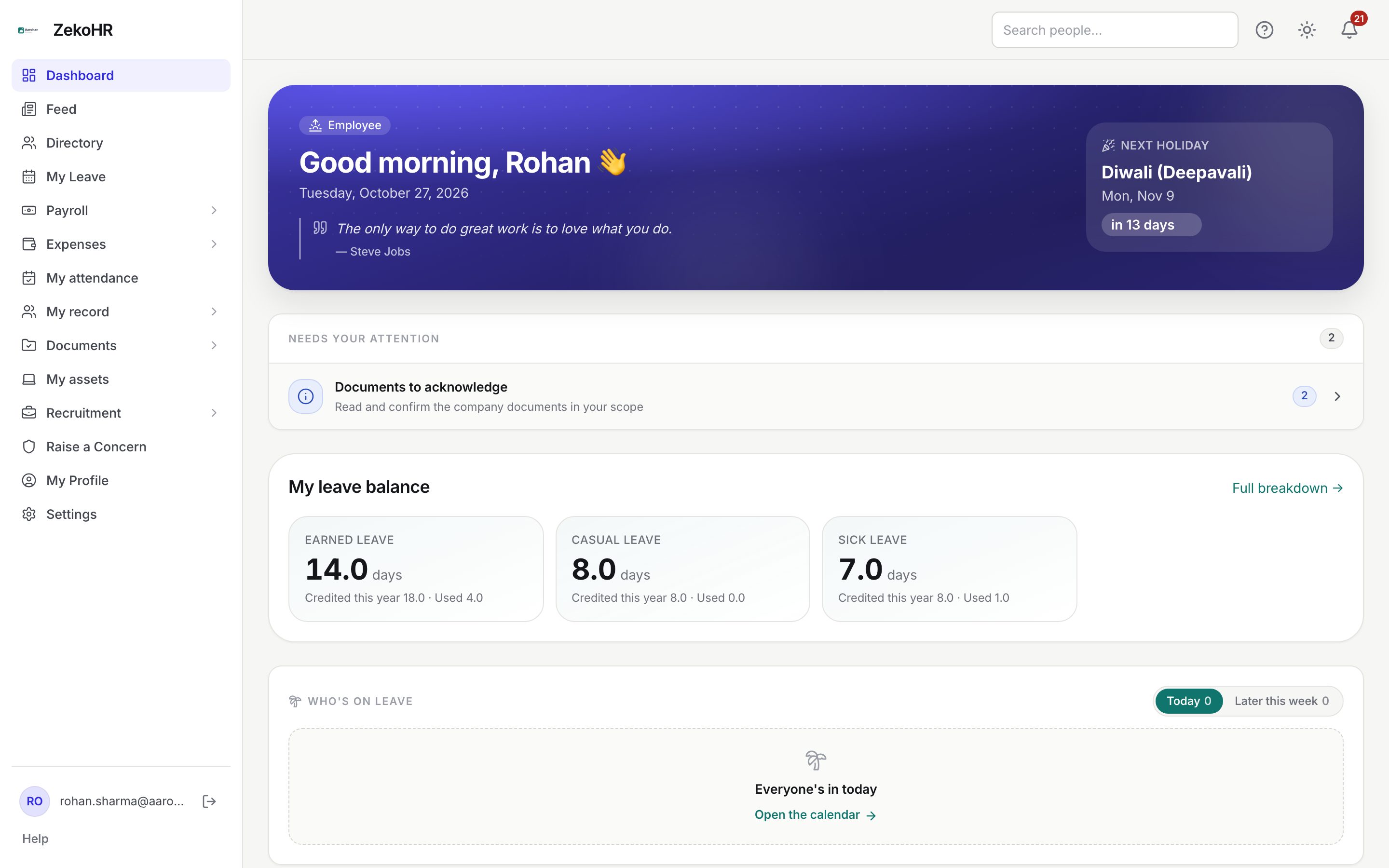
The parts of the screen
| Area | What it holds |
|---|---|
| Sidebar (left, or behind the menu button on a phone) | Your company logo and name, then the navigation. The three daily destinations (Dashboard, Feed, Directory) sit at the top, grouped modules follow, and your personal pages (My Profile, Settings) sit at the bottom. |
| Sidebar footer | Your email address, the Sign out icon, and a Help link. People with admin or HR access also see View employee portal here. |
| Top bar | Search people… (a magnifier icon on phones), the Help for this page button, the theme toggle, and the notification bell with its unread count. |
| Banners | Shown above everything when they apply: a trial countdown, a read-only notice when the subscription needs attention, or an amber bar when an admin is viewing the portal as you. |
Groups in the sidebar expand and collapse. Your choice is remembered in this browser. A red count next to a group (for example Leave 9) is the number of items waiting for your decision.
What is in the sidebar
The sidebar is built from your permissions, so two people in the same company can see different lists. A module your organisation has not enabled is removed entirely rather than shown locked. This is the typical employee list:
| Entry | What it is for |
|---|---|
| Dashboard | Greeting, next holiday, items that need your attention, leave balances, who is on leave, celebrations. |
| Feed | Company posts, announcements, polls and kudos. |
| Directory | Everyone in the company with department and designation filters. |
| My Leave, Holiday Calendar | Apply for leave, check balances, see holidays. |
| Payroll | My payslips, salary queries, tax declaration. |
| Expenses | Claims and cash advances. |
| My attendance | Your attendance records. |
| My record | Change requests, letters, policies and other items HR keeps for you. |
| Documents | Your uploaded documents, HR requests and company documents. |
| My assets | Equipment issued to you. |
| Recruitment | Referrals and interviews you are on. |
| Raise a Concern | Grievance and whistleblower reports. |
| My Profile | Your details, photo, timeline and documents. |
| Settings | Notification preferences, password and language. |
Managers see Leave → Approvals, Expense Approvals and People in addition. HR Managers and Admins see the full People, Payroll, Documents, Recruitment, Grievances, Social and Administration groups.
Your first ten minutes
- Open My Profile and add a photo and a phone number. The dashboard's Profile completeness card tells you what HR still needs from you.
- Open Settings and review the Notifications tab so email reaches you for the events you care about.
- Open Settings → Security and turn on two-factor authentication. Your organisation may require it.
- Check My Leave for your balances. If nothing has been allocated yet, the dashboard offers Request leave allocation.
- If you have just joined, finish the Onboarding steps to complete listed under Needs your attention.
- Press the Help for this page button on any screen to read the guide for that screen.
Rules and limits
- Permissions decide every page and every action. The sidebar only reflects them; a link you were sent works only if your role allows it.
- Multi-company organisations: the directory, search and celebrations are scoped to your company, or to the companies an HR Manager is assigned.
- Contractors see a slimmer home with only the modules Settings → Contractor access grants them.
Troubleshooting
I cannot see a module my colleague has. Your role does not include it, or it is not enabled on the plan. Ask your HR admin; roles are changed from the employee record.
The page says my account is read-only. The subscription has lapsed or the trial ended. Everything stays visible and exportable, but saves are refused until an Admin completes payment under Settings → Billing.
An amber bar says someone is viewing the portal as me. An Admin is impersonating your account to help with a problem. Their actions are audited under their own name.