Checking your attendance
My attendance shows the days HR has recorded against you for a month, one calendar cell per day, with a summary of present, leave, absent and loss-of-pay days at the top. It is read-only. ZekoHR does not have clock-in or clock-out for employees; attendance is a record your HR team keeps, and this page lets you check it before a payslip arrives.
Who can do this: every employee with `attendance.view.self` (granted to every default role, including Manager, HR Manager and Admin). Marking days needs `attendance.manage.any` or `attendance.manage.assigned_companies`, which employees do not have.
Where to find it
Sidebar My attendance (it sits under the Attendance group when you also hold HR access). URL path `/my-attendance`. This module must be enabled on your plan; Admins can check Settings → Billing.
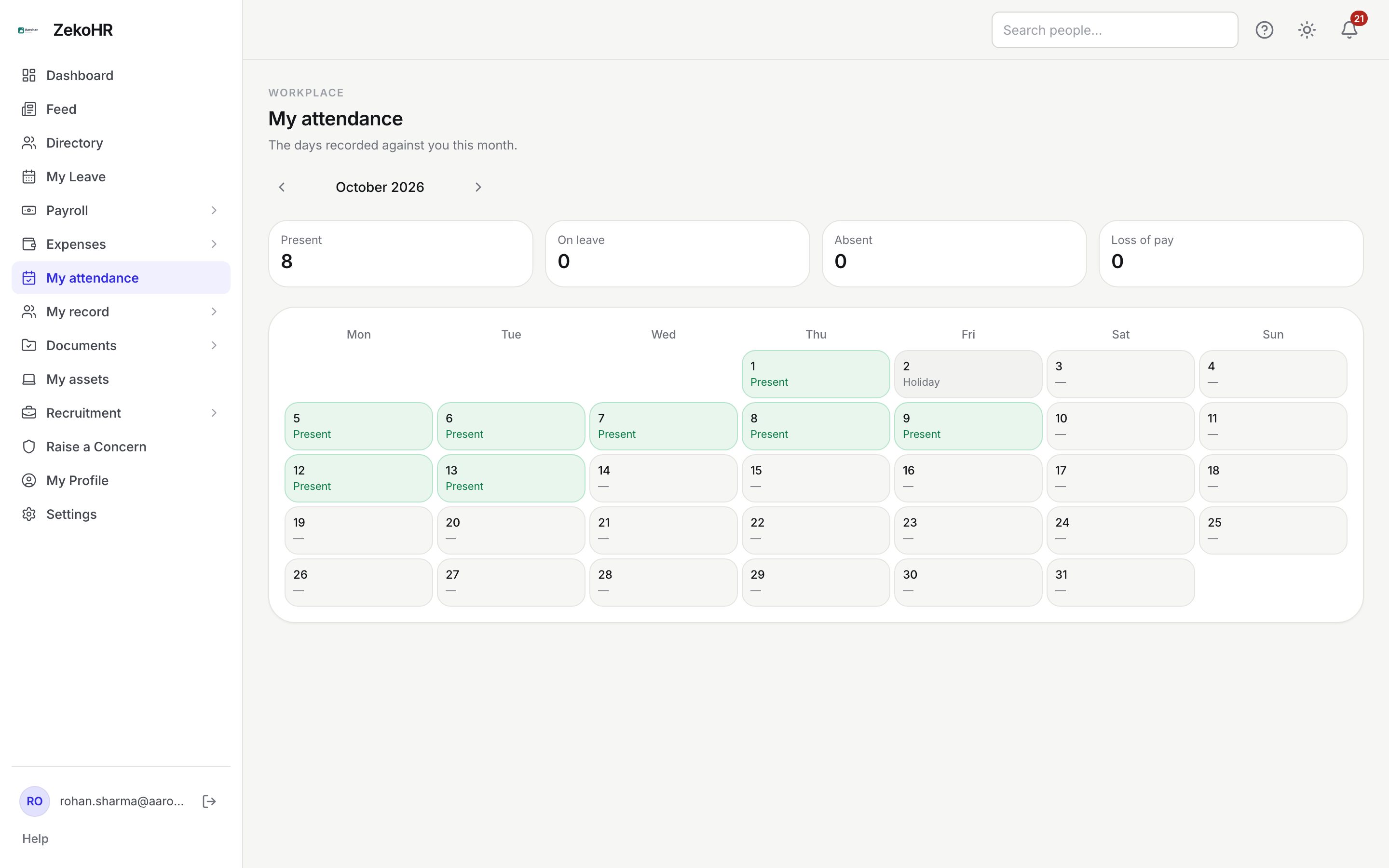
Reading the month
- The page opens on the current month. Use the ‹ and › arrows either side of the month name to move back or forward. There is no limit on how far back you can go.
- The four tiles summarise the month: Present, On leave, Absent and Loss of pay. The loss-of-pay tile turns red when it is above zero.
- The calendar starts on Monday. Each cell shows the day number and its status. A dash means nobody has recorded that day yet, which is normal for future dates and for weekends when your company does not mark weekly offs.
- If no day in the month has been recorded, the page says No attendance has been recorded for you this month.
What the statuses mean
| Status | Shown as | Counts as present | Loss of pay |
|---|---|---|---|
| Present | Present, green | 1 day | 0 |
| Half day | Half day, amber | 0.5 day | 0.5 day |
| Absent | Absent, red | 0 | 1 day |
| On leave | On leave, blue | 0 | 0 |
| Holiday | Holiday, grey | 0 | 0 |
| Weekly off | Weekly off, grey | 0 | 0 |
On leave is zero loss of pay on purpose. Approved leave is already paid for, or already deducted from a balance, by the leave module. Only a day that nobody accounted for, an outright absence, costs money. A holiday or weekly off is not "worked", so it adds nothing to the present count, but it costs nothing either.
How the summary is calculated
The totals are never stored. They are added up from the day records every time you open the page, so a correction HR makes is visible the moment it is saved. Present is present days plus half of each half day. Loss of pay is absent days plus half of each half day. Absent and On leave are plain counts of those statuses.
What happens next
Nothing on this page sends a notification. The loss-of-pay figure is what HR reads when they prepare your monthly payslip, where it becomes LOP days and reduces the paid days on prorated earnings. HR enters that figure on the payslip by hand, so the number you see here should match what appears on the payslip once the run is published. See Attendance, loss of pay and payroll.
Rules and limits
- You cannot mark, correct or clear your own days. There is deliberately no self-marking permission.
- Each person has at most one record per calendar day. HR correcting a day replaces the earlier status rather than adding a second entry.
- Only your own records are returned; the page cannot show a colleague's calendar.
- Month navigation uses the calendar month, so a 31-day month shows 31 cells.
Troubleshooting
A day shows Absent but I was in the office. Raise it with HR. The usual way is a salary query if it has already affected a payslip, or a message to your HR Manager, who can correct the day from the HR grid or from your profile. Corrections are audited.
My loss-of-pay tile says 1 but my payslip shows 0 LOP days. HR types LOP days on the payslip separately. Either HR has still to carry the figure across, or the day was corrected after the payslip was prepared. Ask HR to recalculate before the run is published.
Weekends show a dash, not Weekly off. Your company has not marked weekly offs. A dash is simply "not recorded" and costs nothing.
I cannot see My attendance in the sidebar. The attendance module is not enabled on your plan, or your role is missing `attendance.view.self`. An Admin can check Settings → Billing and Settings → Roles & permissions.