Settings overview
Settings is the single place where an organisation is configured: companies and departments, leave and payroll rules, templates, access control, logs, branding, security and billing. Each page is shown only to people whose role grants a matching permission, and only when the module it configures is enabled on your plan, so two admins can see slightly different lists.
Who can do this: Admins see every page. HR Managers see the configuration pages their bundle covers (for example `leave_config.manage`, `onboarding_templates.manage`, `roles.view`, `audit.view`). Every signed-in user can open Security and General, which have no permission requirement.
Where to find it
Administration in the main sidebar, URL `/settings`. Opening `/settings` redirects you to the first page you are allowed to see; for an Admin that is Companies. On a phone the left-hand list collapses into a single drop-down at the top of the page.
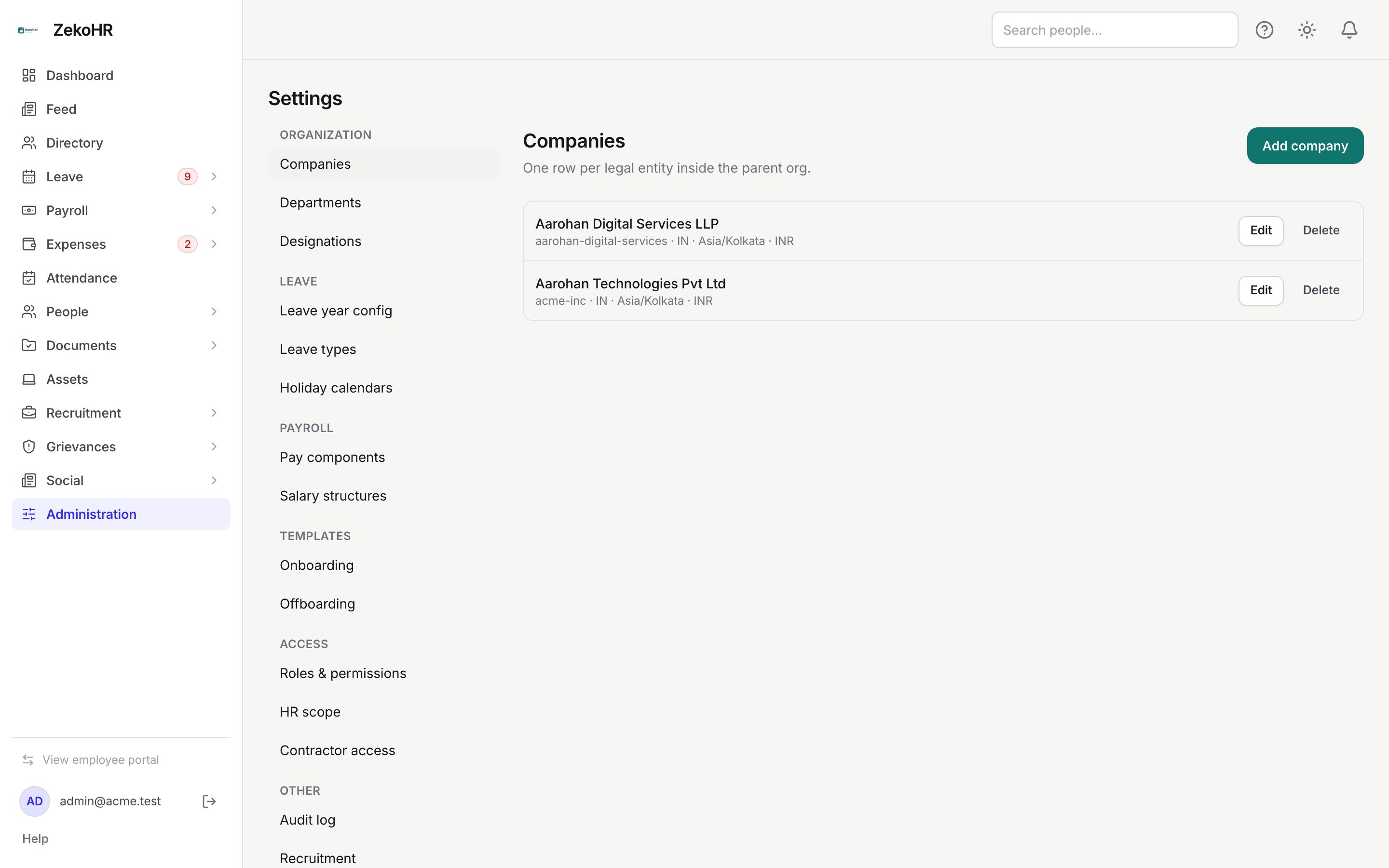
The groups and what they contain
| Group | Pages | Shown when you hold |
|---|---|---|
| Organization | Companies, Departments, Designations | `companies.view.*` / `departments.view.*` / `designations.view` |
| Leave | Leave year config, Leave types, Holiday calendars | `leave_config.view` or `leave_config.manage` |
| Payroll | Pay components, Salary structures | `payroll.view.*` or `payroll.manage.*` |
| Templates | Onboarding, Offboarding | `onboarding_templates.*` / `offboarding_templates.*` |
| Access | Roles & permissions, HR scope, Contractor access | `roles.view` / `roles.assign` / `contractors.manage` |
| Other | Audit log, Recruitment, Email log, Email templates, Knowledge base, Branding, Security, Billing, General | `audit.view`, `recruitment_settings.manage`, `email_logs.view`, `email_templates.*`, `knowledge.manage`, `roles.manage`, none, `settings.manage`, none |
Pages that belong to a module your plan does not include (for example Pay components without payroll, or Audit log without the audit log module) are removed from the list rather than shown greyed out. This module must be enabled on your plan; Admins can check Settings → Billing. Billing itself is hidden for white-label organisations on the internal plan, because nothing is ever billed there.
Locked settings and the admin override
Some settings lock themselves once real data depends on them. The clearest examples are the leave year configuration (timezone, start month and start day lock after the first allocation is made) and deleting a leave type that still has live allocations. When you try to change a locked value the server refuses with a message such as "Leave year config is locked. Cannot change timezone", and the page then behaves in one of two ways:
- If you are an Admin (you hold `roles.manage`) or a super admin, a confirmation appears: the server's message, a sentence describing the consequence ("Changing it can invalidate live records and audit history"), and the question Continue as admin override?. Choosing OK retries the same save as an admin override, and the change goes through.
- If you do not hold `roles.manage`, the message is shown as an ordinary form error and nothing changes. Ask an Admin to make the change.
Every override is written to the audit log under its own action name (for example a leave type that is force-deactivated instead of deleted), so the decision is traceable later. See Audit log.
What happens next
Most saves in Settings write an audit row with the before and after values (roles, HR scope, branding, security policy, companies, leave configuration), so a later question of who changed what is answerable under Audit log. Changes to access take effect for a person at their next sign-in; changes to configuration apply to the next action that uses them.
Rules and limits
- Multi-company scoping. Everything you configure belongs to your organisation (the parent org). Where a setting is per company (holiday calendars, salary structures, departments) the page asks you to pick the company. HR Managers only see the companies in their HR scope.
- Permissions load at sign-in. A role or scope change you make takes effect for that person the next time they sign in.
- Your own preferences live under General. Notification channels, password and display language are personal, not organisation-wide. See General settings.
Troubleshooting
A page I expect is missing from the list. Either your role lacks the permission in the table above, or the module is not on your plan. Check Settings → Roles & permissions for the first and Settings → Billing for the second.
I see "This field is locked" with no option to continue. Only Admins can override a lock. Ask an Admin, or make the change in a way that does not touch the locked field.
I changed an HR Manager's role but they still see the old menu. Permissions are loaded when a session starts. Ask them to sign out and back in.
On my phone I cannot find the navigation. Use the drop-down at the top of the Settings page; it lists the same groups and pages.