Letters and templates
ZekoHR ships eight standard Indian-format employee letters. HR picks an employee and a type, checks the merged preview, generates the letter, then downloads the PDF or emails it. Wording comes from editable templates with `{{ merge_field }}` placeholders; every template starts as an unreviewed draft until someone at your organization approves it.
Who can do this: Generating, sending and deleting letters needs letters.generate (Admin, HR Manager). Editing and approving templates needs letters.manage_templates (Admin, HR Manager). HR Managers are limited to employees of their assigned companies.
Where to find it
Documents → Letters (`/letters`) to generate and manage letters; Documents → Letter templates (`/letter-templates`) to edit wording. The Letters tab on an employee's record (People → Employees) has the same type picker and Generate button for that person.
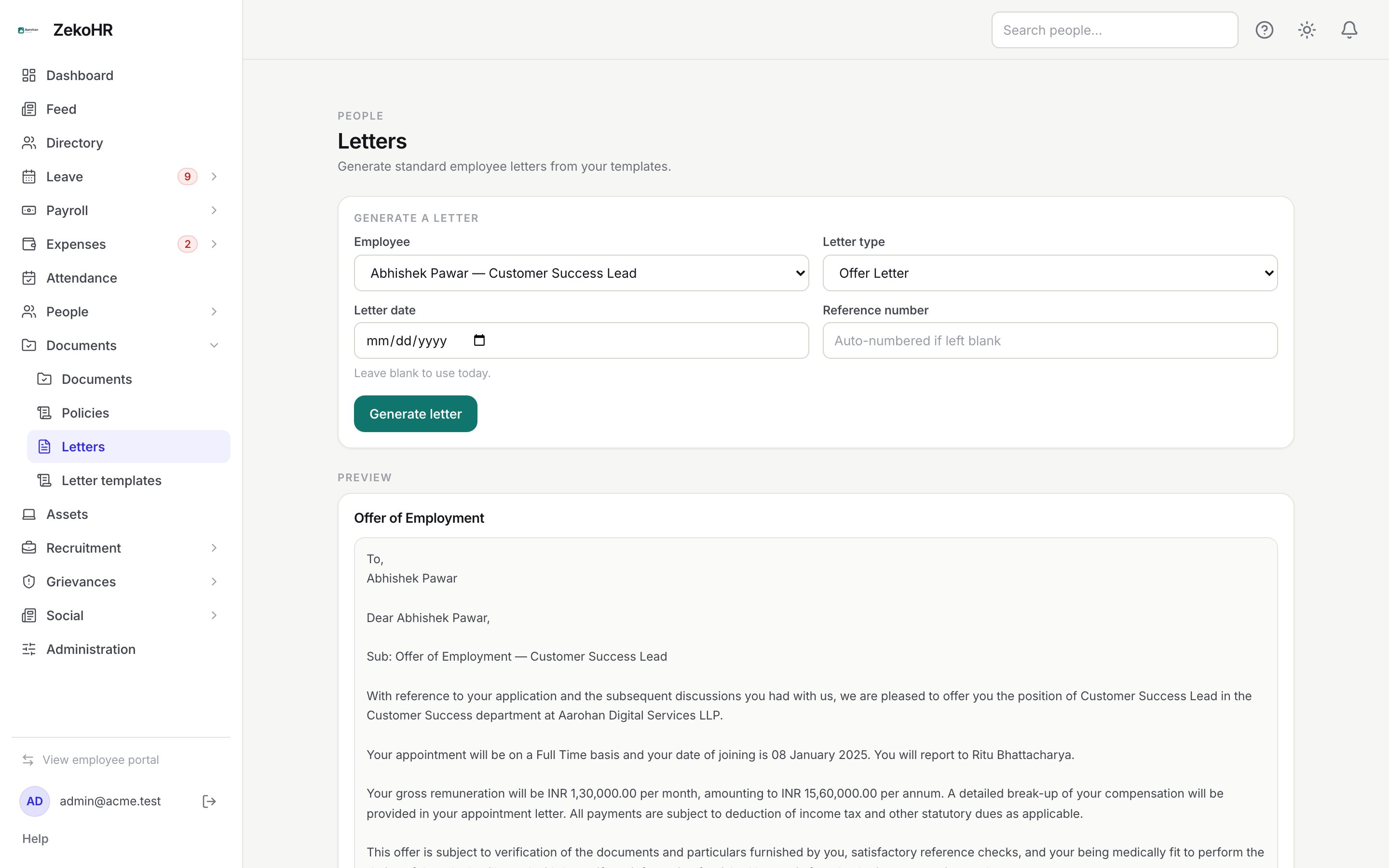
Generating a letter
- Under Generate a letter, choose the Employee (active employees in your scope, with designation) and the Letter type: Offer Letter, Appointment Letter, Confirmation Letter, Salary Revision Letter, Promotion Letter, Transfer Letter, Experience Letter or Relieving Letter.
- Letter date: blank means today; back-dating is allowed.
- Reference number: up to 64 characters, or blank for an automatic PREFIX/YEAR/NNNN number (OFR, APT, CNF, SAL, PRM, TRF, EXP, REL), sequential per type per calendar year.
- Read the Preview, rendered live from the current template and this employee's record without saving anything. Two banners can appear: This template is an unreviewed draft and Some merge fields will print literally (fix the template first).
- Click Generate letter. The merged text is stored as a snapshot, so later template edits never change it.
Issued letters
The table lists up to 300 letters in your scope, newest first, searchable by employee, reference or title and filterable by type. Columns: Employee, Letter (type and reference), Issued, Status, Actions.
- PDF downloads the letter rendered from the stored text; a letter cut from an unreviewed template prints a band saying so.
- Send emails the PDF to the employee with a link to My letters; afterwards the button reads Resend and refreshes the sent time.
- The bin icon deletes an unsent letter. Sent letters cannot be deleted.
Editing templates
Open Documents → Letter templates. The left list shows all eight types with a tick (reviewed) or warning (unreviewed) icon.
- Select a type. The header shows the review state: Reviewed {date} by {name}, Still the built-in wording, or edited and awaiting approval.
- Edit Letter heading (up to 160 characters) and Letter body (plain text up to 60,000 characters; blank lines separate paragraphs).
- Use only the placeholders listed under Available merge fields. Saving a body with an unknown field is refused with the field names.
- Preview with sample data renders the unsaved wording with placeholder values.
- Save keeps the text. On a reviewed template, saving changed wording withdraws the approval; the warning above the buttons says so. Save and mark reviewed saves and approves in one step; Withdraw approval removes an existing tick.
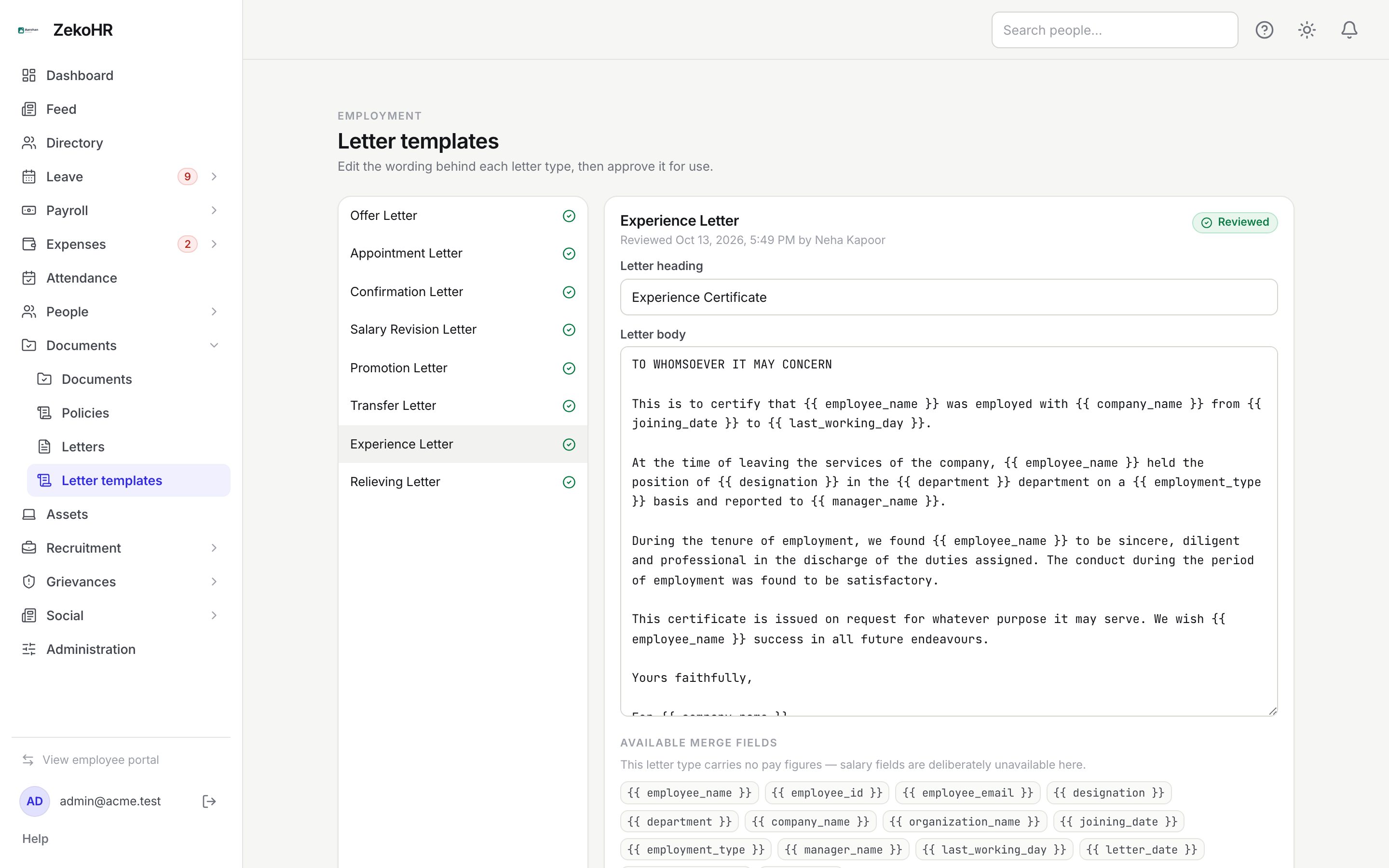
Merge fields on every type: employee_name, employee_id, employee_email, designation, department, company_name, organization_name, joining_date, employment_type, manager_name, last_working_day, letter_date, reference_no, place. Offer, Appointment and Salary Revision letters also get currency, monthly_salary and annual_salary from the salary record effective for the letter month; the other five types cannot print pay. A missing value prints as a dash; amounts use Indian digit grouping.
Statuses
| Badge | Meaning | What happens next |
|---|---|---|
| Not sent | Generated, not emailed | Send, or delete if cut in error |
| Emailed | Sent to the employee's email; hover for the time | Resend if needed |
| Unreviewed draft | Generated from a template nobody had approved | Review the template; the letter itself keeps the flag |
| Reviewed / Unreviewed draft (template) | Approval state of the wording | Letters generated now inherit it |
What happens next
- Generating stores the body, merged values and the template's review state; audit entry letter.generated.
- Sending dispatches the letter.issued notification (in-app plus email with the PDF attached) and records sent time, address and sender; audit entry letter.sent. The email template lives under Settings → Email templates.
- Deleting writes letter.deleted; template saves write letter_template.updated or letter_template.approved.
- With Recruitment enabled, the Offer Letter template must be reviewed before an offer can be released with a letter; the template list shows blocks offers until then.
Rules and limits
- HR Managers see and issue letters only for employees of their assigned companies; letters for employees with no company are hidden from them.
- No salary record for the letter month gives a dash, not zero.
- Templates are per organization, created on first visit from the built-in wording; defaults never overwrite your edits.
- Reference numbers are not enforced unique.
- The Letters module must be enabled on your plan; Admins can check Settings → Billing.
Troubleshooting
The preview shows dashes for manager or joining date. Those fields are empty on the employee record; fill them under People → Employees.
Save is refused with "Unknown merge field". The body uses a placeholder outside the available list, most often a salary field on a non-salary type. Remove it.
I cannot delete a letter. It has been emailed. The portal copy must keep matching what the employee received; generate a corrected letter instead.
The PDF carries an "unreviewed" band. The template was unapproved at generation time; regenerate after approving it.
An HR Manager cannot find an employee in the picker. The employee is in a company outside their HR scope.