Reactions, comments and mentions
Every post on the feed carries a reaction bar and a comment box. Reactions are a quick acknowledgement, comments start a conversation, and `@mentions` pull a specific colleague into either. This article explains how each works and who gets told.
Who can do this: Employees with `social.post.self` react and comment; `social.view` is enough to read comments and the reactor list. Moderators holding `social.moderate.assigned_companies` (HR Manager) or `social.moderate.any` (Admin) can delete any comment. This module must be enabled on your plan; Admins can check Settings → Billing.
Where to find it
Feed in the sidebar, URL `/feed`. Reactions and comments live on each post card; there is no separate page.
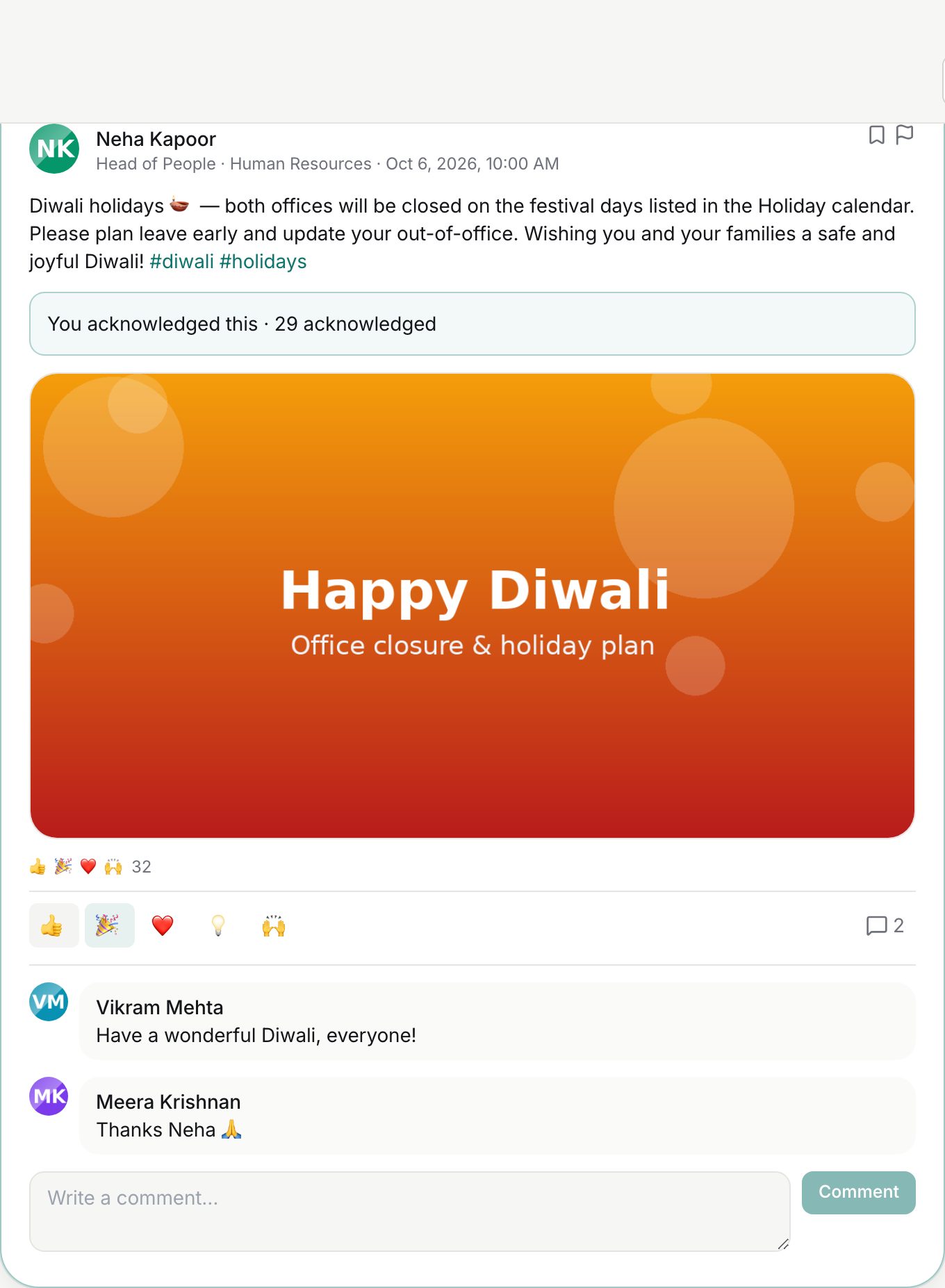
Reacting to a post
- The row above the comments shows the five reactions: Like (thumbs up), Celebrate (party popper), Love (heart), Insightful (bulb) and Support (raised hands). Hover to see the name.
- Click one to react. Your chosen emoji is highlighted.
- Click the same emoji again to remove your reaction, or click a different one to switch. You can hold one reaction per post, never two.
- Once a post has any reactions, a summary appears above the bar: the emoji used and the total count. Click it to open the list of who reacted, with their photo, designation and emoji.
Commenting
- Type in Write a comment… at the bottom of the post. A comment can be up to 3,000 characters and supports `@mentions` and `#hashtags` in the same way as a post.
- Click Comment. The Comment button stays disabled until you have typed something.
- Comments appear in the order they were made, each with the author's avatar and name. They load automatically on any post that already has comments; the counter next to the speech-bubble icon shows how many.
- Click Delete beside your own comment to remove it. Moderators see Delete on every comment.
Mentioning colleagues
- In a post or comment, type `@` and at least two letters of a name. A dropdown lists up to eight matching colleagues with photos.
- Pick one; ZekoHR inserts @Their Name and remembers who you meant.
- If you later delete the name from the text, the mention is dropped too.
- In per-company feed mode the picker only offers people from your own company. You cannot mention yourself.
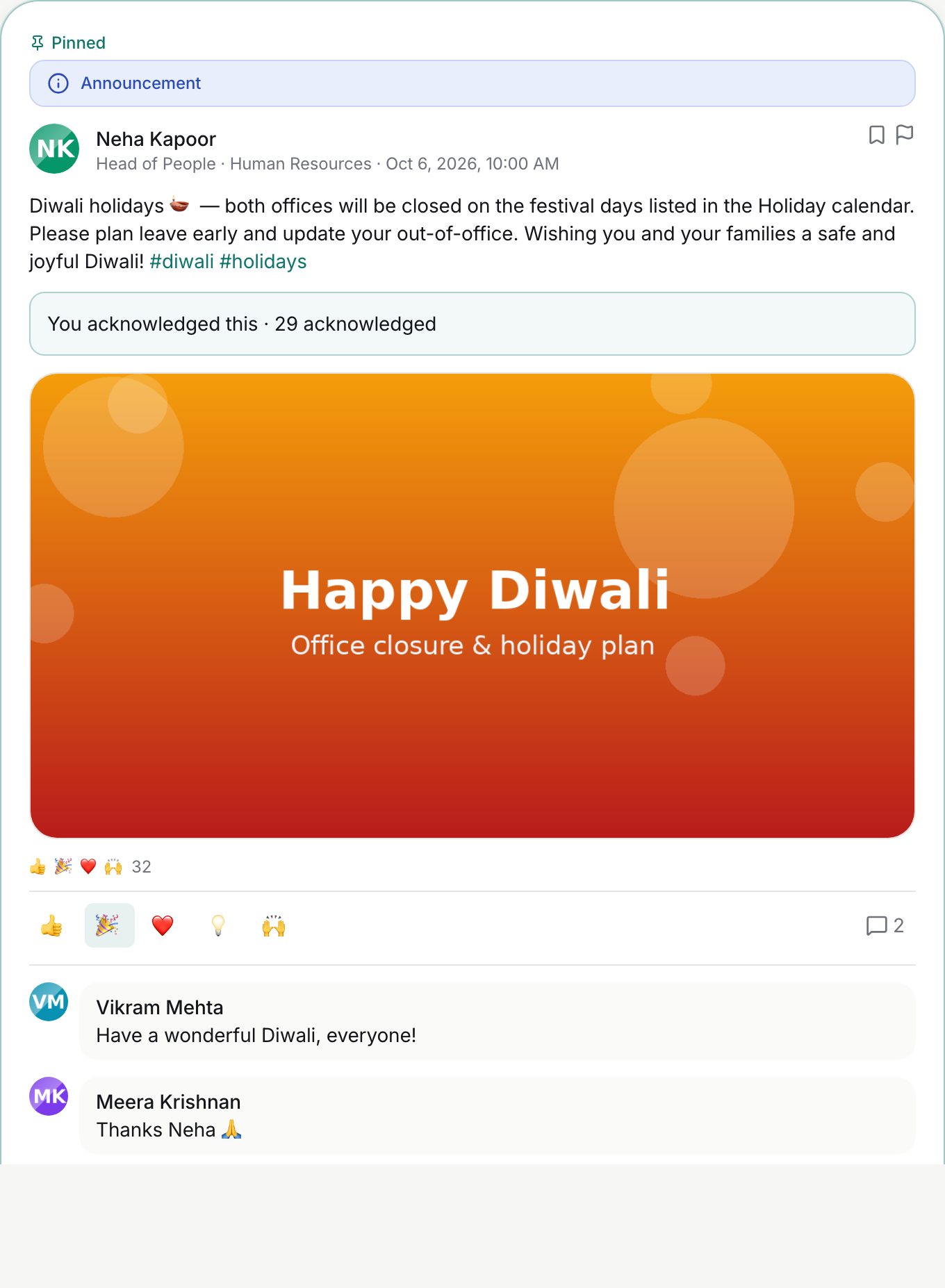
Mentions and hashtags render in the brand colour inside the published post.
Hashtags
Type `#` followed by letters, digits or underscores (up to 80 characters). ZekoHR stores tags in lower case, indexes up to 20 per post, and uses them for the trending chips above the feed (top tags from the last 30 days).
What happens next
| Event | Who is told | Channel |
|---|---|---|
| You are `@mentioned` in a post or comment | You | In-app notification and email |
| Someone comments on your post | The post author | In-app only (skipped if the author was also mentioned, or commented on their own post) |
| Someone reacts | Nobody | No notification; the summary count updates |
| A moderator deletes a comment | Nobody directly | Audit log entry `social.comment.moderated_delete` |
Mention emails use the social.mentioned template, which Admins can edit under Administration → Settings → Email templates.
Rules and limits
- One reaction per person per post; the five emoji are fixed and cannot be customised.
- Up to 50 mentions per post or comment; mentions only resolve to people in your organisation.
- Comments cannot be edited, only deleted.
- Comments are shown as a single flat list under the post, in the order they were made.
- Comments on a hidden post are hidden with it; comments removed by a moderator disappear for everyone.
- The reactor list is loaded fresh each time you open it, so it reflects changes other people made since you loaded the feed.
Troubleshooting
My reaction disappeared when I clicked another emoji. That is by design: a second emoji replaces the first rather than adding to it.
I cannot find a colleague in the @ dropdown. Type two or more characters, check the spelling of their name as it appears in the directory, and remember the per-company scope rule.
The Comment button is greyed out. The box is empty or contains only spaces.
I was mentioned but got no email. Check your notification preferences under your profile; mention emails can be turned off per person. The in-app bell still shows it.
Someone's comment vanished. The author deleted it, or HR removed it after a report.