Expense reports and the GST register
Expense Reports summarises approved spend for your company or organisation. The Spend summary groups INR totals by category, department, employee or month and splits each into billable and non-billable; the GST register groups tax by vendor GSTIN for input-credit claims. Both tabs export to CSV.
Who can do this: HR Managers and Accounts with `expense_reports.view.assigned_companies` (own company) and Admins with `expense_reports.view.any` (every company). The Export CSV button needs `expense_reports.export`, which all three roles hold by default.
Where to find it
Expenses → Expense Reports in the admin view, at `/expense-reports`.
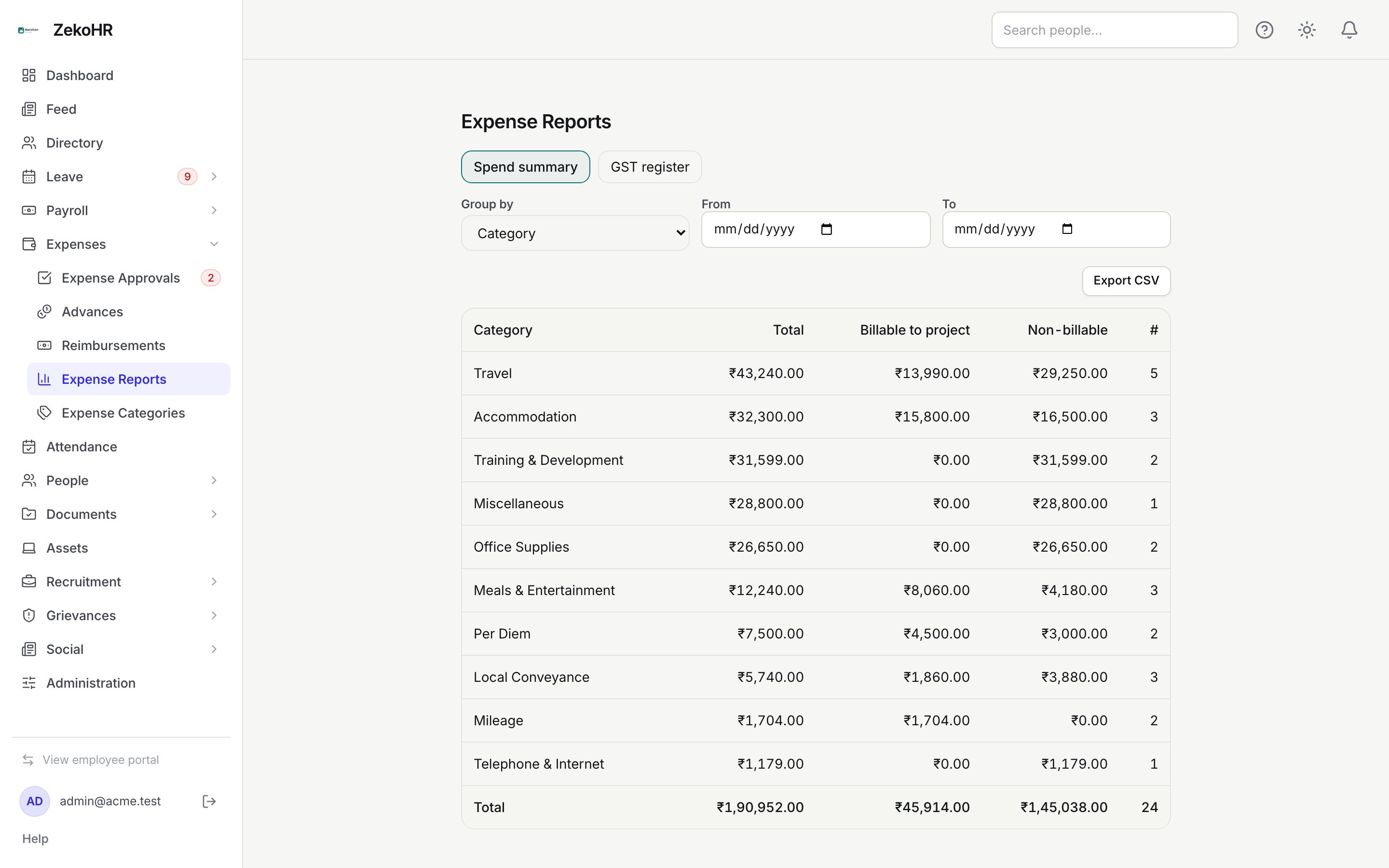
Spend summary
- Select the Spend summary tab (the default).
- Choose Group by: Category, Department, Employee or Month.
- Optionally set From and To. The range filters on each line's expense date, not on the claim's submission or approval date.
- Read the table. Rows are sorted by total, highest first, and the last row is the overall Total.
- Click Export CSV to download `expense-summary-<group>.csv` for the same group and range.
What the columns mean
| Column | Meaning |
|---|---|
| Category / Department / Employee / Month | The group label. Category uses the name snapshotted on the line, so renamed categories keep their old label on old lines. Department is the claimant's department when the claim was created, or "Unassigned". Month is the expense date's year and month, for example 2026-10 |
| Total | Sum of INR line values in the group |
| Billable to project | Sum of lines ticked Billable to project |
| Non-billable | Total minus billable |
| # | Number of lines, not claims |
Only lines on claims in Approved status are counted. Draft, submitted, rejected and withdrawn claims are excluded. Reimbursement status does not matter.
GST register
- Select the GST register tab.
- Set From and To if needed; the same expense-date filter applies on screen.
- Each row is one Vendor GSTIN with Tax amount (sum of the tax entered on those lines), Total (sum of the INR line values) and # (line count). Rows are sorted by tax, highest first, with a Total row at the end.
- Click Export CSV for `expense-gst-register.csv` with columns Vendor GSTIN, Tax (INR), Base (INR), Count.
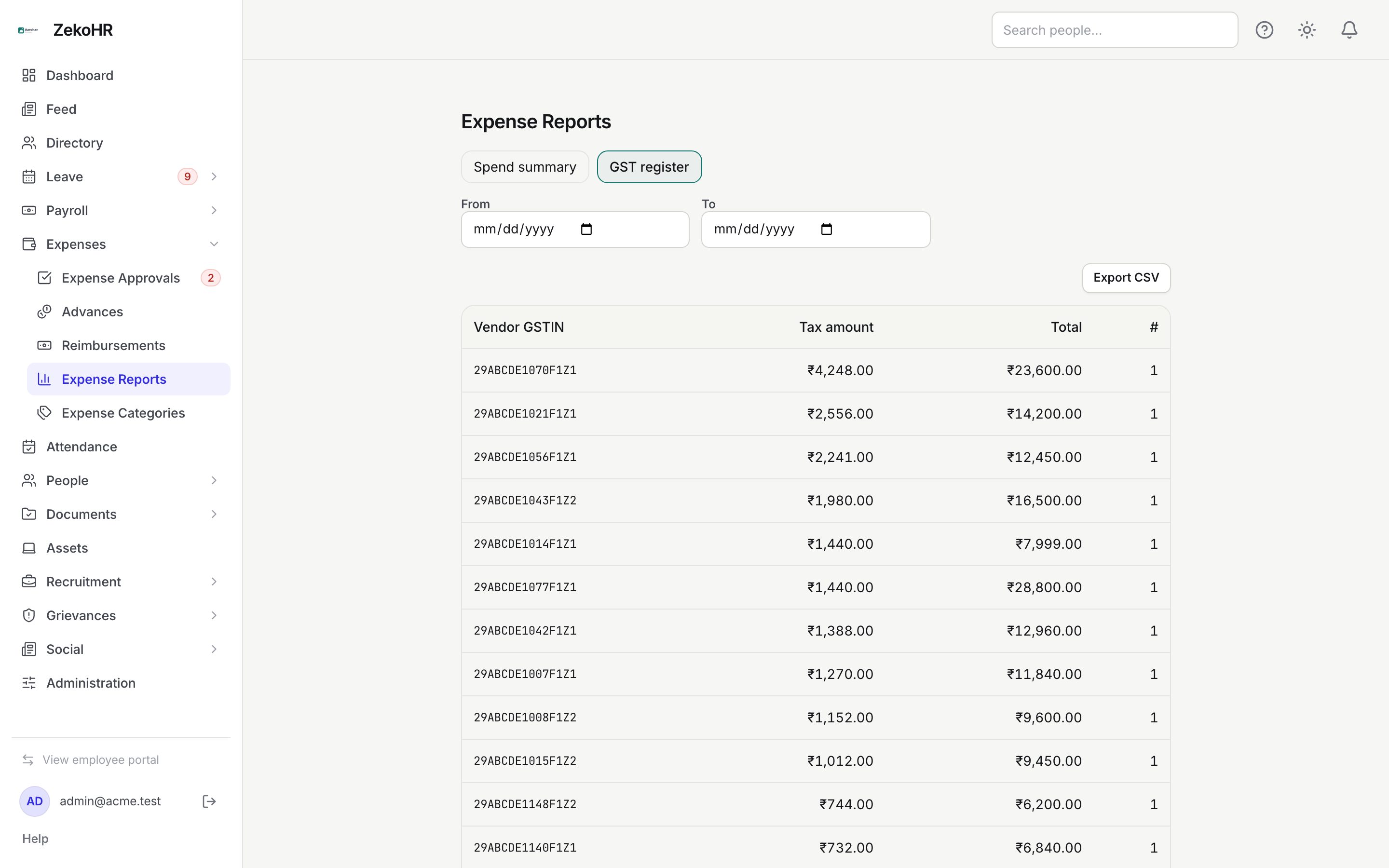
Lines without a GSTIN never appear here. The tax amount is whatever the employee typed; ZekoHR does not compute GST, and it does not validate the GSTIN against the GST portal, only its format.
What happens next
Reports are read-only; nothing changes on the claims. Use the CSVs for your accounting system or GST filing. The register is a convenience for identifying input credit; your accountant still needs the underlying invoices, which can be downloaded as receipts from each claim's detail page.
Rules and limits
- Scope: company-scoped viewers only ever see their own company's claims. Admins see every company together; there is no company filter on the page.
- Amounts are always INR line values (foreign amounts converted at the rate the employee entered).
- The GST CSV export ignores the From and To dates and always exports the full register; the summary CSV honours the group and range.
- Per-line tax amounts in a foreign currency are summed as entered, without conversion.
Troubleshooting
The table is empty. No approved lines fall in the range. Widen or clear From and To.
Export CSV returns an error. Your role lacks the report export permission. Ask an Admin to grant it under Administration → Roles.
Totals differ from the reimbursement register. Reports count approved lines by expense date; the reimbursement register lists claims by decision date and nets off cash advances.
A vendor appears twice in the GST register. The GSTIN was typed differently on the two lines (for example a typo). The register groups by exact string.
Department shows Unassigned. The claimant had no department when the claim was created. Set departments under People → Employees so future claims are attributed.