Changing an employee's role
Every new employee starts with the Employee role. A role is a bundle of permissions; changing it is how you make someone a manager, an HR Manager, an Accounts user, a Recruiter, Management or an Admin. The change is made on the employee record and takes effect at the person's next sign-in.
Who can do this: HR Managers and Admins with `roles.assign`. Granting or revoking Admin additionally needs `roles.manage` (Admin only by default) or super-admin.
Where to find it
People → Employees, open the record, Profile tab, Change role. URL path: `/employees/{id}`.
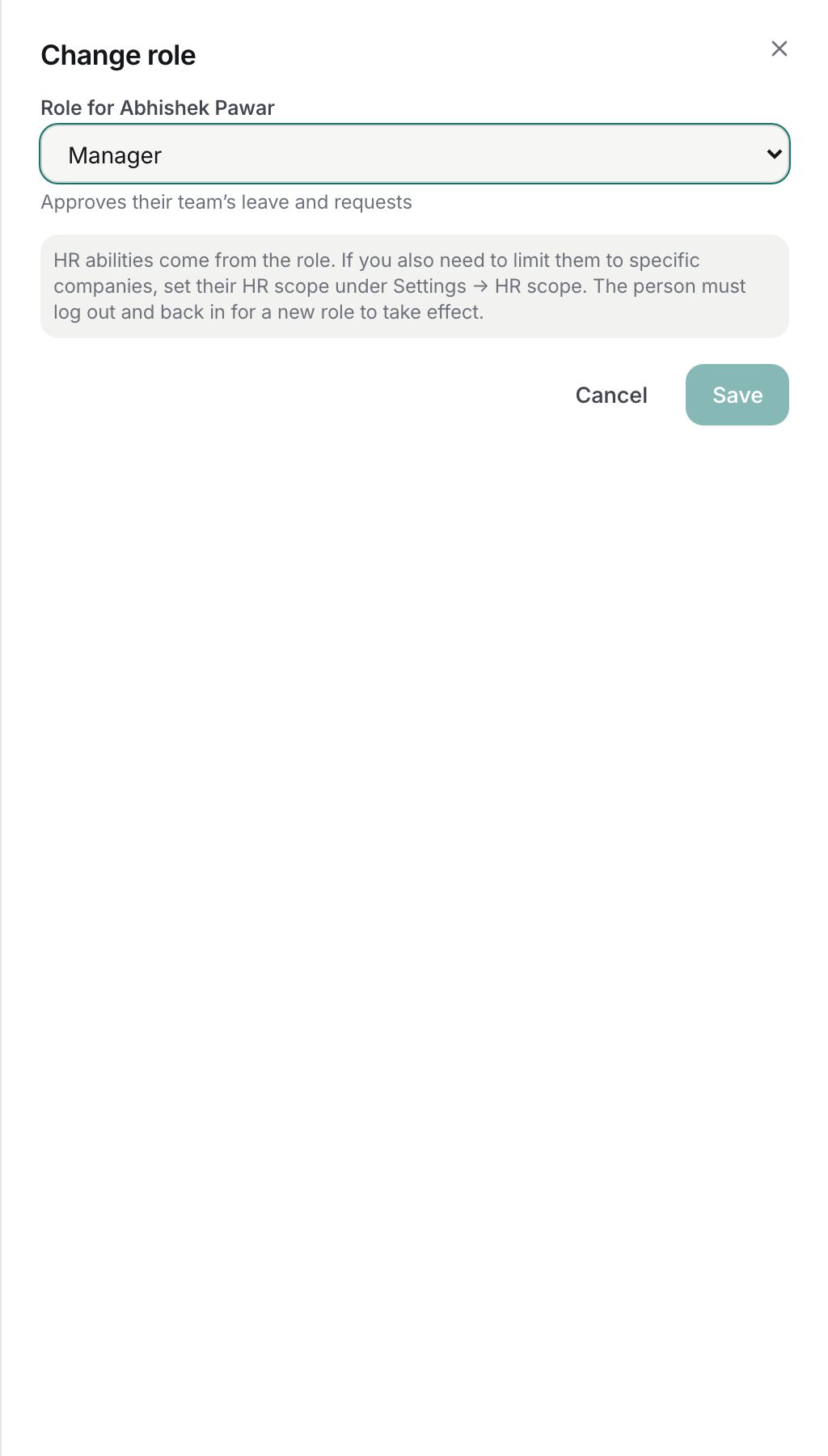
Changing a role
- Open the person's record and click Change role on the Profile tab. The button is hidden on your own record and on Contractor records.
- In Role for {name}, pick one role. The list is every role provisioned in your organisation, in this order: Employee, Manager, HR Manager, Accounts, Recruiter, Management, Admin, followed by any custom roles alphabetically. Admin (admins only) is greyed out unless you may grant it.
- Read the one-line description under the dropdown, for example "Runs HR for their assigned companies".
- Click Save. The button stays disabled while the selected role equals the current one.
What each default role gives
| Role | Summary |
|---|---|
| Employee | Own items only: profile, leave, payslips, expenses, documents and requests |
| Manager | Employee plus approving direct reports' leave and expenses, seeing own-company people and calendars, raising requisitions |
| HR Manager | Runs HR for assigned companies: employees, onboarding and offboarding, leave config and overrides, payroll, expenses, documents, recruitment, contractors, grievances, role assignment, audit |
| Accounts | Employee plus expense approval, reimbursement, advances disbursal, spend reports and payroll view for assigned companies; no employee management |
| Recruiter | Employee plus running hiring in assigned companies |
| Management | Employee plus the recruitment dashboard and reports across all companies |
| Admin | Every permission, including settings, billing and roles |
Admins can edit what each bundle contains under Administration → Settings → Roles & permissions. See Roles and permissions.
HR scope
A role gives abilities; HR scope limits where they apply. HR Manager, Accounts and Recruiter permissions are "assigned companies" permissions, so after promoting someone also assign their companies under Administration → Settings → HR scope, otherwise they see nothing. See HR scope.
What happens next
- The person's permissions are replaced by the new bundle and the permission cache is cleared. They must sign out and back in to see the new sidebar.
- An employee.role_changed audit entry records the old and new role and who made the change.
- The Role field on the Profile tab shows the new role.
Rules and limits
- One role per person: saving replaces the previous role rather than adding to it.
- You cannot change your own role.
- Granting Admin, or taking Admin away from a current Admin, is reserved for Admins. An HR Manager who tries gets "Only an administrator can grant or revoke the Admin role".
- The last Admin cannot be demoted: "This is the only administrator, promote someone else to Admin first".
- Contractor roles (Contractor, Contractor Agency Admin) are never offered here and a Contractor's role cannot be changed on this screen; the Contractors module sets it.
Troubleshooting
Change role is not showing. You lack the role assignment permission, you are looking at your own record, or the person is a Contractor.
The person still sees the old menu. They need to sign out and in again.
Admin is greyed out. Only Admins (or super-admins) can grant Admin. Ask one.
I promoted someone to HR Manager and they see no employees. Assign companies to them under Settings → HR scope.
Save failed with "You cannot change your own role". Ask another role holder to make the change.