Submitting an expense claim
My Expenses is where you claim back money spent for work. A claim starts as a draft, goes through an approval chain and, once approved, is paid through payroll or directly by Accounts. Mileage, per diem, foreign currency and GST have their own articles.
Who can do this: Every employee with `expenses.create.self` and `expenses.view.self`. Withdrawing a submitted claim needs `expenses.cancel.self`. All three are in the default Employee role.
Where to find it
Expenses → My Expenses in the sidebar, at `/my-expenses`. New Expense opens `/my-expenses/new`; clicking a claim opens `/my-expenses/{id}`.
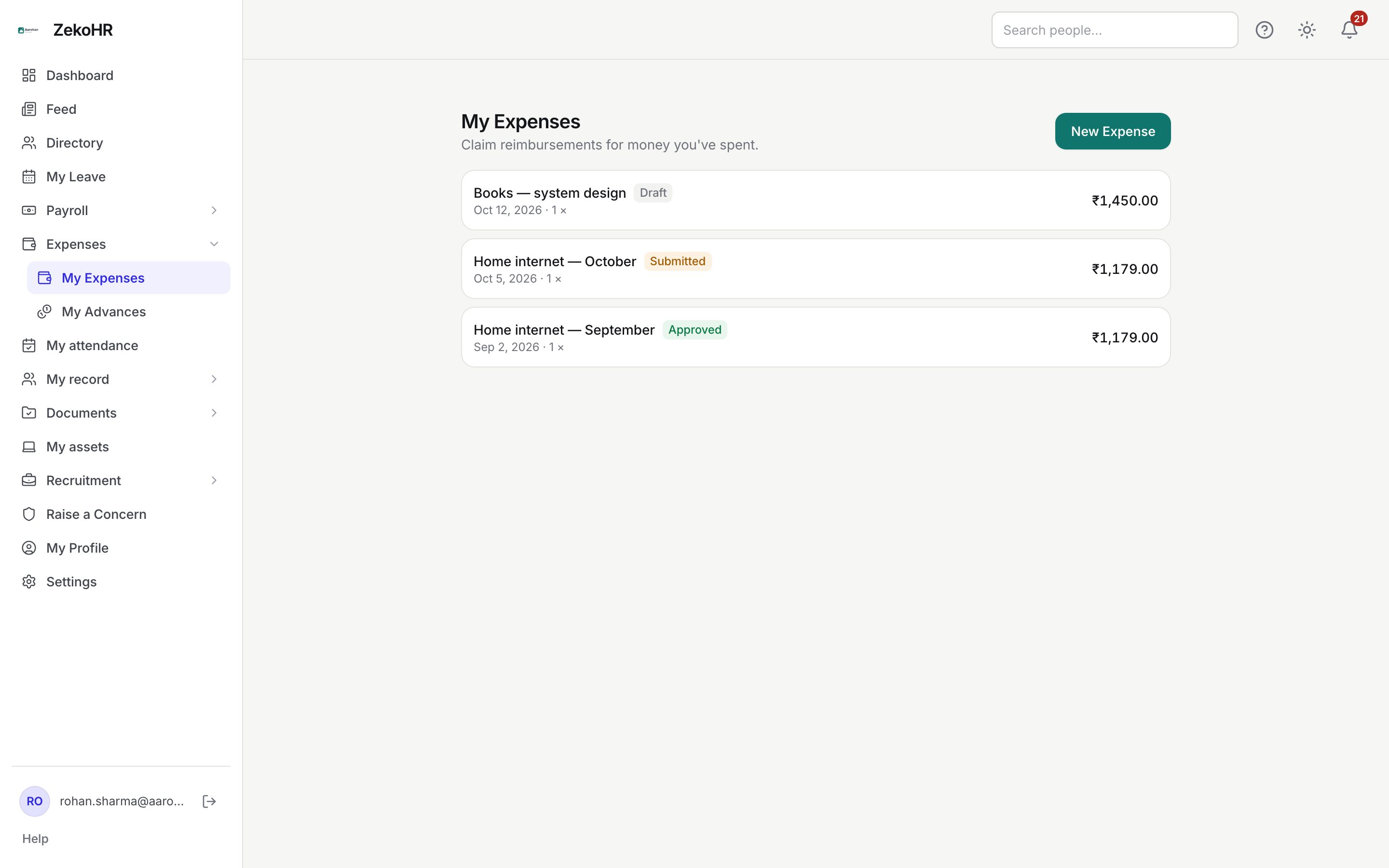
Creating a draft
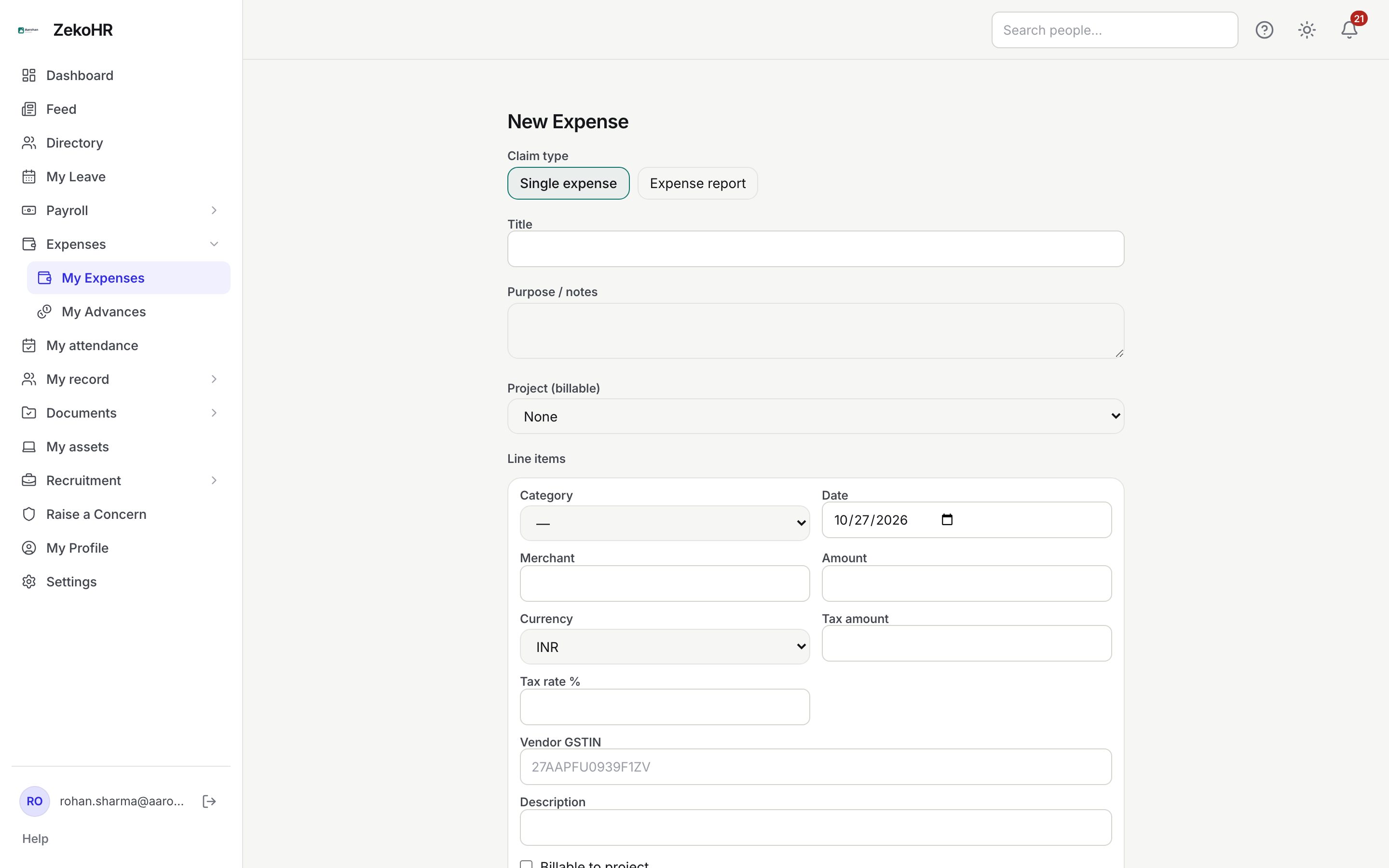
- Click New Expense.
- Pick a Claim type. Single expense carries exactly one line. Expense report lets you add any number of lines, for example a whole trip.
- Fill in Title (optional, up to 255 characters). If you leave it blank the list shows the claim type instead.
- Fill in Purpose / notes (optional, up to 2000 characters).
- Project (billable) appears only when your company has active projects; it tags the whole claim and defaults to None.
- Settle against advance appears only when you hold a disbursed cash advance with money outstanding. See Cash advances.
- Under Line items, fill the first line:
- Category (required). The active categories of your company; the category decides which fields appear next.
- Date (required). Defaults to today.
- Merchant (optional, up to 255 characters).
- Amount (required for standard categories, zero or more).
- Currency (default INR), Tax amount, Tax rate % and Vendor GSTIN: see Multi-currency and GST.
- Description (optional, up to 1000 characters).
- Billable to project marks the line as re-billable to the client.
- For an expense report, click Add line for each further line and Remove to drop one.
- Click Save draft. Lines with no category are dropped; the claim total is the sum of each line's INR value.
Attaching receipts and submitting
Saving the draft opens the claim detail page.
- Under each line's Receipts, drop or pick a file (PDF, JPG, PNG or WEBP, 50 MB cap by default). Repeat for more files.
- Check the policy chips on each line. Amber chips are warnings; red chips are hard blocks an HR Manager or Admin must override.
- Click Submit for approval. The button is disabled while the claim has no lines.
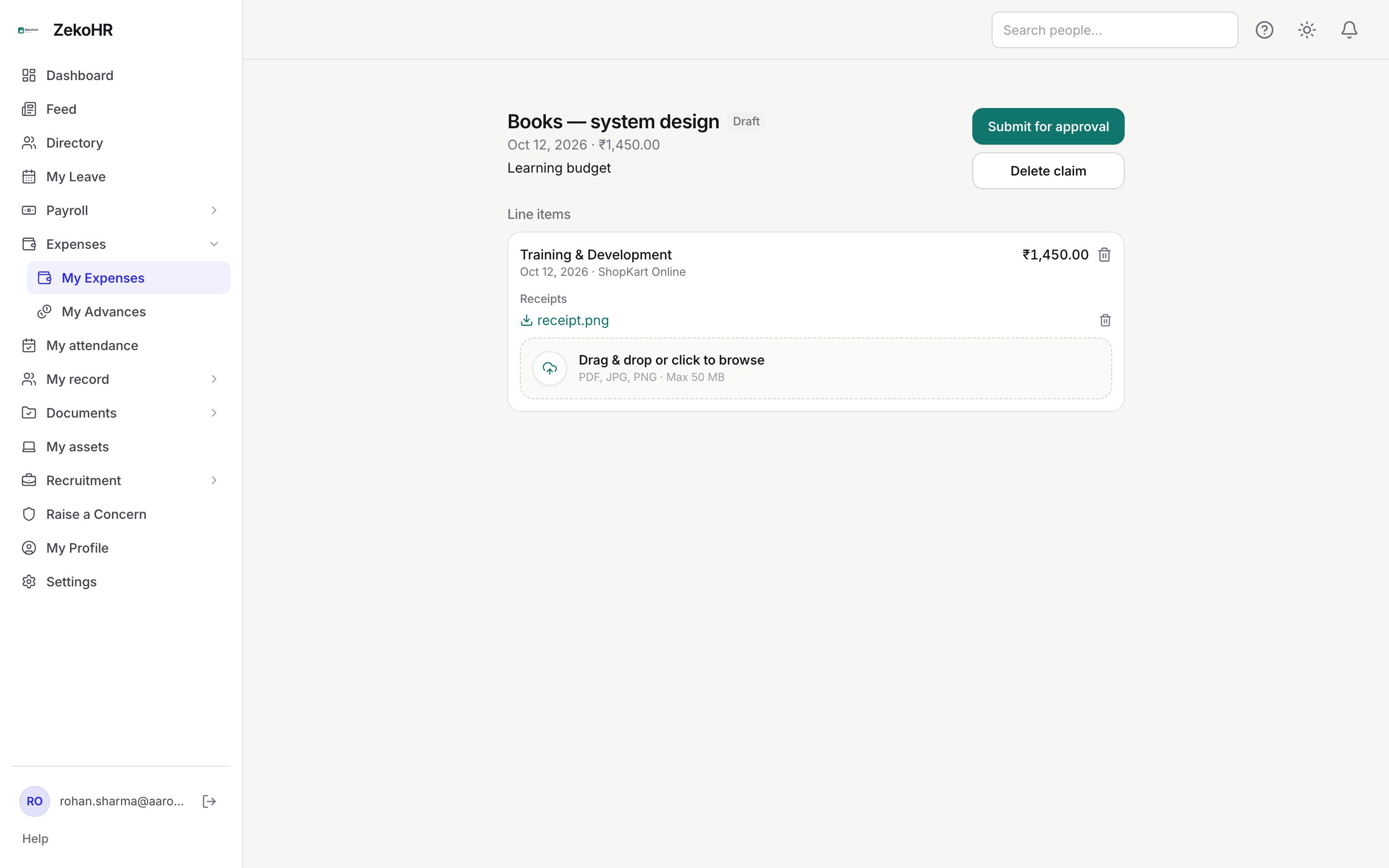
While a claim is a draft you can remove a line with the bin icon, delete a receipt, or Delete claim. You cannot add a line from the detail page; create a new draft instead.
Statuses
| Status | Meaning | What happens next |
|---|---|---|
| Draft | Saved, not sent for approval | Edit, attach receipts, submit or delete |
| Submitted | Waiting for the active approver | Approver approves, rejects or sends back; you can Withdraw |
| Approved | Every step approved, or auto-approved | Accounts reimburses it; a linked advance is settled first |
| Rejected | An approver declined it with a reason | Final; create a new claim if needed |
| Withdrawn | You pulled it back after submitting | Final; create a new claim if needed |
What happens next
On submit, ZekoHR rebuilds the policy flags, resolves the approval chain and notifies the first approver by email and in-app. If nobody resolves as an approver (no reporting manager and no rule), the claim is approved immediately with the note "Auto-approved: no approver configured." You are notified by email and in-app on approval, rejection and reimbursement; a send-back is in-app only. Every transition is journalled on the claim and in the audit log.
Rules and limits
- Only the claim's owner can edit, submit, withdraw or delete it, and only while it is a draft (withdraw works only on Submitted).
- The claim is stamped with your company and department at creation; categories must belong to your company.
- Policy checks per line: receipt missing, over the category's per-item limit, and a possible duplicate (same date, merchant and INR amount). Hard blocks do not stop submission; they stop approval unless an HR Manager or Admin overrides with a reason in the approval prompt.
- A send-back returns the claim to Draft, clears the chain and the submitted date, and keeps your lines and receipts.
Troubleshooting
Save draft does nothing and shows the word "Category". No line has a category selected. Pick one on at least one line.
Submit for approval is greyed out. The draft has no lines. Delete it and create a new one with at least one line.
I want to change an amount after submitting. Click Withdraw and create a new claim (a withdrawn claim cannot be reopened), or ask the approver to Send back, which returns it to Draft with everything intact.