Recruitment settings
Recruitment settings hold the organisation-wide defaults every job, interview, offer and pre-joining record starts from. HR can read them; changing them needs the recruitment settings permission.
Who can do this: Admins and HR Managers with `recruitment_settings.manage` edit. Anyone with a manage or dashboard permission can view. The module must be enabled on your plan; Admins can check Settings → Billing.
Where to find it
Administration → Settings → Recruitment, at `/settings/recruitment`. Tabs: Pipeline, Interview, Offers, Pre-joining, Sources, Referrals, General. Each tab has its own Save changes.
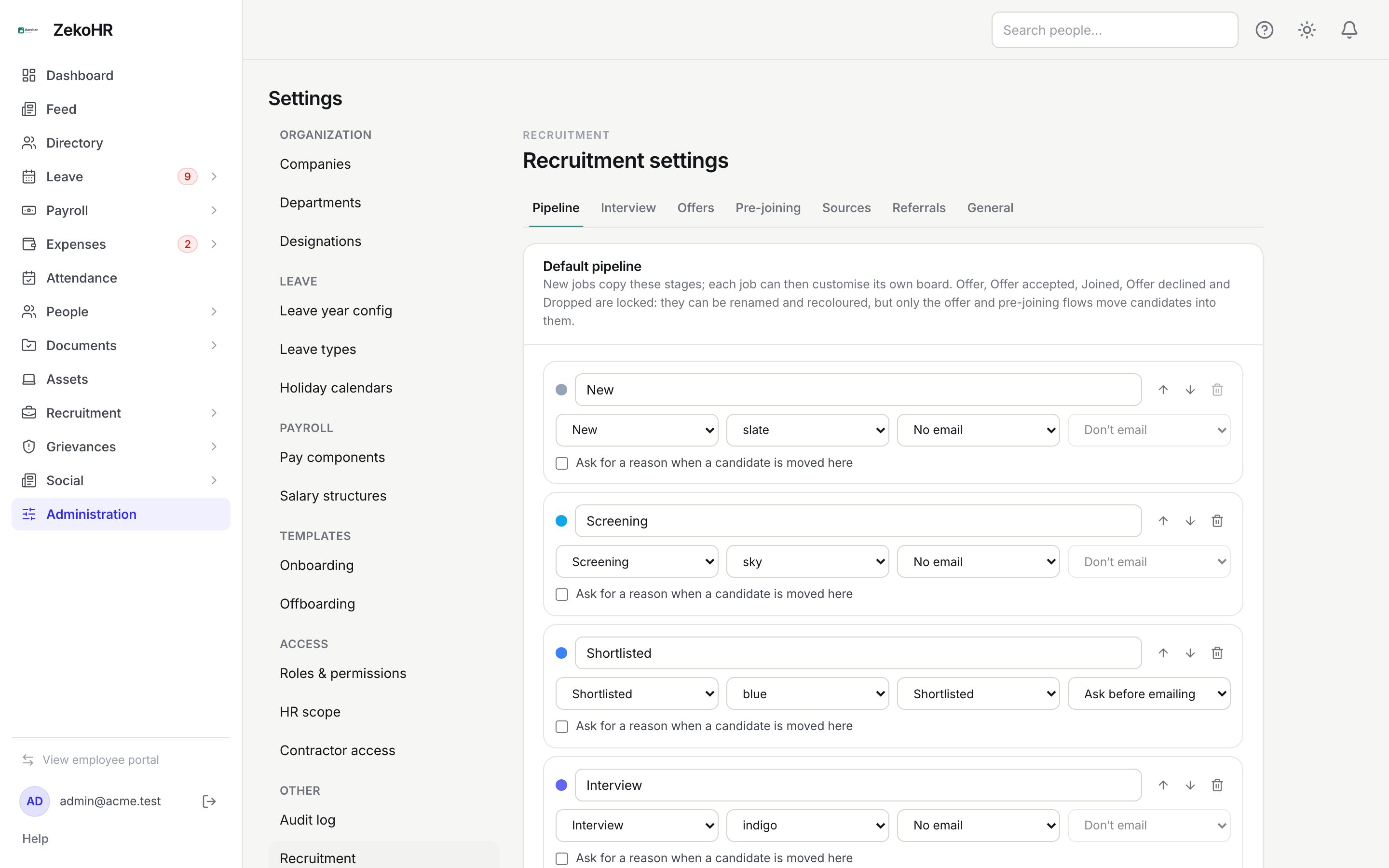
Pipeline
The Default pipeline is copied onto every new job. For each stage set the Stage name, Category (its system meaning), Colour, Email template (one of the candidate templates, or No email) and When moved here (Don't email, Ask before emailing, Email automatically), plus Ask for a reason when a candidate is moved here. Reorder with the arrows, Add stage inserts before the first locked stage. Offer, Offer accepted, Joined, Offer declined and Dropped are locked: rename or recolour, never delete. The list needs at least one stage in New, Rejected and each locked category, and at most 40 stages. Existing jobs keep their own columns.
Interview
- Feedback criteria: the 1 to 5 ratings every panelist gives. Rename, reorder, delete (at least one must remain) or type a new one and press Add. Up to 20. A job's round can override the list.
- Default interview rounds: prefilled on every new requisition. Each has a Round name, Mode, Duration (minutes) (5 to 600), Min. feedbacks (default: whole panel) and a description shown to panelists. Up to 20. Leave empty for jobs to start with no rounds.
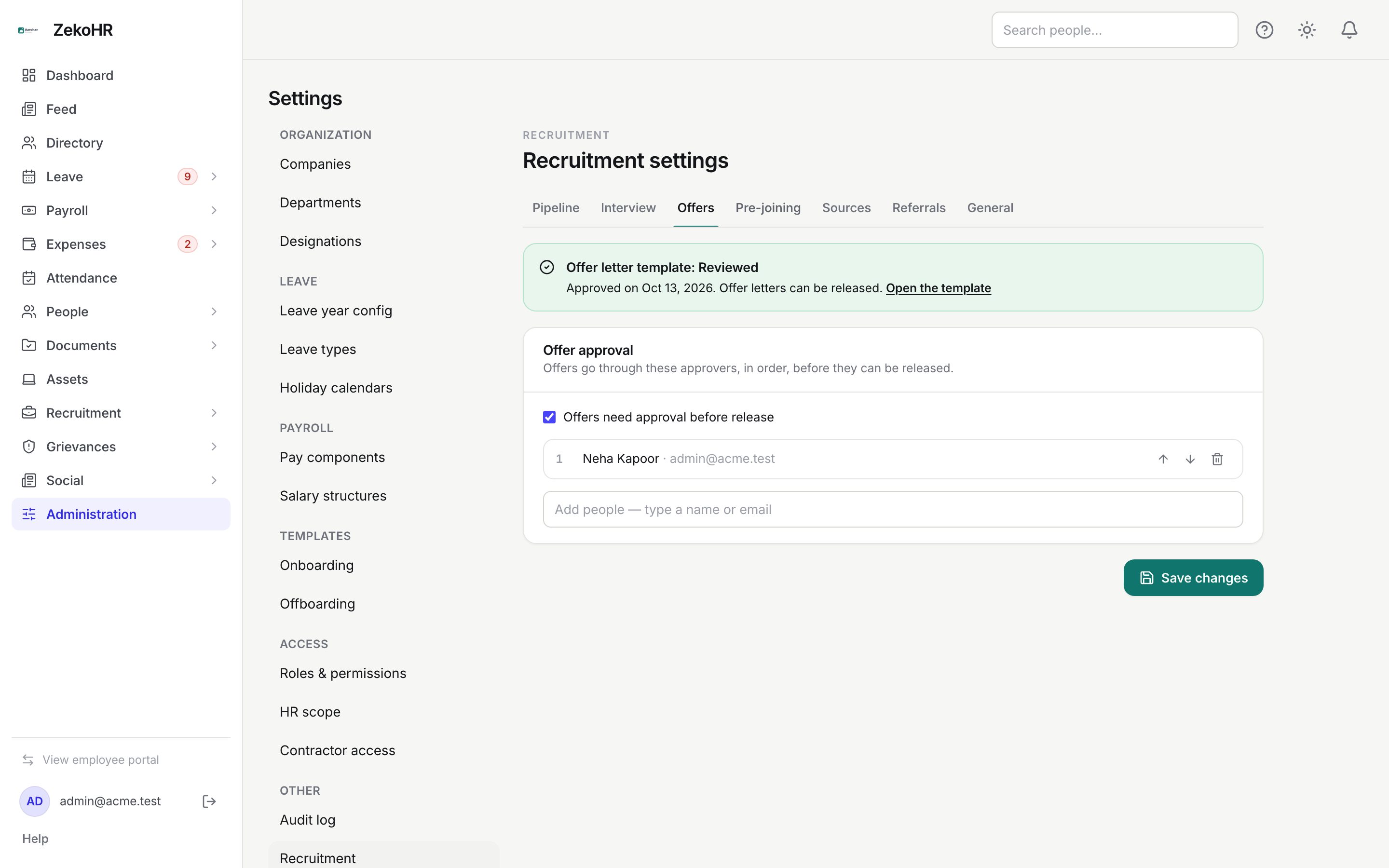
Offers
A callout shows whether the Offer letter template has been reviewed, with a link to the template; until it is, offers cannot be released with the letter attached. Offers need approval before release switches approval on or off. With it on, list up to 10 approvers in order using the people picker; with no names, any recruitment manager of the company other than the submitter can approve. Saving moves offers currently waiting on an unnamed step to the new approvers.
Pre-joining
The Pre-joining checklist copied onto every accepted candidate. Each item has a label (max 191), a Category (Identity, Education, Previous employment, Background verification, Joining forms, Other) and a Required flag. Up to 100 items. The defaults are PAN, Aadhaar, photo, address proof, highest degree certificate, mark sheets, relieving letter, last 3 payslips, experience letter, BGV initiated, BGV cleared, joining form, bank details and emergency contact.
Sources
Candidate sources used on every candidate and in reports. Eight are seeded: LinkedIn, Naukri, Indeed, Employee referral, Campus, Consultant, Company website, Direct. Rename inline (blur to save), tick Active to show or hide a source on forms, and add named consultants or campuses with Add (max 120 characters). Employee referral is a system source: it cannot be deactivated or deleted. Deleting a source that is in use deactivates it instead.
Referrals
Default amount (blank means no reward by default) and Eligible after (days of service) (0 to 3650, default 90). See Referrals.
General
- Acknowledge new applications automatically sends the application-received email when a candidate is added against a job.
- Send joining reminders automatically emails the candidate two days before the expected joining date.
- Edit recruitment email templates links to Settings → Email templates, where the `recruitment.candidate.*` and `recruitment.internal.*` templates live.
- Candidate code prefix and Job code prefix: 1 to 10 letters or digits (defaults CAN and JOB). Existing codes do not change.
Statuses
| Setting | Default |
|---|---|
| Offer approval required | On, no named approvers |
| Referral reward | No amount, 90 days |
| Auto-acknowledge | Off |
| Joining reminders | Off |
| Code prefixes | CAN-00001, JOB-0001 |
What happens next
Each save is audited. Pipeline changes apply to new jobs; checklist changes to new acceptances; criteria changes to new scorecards (submitted ones keep their snapshot). Approver changes move pending unnamed approval steps to the new approvers immediately.
Rules and limits
- Criterion and item keys are derived from the label and must be unique.
- Approvers must be users of your organisation.
- The read-only notice appears for HR who can view but not edit.
- Stage email templates must be candidate templates (`recruitment.candidate.*`).
Troubleshooting
Save is disabled on Pipeline. A required category has no stage, or a stage has no name.
The offer template callout stays red. Open the template from the link and mark it reviewed in Letters and templates.
I cannot delete the Employee referral source. It is a system source.
A new source does not appear on the candidate form. Make sure Active is ticked.