Using help
Every screen has a Help for this page button that opens a side panel with the article for that screen, or the article index when there is no direct match. The Help page lists every article your role can read, grouped by category. Articles are written by ZekoHR and can be extended or replaced by your organisation's Admins.
Who can do this: Everyone. Reading needs no permission; you see the published articles whose audience includes one of your roles. Writing articles needs `knowledge.manage`.
Where to find it
The question-mark button in the top bar, on every page. The full list is Help at the bottom of the sidebar, `/help`.
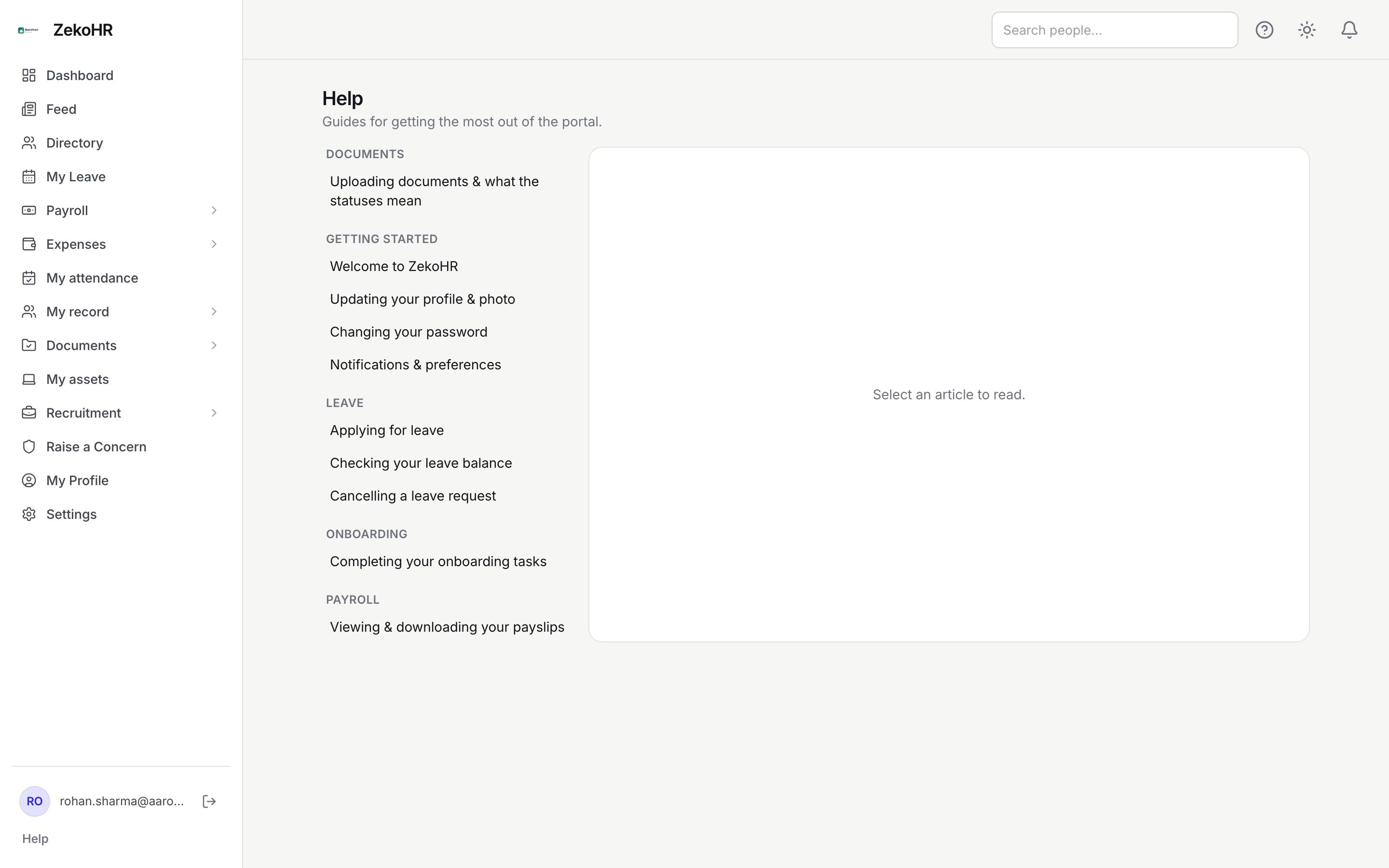
Reading help for the current page
- Press Help for this page in the top bar.
- A panel slides in from the right. If the page has a matching article it opens directly; otherwise the panel shows the index grouped by category.
- ← All articles returns to the index inside the panel. Browse all help articles at the bottom opens the Help page and closes the panel.
- Close the panel with the X, Escape, or by clicking outside it.

The panel picks its article from the URL. If the mapped article is hidden from your role, the index is shown instead.
Which article opens where
| Page | Article |
|---|---|
| Dashboard | Welcome to ZekoHR |
| My Profile | Your profile |
| Notifications | Notifications |
| My Leave, Apply for leave | Apply for leave |
| Calendar | Team calendar |
| Documents | Documents center |
| Payroll | Run payroll; Payroll setup under Settings; My payslips |
| Employees | Managing employees; bulk leave allocation opens Allocating leave |
| Settings → Roles, HR scope, Audit log, Email log, Knowledge base, Branding | The matching administration article |
| Settings → Templates → Onboarding | Onboarding templates |
| Any other page | The index |
Browsing the Help page
The page has two panes on desktop: categories with article titles on the left, the reader on the right with Select an article to read. until you pick one. On a phone the list and the article stack, with ← All articles to go back. Categories are ordered by the knowledge base, with Getting started first for new users.
Why your list differs from a colleague's
Each article has an audience: everyone, employees, managers, HR, or admins. The list is filtered by the roles you hold, so an Employee sees the self-service guides while an Admin also sees administration, approvals and configuration. Unpublished articles never appear. Admins see all categories, which is why their Help page is longer.
Organisation-authored articles
Admins can add, edit and unpublish articles under Administration → Settings → Knowledge base. A tenant article with the same slug as a ZekoHR article replaces it for that organisation, which is how a company documents its own leave rules or expense policy in the same place. The knowledge base module must be enabled on your plan; Admins can check Settings → Billing.
What happens next
Reading help records nothing. Links inside articles open the target article in the same panel or page.
Rules and limits
- Articles are plain text with headings, lists, tables, images and links. Scripts and embedded forms are stripped for safety.
- The side panel loads the article on demand, so the first open can take a moment on a slow connection.
- If your organisation has disabled the knowledge base, the Help button still appears but shows No help articles are available for you yet.
- Article links use the slug, for example `/help?article=apply-for-leave`. The public copy of the same articles is at `www.zekohr.com/kb/`, which white-label organisations may not use.
Troubleshooting
The panel shows the index instead of the article for my page. The page has no mapping, or the article is for another role. Pick from the index.
I cannot find an article a colleague mentioned. It is written for a role you do not hold, or it is unpublished. Ask them for the steps, or ask HR.
The Help page is empty. The module is disabled, or no article is published for your role. An Admin can check Settings → Knowledge base and Settings → Billing.
An article is out of date for our company. Admins can override it with a tenant article of the same slug.