HR scope
HR scope is the list of companies a person is allowed to act on. It exists because an organisation can hold several legal entities, and an HR Manager for one of them should not see the employees, balances or payroll of another. Scope narrows permissions whose key ends in `assigned_companies` (or `assigned`); it never adds permissions of its own.
Who can do this: Admins and HR Managers with `roles.assign` can change scope; `roles.view` is enough to look it up. In the default bundles both Admin and HR Manager hold `roles.assign`.
Where to find it
Administration → Settings → Access → HR scope, URL `/settings/hr-scope`. The page title reads HR Company Scope.
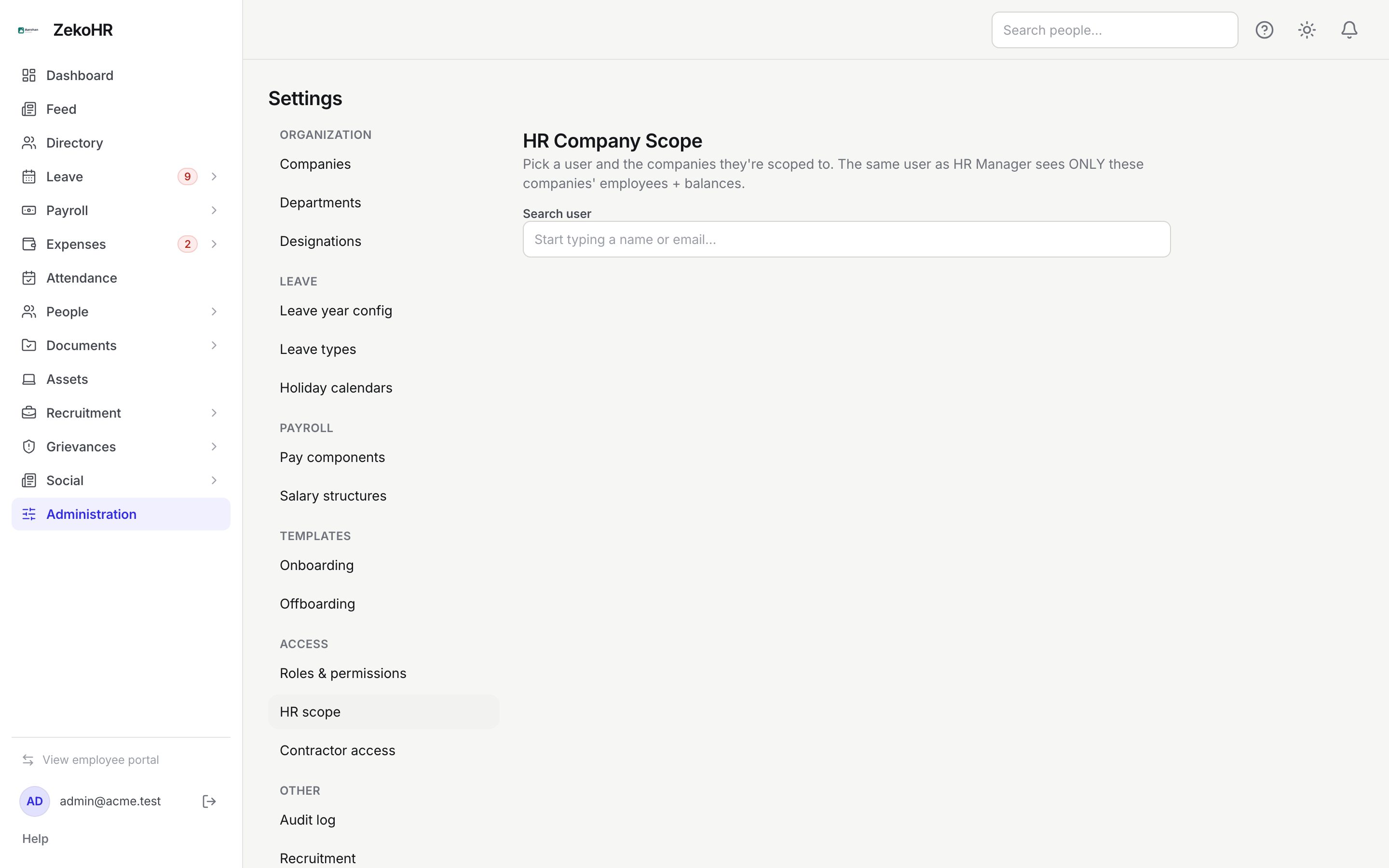
Setting a person's scope
- In Search user, type at least two characters of a name or email. Matches appear in a list under the box; if nothing matches you see No matches.
- Click the person. A panel headed with their name appears, with one checkbox per company in your organisation (name and slug).
- Tick the companies they should have HR scope over, untick the rest. The hint reads Tick the companies this user has HR scope over.
- Click Save. The whole set is replaced in one call.

If the organisation has no companies yet the panel shows No companies yet. Create one first under Settings → Companies.
What scope does, role by role
| Role | Permissions scope narrows | Effect of an empty scope |
|---|---|---|
| HR Manager | Employees, invites, offboarding, leave allocations, payroll, attendance, tax declarations, expenses, advances, grievances, social moderation, documents centre, recruitment, contractors | Sees only their own record for all of these |
| Accounts | Expense approval and reimbursement, advances, expense reports, payroll read | Sees only their own claims |
| Recruiter | Recruitment management and dashboard | Sees no openings |
| Manager, Employee | Nothing; their bundles have no `assigned_companies` keys | No change either way |
| Admin | Nothing; Admin holds the `any` variants | No change |
The important consequence: assigning scope to someone who is still an Employee does nothing visible. To make someone HR, change their role to HR Manager first (see Changing an employee's role), then set scope here, then ask them to sign out and back in.
What happens next
- Saving writes an audit row `employee.company_assignments_replaced` on the person's record, with the previous and new company lists.
- The person's effective access changes at their next sign-in, because the app loads permissions and scope when a session starts.
- No email is sent.
Rules and limits
- Scope is organisation-wide data; a person can be scoped to any number of companies, including all of them.
- An HR Manager scoped to company A cannot see company B's employees, balances or payroll. This is enforced on the server, not just hidden in the menu.
- HR override actions (`leave_requests.approve.any`, `expenses.approve.any`) are granted to HR Manager unscoped by default, so an HR Manager can still force-approve a request anywhere. Edit the HR Manager bundle under Roles & permissions if that is too broad.
- Companies deleted later drop out of a person's scope automatically.
- There is no bulk screen; set scope one person at a time.
Troubleshooting
I gave someone scope and they see nothing new. Their role is probably Employee. Scope narrows; it does not grant. Change the role first.
The HR Manager sees employees from a company I did not tick. They may hold an `any` permission added to the bundle, or they are also a manager of those people (`own_company` and `direct_reports` are not narrowed by scope). Check the HR Manager tab under Roles & permissions.
The person I need is not in the search results. Search needs two characters and matches on name or email. Offboarded people are excluded.
Changes do not take effect. Ask the person to sign out and sign in again.