Jobs and openings
A requisition and an opening are the same record at different stages. A hiring manager or HR fills in the role, the people you are looking for and the interview rounds; once HR approves it, the job becomes an opening with its own pipeline board. Every job gets a code such as `JOB-0001` (prefix set in Recruitment settings).
Who can do this: Anyone with `recruitment.requisitions.create` (Managers, HR) raises and edits their own requisitions. Approving, holding, reopening and closing need `recruitment.manage.any` or `recruitment.manage.assigned_companies` for the job's company. A hiring manager sees their own jobs under My openings by relationship.
Where to find it
Recruitment → Openings, at `/recruitment/jobs`. Tabs: Open, On hold, Closed (includes cancelled) and Requisitions (draft, pending approval, rejected). Hiring managers open Recruitment → My openings (`/recruitment/jobs?view=mine`).
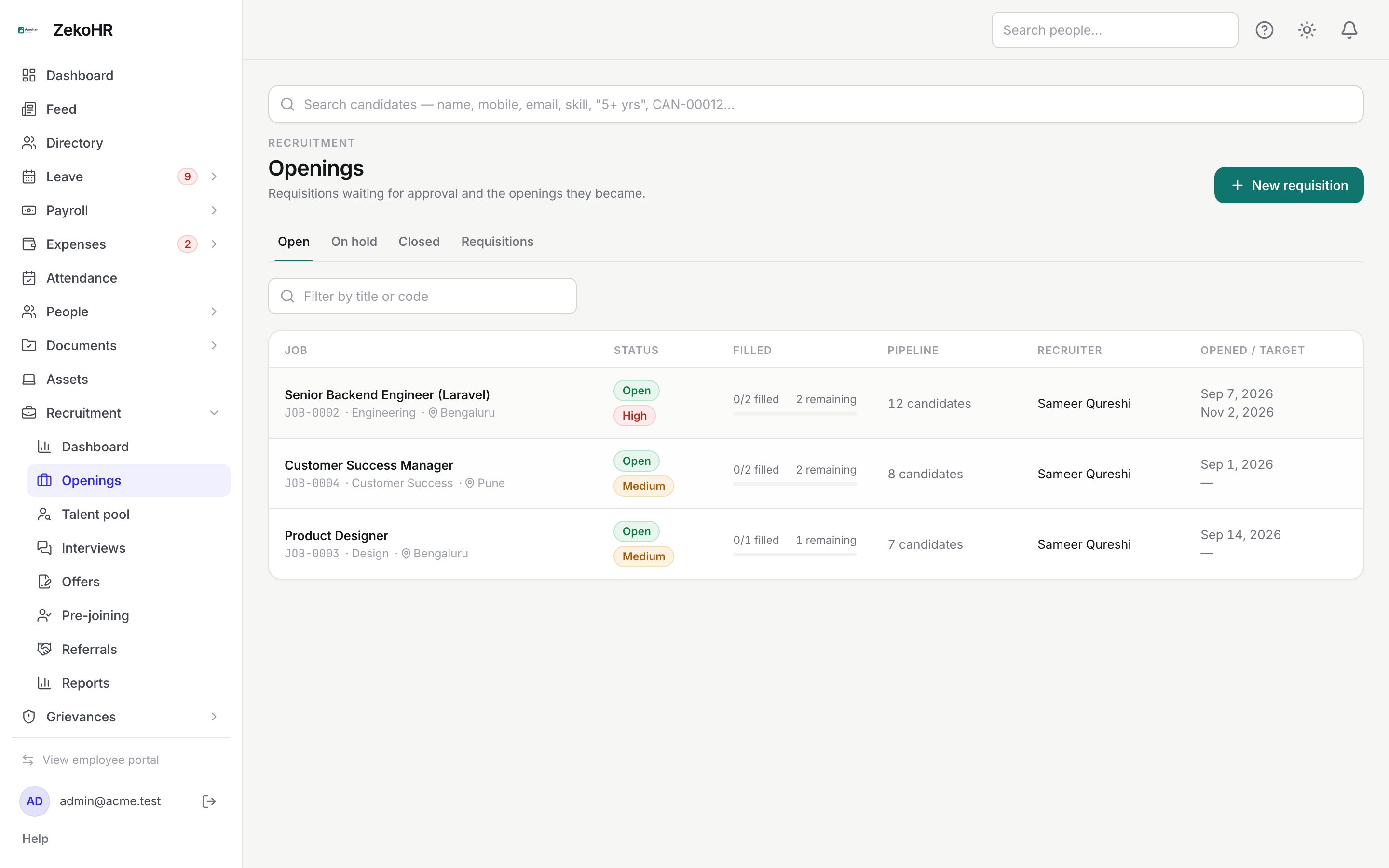
Raising a requisition
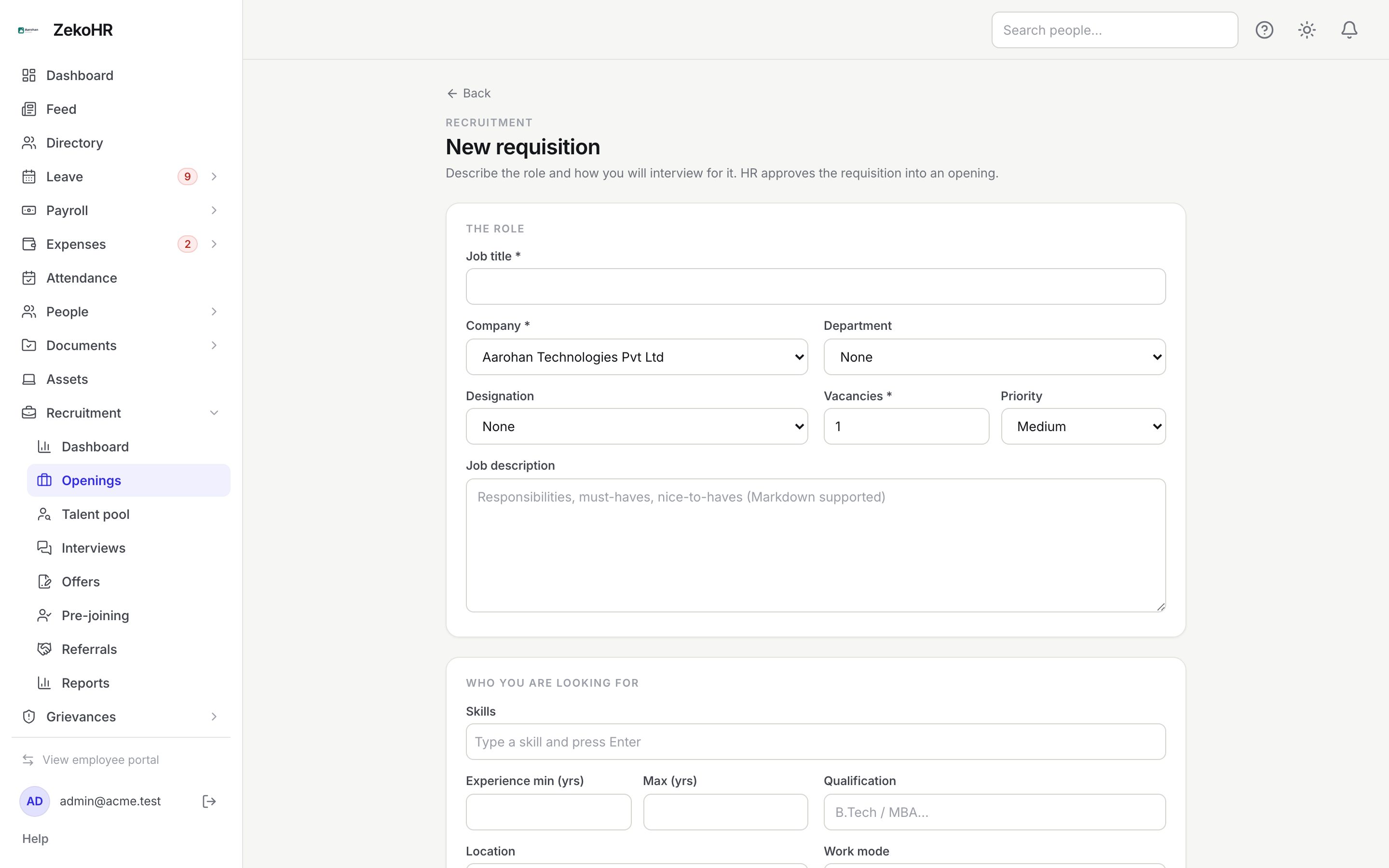
- Click New requisition (`/recruitment/jobs/new`).
- The role: Job title (required, max 255), Company (required; a hiring manager's own company is preselected), Department, Designation, Vacancies (1 to 1000, default 1), Priority (High, Medium, Low) and Job description (Markdown, up to 65,000 characters).
- Who you are looking for: Skills (type and press Enter, up to 50), Experience min / max in years (0 to 60, minimum cannot exceed maximum), Qualification, Location, Work mode (Office, Hybrid, Remote), Salary range (annual) with a three-letter currency (INR by default), Max notice period (days) (0 to 365).
- Owners & dates: Hiring manager, Recruiter, Expected joining and Target closing date.
- Hiring process: the interview rounds, prefilled from the default rounds in settings. For each round set Name (required), Mode (Video, In person, Phone), Minutes (5 to 600), Default panel, What this round assesses, Feedback needed (how many scorecards count as complete; defaults to the whole panel) and optionally Use custom scorecard criteria for this round. Up to 20 rounds; reorder with the arrows.
- Click Save draft to keep editing later, or Submit for approval.
Approving and managing a job
Open the job and use the action buttons in the header. Reject and Close require a reason; Put on hold and Cancel take an optional note. The requester sees the rejection note and can edit and resubmit. Only a draft with no applications can be deleted; use Cancel otherwise.
Once approved, the page shows the fill progress, a Job details toggle and the pipeline board. See Pipeline stages for the board itself. Edit stays available to HR on an opening (saved as Save changes); the company can only change before approval.
Statuses
| Status | Meaning | What happens next |
|---|---|---|
| Draft | Saved, not submitted. | Submit for approval, or cancel. |
| Pending approval | Waiting for HR. | HR approves (opening date is set), rejects or cancels. HR is notified. |
| Rejected | HR sent it back with a note. | Creator edits and resubmits. |
| Open | An opening you can hire against. | Put on hold or close. |
| On hold | Paused; no new candidates can be added. | Reopen or close. |
| Closed | Finished, with a reason. | Reopen if needed. |
| Cancelled | Withdrawn before approval. | Final; cannot be edited. |
What the columns mean
| Column | Meaning |
|---|---|
| Job | Title, code, department and location. |
| Status | Status badge plus priority badge. |
| Filled | Joined candidates against vacancies, and the remaining count. |
| Pipeline | Number of applications on the job. |
| Recruiter | The named recruiter. |
| Opened / target | Opening date and target closing date; the target turns red when it has passed. |
What happens next
Submitting notifies HR (`requisition_submitted`); the decision notifies the creator (`requisition_decided`); naming a recruiter or hiring manager notifies them (`job_assigned`). Approval copies the organisation's default pipeline onto the job, with one Interview column per round. Each status change is audited.
Rules and limits
- `filled` counts applications in Joined; `remaining` never goes below zero. A job is never closed automatically, even when filled or past its target date; it appears under Positions pending close instead.
- The department must belong to the chosen company.
- Changing rounds after approval does not add or remove board columns automatically; use Customise columns on the board.
- A hiring manager can see their jobs, add notes, move cards and schedule interviews, but cannot approve, edit stages, see salary or email candidates.
Troubleshooting
I cannot see the New requisition button. Your role cannot raise requisitions. Managers, HR Managers and Admins can; ask an Admin to check Settings → Roles & permissions.
Approve is missing on a pending requisition. Approval needs a manage permission covering the job's company. Check your HR scope.
The pipeline board is not showing. The board opens once the requisition is approved. Drafts show a note instead.
Save fails with "Pick a company". HR Managers without an assigned company cannot save. Ask an Admin for Settings → HR scope.