Expense approvals
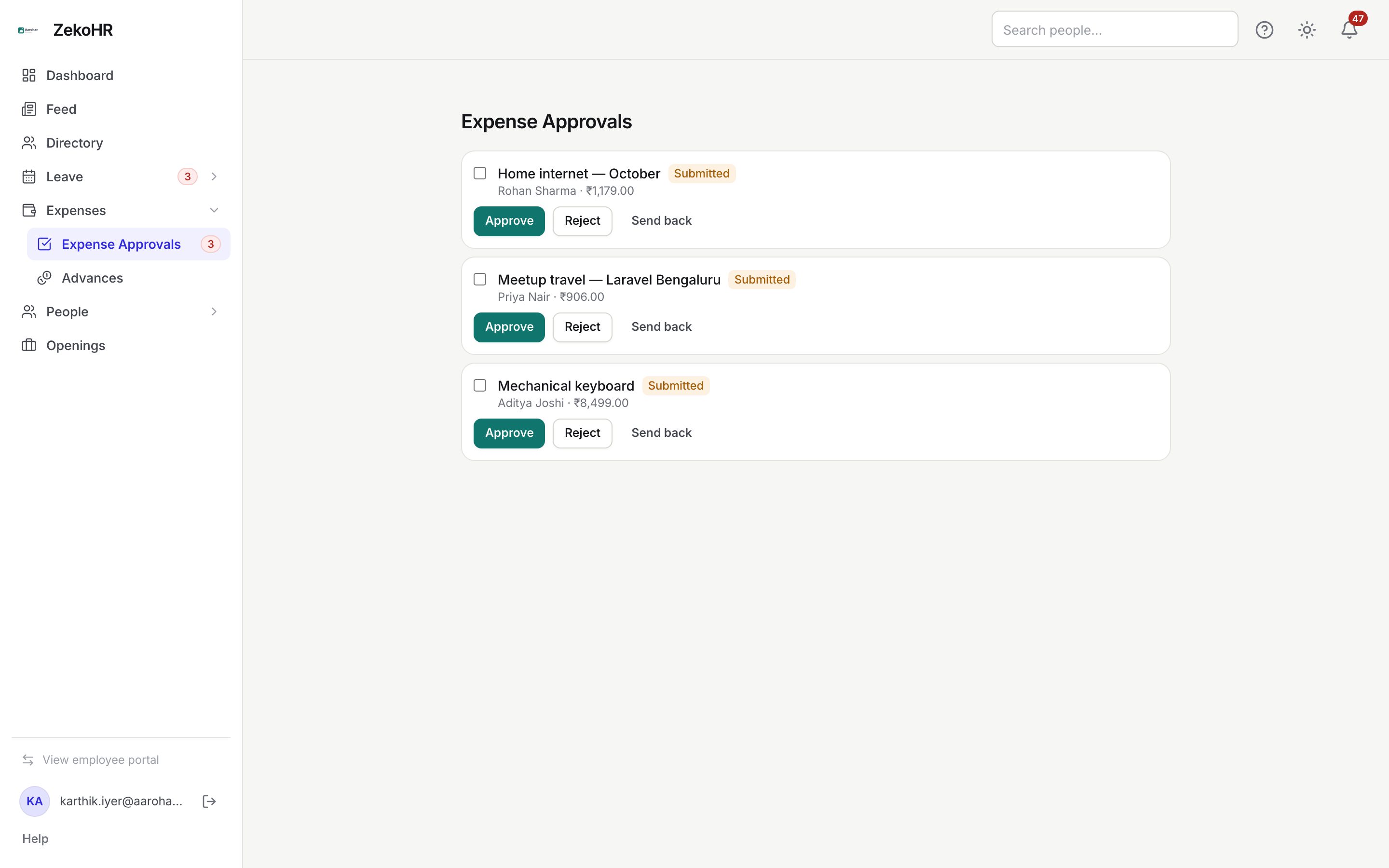
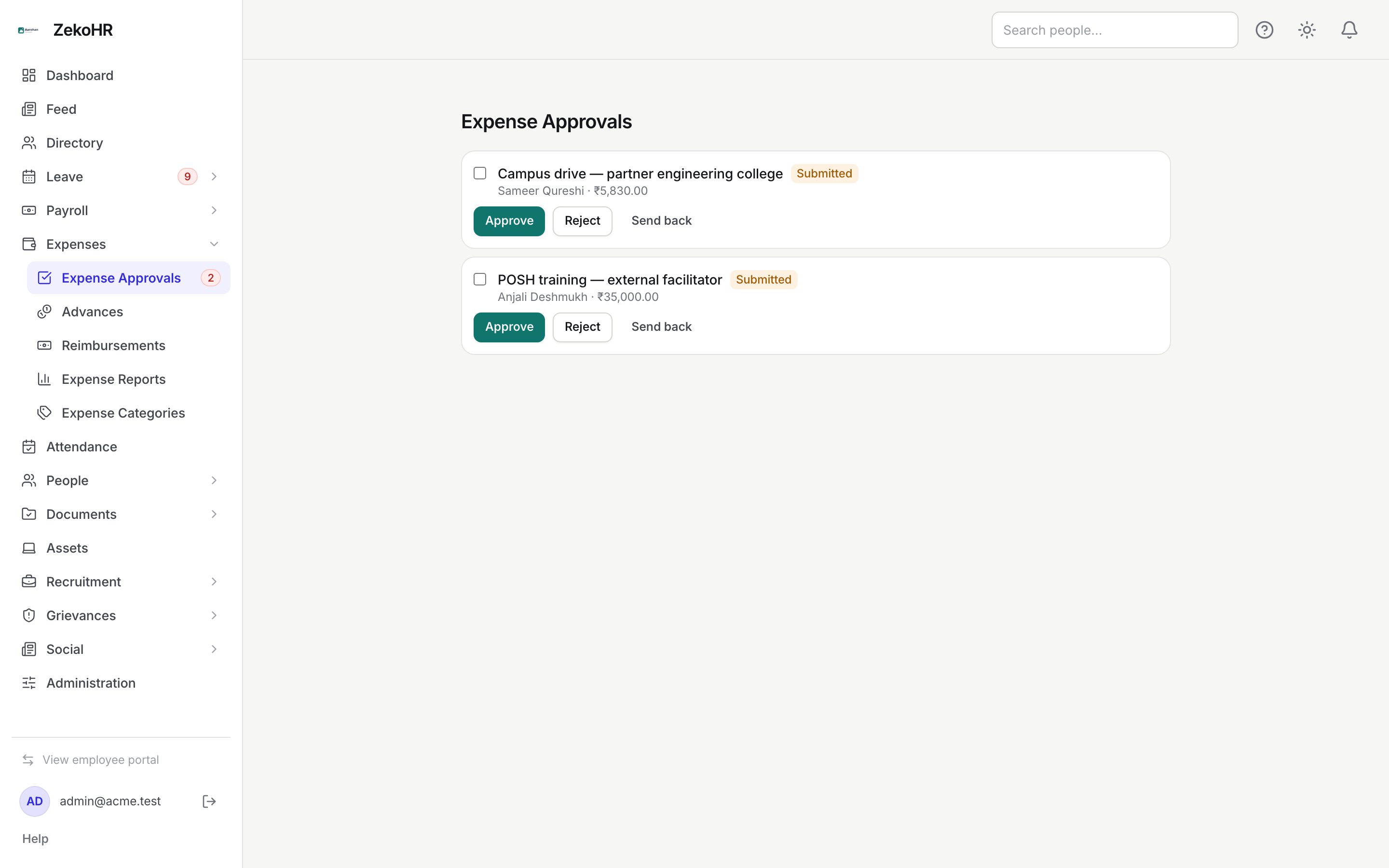
Expense Approvals lists every submitted claim whose current approval step is yours to decide. Claims move through a chain of one or more steps; you only see a claim while its active step names you or a role you hold. Approve, reject with a reason, or send it back to the employee for changes.
Who can do this: Managers with `expenses.approve.direct_reports` for their direct reports; HR Managers and Accounts with `expenses.approve.assigned_companies` for role-based steps in their company; Admins with `expenses.approve.any` for any claim. Overriding a hard policy block needs `expenses.approve.any` or `roles.manage`.
Where to find it
Expenses → Expense Approvals in the admin view, at `/expense-approvals`. The sidebar badge counts claims waiting on you. Each claim title links to its detail page at `/my-expenses/{id}` with every line, receipt and the full chain. An employee's claims are also listed read-only on their profile under People → Employees → Expenses.
Deciding a single claim
- Click the title to open the detail page. Check each line's category, date, merchant, INR amount, receipts and policy chips. Amber chips are warnings; red chips are hard blocks.
- Back in the queue, click one of:
- Approve. Your step is marked approved. If the chain has a later step, the claim moves on and the next approver is notified; otherwise the claim becomes Approved.
- Reject. A prompt asks "Reason for rejection:". The reason is required (up to 2000 characters), stored on the claim, and emailed to the employee. The claim is final.
- Send back. A prompt asks "What needs changing?". The comment is required. The claim returns to Draft with its lines and receipts, the chain is discarded, and the employee is notified in-app. When they resubmit, the chain is rebuilt from scratch.
Approving in bulk
- Tick the checkbox on each claim. A bar shows "N selected" with Approve and Reject.
- Approve approves every selected claim at your step. Reject asks for one reason and applies it to all.
- Each claim is processed independently. One that cannot be actioned (a hard block, or it moved on since you loaded the page) is skipped without a message and stays in the list. Approve those individually from their own Approve button, which shows the reason.
Policy overrides
When you click Approve on a claim that has a red block chip (missing receipt or over-limit on a category with Block over-limit on submit):
- If you are an HR Manager or Admin, a prompt reads "This claim exceeds policy limits. Enter a reason to override and approve:" followed by the violations. Enter a reason to approve. The override and reason are written to the audit log as `expense_claim.policy_overridden`.
- Otherwise you see "Only HR/Admin can override policy violations." Use Send back so the employee can fix the line, or ask HR to decide.
What the chain shows
On the detail page, Approval chain lists each step as "#1 Role: Accounts" or "#2 Approver #id" with its status.
| Step status | Meaning |
|---|---|
| Pending | Not reached, or active now |
| Approved | Decided in favour |
| Rejected | Decided against; the claim is Rejected |
| Skipped | Below the step's amount threshold, or made redundant by a rejection, withdrawal or override |
What happens next
- Approve on the final step: the employee gets an email and in-app notification, a linked cash advance is settled, and the claim appears in Reimbursements for Accounts.
- Approve on an earlier step: the next step's approver (a named user, or every holder of the role in the claim's company) is notified.
- Reject: employee emailed with your reason. Send back: in-app notice only.
- Every action is journalled on the claim and logged (`expense_claim.approved`, `expense_claim.rejected`, `expense_claim.sent_back`).
Rules and limits
- You can only act on the active step. A claim is in your queue if that step names you, or names a role you hold in the claim's company and you have company-scoped approve rights. Admins can act on any active step.
- Managers see only claims where they are the named approver, normally their direct reports' claims.
- An employee can withdraw a submitted claim before the final decision; it disappears from your queue.
- There is no stand-in or delegation setting for approvers. If you will be away, ask HR to add a Specific user step to the relevant rule, or let an HR Manager or Admin decide the claim.
Troubleshooting
A claim I expect is not in my queue. The active step may be a later one, or it names a role rather than you. Open the employee's profile Expenses tab to see the claim's status and chain.
Approve shows an alert about HR/Admin. The claim has a hard block and you cannot override. Send it back or escalate.
Bulk approve left some claims behind. Those claims were skipped without a message, usually because of a hard block. Approve them one at a time to see the reason.