Approving leave
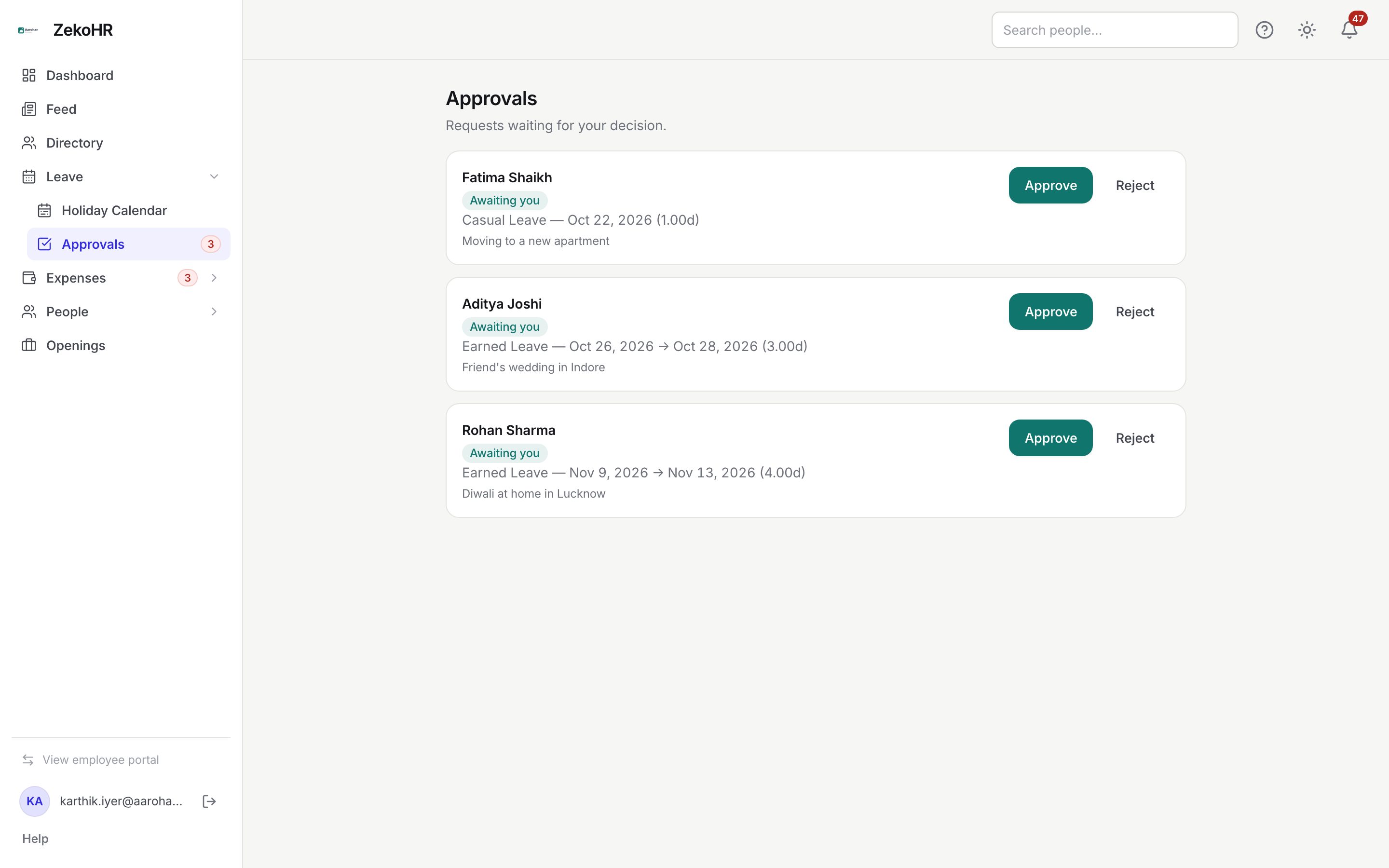
The Approvals page lists every pending leave request you are allowed to decide. For a manager that is your direct reports; for HR Managers and Admins it is every pending request in their scope, including requests from people who have no reporting manager. Decisions are immediate, debit or release the employee's balance, and notify them.
Who can do this: Managers with `leave_requests.approve.direct_reports` on requests assigned to them; HR Managers and Admins with `leave_requests.approve.any` on anything; `leave_requests.approve.own_company` on requests from their own company.
Where to find it
Leave → Approvals. The sidebar badge shows the pending count. URL: `/approvals`. The "leave applied" email links to `/approvals/{id}`, which scrolls to and highlights that request.
Approving a request
- Each card shows the employee's name, a badge, the leave type, dates and day equivalent (for example Earned Leave, Nov 9 to Nov 13, 2026, 4.00d), and the reason they gave.
- Click Approve. A toast confirms "Leave approved" and the card leaves the queue.
Rejecting a request
- Click Reject on the card. A Reason for rejection field appears under it.
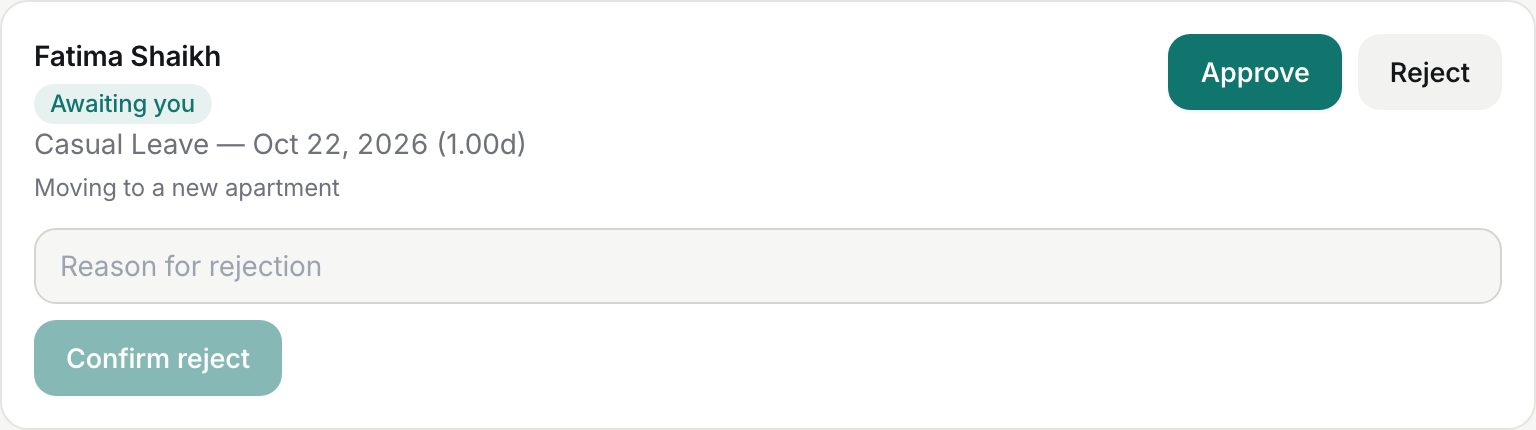
- Type the reason (required, up to 500 characters) and click Confirm reject. The employee sees this text on their request.
If a decision fails you get "Could not record that decision" with the reason, typically because the request was decided elsewhere or you are not its approver.
Badges on the cards
| Badge | Meaning |
|---|---|
| Awaiting you | You are the assigned approver (the employee's reporting manager at the time they applied). |
| Awaiting: {name} | Shown to HR and Admins when another manager is the assigned approver; you can still decide. |
| Unassigned (no reporting manager) | The employee has no manager; only HR or an Admin can decide. |
Cards are ordered by start date, soonest first. Your own requests never appear in your queue.
What happens next
| Decision | Balance | Employee is told | Audit |
|---|---|---|---|
| Approve | The day equivalent is debited from the leave year containing the start date, or comp-off credits are consumed oldest first. | "Leave approved" in-app and by email, with your name and any comment. | An audit entry with employee, type and days. |
| Reject | Nothing debited; the hold on their Available figure is released. | "Leave rejected" with your reason. | An audit entry with the reason. |
Approved leave appears on the team schedule, in Who's on leave and on the Employees list as "On leave". The employee can still cancel approved leave before it starts, which refunds it.
Rules and limits
- Only pending requests can be decided; otherwise you see "Request is no longer pending."
- The assigned approver is snapshotted when the employee applies. If reporting lines change later, the old manager keeps the request; HR can decide it instead.
- Balance was checked when the employee applied, not again at approval. If several pending requests together exceed the balance, approving all of them can push it negative.
- Attachments: the queue shows the request but not the file, and no screen in ZekoHR opens it. Ask the employee for the document directly.
- There is no approve comment field in the queue; approvals carry no comment.
- You cannot override a rejection or cancel leave; those are HR actions.
- This module must be enabled on your plan; Admins can check Settings → Billing.
Troubleshooting
The queue is empty but an employee says they applied. They may not report to you; check their profile's reporting manager. HR can see every request in Leave Records.
The email link says the request is no longer waiting for approval. Someone else, usually HR, already decided it.
Approve returns an error. The request belongs to a different approver and you lack `approve.any`, or it was cancelled.
I approved by mistake. Ask HR to use HR override → Override reject, which refunds the days.