Bulk import
Bulk import creates many employee records from one CSV file. It runs in two phases: Validate (dry-run) checks every row and reports problems without writing anything, then Commit creates the accepted rows and sends their invitations. Rows that fail validation are skipped on commit, so one bad row does not block the file.
Who can do this: HR Managers and Admins with `employees.bulk_import`. Importing Contractors additionally needs `contractors.manage` and the Contractors module on your plan.
Where to find it
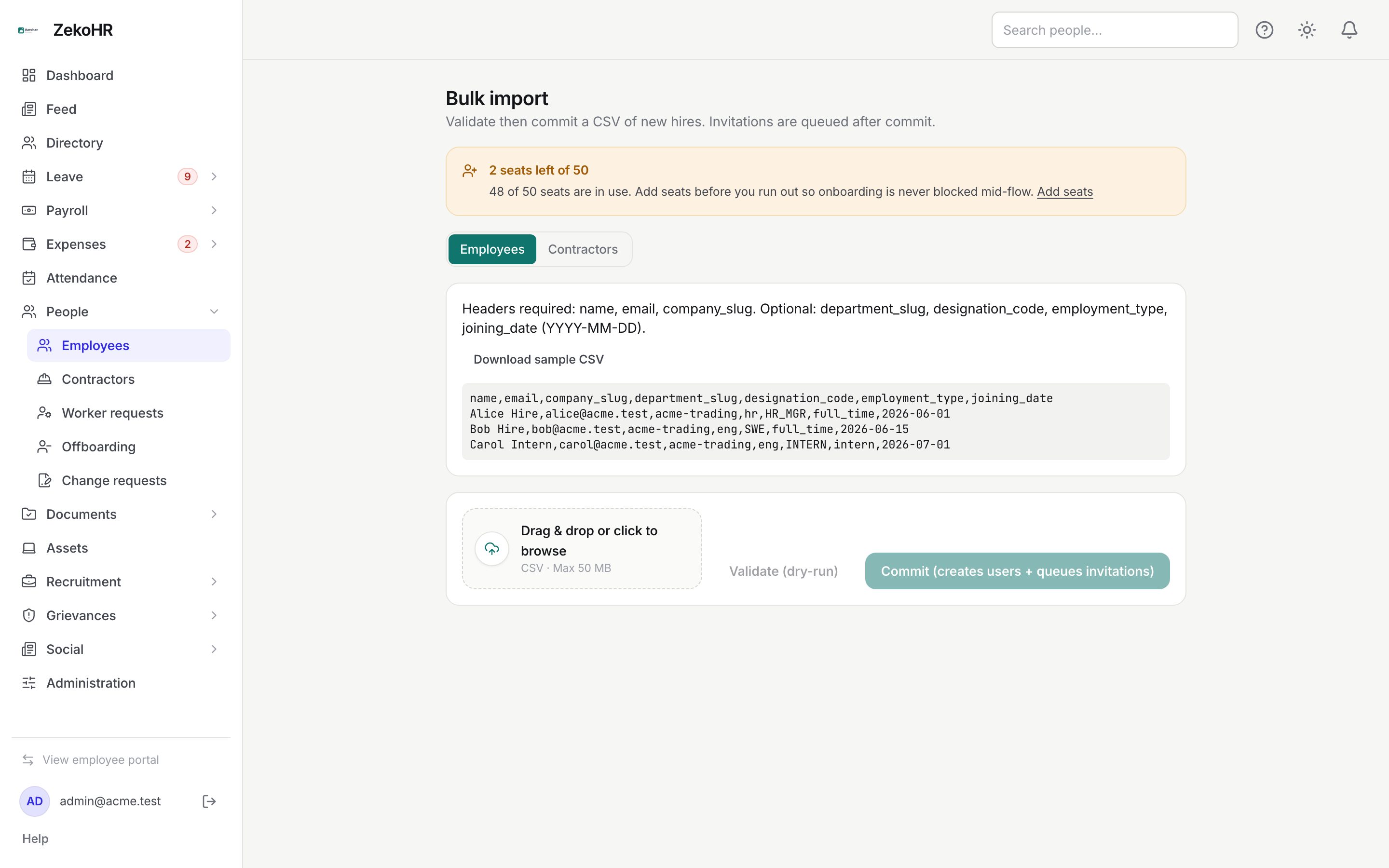
People → Employees → Bulk import in the admin view. URL path: `/employees/bulk-import`.
Preparing the CSV
The first row must be a header row. Header names are matched case-insensitively. Blank cells are treated as "not provided".
| Column | Required | What the importer does with it |
|---|---|---|
| `name` | Yes | Display name, max 255 |
| `email` | Yes | Login email, must be unique in your organisation and not repeated in the file |
| `company_slug` | Yes | The company's slug as shown under Settings → Companies (for example `acme-inc`) |
| `department_code` | No | Matched against the department Code inside that company (for example `ENG`); an unknown department code leaves the department blank |
| `designation_code` | No | Matched against the designation Code (for example `SWE`) |
| `employment_type` | No | One of `full_time`, `part_time`, `contractor`, `intern` |
| `joining_date` | No | `YYYY-MM-DD` only |
| `reporting_manager_email` | Only when the company makes a manager mandatory | Email of an existing employee, or of a row earlier in the same file |
| `employee_code` | No | Max 40, unique in the organisation and in the file; blank means auto-number when the company has it on |
Click Download sample CSV for a starter file. Name the department column `department_code` in your file, even where the sample or the on-screen hint shows a different header, because that is the only header the import fills departments from. Add `reporting_manager_email` and `employee_code` columns yourself when you need them; the sample does not include them.
Running an import
- If you can import contractors, choose Employees or Contractors in the switch. The contractor format is different (first name, last name, rates, engagement) and is covered in Adding contractors and agencies.
- Drag the file onto Drag & drop or click to browse, or click to pick it. Only `.csv` and `.txt` files are accepted, up to 50 MB.
- Click Validate (dry-run). The report lists every row as OK or FAIL with the reasons, for example "The email has already been taken" or "This company requires a reporting manager for every employee".
- Fix the file if needed, drop it again and validate again. Choosing a new file resets the report.
- When you are happy, click Commit (creates users + queues invitations). It is enabled only after a successful validation of the current file. The report now shows created user #ID on each OK row.
The summary line reads, for example, 12 rows · 11 OK · 1 failed (committed).
What happens next
- Each created person gets status Active, the Employee role, and a "Joined" timeline event dated today.
- Invitations are sent after the whole file is processed, one email per created user, each with a 7-day magic link. Invitation status moves to Invite sent.
- Departments and designations are resolved by their codes, and managers by email, at commit time.
- No onboarding checklist is assigned by the importer. Assign one later from each record's Onboarding tab, or rely on HR assigning the default. Leave balances are also not allocated here; use Bulk leave allocation afterwards.
Rules and limits
- Validation never writes. Commit re-validates every row, so a row that became invalid between the two steps (for example a duplicate email created in the meantime) is skipped.
- The seat limit applies to the whole file. A 100-row CSV against 10 free seats fails at commit once the seats are used up, which is why the seat banner is shown before you upload. Admins add seats under Settings → Billing.
- The import is not restricted by HR scope at the company level in the same way as the list; it accepts any company slug in your organisation. Use it with care in multi-company setups.
- A manager named by `reporting_manager_email` must already exist or appear earlier in the file.
Troubleshooting
"Missing required column 'company_slug'". The header row is missing or misspelt. Headers are lower case: `name,email,company_slug`.
Departments came through blank. The header was not `department_code`, the cell held a name rather than the department code, or the code belongs to a different company.
Commit is greyed out. Validate the current file first. Picking a new file clears the previous validation.
"Employee code X appears more than once in this file". Two rows share a code. Remove one, or leave the column blank to auto-number.
Some people did not get an email. Check Administration → Settings → Email log, then click Resend on their row in People → Employees.