Employee profile tabs
The employee record is the single page HR works from for one person. The left rail shows who they are; the tabs on the right cover their profile, timeline, leave, pay, documents, requests, onboarding, offboarding and audit activity.
Who can do this: HR Managers and Admins with `employees.view.*` to open a record and `employees.update.any` or `employees.update.assigned_companies` to edit. Individual tabs need their own module permission (payroll, attendance, assets, expenses, letters, `change_requests.review`), and a tab you cannot read is hidden rather than shown empty.
Where to find it
People → Employees, then click a row. URL path: `/employees/{id}`, with `?tab=` naming the open tab so links and refreshes keep their place.
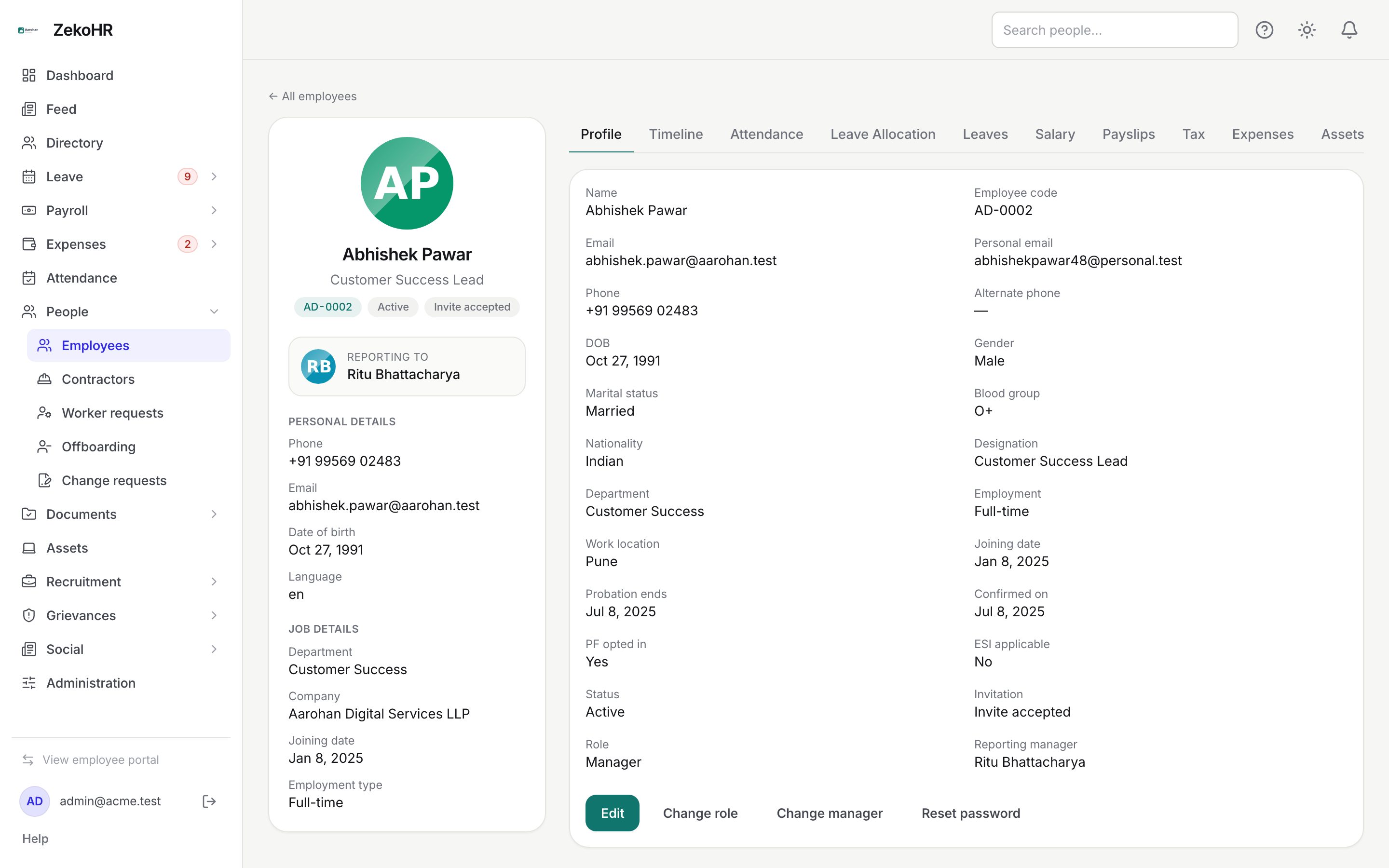
The identity rail
Photo, name, designation, employee code, reporting manager, then three badges: Contractor when applicable, the employee status (Active, On leave, Inactive, Terminating, Offboarded) and the invitation status (Not invited yet, Invite sent, Invite opened, Invite accepted). Below sit phone, email, date of birth, language, department, company, joining date and employment type.
The tabs
| Tab | What it shows |
|---|---|
| Profile | Every stored field plus the action buttons (below) |
| Timeline | Joining, moves, manager changes, status changes and anniversaries. See Employee timeline |
| Attendance | Their attendance records, for attendance viewers |
| Leave Allocation | Balances per leave type, allocation and adjustment, plus leave visibility |
| Leaves | Their leave requests, apply on behalf. See Leave records and apply on behalf |
| Salary, Payslips, Tax | Salary assignment, published payslips and tax declaration, for payroll viewers |
| Expenses | Claims and advances |
| Assets | Items issued to them |
| Documents | Uploaded documents and verification |
| Letters | Letters generated for them |
| Requests | Change requests they filed, with inline approve and reject. See Reviewing change requests |
| Onboarding | Their onboarding checklist, assign a template, verify items. See Employee onboarding checklists |
| Offboarding | Initiate offboarding for this person. See Offboarding |
| Activity | Audit log entries that mention this person, newest first (needs the audit permission) |
Profile actions
- Edit opens the full form: Name, Phone, Company, Department (of that company), Designation, Employment, Joining date, Status (Active, On leave, Inactive, Offboarded) and every additional field: date of birth (before today), gender, marital status, blood group, nationality (max 60), personal email, alternate phone (max 32), employee code (max 40, unique), work location (max 120), probation end and confirmation date (on or after joining date), PF opted in and ESI applicable (Not set, Yes, No). Click Save changes.
- Change role opens the role picker. See Changing an employee's role. It is hidden on your own record and for Contractors.
- Set manager or Change manager opens a people picker with an optional Reason (max 512). Pick one person; No manager clears it unless the company makes a manager mandatory. Leave requests go to this person.
- Reset password offers Generate a temporary password (shown once, with Copy) or Set a specific password (minimum 8 characters). Either way all of the person's existing sessions are revoked.
- Reset 2FA appears only for Admins when the person has two-factor authentication set up, and never on your own record. Confirm who is asking first: their authenticator or email-code setup, recovery codes and trusted devices stop working immediately, they are emailed, and the reset is audited. See Two-factor authentication.
- Send invitation or Resend invitation shows until the invitation is accepted.
What happens next
- Saving Edit writes an employee.updated audit entry with before and after values. A change of designation, department or status also writes a timeline event.
- A manager change writes employee.manager_changed, a manager history row and a "Started reporting to" timeline event.
- Password and 2FA resets are audited; the 2FA reset also emails the person.
Rules and limits
- HR Managers can only open and edit records in companies assigned to them under Administration → Settings → HR scope; a record outside scope returns "Could not load this employee".
- A company with Reporting manager is mandatory lets you change the manager but not remove it.
- Setting Status to Offboarded here does not run the offboarding checklist or lock the account; use the Offboarding tab for a proper exit.
- Name and email are not changeable by the employee; email is not editable from this form either.
- Statutory flags do not compute PF or ESI; payroll uses manual components.
Troubleshooting
The Salary or Payslips tab is missing. You lack payroll view rights. Admins grant them under Roles & permissions.
Activity says it requires the audit permission. Only HR Managers and Admins can read the audit log by default.
I cannot remove the manager. The company requires one. Change it instead, or switch the rule off under Settings → Companies.
Reset 2FA is not showing. Either the person has no 2FA, you are on your own record, or you are not an Admin.
Probation end date is rejected. It must be on or after the joining date; set the joining date first.