Signing in and choosing a workspace
ZekoHR has two front doors. The universal sign-in at `app.zekohr.com` works for any organisation and lets you choose a workspace if your email belongs to more than one. Your organisation's own address, `{org}.zekohr.com` or a custom domain, signs you straight into that workspace. Both use the same work email and password.
Who can do this: Anyone HR has invited. Signing in needs no permission; it is the account itself that is checked.
Where to find it
`https://app.zekohr.com` (universal), or your organisation's address at `/login`. Related pages: `/accept-invitation`, `/forgot-password` and `/reset-password`.
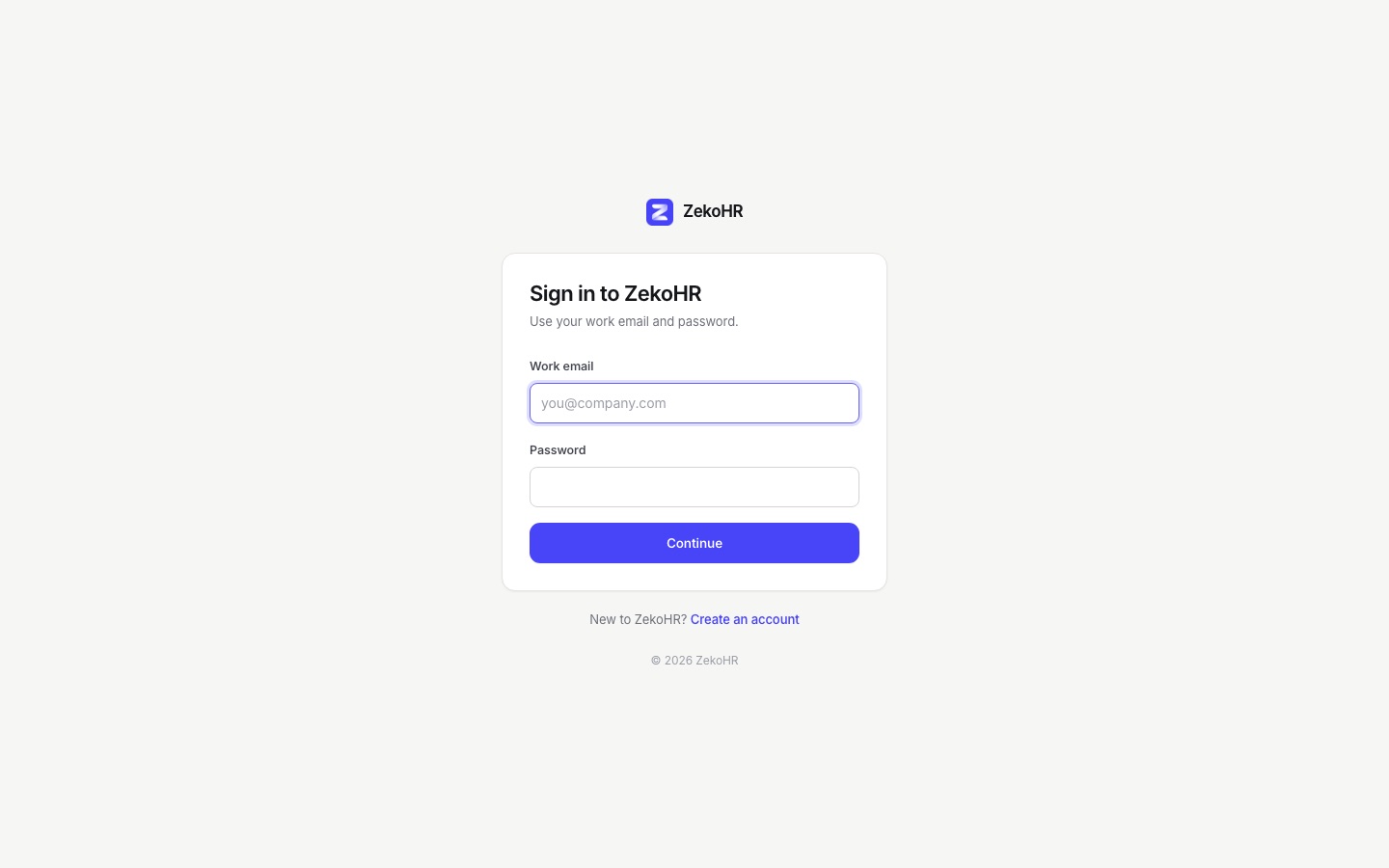
Signing in at app.zekohr.com
- Enter your Work email and Password and press Continue.
- ZekoHR lists every workspace that matches. Each row shows the organisation name and its `{org}.zekohr.com` address. Pick one. If only one matches you still see this step.
- If the workspace requires a code, the Two-factor authentication or Check your email step appears. Enter the 6-digit code (or a recovery code) and press Verify & sign in. Tick Trust this device for 30 days to skip the code next time, where allowed.
- You stay on `app.zekohr.com` and the portal loads for the chosen workspace only.
Use a different email takes you back to step one. Back to workspaces returns from the code step. New to ZekoHR? Create an account starts a brand new organisation, not a user account.
Signing in at your organisation's address
The card reads Sign in with Email, Password, a Sign in button and a Forgot your password? link. There is no workspace step because the address names the workspace. On a white-label domain the ZekoHR name and the Create an account link are hidden.
Accepting an invitation
HR's email links to `/accept-invitation`, titled Welcome aboard.
- Enter a Password and repeat it in Confirm password. Minimum 8 characters, both must match.
- Press Set password and sign in. You are signed in immediately.
"This invitation link is invalid or has expired" means HR must resend it from your record. Already set up? Sign in goes to the normal login.
Forgot your password
- On the sign-in page press Forgot your password?.
- Enter your Email and press Send reset link. The page always answers "If an account exists for that email, a reset link has been sent", so nobody can use it to probe for accounts.
- Follow the emailed link to Choose a new password. Enter New password (at least 8 characters) and Confirm password, then press Reset password.
- Sign in again. Every session on every device is signed out by a reset.
An expired link shows "This reset link is invalid or has expired. Request a new one."
Messages you may see
| Message | Meaning | What to do |
|---|---|---|
| Invalid credentials. Please try again. | Wrong email or password, or the account is locked for a few minutes. | Check the address, use Forgot your password? if needed. |
| Too many attempts. Please try again in a few minutes. | Five failed attempts from your email and network address inside 15 minutes. | Wait 15 minutes. A shared office network counts together. |
| No workspace matches that email and password. | The universal login found no organisation for that pair. | Check which email HR invited; try your organisation's own address. |
| That sign-in expired. Choose the workspace again. | The two-factor step stayed open too long (5 minutes for an app code, 10 for an emailed code). | Pick the workspace again for a fresh code. |
Signing out
Press the Sign out icon next to your email at the bottom of the sidebar. Only this device is signed out. Changing or resetting your password signs out your other devices as well.
Rules and limits
- The same address may exist in several workspaces; that is why the universal login shows the chooser.
- Failed attempts are counted per email and IP address, with a lockout after 5 failures for 15 minutes.
- A trusted device is a token stored in this browser for 30 days. Clearing site data forgets it; Forget them on the Security page revokes every device.
Troubleshooting
I never receive the reset email. Check spam, and confirm with HR that the address on your record is the one you typed.
My organisation's address shows "This workspace does not exist". The subdomain was typed wrongly or the organisation changed it. Use `app.zekohr.com` and pick from the list.
The chooser lists a workspace I no longer work for. Your account there still exists. Ask that organisation's HR to offboard it.
Every page says I must set up two-factor. Your organisation requires it and the grace period has ended. Open Settings → Security and enrol; everything unlocks once you confirm a code.